Workflow Templates
Ready-to-use n8n workflows built by automation experts. Download, import, and start automating.
Ready-to-use n8n workflows built by automation experts. Download, import, and start automating.
Ready-to-use n8n workflows built by automation experts. Download, import, and start automating.
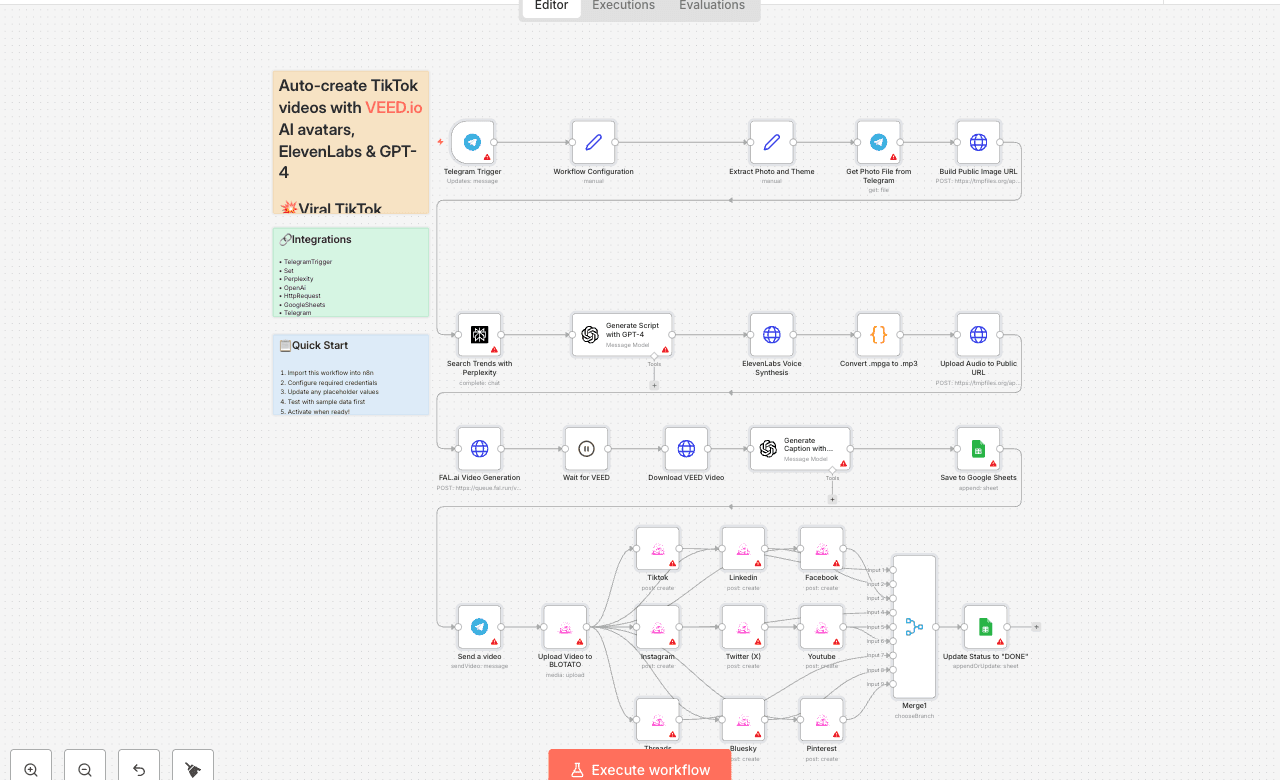
💥 Viral TikTok Video Machine: Auto-Create Videos with Your AI Avatar 🎯 Who is this for? This workflow is for content creators, marketers, and agencies who want to use Veed.io’s AI avatar technology to produce short, engaging TikTok videos automatically. It’s ideal for creators who want to appear on camera without recording themselves, and for teams managing multiple brands who need to generate videos at scale. ⚙️ What problem this workflow solves Manually creating videos for TikTok can take hours — finding trends, writing scripts, recording, and editing. By combining Veed.io, ElevenLabs, and GPT-4, this workflow transforms a simple Telegram input into a ready-to-post TikTok video featuring your AI avatar powered by Veed.io — speaking naturally with your cloned voice. 🚀 What this workflow does This automation links Veed.io’s video-generation API with multiple AI tools: - Analyzes TikTok trends via Perplexity AI - Writes a 10-second viral script using GPT-4 - Generates your voiceover via ElevenLabs - Uses Veed.io (Fabric 1.0 via FAL.ai) to animate your avatar and sync the lips to the voice - Creates an engaging caption + hashtags for TikTok virality - Publishes the video automatically via Blotato TikTok API - Logs all results to Google Sheets for tracking 🧩 Setup 1. Telegram Bot - Create your bot via [@BotFather] - Configure it as the trigger for sending your photo and theme 2. Connect Veed.io - Create an account on [Veed.io] - Get your FAL.ai API key (Veed Fabric 1.0 model) - Use HTTPS image/audio URLs compatible with Veed Fabric 3. Other APIs - Add Perplexity, ElevenLabs, and Blotato TikTok keys - Connect your Google Sheet for logging results 🛠️ How to customize this workflow - Change your Avatar: Upload a new image through Telegram, and Veed.io will generate a new talking version automatically. - Modify the Script Style: Adjust the GPT prompt for tone (educational, funny, storytelling). - Adjust Voice Tone: Tweak ElevenLabs stability and similarity settings. - Expand Platforms: Add Instagram, YouTube Shorts, or X (Twitter) posting nodes. - Track Performance: Customize your Google Sheet to measure your most successful Veed.io-based videos. 🧠 Expected Outcome In just a few seconds after sending your photo and theme, this workflow — powered by Veed.io — creates a fully automated TikTok video featuring your AI avatar with natural lip-sync and voice. The result is a continuous stream of viral short videos, made without cameras, editing, or effort. ✅ Import the JSON file in n8n, add your API keys (including Veed.io via FAL.ai), and start generating viral TikTok videos starring your AI avatar today! 🎥 [Watch This Tutorial] 📄 Documentation: [Notion Guide] Need help customizing? Contact me for consulting and support : [Linkedin] / [Youtube]
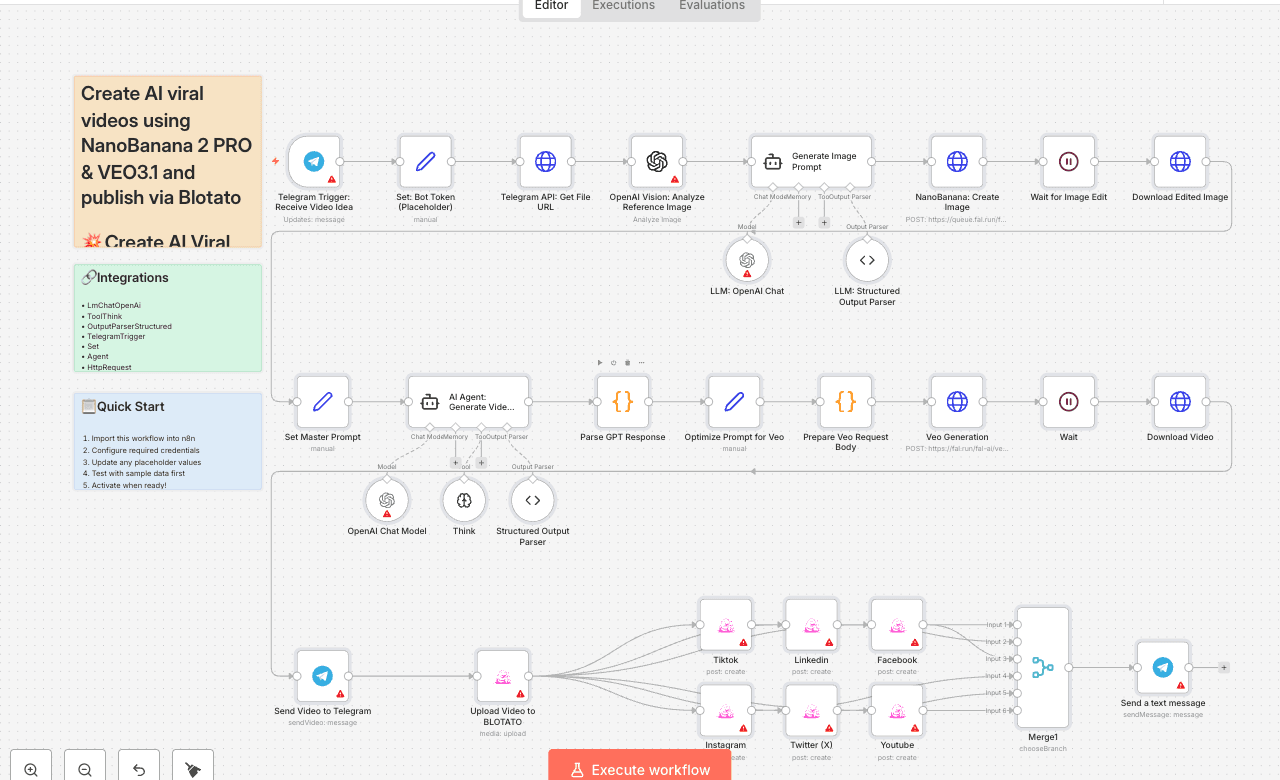
💥 Create AI Viral Videos using NanoBanana 2 PRO & VEO3.1 and Publish via Blotato Who is this for? This template is for content creators, marketers, agencies, and UGC studios who want to turn a simple Telegram message into AI-generated vertical videos, automatically published across multiple social platforms using [Blotato]. What problem is this workflow solving? / Use case Creating short-form video ads usually requires: - Designing visuals - Writing hooks and captions - Generating or editing video - Manually uploading to TikTok, Instagram, YouTube, Facebook, LinkedIn, X, etc. This workflow solves that by automating the full pipeline from image + idea → edited image → AI video → multi-platform post. What this workflow does 1. Create Image with NanoBanana 2 PRO - User sends a photo + caption idea to a Telegram bot. - OpenAI Vision analyzes the reference image. - An LLM builds a UGC-style image prompt. - NanoBanana 2 PRO generates an enhanced, UGC-friendly image. 2. Generate Video with VEO3.1 - An AI Agent structures a detailed Veo prompt (scene, camera, lighting, audio). - Prompt is optimized and sent to VEO3.1 reference-to-video. - The result is a 9:16, ~8s vertical video downloaded back into n8n. 3. Publish with Blotato - Video is uploaded to Blotato. - Posts are created for TikTok, Instagram, YouTube, Facebook, LinkedIn, and X using the AI-generated caption, title, and hashtags. - A final “Published” message is sent on Telegram. Setup 1. Create and configure: - Telegram bot (token in Set: Bot Token (Placeholder) node). - OpenAI credentials. - Fal.ai API key (for NanoBanana 2 PRO + VEO3.1). - [Blotato] account + API credentials and connected social accounts. 2. Import the template into n8n and update all credential references. 3. Test by sending a product image + short idea to your Telegram bot. How to customize this workflow to your needs - Edit the UGC image prompt system message to change visual style (more cinematic, minimal, etc.). - Adjust the VEO prompt optimizer to tweak duration, mood, or camera movement. - Enable/disable specific Blotato platforms depending on where you want to publish. - Modify the caption/hashtag generation logic to match your brand tone, language, or niche. 👋 Need help or want to customize this? 📩 Contact: [LinkedIn] 📺 YouTube: [@DRFIRASS] 🚀 Workshops: [Mes Ateliers n8n] 📄 Documentation: [Notion Guide] Need help customizing? Contact me for consulting and support : [Linkedin] / [Youtube] / [🚀 Mes Ateliers n8n ]
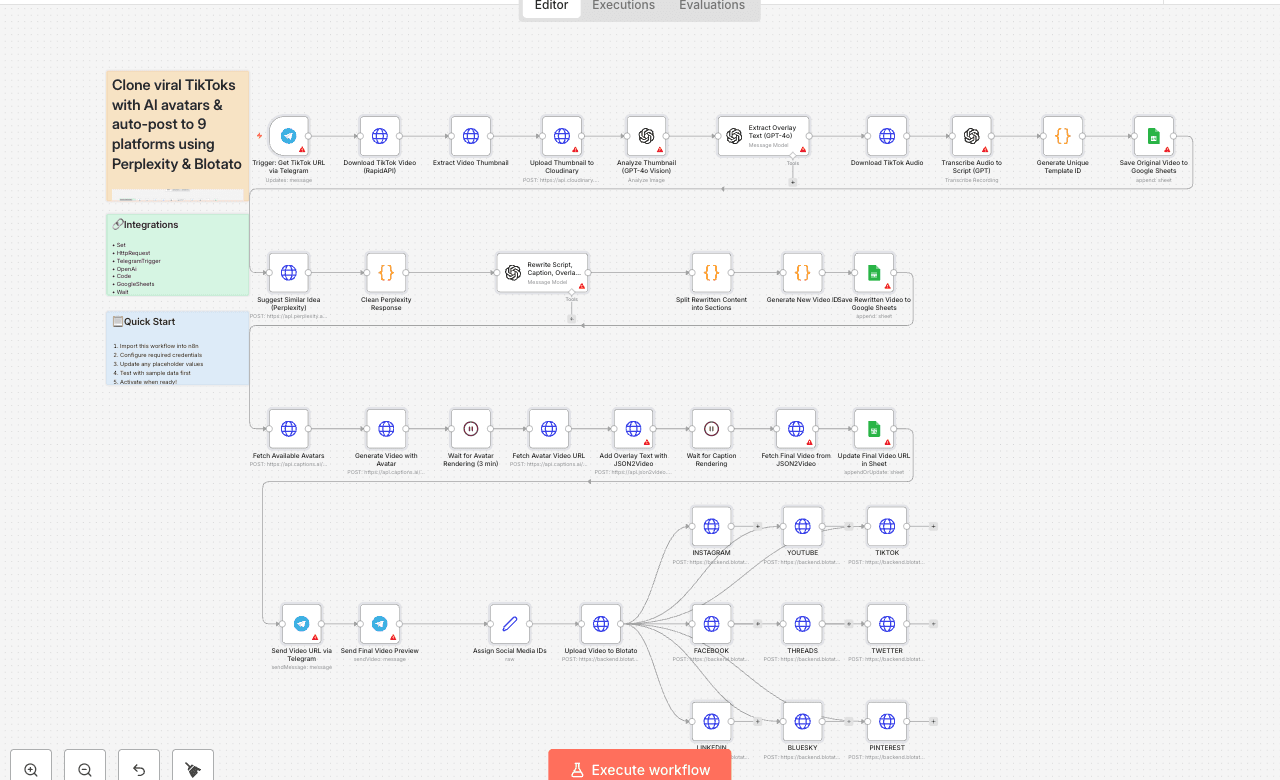
Clone a viral TikTok with AI and auto-post it to 9 platforms using Perplexity & Blotato Who is this for? This workflow is perfect for: - Content creators looking to repurpose viral content - Social media managers who want to scale short-form content across multiple platforms - Entrepreneurs and marketers aiming to save time and boost visibility with AI-powered automation What problem is this workflow solving? Reproducing viral video formats with your own branding and pushing them to multiple platforms is time-consuming and hard to scale. This workflow solves that by: - Cloning a viral TikTok video’s structure - Generating a new version with your avatar - Rewriting the script, caption, and overlay text - Auto-posting it to 9 social media platforms — without manual uploads What this workflow does From a simple Telegram message with a TikTok link, the workflow: 1. Downloads a TikTok video and extracts its thumbnail, audio, and caption 2. Transcribes the audio and saves original text into Google Sheets 3. Uses Perplexity AI to suggest a new content idea in the same niche 4. Rewrites the script, caption, and overlay using GPT-4o 5. Generates a new video with your avatar using Captions.ai 6. Adds subtitles and overlay text with JSON2Video 7. Saves metadata to Google Sheets for tracking 8. Sends the final video to Telegram for preview 9. Auto-publishes the video to Instagram, YouTube, TikTok, Facebook, LinkedIn, Threads, X (Twitter), Pinterest, and Bluesky via Blotato Setup 1. Connect your Telegram bot to the trigger node. 2. Add your OpenAI, Perplexity, Cloudinary, Captions.ai, and Blotato API keys. 3. Make sure your Google Sheet is ready with the appropriate columns. 4. Replace the default avatar name in the Captions.ai node with yours. 5. Fill in your social media account IDs in the "Assign Platform IDs" node. 6. Test by sending a TikTok URL to your Telegram bot. How to customize this workflow to your needs - Change avatar output style: adjust resolution, voice, or avatar ID. - Refine script structure: tweak GPT instructions for different tone/format. - Swap Perplexity with ChatGPT or Claude if needed. - Filter by platform: disable any Blotato nodes you don’t need. - Add approval step: insert a Telegram confirmation node before publishing. - Adjust subtitle style or overlay text font in JSON2Video. 📄 Documentation: [Notion Guide] Need help customizing? Contact me for consulting and support : [Linkedin] / Youtube
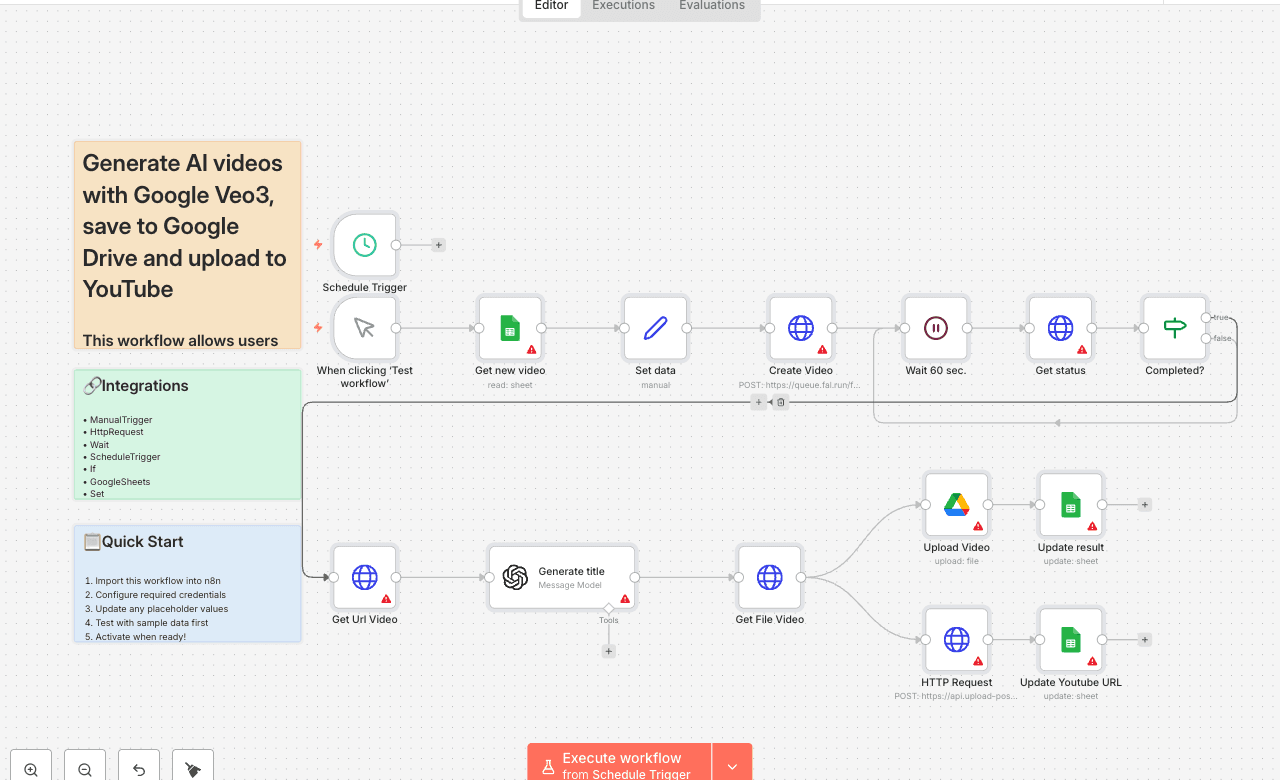
This workflow allows users to generate AI videos using Google Veo3, save them to Google Drive, generate optimized YouTube titles with GPT-4o, and automatically upload them to YouTube with [Upload-Post]. The entire process is triggered from a Google Sheet that acts as the central interface for input and output. IT automates video creation, uploading, and tracking, ensuring seamless integration between Google Sheets, Google Drive, Google Veo3, and YouTube. Benefits of this Workflow 💡 No Code Interface: Trigger and control the video production pipeline from a simple Google Sheet. ⚙️ Full Automation: Once set up, the entire video generation and publishing process runs hands-free. 🧠 AI-Powered Creativity: Generates engaging YouTube titles using GPT-4o. Leverages advanced generative video AI from Google Veo3. 📁 Cloud Storage & Backup: Stores all generated videos on Google Drive for safekeeping. 📈 YouTube Ready: Automatically uploads to YouTube with correct metadata, saving time and boosting visibility. 🧪 Scalable: Designed to process multiple video prompts by looping through new entries in Google Sheets. * 🔒 API-First: Utilizes secure API-based communication for all services. How It Works 1. Trigger: The workflow can be started manually ("When clicking ‘Test workflow’") or scheduled ("Schedule Trigger") to run at regular intervals (e.g., every 5 minutes). 2. Fetch Data: The "Get new video" node retrieves unfilled video requests from a Google Sheet (rows where the "VIDEO" column is empty). 3. Video Creation: - The "Set data" node formats the prompt and duration from the Google Sheet. - The "Create Video" node sends a request to the Fal.run API (Google Veo3) to generate a video based on the prompt. 4. Status Check: - The "Wait 60 sec." node pauses execution for 60 seconds. - The "Get status" node checks the video generation status. If the status is "COMPLETED," the workflow proceeds; otherwise, it waits again. 5. Video Processing: - The "Get Url Video" node fetches the video URL. - The "Generate title" node uses OpenAI (GPT-4.1) to create an SEO-optimized YouTube title. - The "Get File Video" node downloads the video file. 6. Upload & Update: - The "Upload Video" node saves the video to Google Drive. - The "HTTP Request" node uploads the video to YouTube via the Upload-Post API. - The "Update Youtube URL" and "Update result" nodes update the Google Sheet with the video URL and YouTube link. Set Up Steps 1. Google Sheet Setup: - Create a Google Sheet with columns: PROMPT, DURATION, VIDEO, and YOUTUBE_URL. - Share the Sheet link in the "Get new video" node. 2. API Keys: - Obtain a Fal.run API key (for Veo3) and set it in the "Create Video" node (Header: Authorization: Key YOURAPIKEY). - Get an Upload-Post API key (for YouTube uploads) and configure the "HTTP Request" node (Header: Authorization: Apikey YOUR_API_KEY). 3. YouTube Upload Configuration: - Replace YOUR_USERNAME in the "HTTP Request" node with your Upload-Post profile name. 4. Schedule Trigger: - Configure the "Schedule Trigger" node to run periodically (e.g., every 5 minutes). Need help customizing? Contact me for consulting and support or add me on [Linkedin].
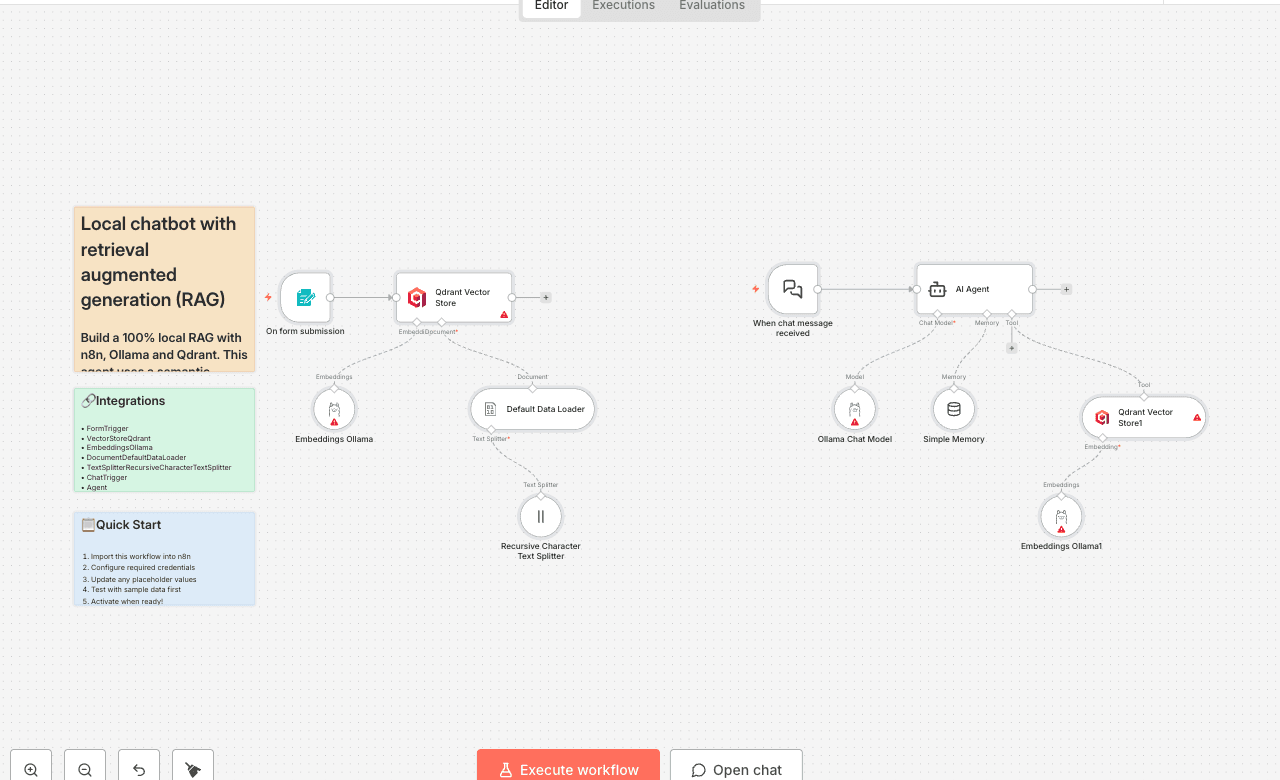
Build a 100% local RAG with n8n, Ollama and Qdrant. This agent uses a semantic database (Qdrant) to answer questions about PDF files. Tutorial [Click here to view the YouTube Tutorial] How it works Build a chatbot that answers based on documents you provide it (Retrieval Augmented Generation). You can upload as many PDF files as you want to the Qdrant database. The chatbot will use its retrieval tool to fetch the chunks and use them to answer questions. Installation 1. Install n8n + Ollama + Qdrant using the [Self-hosted AI starter kit] 2. Make sure to install Llama 3.2 and mxbai-embed-large as embeddings model. How to use it 1. First run the "Data Ingestion" part and upload as many PDF files as you want 2. Run the Chatbot and start asking questions about the documents you uploaded
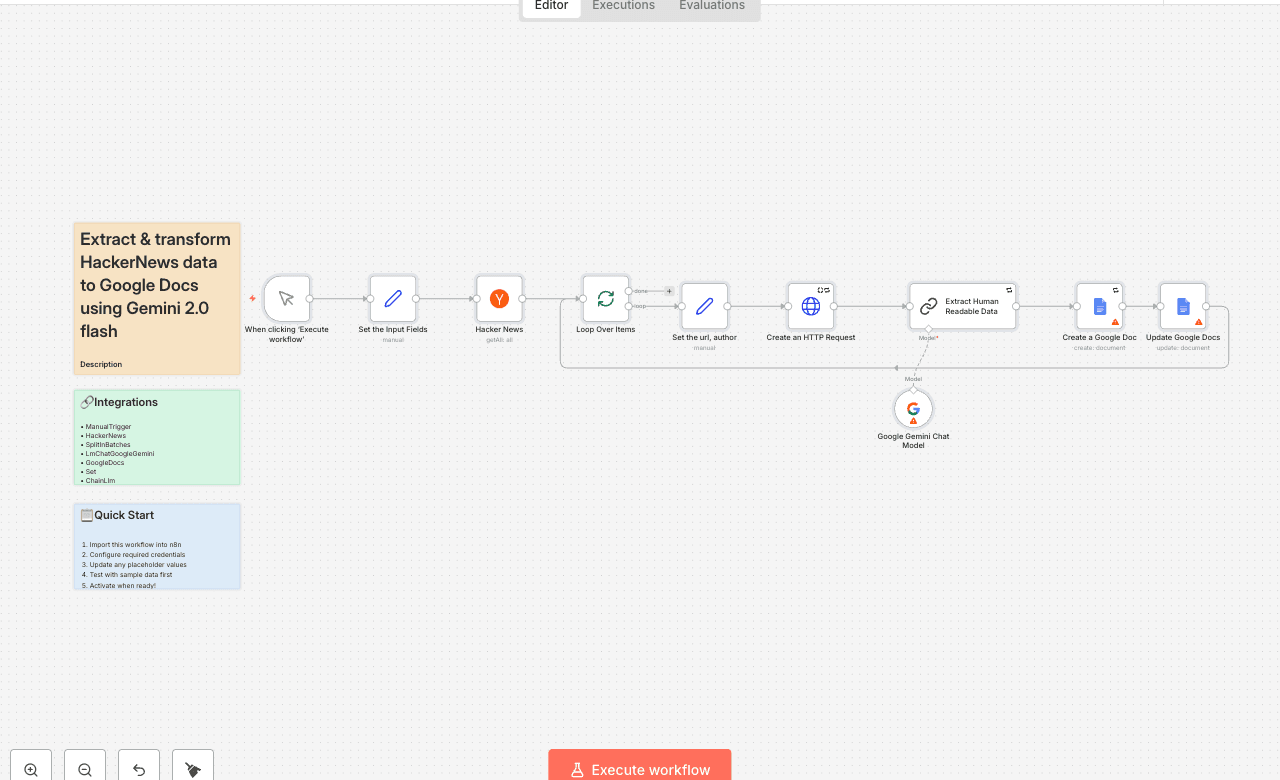
Description This workflow automates the process of scraping the latest discussions from HackerNews, transforming raw threads into human readable content using Google Gemini, and exporting the final content into a well-formatted Google Doc. Overview This n8n workflow is responsible for extracting trending posts from the HackerNews API. It loops through each item, performs HTTP data extraction, utilizes Google Gemini to generate human-readable insights, and then exports the enriched content into Google Docs for distribution, archiving, or content creation. Who this workflow is for - Tech Newsletter Writers: Automate the collection and summarization of trending HackerNews posts for inclusion in weekly or daily newsletters. - Content Creators & Bloggers: Quickly generate structured summaries and insights from HackerNews threads to use as inspiration or supporting content for blog posts, videos, or social media. - Startup Founders & Product Builders: Monitor HackerNews for discussions relevant to your niche or competitors, and keep a pulse on the community’s opinions. - Investors & Analysts: Surface early signals from the tech ecosystem by identifying what’s trending and how the community is reacting. - Researchers & Students: Analyze popular discussions and emerging trends in technology, programming, and startups—enriched with AI-generated insights. - Digital Agencies & Consultants: Offer HackerNews monitoring and insight reports as a value-added service to clients interested in the tech space. Tools Used - n8n: The core automation engine that manages the trigger, transformation, and export. - HackerNews API: Provides access to trending or new HN posts. - Google Gemini: Enriches HackerNews content with structured insights and human-like summaries. - Google Docs: Automatically creates and updates a document with the enriched content, ready for sharing or publishing. How to Install - Import the Workflow: Download the .json file and import it into your n8n instance. - Set Up HackerNews Source: Choose whether to use the HN API (via HTTP Request node) or RSS Feed node. - Configure Gemini API: Add your Google Gemini API key and design the prompt to extract pros/cons, key themes, or insights. - Set Up Google Docs Integration: Connect your Google account and configure the Google Docs node to create/update a document. - Test and Deploy: Run a test job to ensure data flows correctly and outputs are formatted as expected. Use Cases - Tech Newsletter Authors: Generate ready-to-use summaries of trending HackerNews threads. - Startup Founders: Stay informed on key discussions, product launches, and community feedback. - Investors & Analysts: Spot early trends, technical insights, and startup momentum directly from HN. - Researchers: Track community reactions to new technologies or frameworks. - Content Creators: Use the enriched data to spark blog posts, YouTube scripts, or LinkedIn updates. Connect with Me Email: ranjancse@gmail.com LinkedIn: https://www.linkedin.com/in/ranjan-dailata/ Get Bright Data: Bright Data (Supports free workflows with a small commission) #n8n #automation #hackernews #contentcuration #aiwriting #geminiapi #googlegemini #techtrends #newsletterautomation #googleworkspace #rssautomation #nocode #structureddata #webscraping #contentautomation #hninsights #aiworkflow #googleintegration #webmonitoring #hnnews #aiassistant #gdocs #automationtools #gptlike #geminiwriter
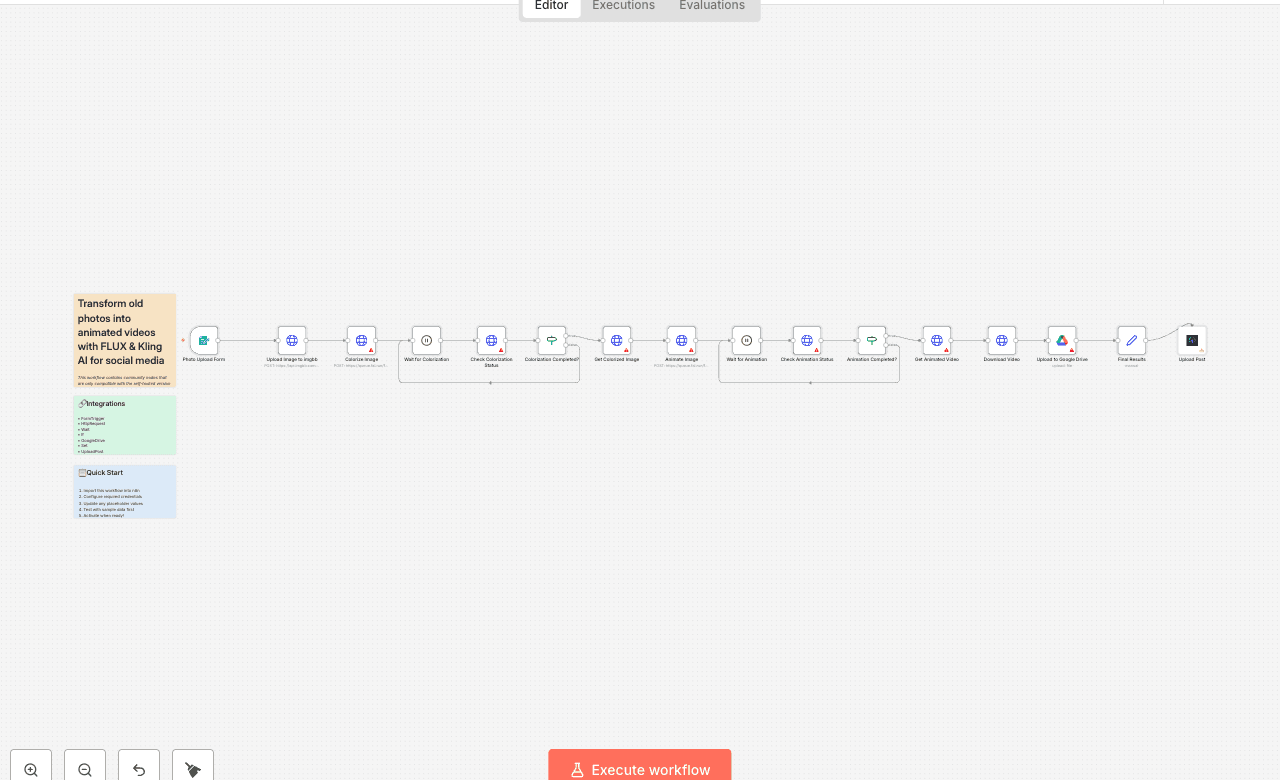
This workflow contains community nodes that are only compatible with the self-hosted version of n8n. Description See the transformation in action! Here's an example of what this workflow can achieve: This automation template is designed for content creators, social media managers, and anyone looking to breathe new life into old family photos and historical images. It transforms any old black and white or sepia photograph into a colorized, animated video using cutting-edge AI technology, then automatically publishes the results across multiple social media platforms including Facebook, Instagram, YouTube, and X (Twitter). The workflow combines powerful AI services to create engaging content from vintage photographs: first enhancing and colorizing the image using FLUX Kontext, then bringing it to life with realistic animations using Kling Video AI, and finally distributing the results across your social media channels automatically. Note: The estimated cost per workflow execution is approximately $0.29 USD, covering the AI processing for both image colorization and video animation. The upload-post node only works for self-hosted n8n instances, but you can use the standard HTTP request node for uploading content on n8n Cloud. Who Is This For? - Content Creators & Social Media Managers: Transform historical content into engaging videos that capture audience attention and drive engagement across platforms. - Family History Enthusiasts: Bring old family photos to life by adding color and motion, creating emotional connections with your audience. - Marketing Professionals: Leverage nostalgic content for brand storytelling, using vintage aesthetics to create compelling social media campaigns. - Digital Artists & Photo Restorers: Streamline the process of enhancing and sharing restored vintage photographs with automated AI enhancement. - Social Media Influencers: Create unique, eye-catching content from historical images that stands out in crowded social feeds. What Problem Does This Workflow Solve? Creating engaging social media content from old photos typically requires multiple manual steps: photo restoration, colorization, animation, and then individual posting to each platform. This workflow addresses these challenges by: - Automating Photo Enhancement: Uses advanced AI (FLUX Kontext) to automatically colorize and enhance old photographs, removing artifacts and improving quality. - Creating Dynamic Content: Transforms static images into animated videos using Kling Video AI, making historical photos come alive with natural movements. - Streamlining Multi-Platform Publishing: Automatically distributes the final animated videos across Facebook, Instagram, YouTube, and X with a single workflow execution. - Saving Time & Effort: Eliminates the need for manual photo editing, video creation, and individual social media posting. How It Works 1. Photo Upload: Users submit old photographs through a simple web form, with optional custom animation descriptions. 2. Image Enhancement: The workflow uploads the photo to imgbb, then sends it to FLUX Kontext AI for colorization and quality enhancement. 3. Animation Creation: The colorized image is processed AI to create a 5-second animated video with natural movements. 4. Cloud Storage: The final video is automatically saved to Google Drive for backup and easy access. 5. Multi-Platform Publishing: The animated video is simultaneously posted to Facebook, Instagram, YouTube, and X using the upload-post service. Setup 1. FAL.AI API Key: Sign up at fal.ai and add your API key to the HTTP Request nodes for both FLUX Kontext and Kling Video AI services. 2. ImgBB API Token: Create a free account at api.imgbb.com to get an API token for image hosting, then update the "Upload Image to imgbb" node. 3. Google Drive Connection: Connect your Google Drive account to enable automatic video storage and backup. 4. Upload-Post Service: Create an account at upload-post.com to get your API credentials for multi-platform social media posting. - Important: The upload-post node currently only works with self-hosted n8n instances. For n8n Cloud users, replace the upload-post node with standard HTTP request nodes to publish to each social media platform individually. 5. Form Customization: (Optional) Modify the form fields in the "Photo Upload Form" node to collect additional information or customize the user experience. Requirements - Accounts: n8n, FAL.AI, ImgBB, Google Drive, upload-post.com - API Keys & Credentials: FAL.AI API Key, ImgBB API Token, Google Drive OAuth2, Upload-post.com API Token & User ID - File Types: Supports JPG, PNG image formats for photo uploads - Cost: Approximately $0.29 USD per workflow execution for AI processing Transform your old photographs into viral social media content with this powerful AI-driven workflow that handles everything from restoration to distribution automatically.
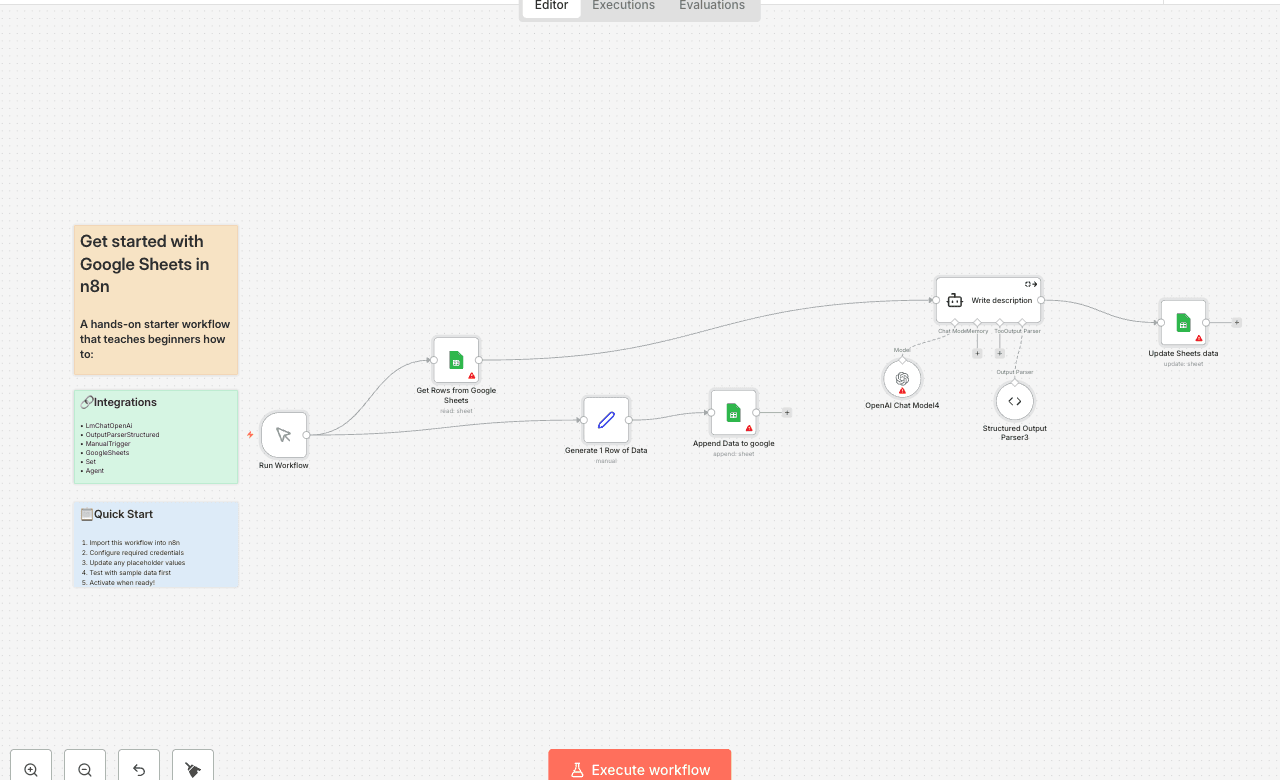
A hands-on starter workflow that teaches beginners how to: Pull rows from a Google Sheet Append a new record that mimics a form submission Generate AI-powered text with GPT-4o based on a “Topic” column Write the AI output back into the correct row using an update operation Along the way you’ll learn the three essential Google Sheets operations in n8n (read → append → update), see how to pass sheet data into an OpenAI node, and document each step with sticky-note instructions—perfect for anyone taking their first steps in no-code automation. 0️⃣ Prerequisites - Google Sheets 1. Open Google Cloud Console → create / select a project. 2. Enable Google Sheets API under APIs & Services. 3. Create an OAuth Desktop credential and connect it in n8n. 4. Share the spreadsheet with the Google account linked to the credential. - OpenAI 1. Create a secret key at <https://platform.openai.com/account/api-keys>. 2. In n8n → Credentials → New → choose OpenAI API and paste the key. - Sample sheet to copy (make your own copy and use its link) <https://docs.google.com/spreadsheets/d/15i9WIYpqc5lNd5T4VyM0RRptFPdi9doCbEEDn8QglN4/edit?usp=sharing> 1️⃣ Trigger Manual Trigger – lets you run on demand while learning. (Swap for a Schedule or Webhook once you automate.) 2️⃣ Read existing rows - Node: Get Rows from Google Sheets - Reads every row from Sheet1 of your copied file. 3️⃣ Generate a demo row - Node: Generate 1 Row of Data (Set node) - Pretends a form was submitted: - Name, Email, Topic, Submitted = "Yes" 4️⃣ Append the new row - Node: Append Data to Google - Operation append → writes to the first empty line. 5️⃣ Create a description with GPT-4o 1. OpenAI Chat Model – uses your OpenAI credential. 2. Write description (AI Agent) – prompt = the Topic. 3. Structured Output Parser – forces JSON like: { "description": "…" }. 6️⃣ Update that same row - Node: Update Sheets data - Operation update. - Matches on column Email to update the correct line. - Writes the new Description cell returned by GPT-4o. 7️⃣ Why this matters - Demonstrates the three core Google Sheets operations: read → append → update. - Shows how to enrich sheet data with an AI step and push the result right back. - Sticky Notes provide inline docs so anyone opening the workflow understands the flow instantly. 👤 Need help? Robert Breen – Automation Consultant ✉️ robert.j.breen@gmail.com 🔗 <https://www.linkedin.com/in/robert-breen-29429625/>
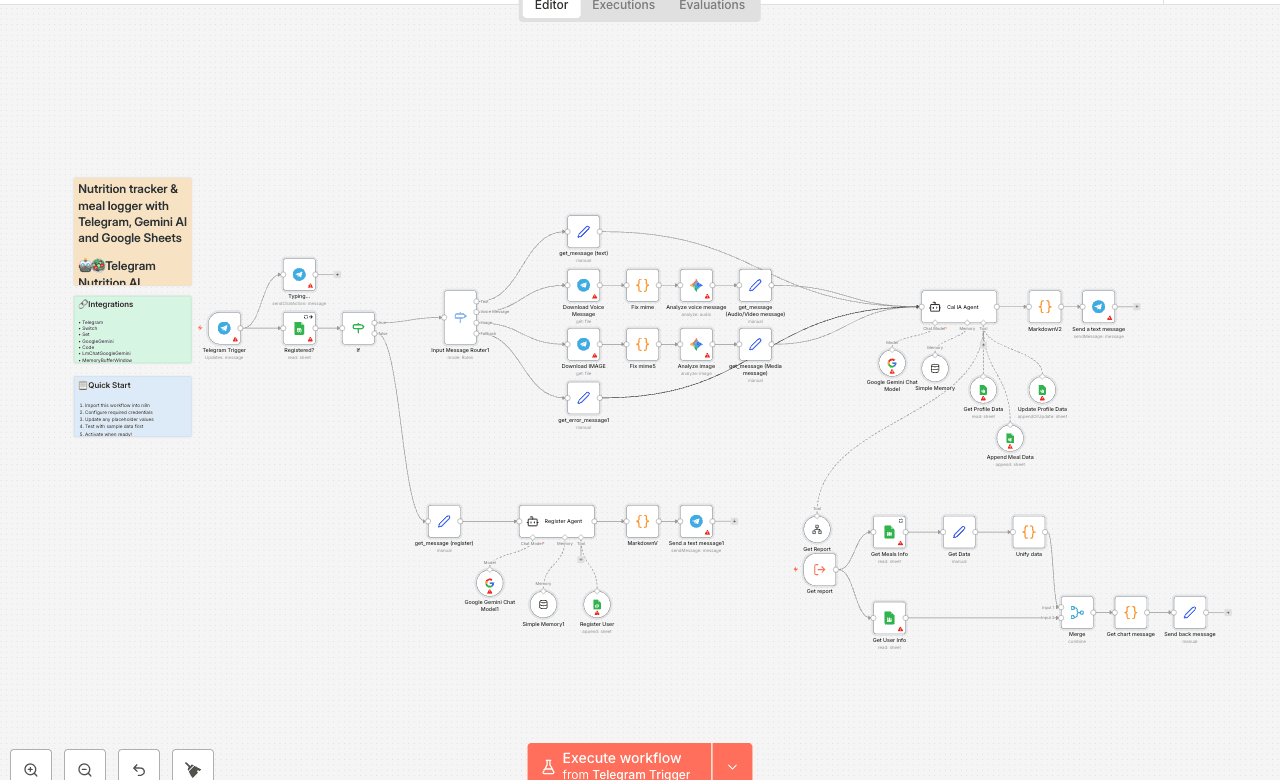
🤖🥗 Telegram Nutrition AI Assistant (Alternative to Cal AI App) > AI-powered nutrition assistant for Telegram — log meals, set goals, and get personalized daily reports with Google Sheets integration. 📋 Description This n8n template creates a Telegram-based Nutrition AI Assistant 🥑🔥 designed as an open-source alternative to the Cal AI mobile app. It allows users to interact with an AI agent via text, voice, or images to track meals, calculate macros, and monitor nutrition goals directly from Telegram. The system integrates Google Sheets as the database, handling both user profiles and meal logs, while leveraging Gemini AI for natural conversation, food recognition, and daily progress reports. ✨ Key Features 💬 Multi-input support: Text, voice messages (transcribed), and food images (AI analysis). 📊 Macro calculation: Automatic estimation of calories, proteins, carbs, and fats. 📝 User-friendly registration: Simple onboarding without storing personal health data (no weight/height required). 🎯 Goal tracking: Users can set and update calorie and protein targets. 📈 Daily reports: Personalized progress messages with visual progress bars. 🗂 Google Sheets integration: Profile table for user targets. Meals table for food logs. 🔄 Advanced n8n nodes: Includes use of Merge, Subworkflow, and Code nodes for data processing and report generation. 💡 Acknowledgment Inspired by the Cal AI concept 💡 — this template demonstrates how to reproduce its main functionality with n8n, Telegram, and AI agents as a flexible, open-source automation workflow. 🏷 Tags telegram ai-assistant nutrition meal-tracking google-sheets food-logging voice-transcription image-analysis daily-reports n8n-template merge-node subworkflow-node code-node telegram-trigger google-gemini 💼 Use Case Use this template if you want to: 🥗 Log meals using text, images, or voice messages. 📊 Track nutrition goals (calories, proteins) with daily progress updates. 🤖 Provide a chat-based nutrition assistant without building a full app. 🗂 Store structured nutrition data in Google Sheets for easy access and analysis. 💬 Example User Interactions 📸 User sends a photo of a meal → AI analyzes the food and logs calories/macros. 🎤 User sends a voice message → AI transcribes and logs the meal. ⌨️ User types “report” → AI returns a daily nutrition summary with progress bars. 🥅 User says “update my protein goal” → AI updates profile in Google Sheets. 🔑 Required Credentials Telegram Bot API (Bot Token) Google Sheets API credentials AI Provider API (Google Gemini or compatible LLM) ⚙️ Setup Instructions 1. 🗂 Create two Google Sheets tables: Profile: User_ID, Name, Calories_target, Protein_target Meals: User_ID, Date, Meal_description, Calories, Proteins, Carbs, Fats 2. 🔌 Configure the Telegram Trigger with your bot token. 3. 🤖 Connect your AI provider credentials (Gemini recommended). 4. 📑 Connect Google Sheets with your credentials. 5. ▶️ Deploy the workflow in n8n. 6. 🎯 Start interacting with your nutrition assistant via Telegram. 📌 Extra Notes 🟩 Green section: Handles Telegram trigger and user check. 🟥 Red section: Registers new users and sets goals. 🟦 Blue section: Processes text, voice, and images. 🟨 Yellow section: Generates nutrition reports. 🟪 Purple section: Main AI agent controlling tools and logic. 💡 Need Assistance? If you’d like help customizing or extending this workflow, feel free to reach out: 📧 Email: johnsilva11031@gmail.com 🔗 LinkedIn: [John Alejandro Silva Rodríguez]
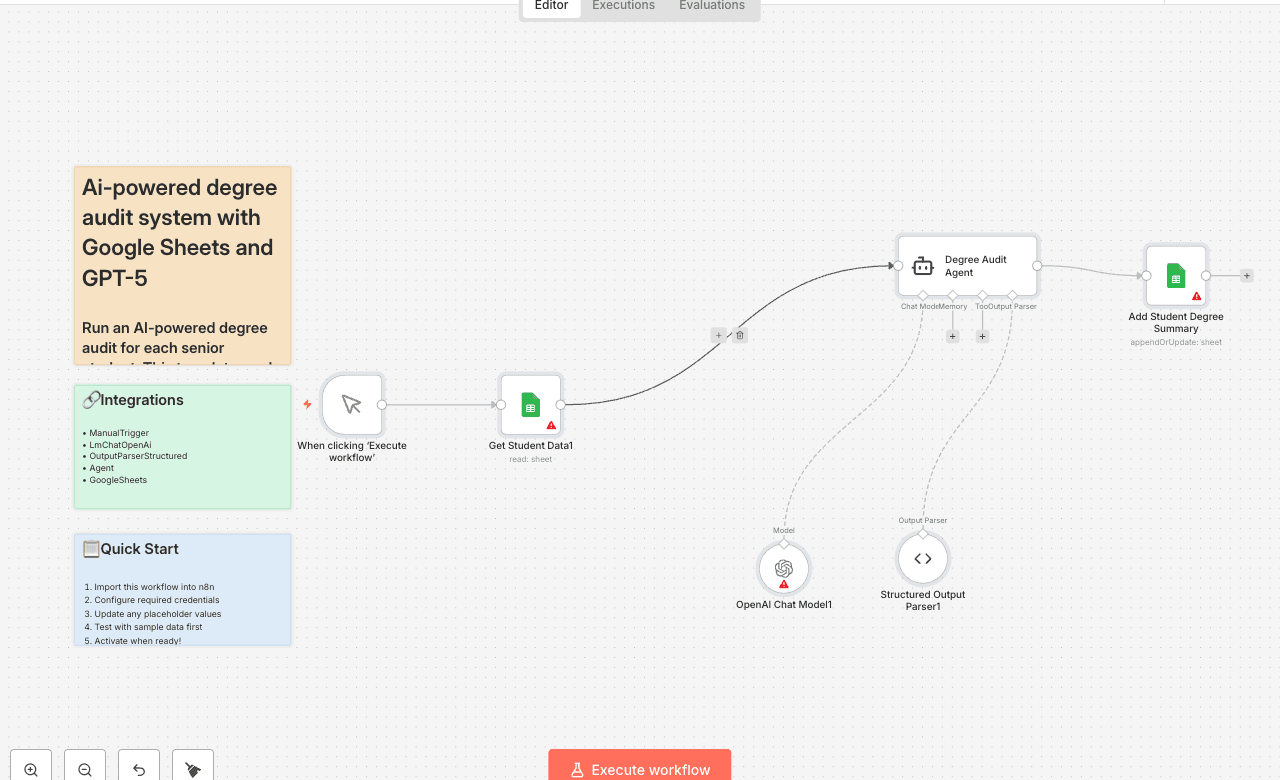
Run an AI-powered degree audit for each senior student. This template reads student rows from Google Sheets, evaluates completed courses against hard-coded program requirements, and writes back an AI Degree Summary of what's still missing (major core, Gen Eds, major electives, and upper-division credits). It's designed for quick advisor/registrar review and SIS prototypes. Trigger: Manual — When clicking "Execute workflow" Core nodes: Google Sheets, OpenAI Chat Model, (optional) Structured Output Parser Programs included: Computer Science BS, Business Administration BBA, Psychology BA, Mechanical Engineering BS, Biology BS (Pre-Med), English Literature BA, Data Science BS, Nursing BSN, Economics BA, Graphic Design BFA Who's it for - Registrars & advisors who need fast, consistent degree checks - Student success teams building prototype dashboards - SIS/EdTech builders exploring AI-assisted auditing How it works 1. Read seniors from Google Sheets (Senior_data) with: StudentID, Name, Program, Year, CompletedCourses. 2. AI Agent compares CompletedCourses to built-in requirements (per program) and computes Missing items + a short Summary. 3. Write back to the same sheet using "Append or update" by StudentID (updates AI Degree Summary; you can also map the raw Missing array to a column if desired). Example JSON (for one student): { "StudentID": "S001", "Program": "Computer Science BS", "Missing": [ "GEN-REMAIN | General Education credits remaining | 6", "CS-EL-REM | CS Major Electives (200+ level) | 6", "UPPER-DIV | Additional Upper-Division (200+ level) credits needed | 18", "FREE-EL | Free Electives to reach 120 total credits | 54" ], "Summary": "All core CS courses are complete. Still need 6 Gen Ed credits, 6 CS electives, and 66 total credits overall, including 18 upper-division credits — prioritize 200/300-level CS electives." } Setup (2 steps) 1) Connect Google Sheets (OAuth2) In n8n → Credentials → New → Google Sheets (OAuth2) and sign in. In the Google Sheets nodes, select your spreadsheet and the Senior_data tab. Ensure your input sheet has at least: StudentID, Name, Program, Year, CompletedCourses. 2) Connect OpenAI (API Key) In n8n → Credentials → New → OpenAI API, paste your key. In the OpenAI Chat Model node, select that credential and a model (e.g., gpt-4o or gpt-5). Requirements - Sheet columns: StudentID, Name, Program, Year, CompletedCourses - CompletedCourses format: pipe-separated IDs (e.g., GEN-101|GEN-103|CS-101). - Program labels: should match the built-in list (e.g., Computer Science BS). - Credits/levels: Template assumes upper-division ≥ 200-level (adjust the prompt if your policy differs). Customization - Change requirements: Edit the Agent's system message to update totals, core lists, elective credit rules, or level thresholds. - Store more output: Map Missing to a new column (e.g., AI Missing List) or write rows to a separate sheet for dashboards. - Distribute results: Email summaries to advisors/students (Gmail/Outlook), or generate PDFs for advising folders. - Add guardrails: Extend the prompt to enforce residency, capstone, minor/cognate constraints, or per-college Gen Ed variations. Best practices (per n8n guidelines) - Sticky notes are mandatory: Include a yellow sticky note that contains this description and quick setup steps; add neutral sticky notes for per-step tips. - Rename nodes clearly: e.g., "Get Seniors," "Degree Audit Agent," "Update Summary." - No hardcoded secrets: Use credentials—not inline keys in HTTP or Code nodes. - Sanitize identifiers: Don't ship personal spreadsheet IDs or private links in the published version. - Use a Set node for config: Centralize user-tunable values (e.g., column names, tab names). Troubleshooting - OpenAI 401/429: Verify API key/billing; slow concurrency if rate-limited. - Empty summaries: Check column names and that CompletedCourses uses |. - Program mismatch: Align Program labels to those in the prompt (exact naming recommended). - Sheets auth errors: Reconnect Google Sheets OAuth2 and re-select spreadsheet/tab. Limitations - Not an official audit: It infers gaps from the listed completions; registrar rules can be more nuanced. - Catalog drift: Requirements are hard-coded in the prompt—update them each term/year. - Upper-division heuristic: Adjust the level threshold if your institution defines it differently. Tags & category Category: Education / Student Information Systems Tags: degree-audit, registrar, google-sheets, openai, electives, upper-division, graduation-readiness Changelog v1.0.0 — Initial release: Senior_data in/out, 10 programs, AI Degree Summary output, append/update by StudentID. Contact Need help tailoring this to your catalog (e.g., per-college Gen Eds, capstones, minors, PDFs/email)? 📧 rbreen@ynteractive.com 📧 robert@ynteractive.com 🔗 Robert Breen — https://www.linkedin.com/in/robert-breen-29429625/ 🌐 ynteractive.com — https://ynteractive.com
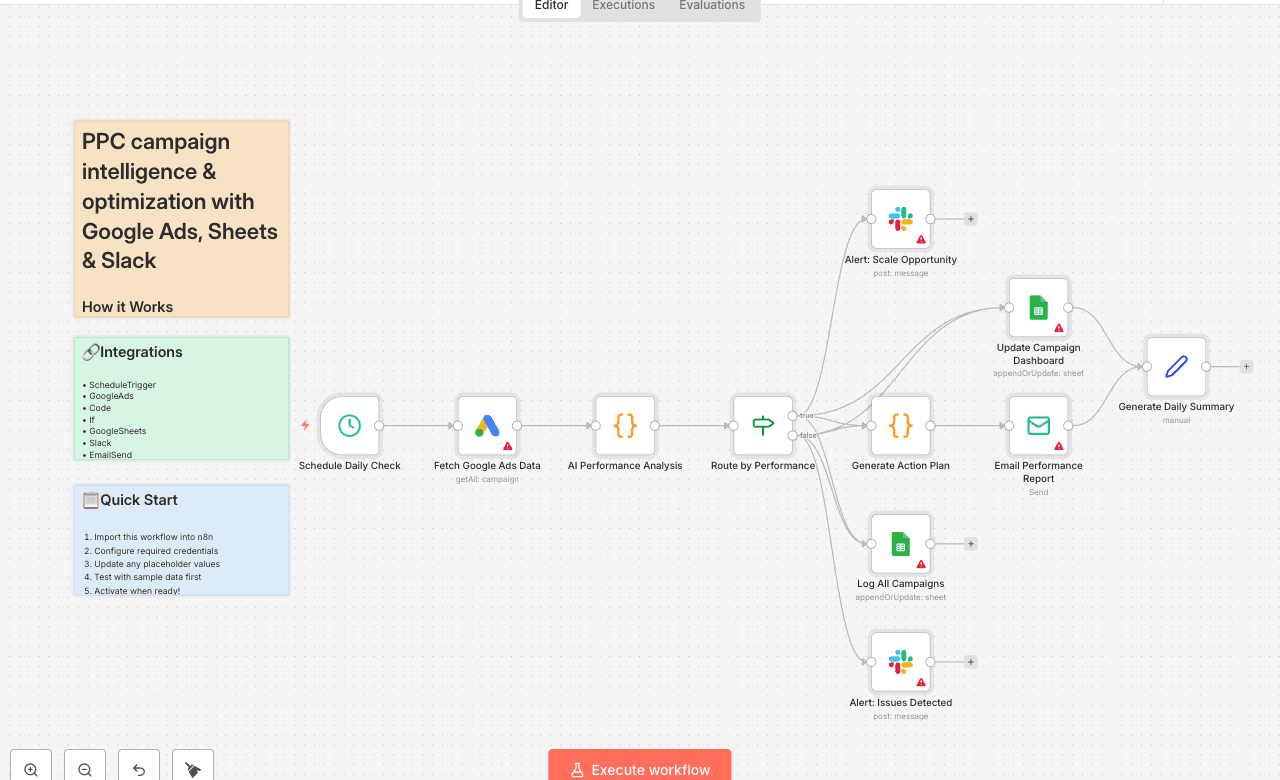
How it Works This workflow automatically monitors your Google Ads campaigns every day, analyzing performance with AI-powered scoring to identify scaling opportunities and catch issues before they drain your budget. Each morning at 9 AM, it fetches all active campaign data including clicks, impressions, conversions, costs, and conversion rates from your Google Ads account. The AI analysis engine evaluates four critical dimensions: CTR (click-through rate) to measure ad relevance, conversion rate to assess landing page effectiveness, cost per conversion to evaluate profitability, and traffic volume to identify scale-readiness. Each campaign receives a performance score (0-100 points) and is automatically categorized as Excellent (75+), Good (55-74), Fair (35-54), or Underperforming (0-34). High-performing campaigns trigger instant Slack alerts to your PPC team with detailed scaling recommendations and projected ROI improvements, while underperforming campaigns generate urgent alerts with specific optimization actions. Every campaign is logged to your Google Sheets dashboard with daily metrics, and the system generates personalized email reports—action-oriented scaling plans for top performers and troubleshooting guides for campaigns needing attention. The entire analysis takes minutes, providing your team with daily intelligence reports that would otherwise require hours of manual spreadsheet work and data analysis. Who is this for? - PPC managers and paid media specialists drowning in campaign data and manual reporting - Marketing agencies managing multiple client accounts needing automated performance monitoring - E-commerce brands running high-spend campaigns who can't afford budget waste - Growth teams looking to scale winners faster and pause losers immediately - Anyone spending $5K+ monthly on Google Ads who needs data-driven optimization decisions Setup Steps - Setup time: Approx. 15-25 minutes (credential configuration, dashboard setup, alert customization) - Requirements: - Google Ads account with active campaigns - Google account with a tracking spreadsheet - Slack workspace - SMTP email provider (Gmail, SendGrid, etc.) - Create a Google Sheets dashboard with two tabs: "Daily Performance" and "Campaign Log" with appropriate column headers. - Set up these nodes: - Schedule Daily Check: Pre-configured to run at 9 AM daily (adjust timing if needed). - Fetch Google Ads Data: Connect your Google Ads account and authorize API access. - AI Performance Analysis: Review scoring thresholds (CTR, conversion rate, cost benchmarks). - Route by Performance: Automatically splits campaigns into high-performers vs. issues. - Update Campaign Dashboard: Connect Google Sheets and select your "Daily Performance" tab. - Log All Campaigns: Select your "Campaign Log" tab for historical tracking. - Slack Alerts: Connect workspace and configure separate channels for scaling opportunities and performance issues. - Generate Action Plan: Customize email templates with your brand voice and action items. - Email Performance Report: Configure SMTP and set recipient email addresses. - Credentials must be entered into their respective nodes for successful execution. Customization Guidance - Scoring Weights: Adjust point values for CTR (30), conversion rate (35), cost efficiency (25), and volume (10) in the AI Performance Analysis node based on your business priorities. - Performance Thresholds: Modify the 75-point Excellent threshold and 55-point Good threshold to match your campaign quality distribution and industry benchmarks. - Benchmark Values: Update CTR benchmarks (5% excellent, 3% good, 1.5% average) and conversion rate targets (10%, 5%, 2%) for your industry. - Alert Channels: Create separate Slack channels for different alert types or route critical alerts to Microsoft Teams, Discord, or SMS via Twilio. - Email Recipients: Configure different recipient lists for scaling alerts (executives, growth team) vs. optimization alerts (campaign managers). - Schedule Frequency: Change from daily to hourly monitoring for high-spend campaigns, or weekly for smaller accounts. - Additional Platforms: Duplicate the workflow structure for Facebook Ads, Microsoft Ads, or LinkedIn Ads with platform-specific nodes. - Budget Controls: Add nodes to automatically pause campaigns exceeding cost thresholds or adjust bids based on performance scores. Once configured, this workflow will continuously monitor your ad spend, identify opportunities worth thousands in additional revenue, and alert you to issues before they waste your budget—transforming manual reporting into automated intelligence. Built [Connect on LinkedIn]
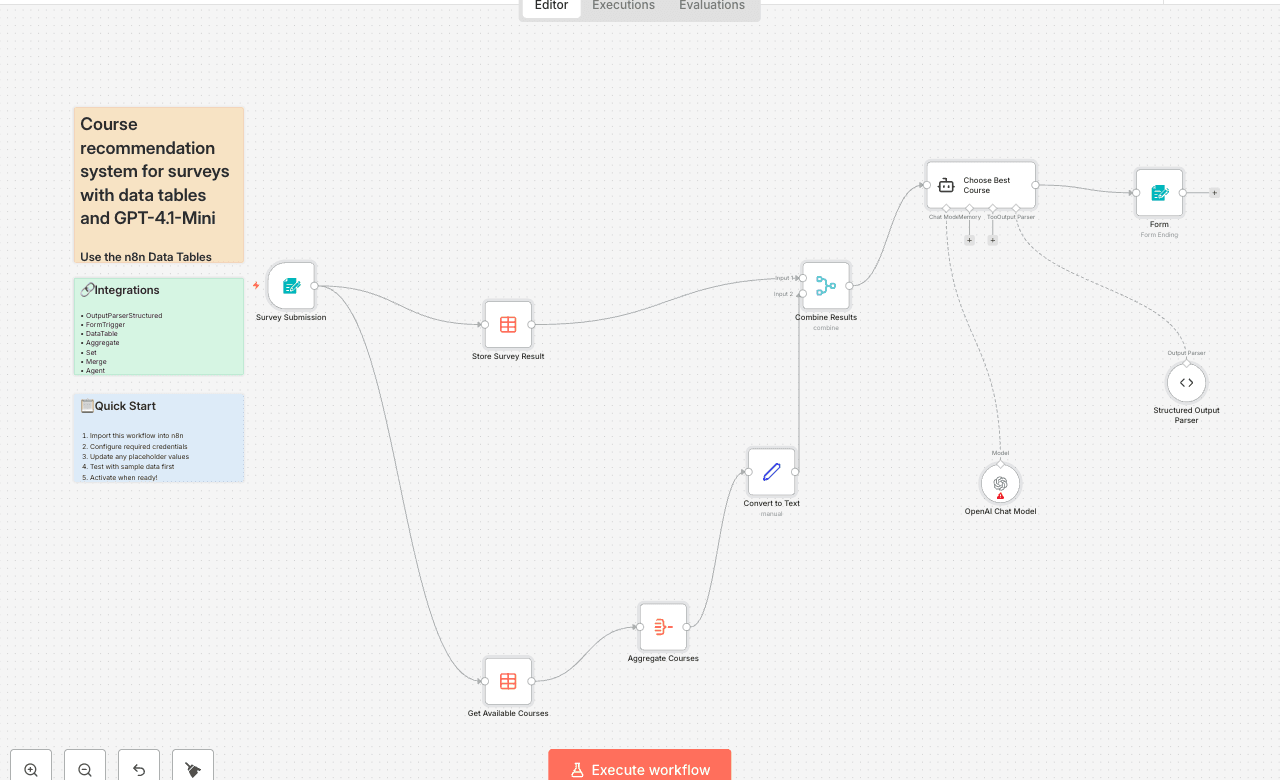
Use the n8n Data Tables feature to store, retrieve, and analyze survey results — then let OpenAI automatically recommend the most relevant course for each respondent. 🧠 What this workflow does This workflow demonstrates how to use n8n’s built-in Data Tables to create an internal recommendation system powered by AI. It: - Collects survey responses through a Form Trigger - Saves responses to a Data Table called Survey Responses - Fetches a list of available courses from another Data Table called Courses - Passes both Data Tables into an OpenAI Chat Agent, which selects the most relevant course - Returns a structured recommendation with: - course: the course title - reasoning: why it was selected > Trigger: Form submission (manual or public link) 👥 Who it’s for Perfect for educators, training managers, or anyone wanting to use n8n Data Tables as a lightweight internal database — ideal for AI-driven recommendations, onboarding workflows, or content personalization. ⚙️ How to set it up 1️⃣ Create your n8n Data Tables This workflow uses two Data Tables — both created directly inside n8n. 🧾 Table 1: Survey Responses Columns: - Name - Q1 — Where did you learn about n8n? - Q2 — What is your experience with n8n? - Q3 — What kind of automations do you need help with? To create: 1. Add a Data Table node to your workflow. 2. From the list, click “Create New Data Table.” 3. Name it Survey Responses and add the columns above. 📚 Table 2: Courses Columns: - Course - Description To create: 1. Add another Data Table node. 2. Click “Create New Data Table.” 3. Name it Courses and create the columns above. 4. Copy course data from this Google Sheet: 👉 https://docs.google.com/spreadsheets/d/1Y0Q0CnqN0w47c5nCpbA1O3sn0mQaKXPhql2Bc1UeiFY/edit?usp=sharing This Courses Data Table is where you’ll store all available learning paths or programs for the AI to compare against survey inputs. 2️⃣ Connect OpenAI 1. Go to [OpenAI Platform] 2. Create an API key 3. In n8n, open Credentials → OpenAI API and paste your key 4. The workflow uses the gpt-4.1-mini model via the LangChain integration 🧩 Key Nodes Used | Node | Purpose | n8n Feature | |------|----------|-------------| | Form Trigger | Collect survey responses | Forms | | Data Table (Upsert) | Stores results in Survey Responses | Data Tables | | Data Table (Get) | Retrieves Courses | Data Tables | | Aggregate + Set | Combines and formats table data | Core nodes | | OpenAI Chat Model (LangChain Agent) | Analyzes responses and courses | AI | | Structured Output Parser | Returns structured JSON output | LangChain | 💡 Tips for customization - Add more Data Table columns (e.g., email, department, experience years) - Use another Data Table to store AI recommendations or performance results - Modify the Agent system message to customize how AI chooses courses - Send recommendations via Email, Slack, or Google Sheets 🧾 Why Data Tables? This workflow shows how n8n’s Data Tables can act as your internal database: - Create and manage tables directly inside n8n - No external integrations needed - Store structured data for AI prompts - Share tables across multiple workflows All user data and course content are stored securely and natively in n8n Cloud or Self-Hosted environments. 📬 Contact Need help customizing this (e.g., expanding Data Tables, connecting multiple surveys, or automating follow-ups)? - 📧 robert@ynteractive.com - 🔗 [Robert Breen] - 🌐 [ynteractive.com]
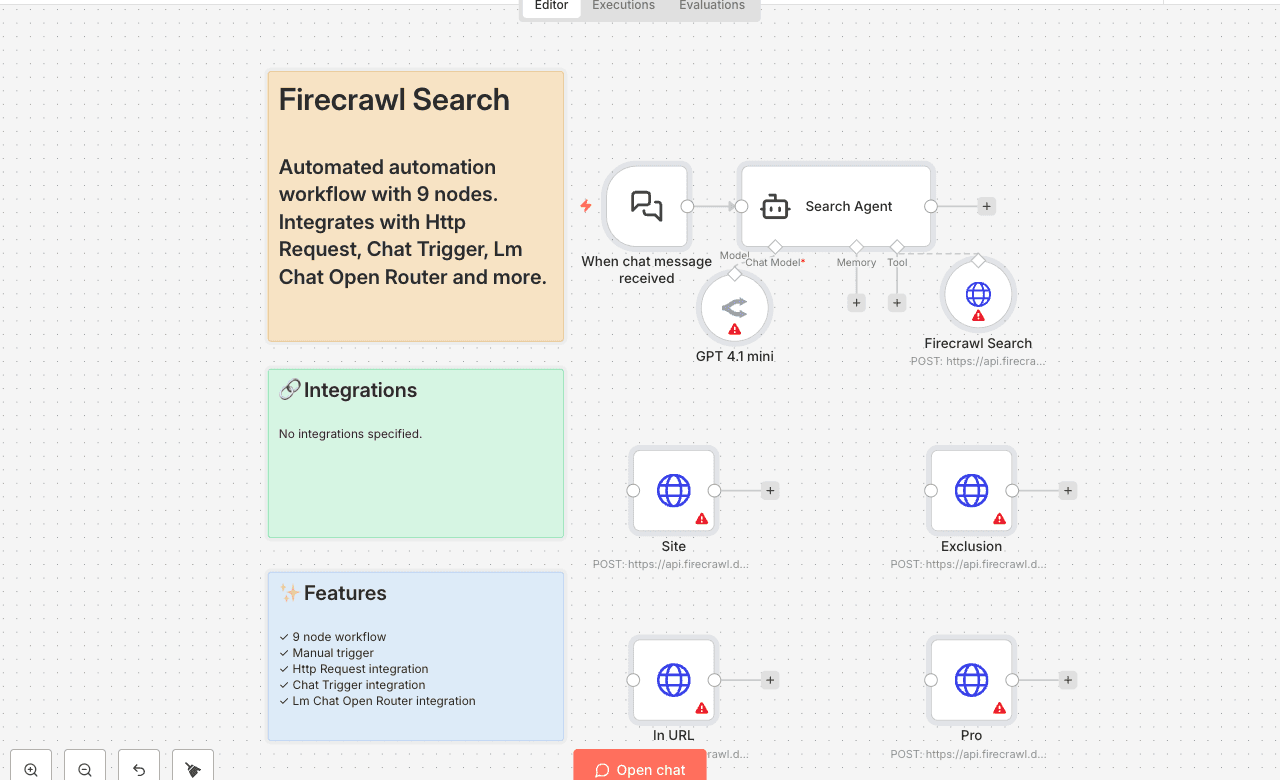
Automated automation workflow with 9 nodes. Integrates with Http Request, Chat Trigger, Lm Chat Open Router and more. Node Count: 14 Difficulty: Beginner Integrations:
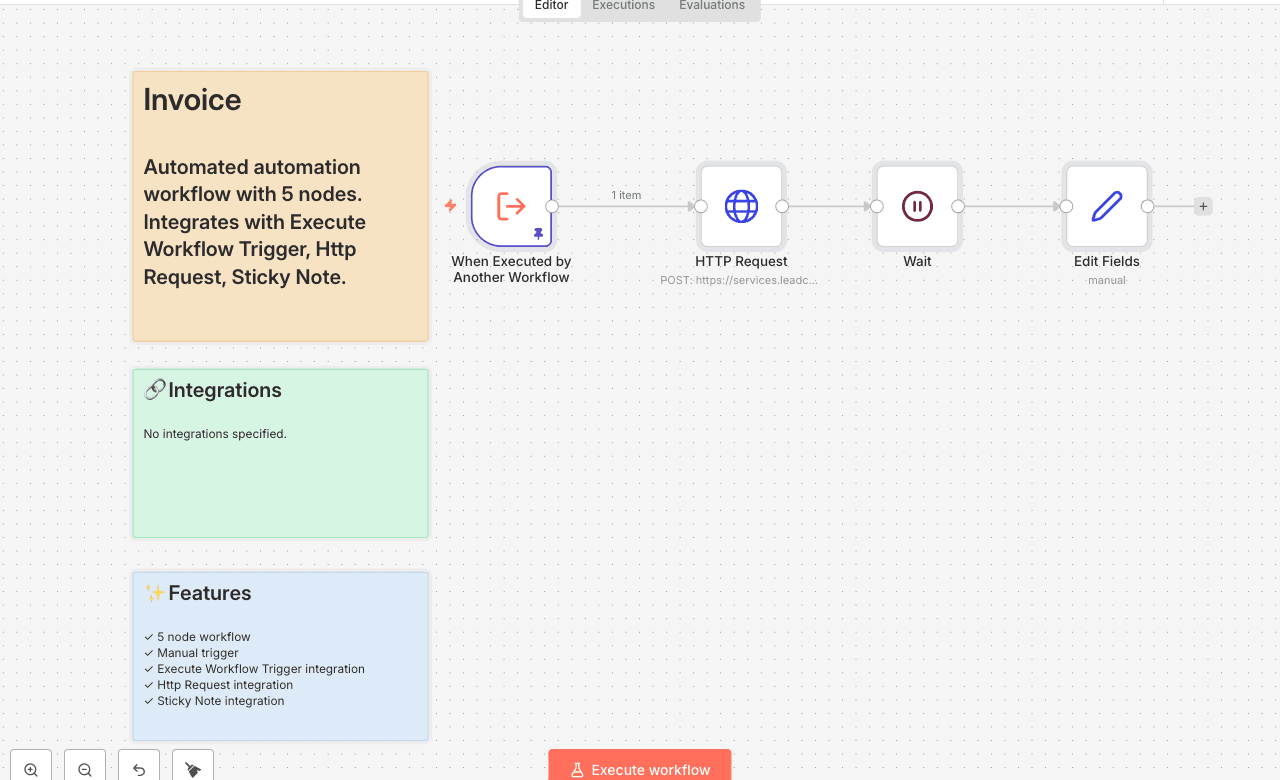
Automated automation workflow with 5 nodes. Integrates with Execute Workflow Trigger, Http Request, Sticky Note. Node Count: 14 Difficulty: Beginner Integrations:
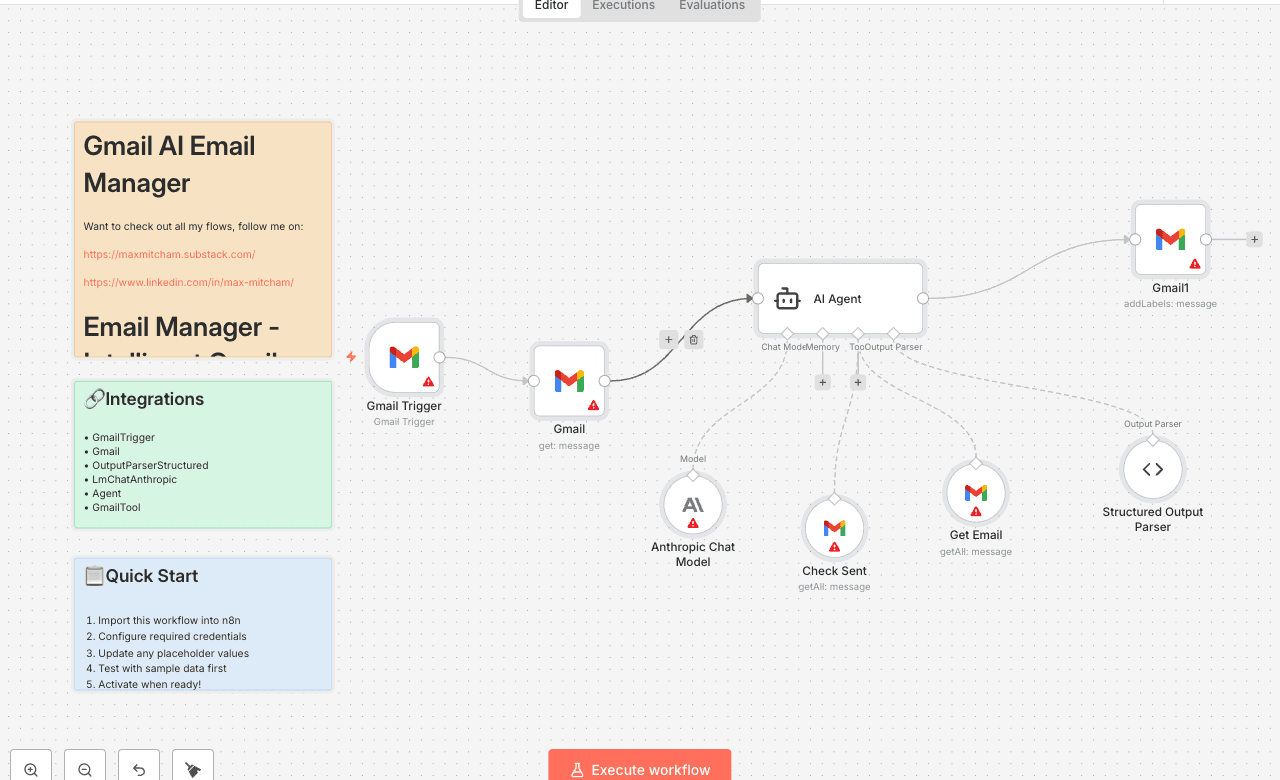
Want to check out all my flows, follow me on: https://maxmitcham.substack.com/ https://www.linkedin.com/in/max-mitcham/ Email Manager - Intelligent Gmail Classification This automation flow is designed to automatically monitor incoming Gmail messages, analyze their content and context using AI, and intelligently classify them with appropriate labels for better email organization and prioritization. ⚙️ How It Works (Step-by-Step): 1. 📧 Gmail Monitoring (Trigger) Continuously monitors your Gmail inbox: 2. 📖 Email Content Extraction Retrieves complete email details: 3. 🔍 Email History Analysis AI agent checks relationship context: 4. 🤖 Intelligent Classification Agent Advanced AI categorization using: 5. 🏷️ Smart Label Assignment Automatically applies appropriate Gmail labels: 6. 📋 Structured Processing Ensures consistent labeling: 🛠️ Tools Used: 📦 Key Features: 🚀 Ideal Use Cases:
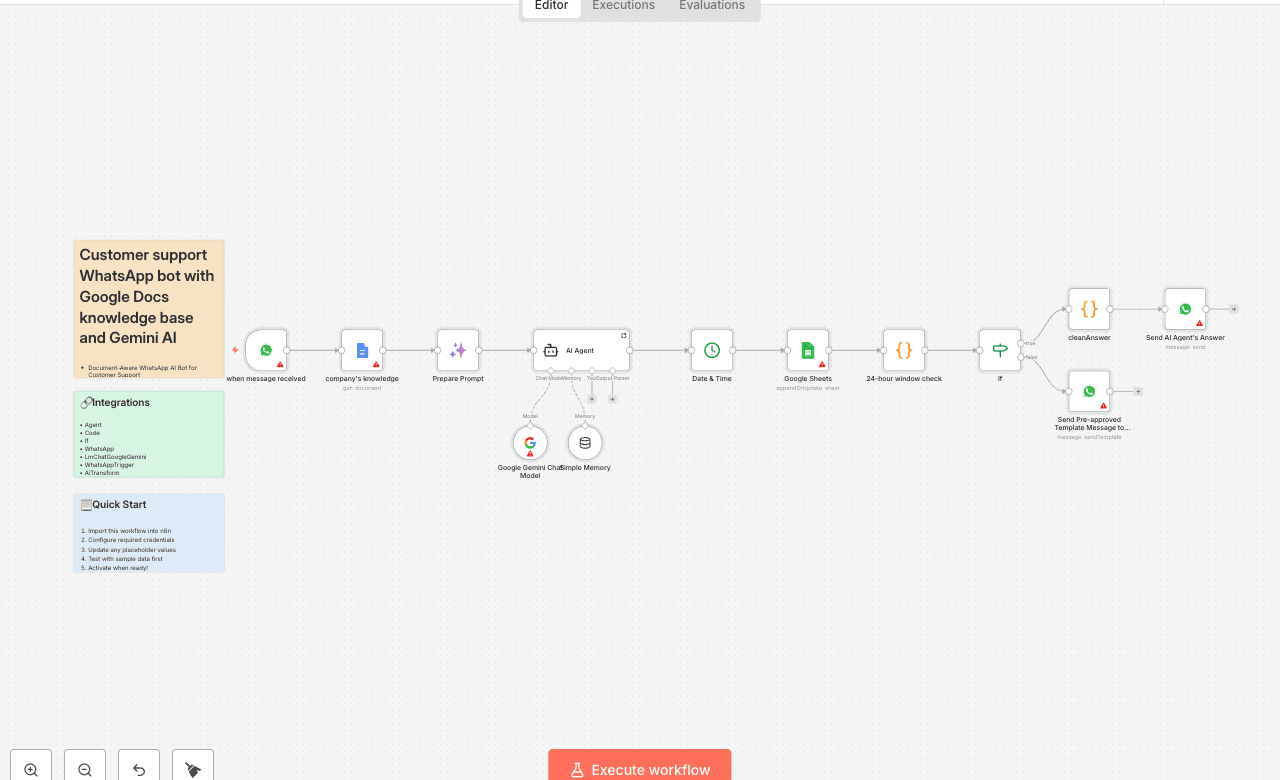
Document-Aware WhatsApp AI Bot for Customer Support Google Docs-Powered WhatsApp Support Agent 24/7 WhatsApp AI Assistant with Live Knowledge from Google Docs 📝Description Template Smart WhatsApp AI Assistant Using Google Docs Help customers instantly on WhatsApp using a smart AI assistant that reads your company’s internal knowledge from a Google Doc in real time. Built for clubs, restaurants, agencies, or any business where clients ask questions based on a policy, FAQ, or services document. ⚙️ How it works - Users send free-form questions to your WhatsApp Business number (e.g. “What are the gym rules?” or “Are you open today?”) - The bot automatically reads your company’s internal Google Doc (policy, schedule, etc.) - It merges the document content with today’s date and the user’s question to craft a custom AI prompt - The AI (Gemini or ChatGPT) then replies back on WhatsApp using natural, helpful language - All conversations are logged to Google Sheets for reporting or audit > 💡Bonus: The AI even understands dates inside the document and compares them to today’s date — e.g. if your document says “Closed May 25 for 30 days,” it will say “We're currently closed until June 24. 🧰 Set up steps 1. Connect your WhatsApp Cloud API account (Meta) 2. Add your Google account and grant access to the Doc containing your company info 3. Choose your AI model (ChatGPT/OpenAI or Gemini) 4. Paste your document ID into the Google Docs node 5. Connect your WhatsApp webhook to Meta (only takes 5 minutes) 6. Done — start receiving and answering customer questions! > 📄 Works best with free-tier OpenAI/Gemini, Google Docs, and Meta's Cloud API (no phone required). Everything is modular, extensible, and low-code. 🔄 Customization Tips Change the Google Doc anytime to update answers — no retraining needed Add your logo and business name in the AI agent’s “System Prompt” Add fallback routes like “Escalate to human” if the bot can't help * Clone for multiple brands by duplicating the workflow and swapping in new docs 🤝 Need Help Setting It Up? If you'd like help connecting your WhatsApp Business API, setting up Google Docs access, or customizing this AI assistant for your business or clients… 📩 I offer setup, branding, and customization services: WhatsApp Cloud API setup & verification Google OAuth & Doc structure guidance AI model configuration (OpenAI / Gemini) Branding & prompt tone customization Logging, reporting, and escalation logic Just send a message via: Email: tharwat.elsayed2000@gmail.com WhatsApp: +20 106 180 3236
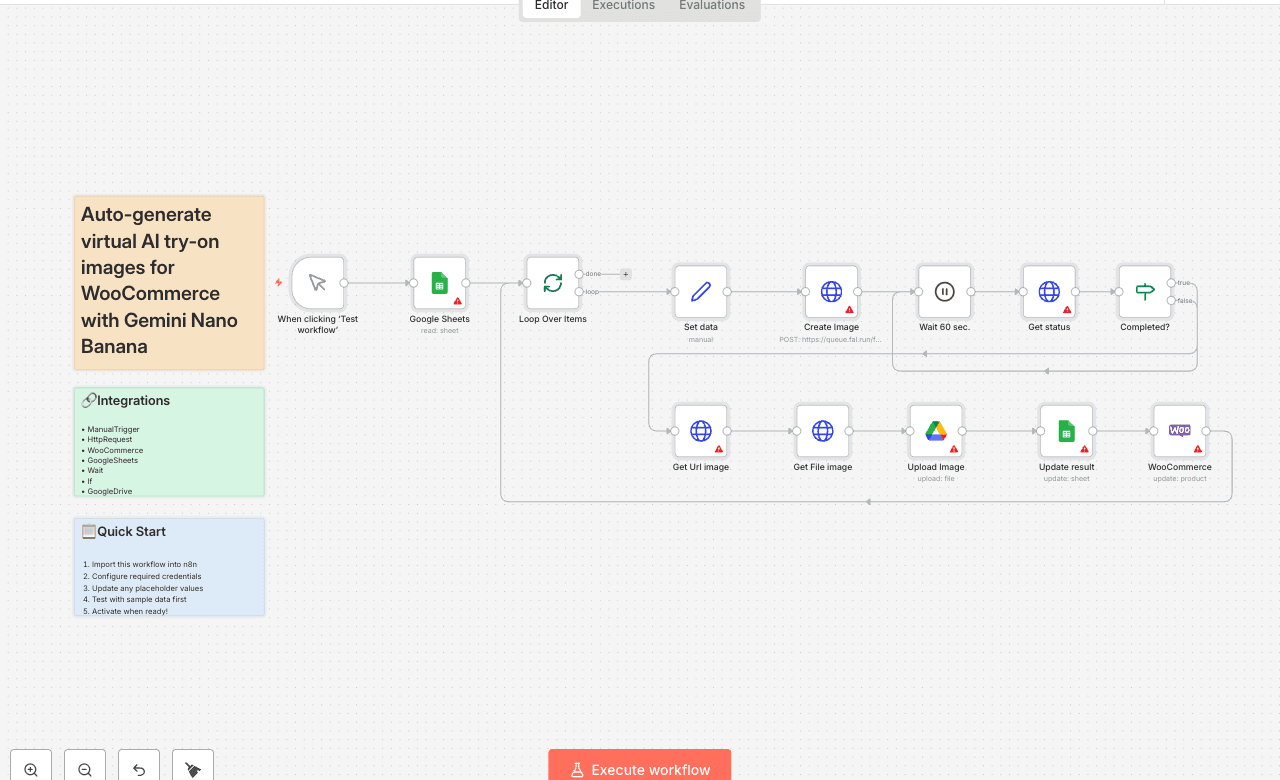
This workflow automates the creation of AI-generated virtual try-on images for fashion eCommerce stores. Instead of relying on expensive and time-consuming photoshoots, the system uses AI to generate realistic images of models wearing selected clothing items. This n8n workflow automates the process of generating AI-powered virtual try-on images for a WooCommerce store. It fetches product data from a Google Sheet, uses the Fal.ai Nano Banana model to create an image of a model wearing the clothing item, and then updates both the Google Sheet and the WooCommerce product with the final generated image. Advantages ✅ Cost Reduction: Eliminates the need for professional photo shoots, saving on models, photographers, and studio expenses. ✅ Time Efficiency: Automates the entire workflow—from data input to product update—minimizing manual work. ✅ Scalability: Works seamlessly across large product catalogs, making it easy to update hundreds of products quickly. ✅ Enhanced eCommerce Experience: Provides shoppers with realistic previews of clothing on models, boosting trust and conversion rates. ✅ Marketing Flexibility: The generated images can also be repurposed for ads, social media, and promotional campaigns. ✅ Centralized Management: Google Sheets acts as the control center, making it easy to manage inputs and track results. How It Works The workflow operates in a sequential, loop-based manner to process multiple products from a spreadsheet. Here is the logical flow: 1. Manual Trigger & Data Fetch: The workflow starts manually (e.g., by clicking "Test workflow"). It first reads data from a specified Google Sheet, looking for rows where the "IMAGE RESULT" column is empty. 2. Loop Processing: It loops over each row of data fetched from the sheet. Each row should contain URLs for a model image and a product image, along with a WooCommerce product ID. 3. API Request to Generate Image: For each item in the loop, the workflow sends a POST request to the Fal.ai Nano Banana API. The request includes the two image URLs and a prompt instructing the AI to create a photo of the model wearing the submitted clothing item. 4. Polling for Completion: The AI processing is asynchronous. The workflow enters a polling loop: it waits for 60 seconds and then checks the status of the processing request. If the status is not COMPLETED, it waits and checks again. This loop continues until the image is ready. 5. Fetching and Storing the Result: Once the status is COMPLETED, the workflow retrieves the URL of the generated image, downloads the image file, and uploads it to a designated folder in Google Drive. 6. Updating Systems: The workflow then performs two crucial update steps: It updates the original Google Sheet row, writing the URL of the final generated image into the "IMAGE RESULT" column. It updates the corresponding product in WooCommerce, adding the generated image to the product's gallery. 7. Loop Continuation: After processing one item, the workflow loops back to process the next row in the Google Sheet until all items are complete. Set Up Steps To make this workflow functional, you need to configure three main connections: Step 1: Prepare the Google Sheet Create a Google Sheet with the following columns: IMAGE MODEL, IMAGE PRODUCT, PRODUCT ID, and IMAGE RESULT. Populate the first three columns for each product. The IMAGE RESULT column must be left blank; the workflow will fill it automatically. In the n8n workflow, configure the "Google Sheets" node to point to your specific Google Sheet and worksheet. Step 2: Configure the Fal.ai API Key Create an account at [fal.ai] and obtain your API key. In the n8n workflow, locate the three "HTTP Request" nodes named "Get Url image", "Get status", and "Create Image". Edit the credentials for these nodes (named "Fal.run API") and update the Value field in the Header Auth to be Key YOURAPIKEY (replacing YOURAPIKEY with your actual key). Step 3: Set Up WooCommerce API Ensure you have the API keys (Consumer Key and Consumer Secret) for your WooCommerce store's REST API. In the n8n workflow, locate the "WooCommerce" node. * Edit its credentials and provide the required information: your store's URL and the API keys. This allows the workflow to authenticate and update your products. Need help customizing? Contact me for consulting and support or add me on [Linkedin].
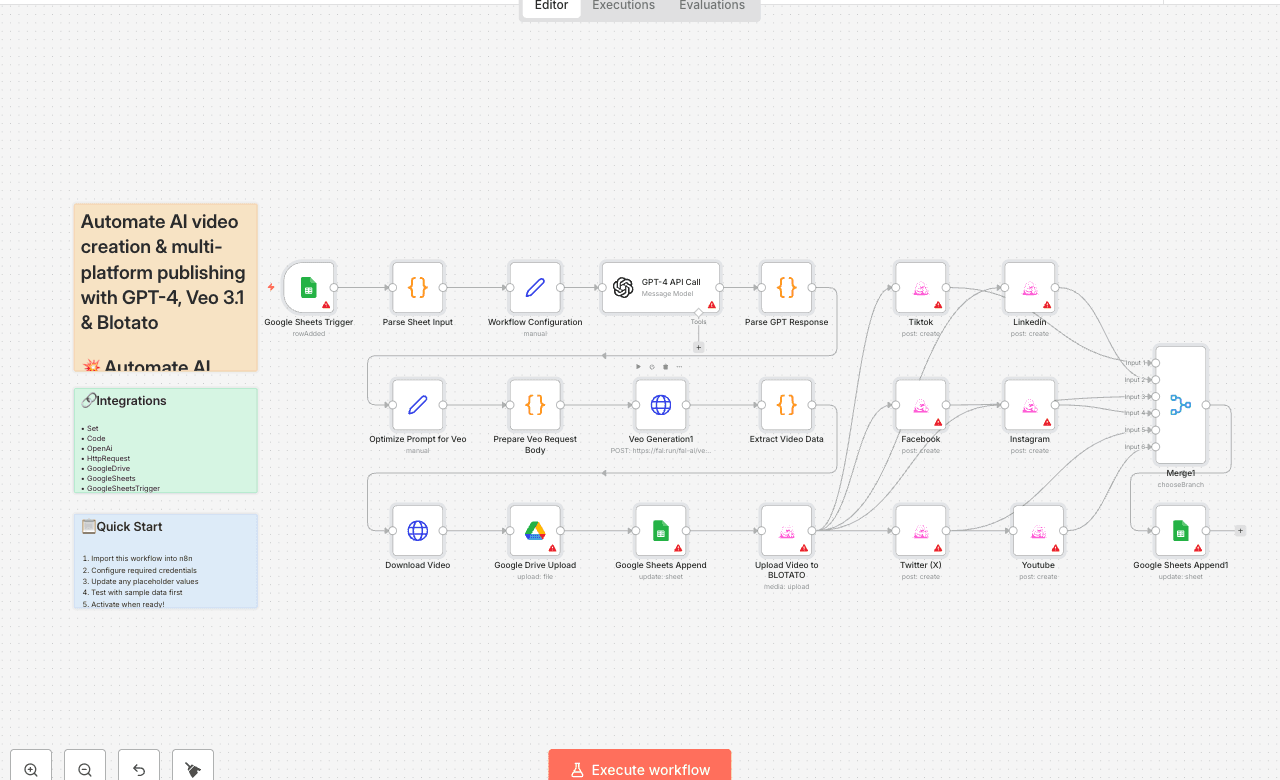
💥 Automate AI Video Creation & Multi-Platform Publishing with Veo 3.1 & Blotato 🎯 Who is this for? This workflow is designed for content creators, marketers, and automation enthusiasts who want to produce professional AI-generated videos and publish them automatically on social media — without editing or manual uploads. Perfect for those using Veo 3.1, GPT-4, and Blotato to scale video creation. 💡 What problem is this workflow solving? Creating short-form content (TikTok, Instagram Reels, YouTube Shorts) is time-consuming — from writing scripts to video editing and posting. This workflow eliminates the manual steps by combining AI storytelling + video generation + automated publishing, letting you focus on creativity while your system handles production and distribution. ⚙️ What this workflow does 1. Reads new ideas from Google Sheets 2. Generates story scripts using GPT-4 3. Creates cinematic videos using Veo 3.1 (fal.ai/veo3.1/reference-to-video) with 3 input reference images 4. Uploads the final video automatically to Google Drive 5. Publishes the video across multiple platforms (TikTok, Instagram, Facebook, X, LinkedIn, YouTube) via Blotato 6. Updates Google Sheets with video URL and status (Completed / Failed) 🧩 Setup Required accounts: - [OpenAI] → GPT-4 API key - [fal.ai] → Veo 3.1 API key - [Google Cloud Console] → Sheets & Drive connection - [Blotato] → API key for social media publishing Configuration steps: 1. Copy the Google Sheets structure: - A: id_video - B: niche - C: idea - D: url_1 - E: url_2 - F: url_3 - G: url_final - H: status 2. Add your API keys to the Workflow Configuration node. 3. Insert three image URLs and a short idea into your sheet. 4. Wait for the automation to process and generate your video. 🧠 How to customize this workflow - Change duration or aspect ratio → Edit the Veo 3.1 node JSON body (duration, aspect_ratio) - Modify prompt style → Adjust the “Optimize Prompt for Veo” node for your desired tone or cinematic look - Add more platforms → Extend Blotato integration to publish on Pinterest, Reddit, or Threads - Enable Telegram Trigger → Allow users to submit ideas and images directly via Telegram 🚀 Expected Outcome Within 2–3 minutes, your idea is transformed into a full cinematic AI video — complete with storytelling, visuals, and automatic posting to your social media channels. Save hours of editing and focus on strategy, creativity, and growth. 👋 Need help or want to customize this? 📩 Contact: [LinkedIn] 📺 YouTube: [@DRFIRASS] 🚀 Workshops: [Mes Ateliers n8n] 📄 Documentation: [Notion Guide] Need help customizing? Contact me for consulting and support : [Linkedin] / [Youtube] / [🚀 Mes Ateliers n8n ]
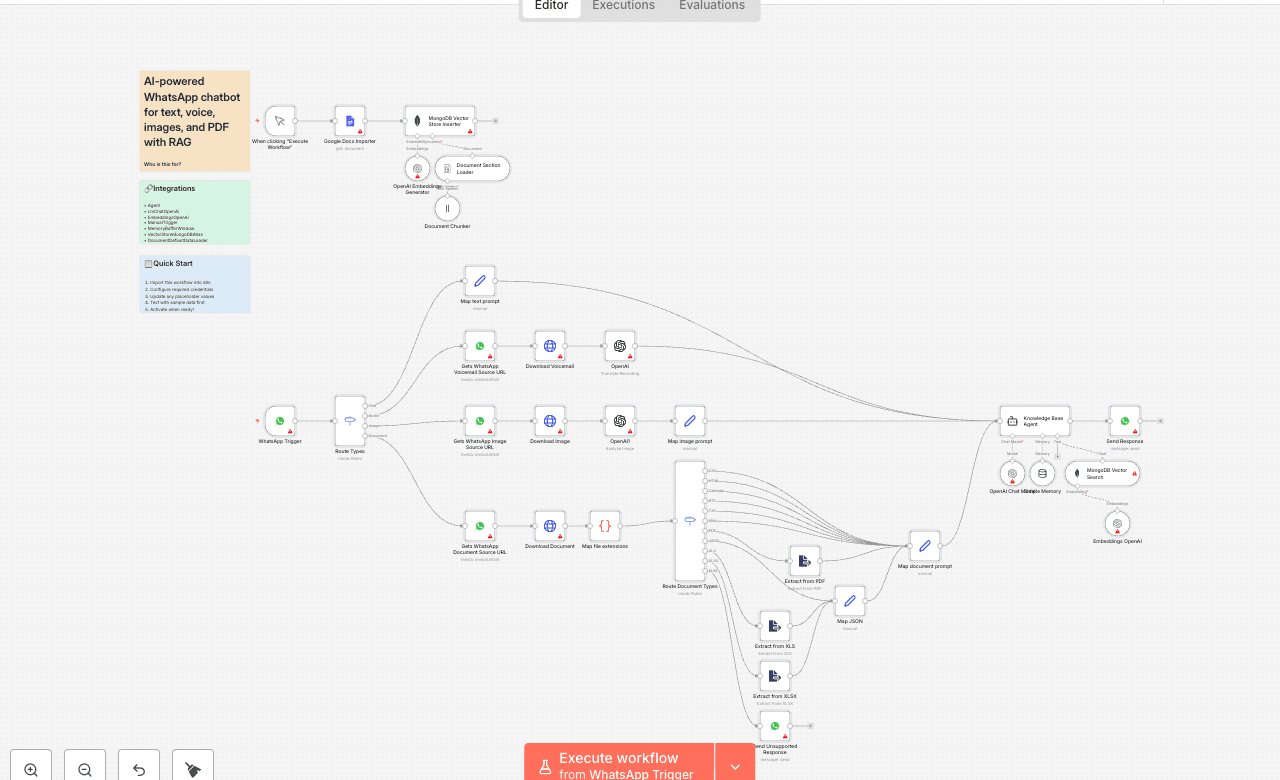
Who is this for? This template is designed for internal support teams, product specialists, and knowledge managers in technology companies who want to automate ingestion of product documentation and enable AI-driven, retrieval-augmented question answering via WhatsApp. What problem is this workflow solving? Support agents often spend too much time manually searching through lengthy documentation, leading to inconsistent or delayed answers. This solution automates importing, chunking, and indexing product manuals, then uses retrieval-augmented generation (RAG) to answer user queries accurately and quickly with AI via WhatsApp messaging. What these workflows do Workflow 1: Document Ingestion & Indexing - Manually triggered to import product documentation from Google Docs. - Automatically splits large documents into chunks for efficient searching. - Generates vector embeddings for each chunk using OpenAI embeddings. - Inserts the embedded chunks and metadata into a MongoDB Atlas vector store, enabling fast semantic search. Workflow 2: AI-Powered Query & Response via WhatsApp - Listens for incoming WhatsApp user messages, supporting various types: - Text messages: Plain text queries from users. - Audio messages: Voice notes transcribed into text for processing. - Image messages: Photos or screenshots analyzed to provide contextual answers. - Document messages: PDFs, spreadsheets, or other files parsed for relevant content. - Converts incoming queries to vector embeddings and performs similarity search on the MongoDB vector store. - Uses OpenAI’s GPT-4o-mini model with retrieval-augmented generation to produce concise, context-aware answers. - Maintains conversation context across multiple turns using a memory buffer node. - Routes different message types to appropriate processing nodes to maximize answer quality. Setup Setting up vector embeddings 1. Authenticate Google Docs and connect your Google Docs URL containing the product documentation you want to index. 2. Authenticate MongoDB Atlas and connect the collection where you want to store the vector embeddings. Create a search index on this collection to support vector similarity queries. 3. Ensure the index name matches the one configured in n8n (data_index). 4. See the example MongoDB search index template below for reference. Setting up chat 1. Authenticate the WhatsApp node with your Meta account credentials to enable message receiving and sending. 2. Connect the MongoDB collection containing embedded product documentation to the MongoDB Vector Search node used for similarity queries. 3. Set up the system prompt in the Knowledge Base Agent node to reflect your company’s tone, answering style, and any business rules, ensuring it references the connected MongoDB collection for context retrieval. Make sure Both MongoDB nodes (in ingestion and chat workflows) are connected to the same collection with: An embedding field storing vector data, Relevant metadata fields (e.g., document ID, source), and The same vector index name configured (e.g., data_index). Search Index Example: { "mappings": { "dynamic": false, "fields": { "_id": { "type": "string" }, "text": { "type": "string" }, "embedding": { "type": "knnVector", "dimensions": 1536, "similarity": "cosine" }, "source": { "type": "string" }, "doc_id": { "type": "string" } } } }
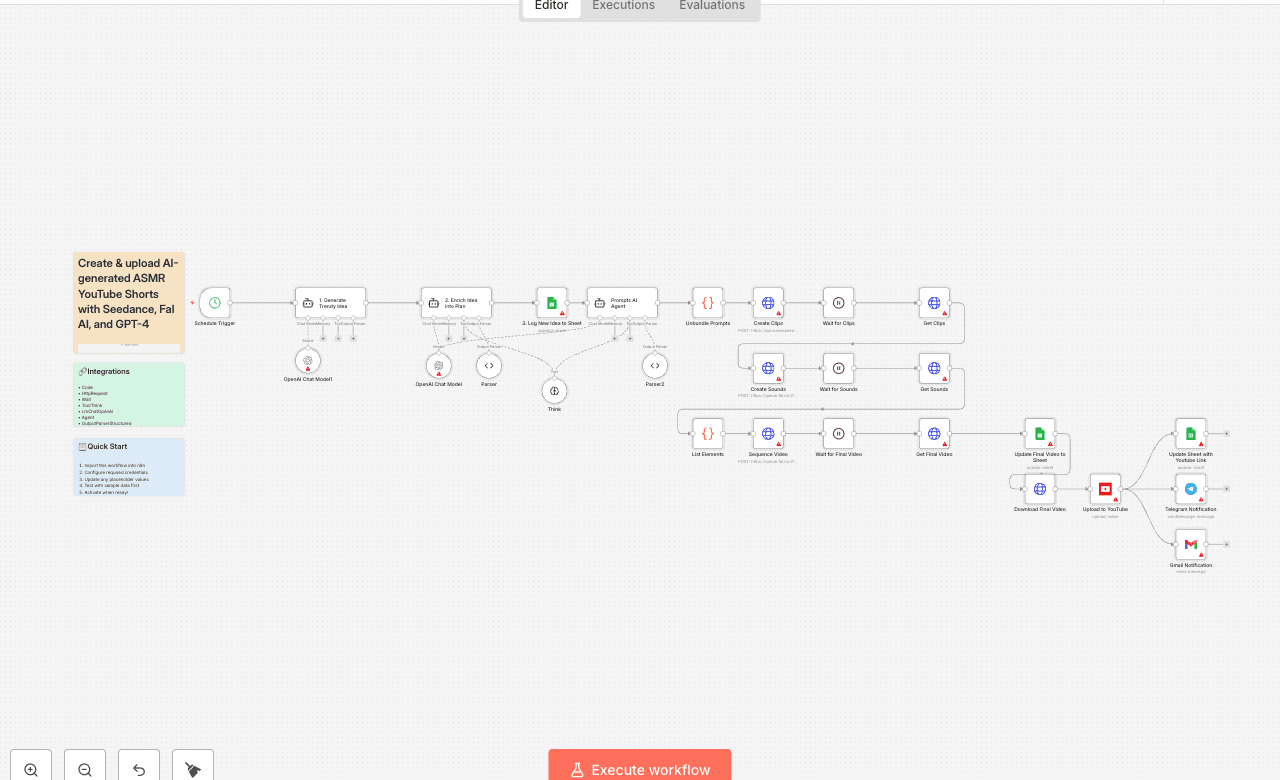
//ASMR AI Workflow Who is this for? Content Creators, YouTube Automation Enthusiasts, and AI Hobbyists looking to autonomously generate and publish unique, satisfying ASMR-style YouTube Shorts without manual effort. What problem does this solve? This workflow solves the creative bottleneck and time-consuming nature of daily content creation. It fully automates the entire production pipeline, from brainstorming trendy ideas to publishing a finished video, turning your n8n instance into a 24/7 content factory. What this workflow does 1. Two-Stage AI Ideation & Planning: Uses an initial AI agent to brainstorm a short, viral ASMR concept based on current trends. A second "Planning" AI agent then takes this concept and expands it into a detailed, structured production plan, complete with a viral-optimized caption, hashtags, and descriptions for the environment and sound. 2. Multi-Modal Asset Generation: Video: Feeds detailed scene prompts to the ByteDance Seedance text-to-video model (via Wavespeed AI) to generate high-quality video clips. Audio: Simultaneously calls the Fal AI text-to-audio model to create custom, soothing ASMR sound effects that match the video's theme. Assembly: Automatically sequences the video clips and sound into a single, cohesive final video file using an FFMPEG API call. 3. Closed-Loop Publishing & Logging: Logging: Initially logs the new idea to a Google Sheet with a status of "In Progress". Publishing: Automatically uploads the final, assembled video directly to your YouTube channel, setting the title and description from the AI's plan. Updating: Finds the original row in the Google Sheet and updates its status to "Done", adding a direct link to the newly published YouTube video. Notifications: Sends real-time alerts to Telegram and/or Gmail with the video title and link, confirming the successful publication. Setup Credentials: You will need to create credentials in your n8n instance for the following services: OpenAI API Wavespeed AI API (for Seedance) Fal AI API Google OAuth Credential (enable YouTube Data API v3 and Google Sheets API in your Google Cloud Project) Telegram Bot Credential (Optional) Gmail OAuth Credential Configuration: This is an advanced workflow. The initial setup should take approximately 15-20 minutes. Google Sheet: Create a Google Sheet with these columns: idea, caption, production_status, youtube_url. Add the Sheet ID to the Google Sheets nodes in the workflow. Node Configuration: In the Telegram Notification node, enter your own Chat ID. In the Gmail Notification node, update the recipient email address. Activate: Once configured, save and set the workflow to "Active" to let it run on its schedule. How to customize Creative Direction: To change the style or theme of the videos (e.g., from kinetic sand to soap cutting), simply edit the systemMessage in the "2. Enrich Idea into Plan" and "Prompts AI Agent" nodes. Initial Ideas: To influence the AI's starting concepts, modify the prompt in the "1. Generate Trendy Idea" node. Video & Sound: To change the video duration or sound style, adjust the parameters in the "Create Clips" and "Create Sounds" nodes. Notifications: Add or remove notification channels (like Slack or Discord) after the "Upload to YouTube" node.
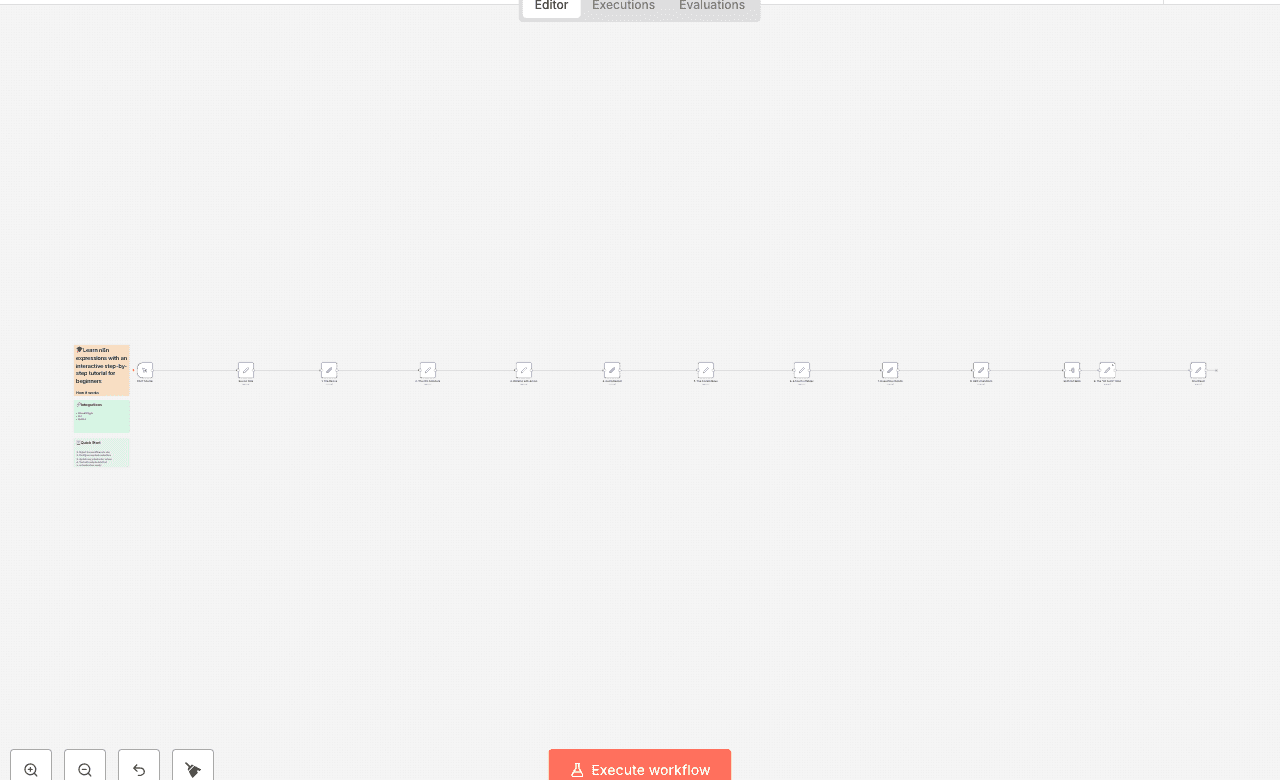
How it works This template is an interactive, step-by-step tutorial designed to teach you the most important skill in n8n: using expressions to access and manipulate data. If you know what JSON is but aren't sure how to pull a specific piece of information from one node and use it in another, this workflow is for you. It starts with a single "Source Data" node that acts as our filing cabinet, and then walks you through a series of lessons, each demonstrating a new technique for retrieving and transforming that data. You will learn how to: 1. Access a simple value from a previous node. 2. Use n8n's built-in selectors like .last() and .first(). 3. Get a specific item from a list (Array). 4. Drill down into nested data (Objects). 5. Combine these techniques to access data in an array of objects. 6. Go beyond simple retrieval by using JavaScript functions to do math or change text. 7. Inspect data with utility functions like Object.keys() and JSON.stringify(). 8. Summarize data from multiple items using .all() and arrow functions. Set up steps Setup time: 0 minutes! This workflow is a self-contained tutorial and requires no setup or external credentials. 1. Click "Execute Workflow" to run the entire tutorial. 2. Follow the flow from the "Source Data" node to the "Final Exam" node. 3. For each lesson, click on the node to see how its expressions are configured in the parameters panel. 4. Read the detailed sticky note next to each lesson—it breaks down exactly how the expression works and why. By the end, you'll have the foundational knowledge to connect data and build powerful, dynamic workflows in n8n.
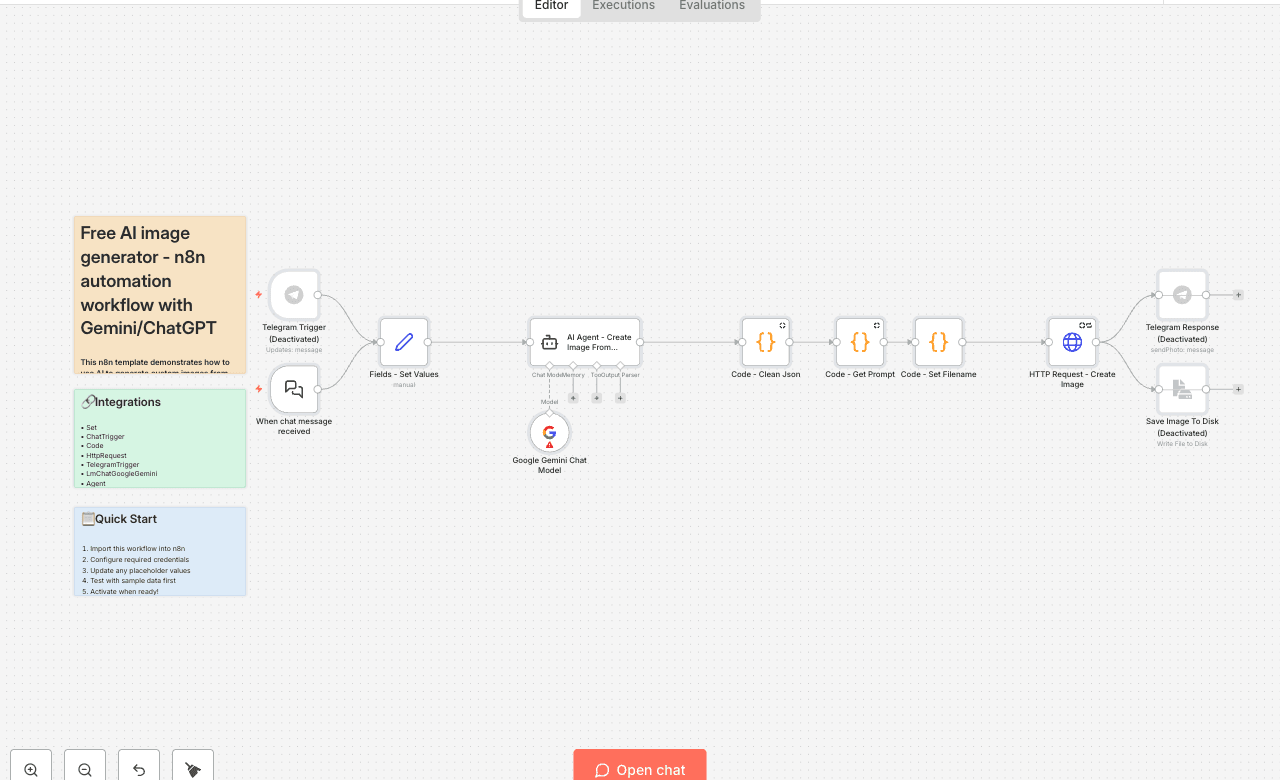
This n8n template demonstrates how to use AI to generate custom images from scratch - fully automated, prompt-driven, and ready to deploy at scale. Use cases are many: You can use it for marketing visuals, character art, digital posters, storyboards, or even daily image generation for your personal purposes. How It Works - The flow is triggered by a chat message in N8N or via Telegram. The default image size is 1080 x 1920 pixels. To use a different size, update the values in the “Fields - Set Values” node before triggering the workflow. - The input is parsed into a clean, structured prompt using a multi-step transformation process. - Our AI Agent sends the final prompt to Google Gemini’s image model for generation (you can also integrate with OpenAI or other chat models). - The raw image data . - Then, we use an HTTP node to fetch the result so you can preview the image. - You can send it back to the chat message in N8N or Telegram, or save it locally to your disk. How To Use - Download the workflow package. - Import the package into your N8N interface. - Set up the credentials in the following nodes for tool access and usability: "Telegram Trigger"; "AI Agent - Create Image From Prompt"; "Telegram Response" or "Save Image To Disk" (based on your wish). - Activate the "Telegram Response" OR "Save Image To Disk" node to specify where you want to save your image later. - Open the chat interface (via N8N or Telegram). - Type your image prompt or detailed descriptions and send. - Wait for the process to run and finish in a few seconds. - Check the result in your desired saving location. Requirements - Google Gemini account with image generation access. - Telegram bot access and chat setup (optional). - Connection to local storage (optional). How To Customize - We’re setting the default image size to 1080 x 1920 pixels and the default image model to "flux". You can customize both of these values in the “Fields – Set Values” node. Supported image model options include: "flux", "kontext", "turbo", and "gptimage". - In the “AI Agent – Create Image From Prompt” node, you can also change the AI chat model. By default, it uses Google Gemini, but you can easily replace it with OpenAI ChatGPT, Microsoft AI Copilot, or any other compatible provider. Need Help? on different platforms for support, inspiration and tips from others. Website: https://www.agentcircle.ai/ Etsy: https://www.etsy.com/shop/AgentCircle Gumroad: http://agentcircle.gumroad.com/ Discord Global: https:// FB Page Global: https://www.facebook.com/agentcircle/ FB Group Global: https://www.facebook.com/groups/aiagentcircle/ X: https://x.com/agent_circle YouTube: https://www. LinkedIn: https://www.linkedin.com/company/agentcircle
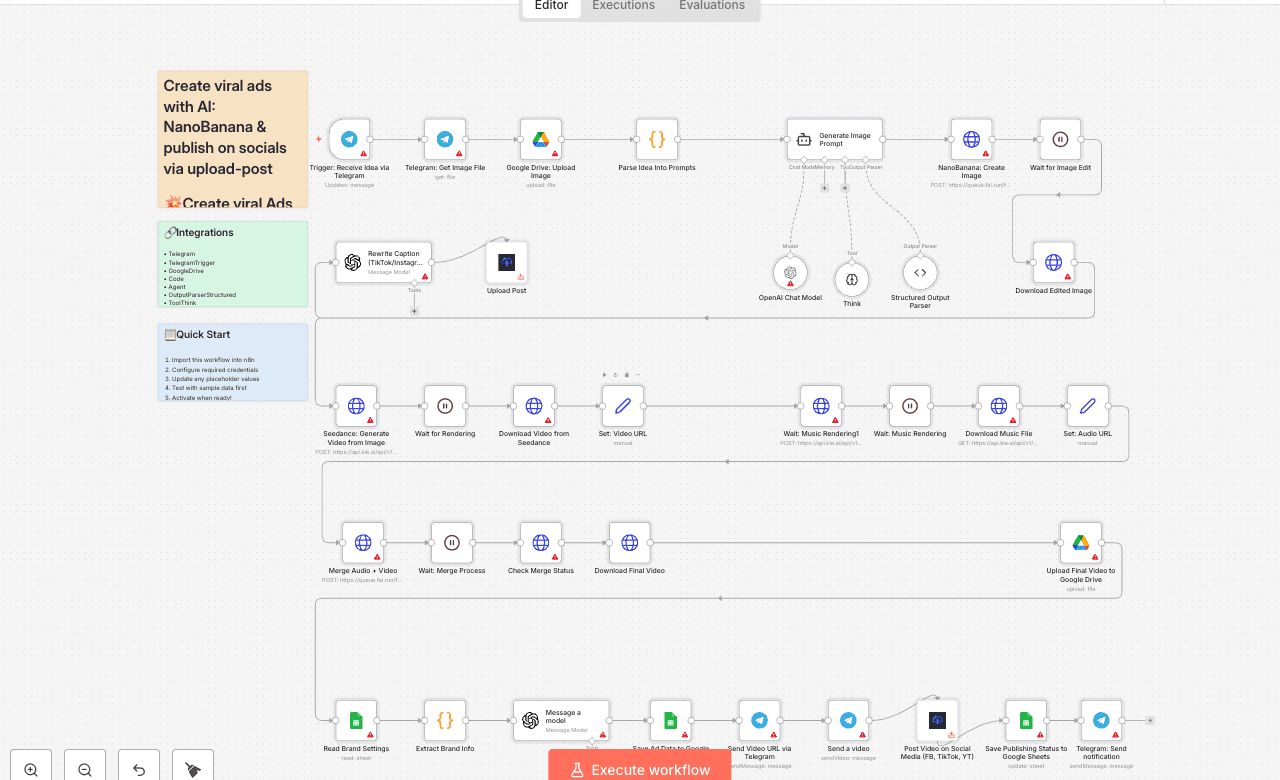
💥 Create viral Ads with NanoBanana & Seedance, publish on socials via upload-post Who is this for? This workflow is designed for marketers, content creators, and small businesses who want to automate the creation of engaging social media ads without spending hours on manual design, video editing, or publishing. What problem is this workflow solving? / Use case Manually creating ads for multiple platforms is time-consuming and repetitive. You need to generate visuals, edit videos, add music, and then publish them across social channels. This workflow automates the end-to-end ad production pipeline, saving time while ensuring consistent, professional-quality output. What this workflow does - Receives ad ideas via Telegram. - Uses NanoBanana to generate and edit realistic product images. - Transforms images into engaging short videos with Seedance. - Generates background music with Suno. - Merges video and audio into a polished final ad. - Reads brand info and generates ad copy with AI (OpenAI). - Publishes ads to Instagram, TikTok, YouTube, Facebook, and X via upload-post. - Stores media and campaign data in Google Drive and Google Sheets for tracking. - Sends back notifications and previews via Telegram. Setup 1. Connect your accounts: - Telegram - Google Drive - Google Sheets - OpenAI API - NanoBanana API - Seedance API - Suno API - Upload-post 2. Prepare Google Sheets: - Add a sheet for brand details (name, category, features, website). - Add another sheet for video logs (status, links, captions). 3. Configure upload-post: - Ensure your social accounts (TikTok, Instagram, YouTube, Facebook, X) are linked to upload-post. How to customize this workflow to your needs - Prompts → Adjust the image/video/music prompts to better reflect your brand’s tone and products. - Ad copy → Modify the AI prompt inside the Ads Copywriter Generator to control wording, style, and structure. - Publishing scope → Choose only the platforms you want (TikTok, Instagram, etc.) inside the upload-post node. - Storage → Update Google Drive folder IDs and Google Sheets document IDs to match your own workspace. 👉 With this template, you get a fully automated viral ad production system powered by AI visuals, video rendering, and auto-publishing across social platforms. Perfect for scaling your content strategy while saving time. 📄 Documentation: [Notion Guide] Demo Video 🎥 Watch the full tutorial here: [YouTube Demo] Need help customizing? Contact me for consulting and support : [Linkedin] / Youtube
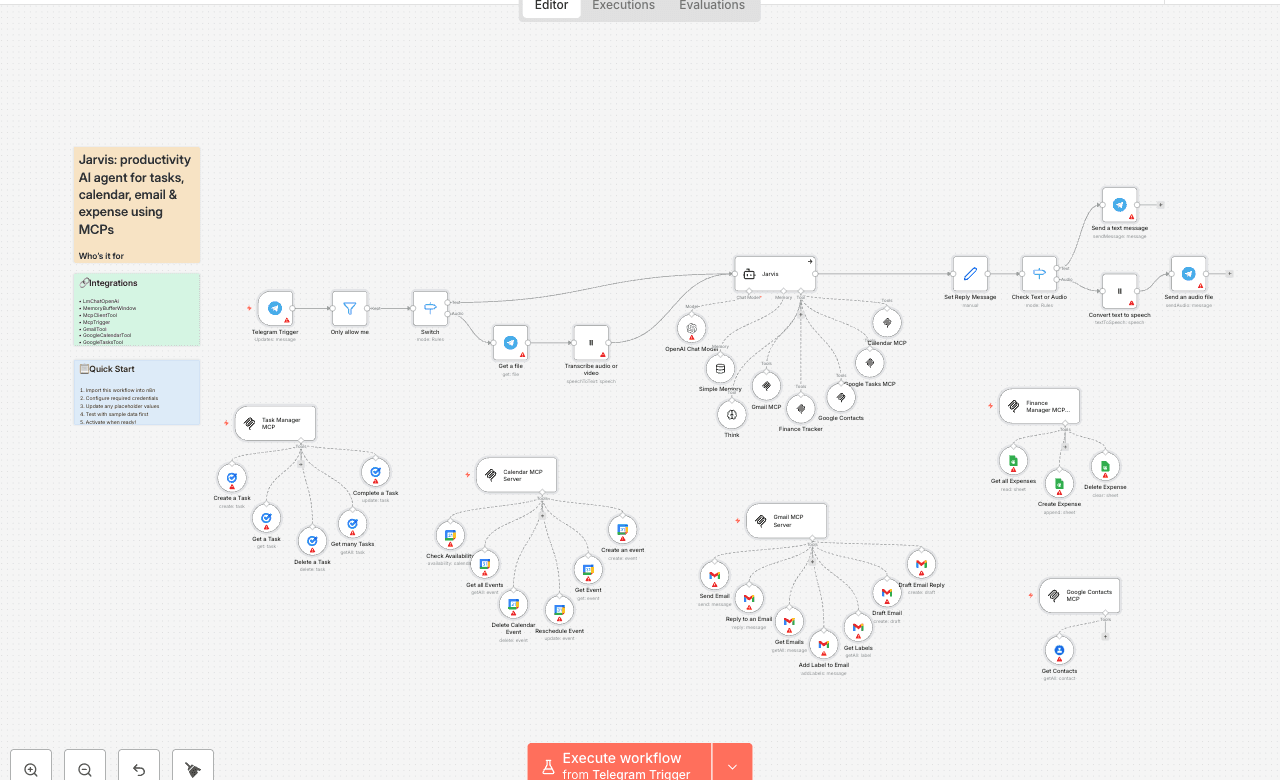
Who’s it for This template is designed for anyone who wants to use Telegram as a personal AI assistant hub. If you often juggle tasks, emails, calendars, and expenses across multiple tools, this workflow consolidates everything into one seamless AI-powered agent. What it does Jarvis listens to your Telegram messages (text or audio) and processes them with OpenAI. Based on your request, it can: - ✅ Manage tasks (create, complete, or delete) - 📅 Handle calendar events (schedule, reschedule, or check availability) - 📧 Send, draft, or fetch emails with Gmail - 👥 Retrieve Google Contacts - 💵 Log and track expenses All responses are returned directly to Telegram, giving you a unified command center. How to set up 1. Clone this template into your n8n workspace. 2. Connect your accounts (Telegram, Gmail, Google Calendar, Contacts, etc.). 3. Add your OpenAI API key in the Credentials section. 4. Test by sending a Telegram message like “Create a meeting tomorrow at 3pm” or “Add expense $50 for lunch.” or "Draft a reply with a project proposal to that email from Steve" Requirements - n8n instance (cloud or self-hosted) - Telegram Bot API credentials - Gmail, Google Calendar, and Google Contacts credentials (optional, if using those features) - OpenAI API key - ElevenLabs API Key (optional, if you need audio note support) How to customize - Swap Gmail with another email provider by replacing the Gmail MCP node. - Add additional MCP integrations (e.g., Notion, Slack, CRM tools). - Adjust memory length to control how much context Jarvis remembers. With this template, you can transform Telegram into your all-in-one AI assistant, simplifying workflows and saving hours every week.
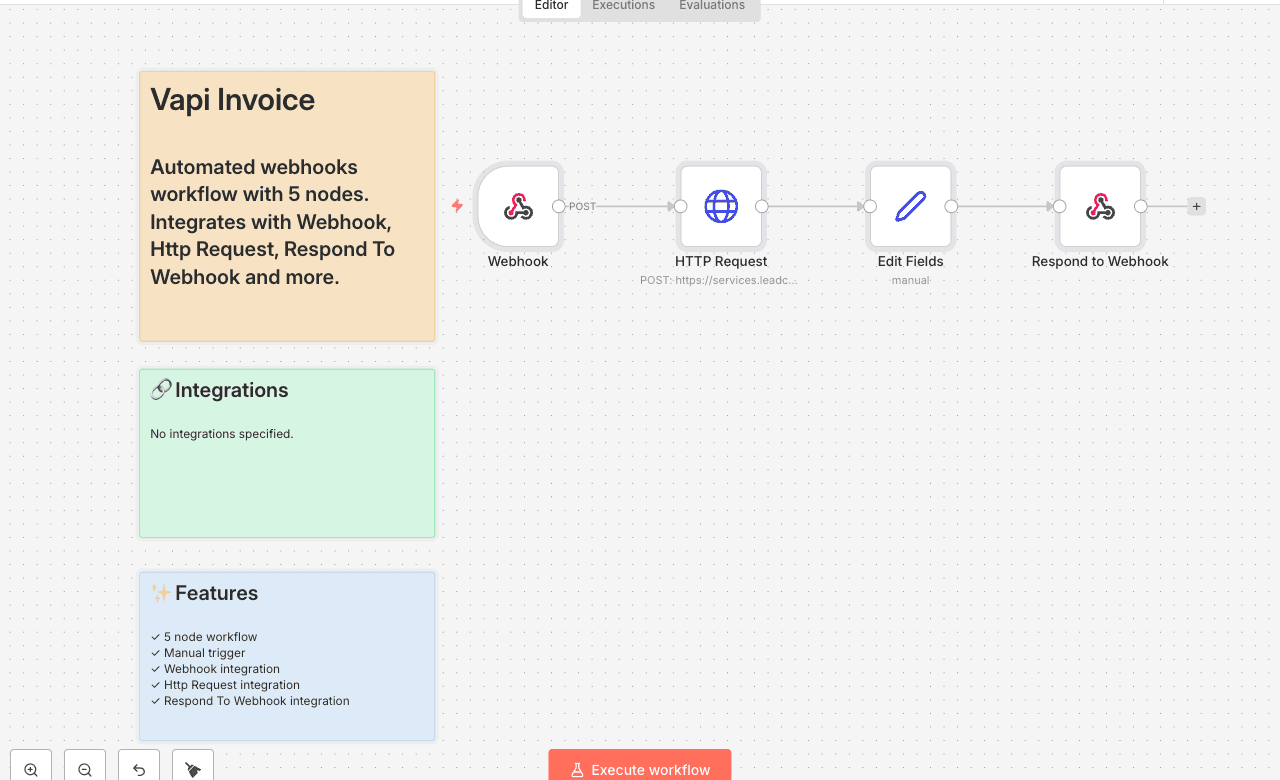
Automated webhooks workflow with 5 nodes. Integrates with Webhook, Http Request, Respond To Webhook and more. Node Count: 14 Difficulty: Beginner Integrations:
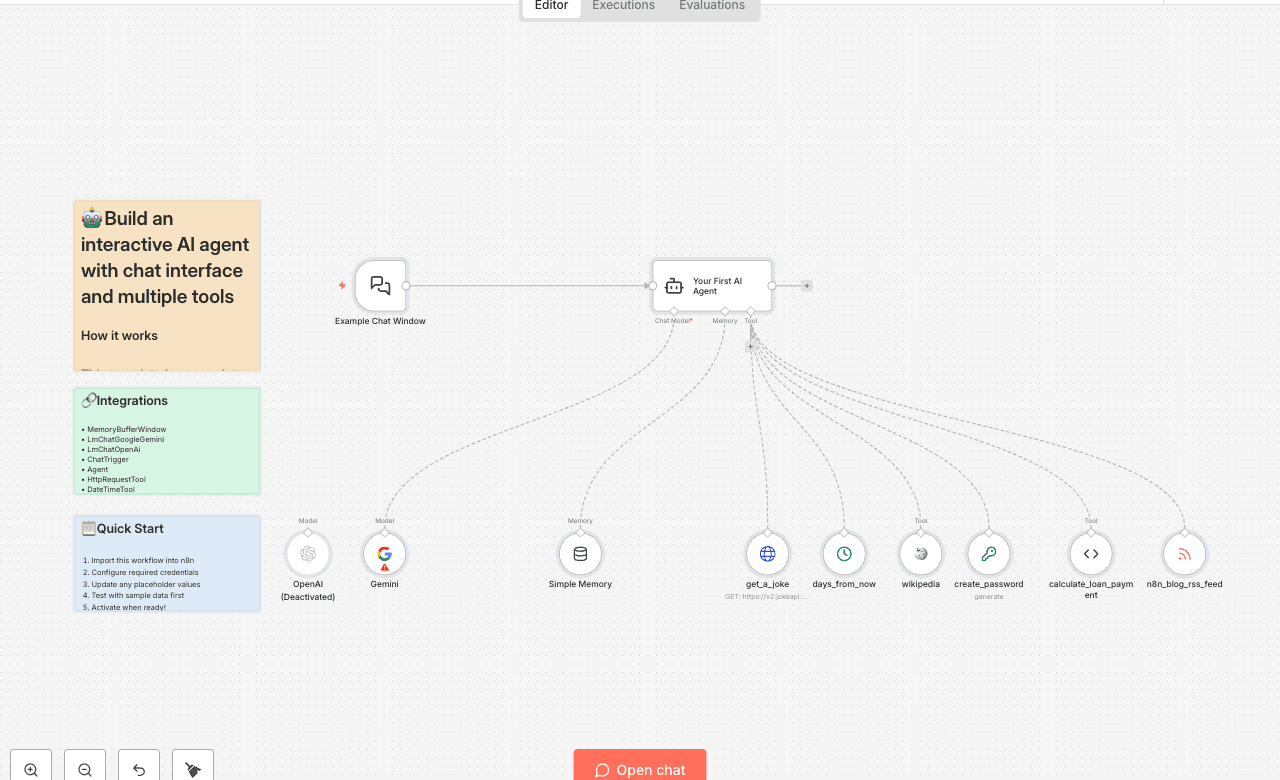
How it works This template is a complete, hands-on tutorial that lets you build and interact with your very first AI Agent. Think of an AI Agent as a standard AI chatbot with superpowers. The agent doesn't just talk; it can use tools to perform actions and find information in real-time. This workflow is designed to show you exactly how that works. 1. The Chat Interface (Chat Trigger): This is your window to the agent. It's a fully styled, public-facing chat window where you can have a conversation. 2. The Brain (AI Agent Node): This is the core of the operation. It takes your message, understands your intent, and intelligently decides which "superpower" (or tool) it needs to use to answer your request. The agent's personality and instructions are defined in its extensive system prompt. 3. The Tools (Tool Nodes): These are the agent's superpowers. We've included a variety of useful and fun tools to showcase its capabilities: Get a random joke. Search Wikipedia for a summary of any topic. Calculate a future date. Generate a secure password. Calculate a monthly loan payment. Fetch the latest articles from the n8n blog. 4. The Memory (Memory Node): This gives the agent a short-term memory, allowing it to remember the last few messages in your conversation for better context. When you send a message, the agent's brain analyzes it, picks the right tool for the job, executes it, and then formulates a helpful response based on the tool's output. Set up steps Setup time: ~3 minutes This template is nearly ready to go out of the box. You just need to provide the AI's "brain." 1. Configure Credentials: This workflow requires an API key for an AI model. Make sure you have credentials set up in your n8n instance for either Google AI (Gemini) or OpenAI. 2. Choose Your AI Brain (LLM): By default, the workflow uses the Google Gemini node. If you have Google AI credentials, you're all set! If you prefer to use OpenAI, simply disable the Gemini node and enable the OpenAI node. You only need one active LLM node. Make sure it is connected to the Agent parent node. 3. Explore the Tools: Take a moment to look at the different tool nodes connected to the Your First AI Agent node. This is where the agent gets its abilities! You can add, remove, or modify these to create your own custom agent. 4. Activate and Test! Activate the workflow. Open the public URL for the Example Chat Window node (you can copy it from the node's panel). Start chatting! Try asking it things like: "Tell me a joke." "What is n8n?" "Generate a 16-character password for me." "What are the latest posts on the n8n blog?" "What is the monthly payment for a $300,000 loan at 5% interest over 30 years?"
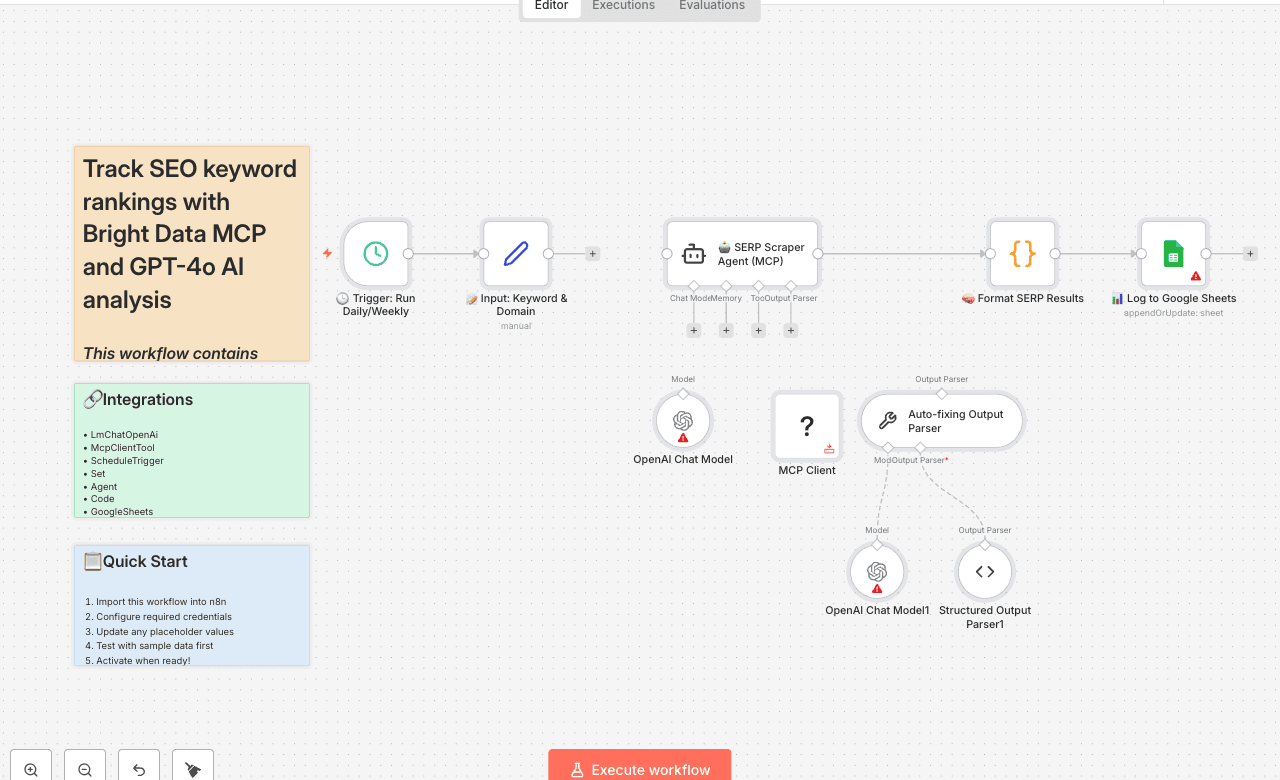
This workflow contains community nodes that are only compatible with the self-hosted version of n8n. This workflow automatically monitors keyword rankings across search engines to track SEO performance and identify optimization opportunities. It saves you time by eliminating the need to manually check keyword positions and provides comprehensive ranking data for strategic SEO decision making. Overview This workflow automatically scrapes search engine results pages (SERPs) to track keyword rankings, competitor positions, and search features. It uses Bright Data to access search results without restrictions and AI to intelligently parse ranking data, track changes, and identify SEO opportunities. Tools Used - n8n: The automation platform that orchestrates the workflow - Bright Data: For scraping search engine results without being blocked - OpenAI: AI agent for intelligent ranking analysis and SEO insights - Google Sheets: For storing keyword ranking data and tracking changes How to Install 1. Import the Workflow: Download the .json file and import it into your n8n instance 2. Configure Bright Data: Add your Bright Data credentials to the MCP Client node 3. Set Up OpenAI: Configure your OpenAI API credentials 4. Configure Google Sheets: Connect your Google Sheets account and set up your ranking tracking spreadsheet 5. Customize: Define target keywords and ranking monitoring parameters Use Cases - SEO Teams: Track keyword performance and identify ranking improvements - Content Marketing: Monitor content ranking success and optimization needs - Competitive Analysis: Track competitor keyword rankings and strategies - Digital Marketing: Measure organic search performance and ROI Connect with Me - Website: https://www.nofluff.online - YouTube: https://www. - LinkedIn: https://www.linkedin.com/in/yaronbeen/ - Get Bright Data: https://get.brightdata.com/1tndi4600b25 (Using this link supports my free workflows with a small commission) #n8n #automation #keywordrankings #seo #searchrankings #brightdata #webscraping #seotools #n8nworkflow #workflow #nocode #ranktracking #keywordmonitoring #seoautomation #searchmarketing #organicseo #seoresearch #rankinganalysis #keywordanalysis #searchengines #seomonitoring #digitalmarketing #serp #keywordtracking #seoanalytics #searchoptimization #rankingreports #keywordresearch #seoinsights #searchperformance
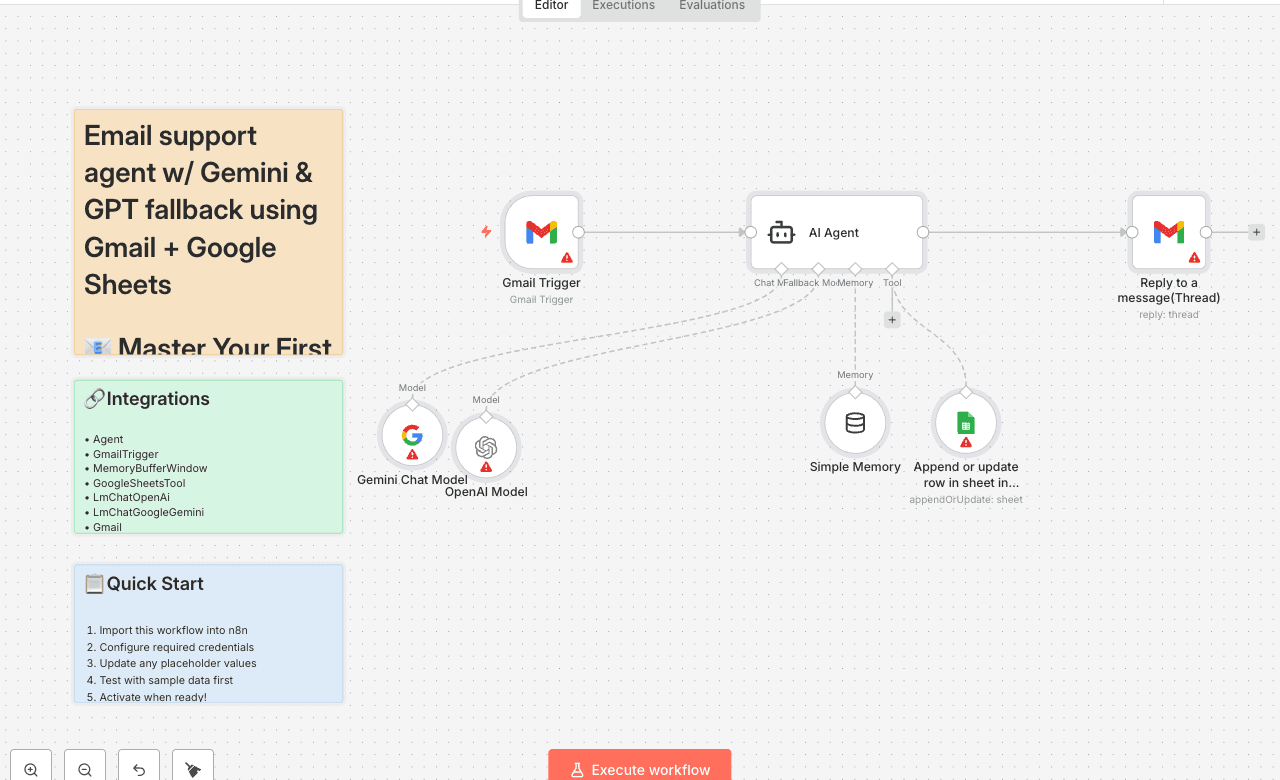
📧 Master Your First AI Email Agent with Smart Fallback! Welcome to your hands-on guide for building a resilient, intelligent email support system in n8n! This workflow is specifically designed as an educational tool to help you understand advanced AI automation concepts in a practical, easy-to-follow way. 🚀 What You'll Learn & Build: This powerful template enables you to create an automated email support agent that: Monitors Gmail for new customer inquiries in real-time. Processes requests using a primary AI model (Google Gemini) for efficiency. Intelligently falls back to a secondary AI model (OpenAI GPT) if the primary model fails or for more complex queries, ensuring robust reliability. Generates personalized and helpful replies automatically. Logs every interaction meticulously to a Google Sheet for easy tracking and analysis. 💡 Why a Fallback Model is Game-Changing (and Why You Should Learn It): Unmatched Reliability (99.9% Uptime): If one AI service experiences an outage or rate limits, your automation seamlessly switches to another, ensuring no customer email goes unanswered. Cost Optimization: Leverage more affordable models (like Gemini) for standard queries, reserving premium models (like GPT) only when truly needed, significantly reducing your API costs. Superior Quality Assurance: Get the best of both worlds – the speed of cost-effective models combined with the accuracy of more powerful ones for complex scenarios. Real-World Application: This isn't just theory; it's a critical pattern for building resilient, production-ready AI systems. 🎓 Perfect for Beginners & Aspiring Automators: Simple Setup: With drag-and-drop design and pre-built integrations, you can get this workflow running with minimal configuration. Just add your API keys! Clear Educational Value: Learn core concepts like AI model orchestration strategies, customer service automation best practices, and multi-model AI implementation patterns. Immediate Results: See your AI agent in action, responding to emails and logging data within minutes of setup. 🛠️ Getting Started Checklist: To use this workflow, you'll need: A Gmail account with API access enabled. A Google Sheets document created for logging. A Gemini API key (your primary AI model). An OpenAI API key (your fallback AI model). * An n8n instance (cloud or desktop). Embark on your journey to building intelligent, resilient automation systems today!
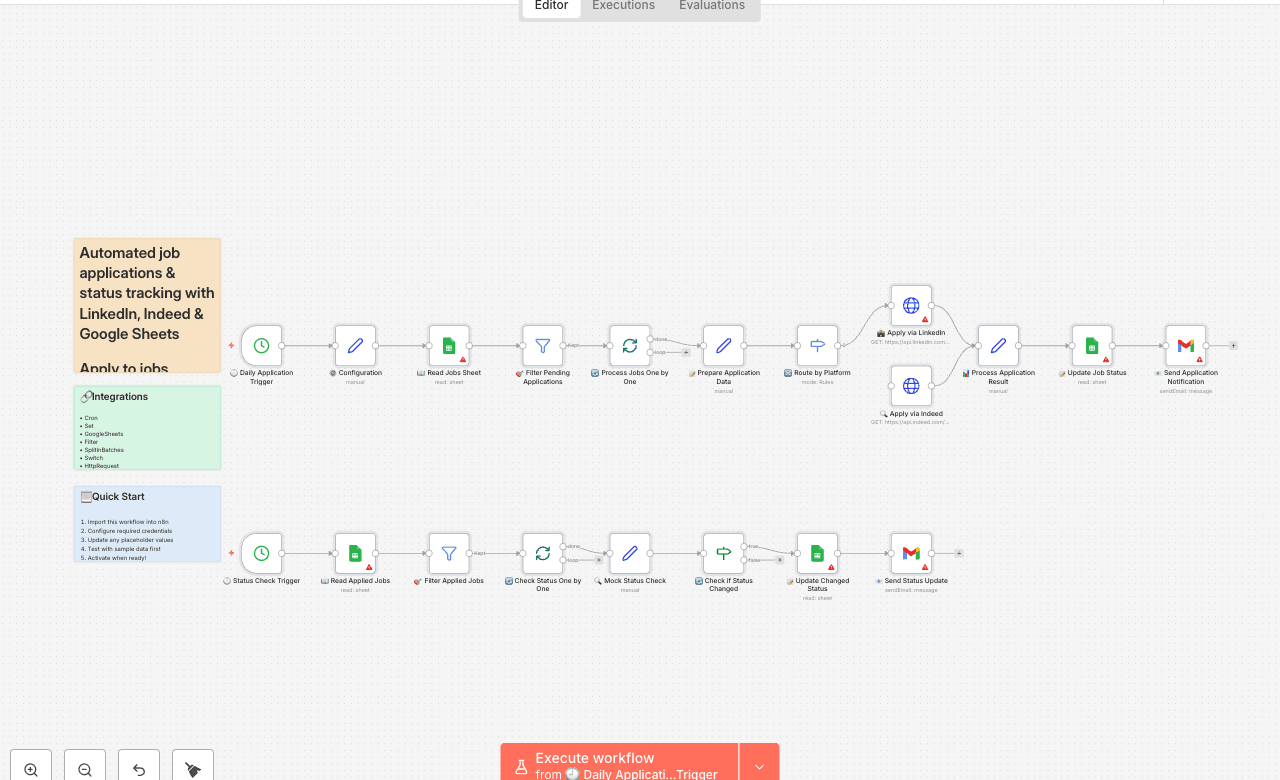
Apply to jobs automatically from Google Sheets with status tracking Who's it for Job seekers who want to streamline their application process, save time on repetitive tasks, and never miss following up on applications. Perfect for anyone managing multiple job applications across different platforms. What it does This workflow automatically applies to jobs from a Google Sheet, tracks application status, and keeps you updated with notifications. It handles the entire application lifecycle from submission to status monitoring. Key features: - Reads job listings from Google Sheets with filtering by priority and status - Automatically applies to jobs on LinkedIn, Indeed, and other platforms - Updates application status in real-time - Checks application status every 2 days and notifies you of changes - Sends email notifications for successful applications and status updates - Prevents duplicate applications and manages rate limiting How it works The workflow runs on two main schedules: Daily Application Process (9 AM, weekdays): 1. Reads your job list from Google Sheets 2. Filters for jobs marked as "Not Applied" with Medium/High priority 3. Processes each job individually to prevent rate limiting 4. Applies to jobs using platform-specific APIs (LinkedIn, Indeed, etc.) 5. Updates the sheet with application status and reference ID 6. Sends confirmation email for each application Status Monitoring (Every 2 days at 10 AM): 1. Checks all jobs with "Applied" status 2. Queries job platforms for application status updates 3. Updates the sheet if status has changed 4. Sends notification emails for status changes (interviews, rejections, etc.) Requirements - Google account with Google Sheets access - Gmail account for notifications - Resume stored online (Google Drive, Dropbox, etc.) - API access to job platforms (LinkedIn, Indeed) - optional for basic version - n8n instance (self-hosted or cloud) How to set up Step 1: Create Your Job Tracking Sheet Create a Google Sheet with these exact column headers: | Job_ID | Company | Position | Status | Applied_Date | Last_Checked | Application_ID | Notes | Job_URL | Priority | |--------|---------|----------|--------|--------------|--------------|----------------|-------|---------|----------| | JOB001 | Google | Software Engineer | Not Applied | | | | | https://careers.google.com/jobs/123 | High | | JOB002 | Microsoft | Product Manager | Not Applied | | | | | https://careers.microsoft.com/jobs/456 | Medium | Column explanations: - Job_ID: Unique identifier (JOB001, JOB002, etc.) - Company: Company name - Position: Job title - Status: Not Applied, Applied, Under Review, Interview Scheduled, Rejected, Offer - Applied_Date: Auto-filled when application is submitted - Last_Checked: Auto-updated during status checks - Application_ID: Platform reference ID (auto-generated) - Notes: Additional information or application notes - Job_URL: Direct link to job posting - Priority: High, Medium, Low (Low priority jobs are skipped) Step 2: Configure Google Sheets Access 1. In n8n, go to Credentials → Add Credential 2. Select Google Sheets OAuth2 API 3. Follow the OAuth setup process to authorize n8n 4. Test the connection with your job tracking sheet Step 3: Set Up Gmail Notifications 1. Add another credential for Gmail OAuth2 API 2. Authorize n8n to send emails from your Gmail account 3. Test by sending a sample email Step 4: Update Workflow Configuration In the "Set Configuration" node, update these values: - spreadsheetId: Your Google Sheet ID (found in the URL) - resumeUrl: Direct link to your resume (make sure it's publicly accessible) - yourEmail: Your email address for notifications - coverLetterTemplate: Customize your cover letter template Step 5: Customize Application Logic For basic version (no API access): The workflow includes placeholder HTTP requests that you can replace with actual job platform integrations. For advanced version (with API access): - Replace LinkedIn/Indeed HTTP nodes with actual API calls - Add your API credentials to n8n's credential store - Update the platform detection logic for additional job boards Step 6: Test and Activate 1. Add 1-2 test jobs to your sheet with "Not Applied" status 2. Run the workflow manually to test 3. Check that the sheet gets updated and you receive notifications 4. Activate the workflow to run automatically How to customize the workflow Adding New Job Platforms 1. Update Platform Detection: Modify the "Check Platform Type" node to recognize new job board URLs 2. Add New Application Node: Create HTTP request nodes for new platforms 3. Update Status Checking: Add status check logic for the new platform Customizing Application Strategy - Rate Limiting: Add "Wait" nodes between applications (recommended: 5-10 minutes) - Application Timing: Modify the cron schedule to apply during optimal hours - Priority Filtering: Adjust the filter conditions to match your criteria - Multiple Resumes: Use conditional logic to select different resumes based on job type Enhanced Notifications - Slack Integration: Replace Gmail nodes with Slack for team notifications - Discord Webhooks: Send updates to Discord channels - SMS Notifications: Use Twilio for urgent status updates - Dashboard Updates: Connect to Notion, Airtable, or other productivity tools Advanced Features - AI-Powered Personalization: Use OpenAI to generate custom cover letters - Job Scoring: Implement scoring logic based on job requirements vs. your skills - Interview Scheduling: Auto-schedule interviews when status changes - Follow-up Automation: Send follow-up emails after specific time periods Important Notes Platform Compliance - Always respect rate limits to avoid being blocked - Follow each platform's Terms of Service - Use official APIs when available instead of web scraping - Don't spam job boards with excessive applications Data Privacy - Store credentials securely using n8n's credential store - Don't hardcode API keys or personal information in nodes - Regularly review and clean up old application data - Ensure your resume link is secure but accessible Quality Control - Start with a small number of jobs to test the workflow - Review application success rates and adjust strategy - Monitor for errors and set up proper error handling - Keep your job list updated and remove expired postings This workflow transforms job searching from a manual, time-consuming process into an automated system that maximizes your application efficiency while maintaining quality and compliance.
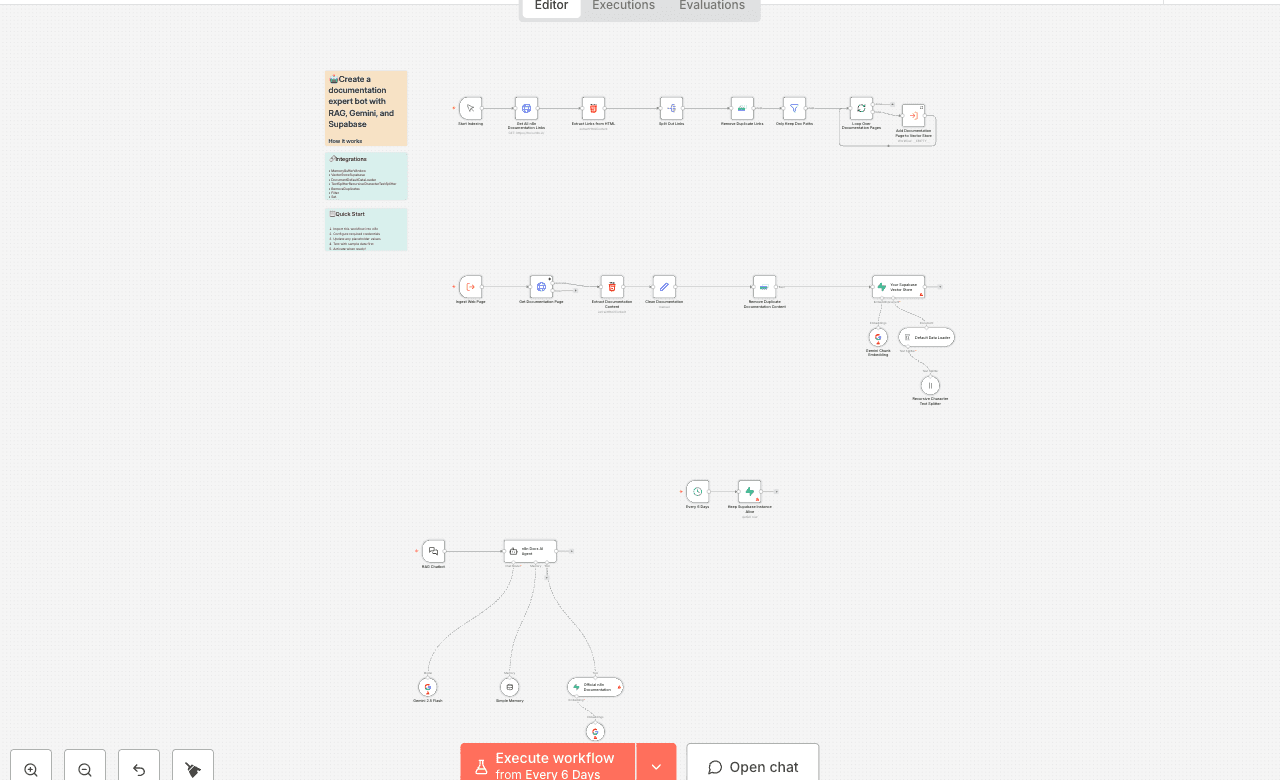
How it works This template is a complete, hands-on tutorial for building a RAG (Retrieval-Augmented Generation) pipeline. In simple terms, you'll teach an AI to become an expert on a specific topic—in this case, the official n8n documentation—and then build a chatbot to ask it questions. Think of it like this: instead of a general-knowledge AI, you're building an expert librarian. The workflow is split into two main parts: 1. Part 1: Indexing the Knowledge (Building the Library) This is a one-time process you run manually. The workflow automatically scrapes all the pages of the n8n documentation, breaks them down into small, digestible chunks, and uses an AI model to create a special numerical representation (an "embedding") for each chunk. These embeddings are then stored in your own private knowledge base (a Supabase vector store). This is like a librarian reading every book and creating a hyper-detailed index card for every paragraph. 2. Part 2: The AI Agent (The Expert Librarian) This is the chat interface. When you ask a question, the AI agent doesn't guess the answer. Instead, it uses your question to find the most relevant "index cards" (chunks) from the knowledge base it just built. It then feeds these specific, relevant chunks to a powerful language model (like Gemini) with a strict instruction: "Answer the user's question using ONLY this information." This ensures the answers are accurate, factual, and grounded in your provided documents. Set up steps Setup time: ~15-20 minutes This is an advanced workflow that requires setting up a free external database. Follow these steps carefully. 1. Set up Supabase (Your Knowledge Base): You need a free [Supabase] account. Follow the detailed instructions in the large Workflow Setup sticky notes in the top-right of the workflow to: 1. Create a new Supabase project. 2. Run the provided SQL query in the SQL Editor to prepare your database. 3. Get your Project URL and Service Role Key. 2. Configure n8n Credentials: In your n8n instance, create a new Supabase credential using the Project URL and Service Role Key from the previous step. Create a new Google AI credential with your Gemini API key. 3. Configure the Workflow Nodes: Select your new Supabase credential in the three Supabase nodes: Your Supabase Vector Store, Official n8n Documentation and Keep Supabase Instance Alive. Select your new Google AI credential in the three Gemini nodes: Gemini Chunk Embedding, Gemini Query Embedding and Gemini 2.5 Flash. 4. Build the Knowledge Base: Find the Start Indexing manual trigger node at the top-left. Click its "Execute workflow" button to start the indexing process. This will take several minutes as it scrapes and processes the entire n8n documentation. You only need to do this once. 5. Chat with Your Expert Agent: Once the indexing is complete, Activate the entire workflow. Open the RAG Chatbot chat trigger node and copy its Public URL. * Open the URL in a new tab and start asking questions about n8n! For example: "How does the IF node work?" or "What is a sub-workflow?".
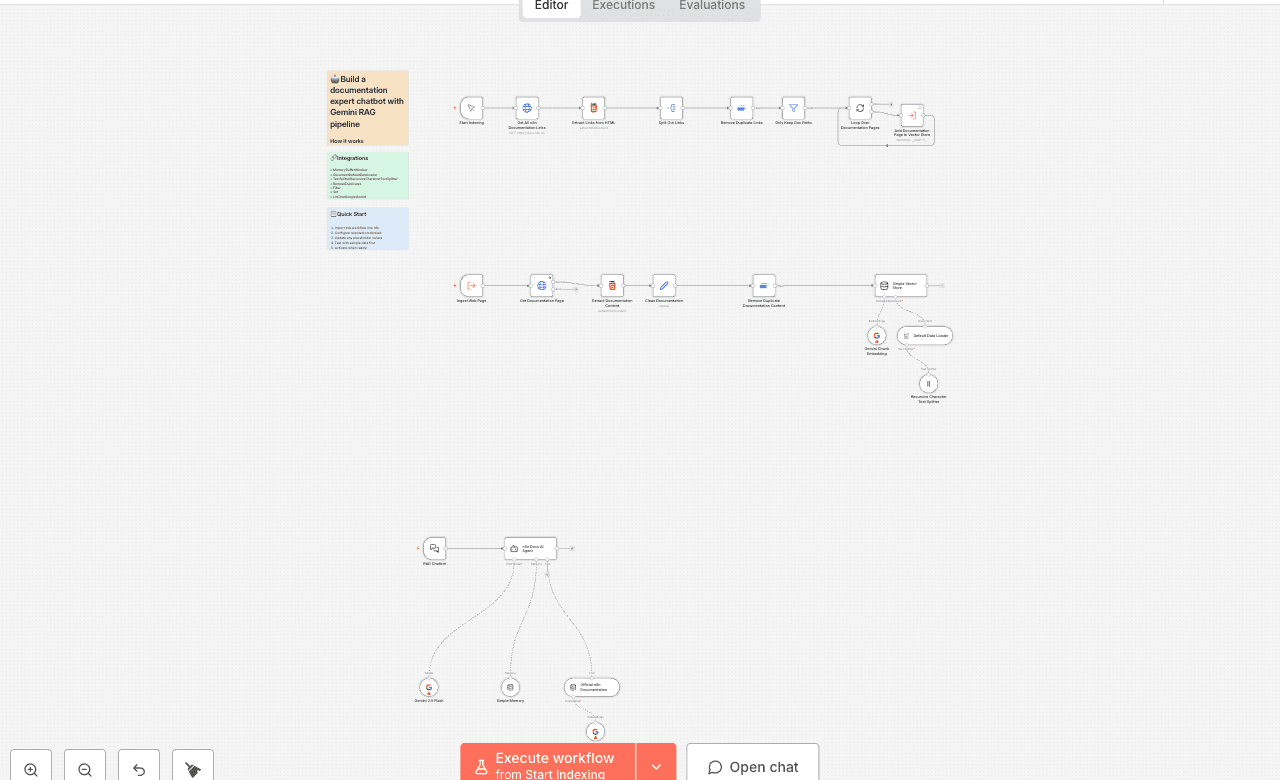
How it works This template is a complete, hands-on tutorial for building a RAG (Retrieval-Augmented Generation) pipeline. In simple terms, you'll teach an AI to become an expert on a specific topic—in this case, the official n8n documentation—and then build a chatbot to ask it questions. Think of it like this: instead of a general-knowledge AI, you're building an expert librarian. The workflow is split into two main parts: 1. Part 1: Indexing the Knowledge (Building the Library) This is a one-time process you run manually. The workflow automatically scrapes all pages of the n8n documentation, breaks them down into small, digestible chunks, and uses an AI model to create a special numerical representation (an "embedding") for each chunk. These embeddings are then stored in n8n's built-in Simple Vector Store. This is like a librarian reading every book and creating a hyper-detailed index card for every paragraph. Important: This in-memory knowledge base is temporary. It will be erased if you restart your n8n instance, and you will need to run the indexing process again. 2. Part 2: The AI Agent (The Expert Librarian) This is the chat interface. When you ask a question, the AI agent doesn't guess the answer. Instead, it uses your question to find the most relevant "index cards" (chunks) from the knowledge base it just built. It then feeds these specific, relevant chunks to a powerful language model (Gemini) with a strict instruction: "Answer the user's question using ONLY this information." This ensures the answers are accurate, factual, and grounded in your provided documents. Set up steps Setup time: ~2 minutes (plus ~15-20 minutes for indexing) This template uses n8n's built-in tools, removing the need for an external database. Follow these simple steps to get started. 1. Configure Google AI Credentials: You will need a Google AI API key for the Gemini models. In your n8n workflow, go to any of the three Gemini nodes (e.g., Gemini 2.5 Flash). Click the Credential dropdown and select + Create New Credential. Enter your Gemini API key and save. 2. Apply Credentials to All Nodes: Your new Google AI credential is now saved. Go to the other two Gemini nodes (Gemini Chunk Embedding and Gemini Query Embedding) and select your newly created credential from the dropdown list. 3. Build the Knowledge Base: Find the Start Indexing manual trigger node at the top-left of the workflow. Click its "Execute workflow" button to start the indexing process. ⚠️ Be Patient: This will take 15-20 minutes as it scrapes and processes the entire n8n documentation. You only need to do this once per n8n session. If you restart n8n, you must run this step again. 4. Chat with Your Expert Agent: Once the indexing is complete, Activate the entire workflow using the toggle at the top of the screen. Open the RAG Chatbot chat trigger node (bottom-left) and copy its Public URL. * Open the URL in a new tab and start asking questions about n8n! For example: "How does the IF node work?" or "What is a sub-workflow?".
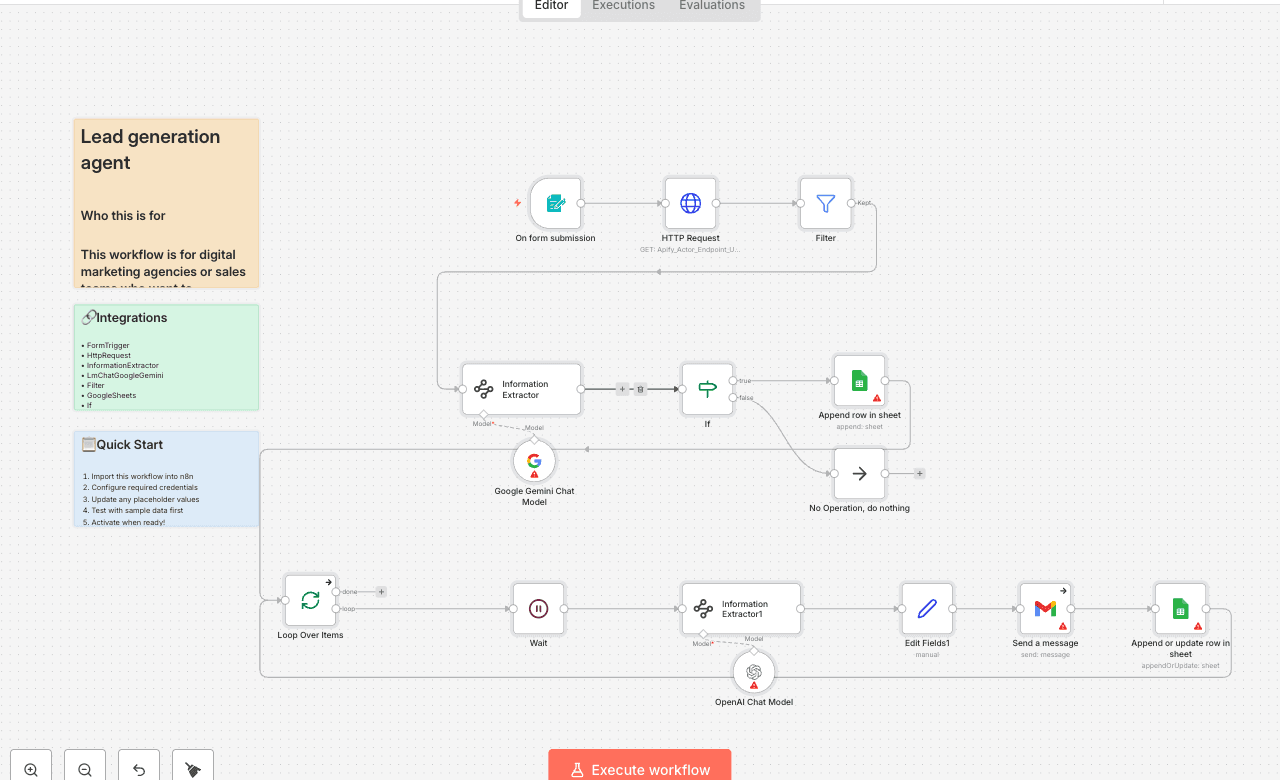
Who this is for This workflow is for digital marketing agencies or sales teams who want to automatically find business leads based on industry & location, gather their contact details, and send personalized cold emails — all from one form submission. What this workflow does This workflow starts every time someone submits the Lead Machine Form. It then: Scrapes business data (company name, website, phone, address, category) using Apify based on business type & location. Extracts the best email address from each business website using Google Gemini AI. Stores valid leads in Google Sheets. Generates cold email content (subject + body) with AI based on your preferred tone (Friendly, Professional, Simple). Sends the cold email via Gmail. Updates the sheet with send status & timestamp. Setup To set this workflow up: 1. Form Trigger – Customize the “Lead Machine” form fields if needed (Business Type, Location, Lead Number, Email Style). 2. Apify API – Add your Apify Actor Endpoint URL in the HTTP Request node. 3. Google Gemini – Add credentials for extracting email addresses. 4. Google Sheets – Connect your sheet for storing leads & email status. 5. OpenAI – Add your credentials for cold email generation. 6. Gmail – Connect your Gmail account for sending cold emails. How to customize this workflow to your needs Change the AI email prompt to reflect your brand’s voice and offer. Add filters to only target leads that meet specific criteria (e.g., website must exist, email must be verified). Modify the Google Sheets structure to track extra info like “Follow-up Date” or “Lead Source”. Switch Gmail to another email provider if preferred.
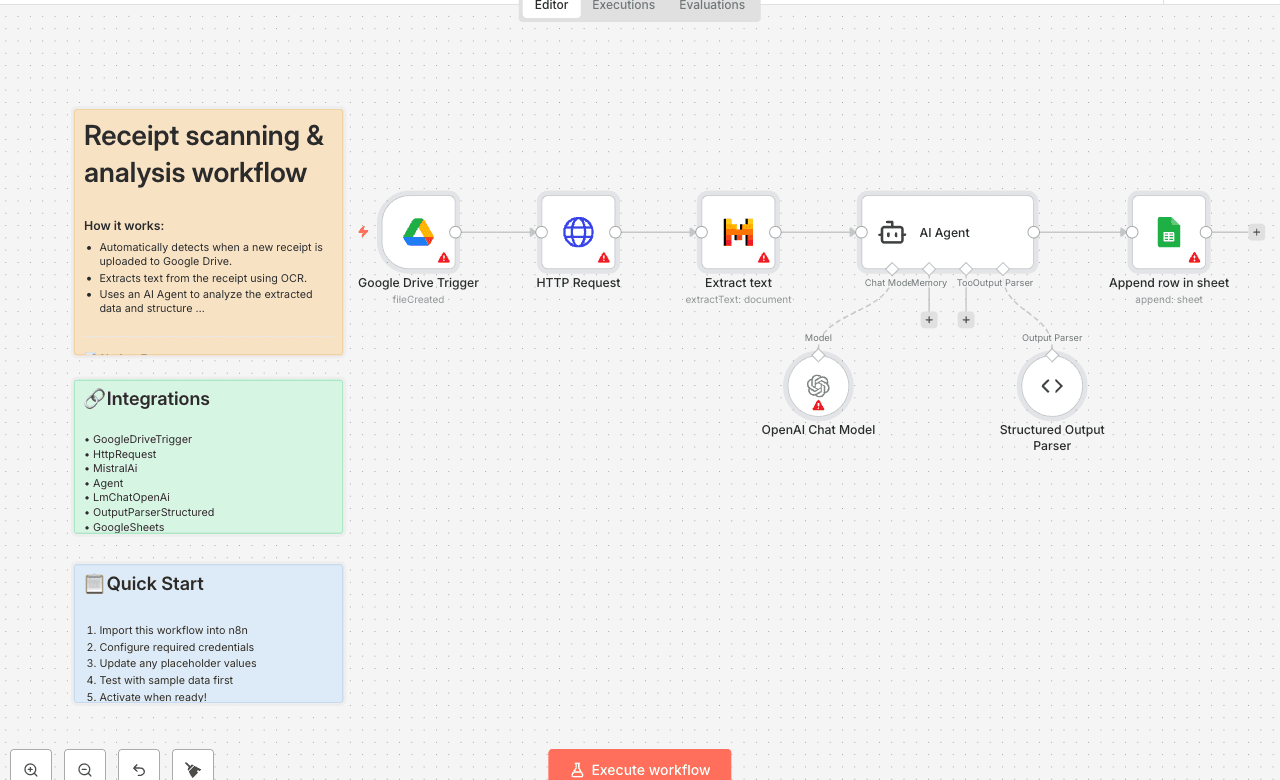
How it works: - Automatically detects when a new receipt is uploaded to Google Drive. - Extracts text from the receipt using OCR. - Uses an AI Agent to analyze the extracted data and structure it (e.g., vendor, date, total, tax). - Saves the organized receipt data into a Google Sheet for easy tracking. Set up steps: - Setup takes around 15–20 minutes. - You'll need a Google Drive folder for receipts and a Google Sheet to store results. - Configure your Google Drive Trigger, OCR extraction, AI Agent, and Google Sheets connection. Detailed instructions and explanations are included in [this n8n Starter Session tutorial series].
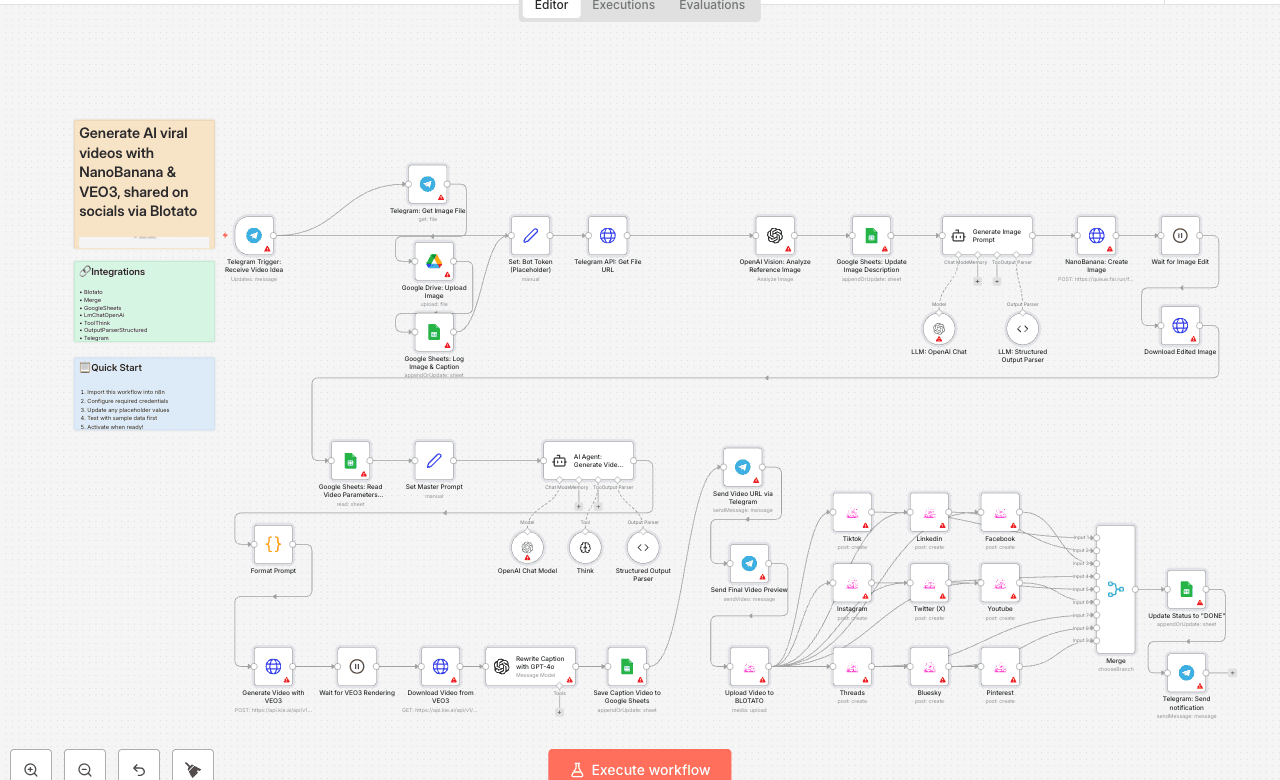
Generate AI viral videos with NanoBanana & VEO3, shared on socials via Blotato Who is this for? This workflow is designed for content creators, marketers, and entrepreneurs who want to automate their video production and social media publishing process. If you regularly post promotional or viral-style content on platforms like TikTok, YouTube Shorts, Instagram Reels, LinkedIn, and more, this template will save you hours of manual work. What problem is this workflow solving? / Use case Creating viral short-form videos is often time-consuming: - You need to generate visuals, write scripts, edit videos, and then manually upload them to multiple platforms. - Staying consistent across TikTok, YouTube Shorts, Instagram Reels, LinkedIn, Twitter/X, and others requires constant effort. This workflow solves the problem by automating the entire pipeline from idea → video creation → multi-platform publishing. What this workflow does 1. Collects an idea and image from Telegram. 2. Enhances visuals with NanoBanana for user-generated content style. 3. Generates a complete video script with AI (OpenAI + structured prompts). 4. Creates the final video with VEO3 using your custom prompt and visuals. 5. Rewrites captions with GPT to be short, catchy, and optimized for social platforms. 6. Saves metadata in Google Sheets for tracking and management. 7. Auto-uploads the video to all major platforms via Blotato (TikTok, YouTube, Instagram, LinkedIn, Threads, Pinterest, X/Twitter, Bluesky, Facebook). 8. Notifies you on Telegram with a preview link once publishing is complete. Setup 1. Connect your accounts: - Google Sheets (for video tracking) - Telegram (to receive and send media) - Blotato (for multi-platform publishing) - OpenAI API (for captions, prompts, and image analysis) - VEO3 API (for video rendering) - Fal.ai (for NanoBanana image editing) - Google Drive (to store processed images) 2. Set your credentials in the respective nodes. 3. Adjust the Google Sheet IDs to match your own sheet structure. 4. Insert your Telegram bot token in the Set: Bot Token (Placeholder) node. How to customize this workflow to your needs - Platforms: Disable or enable only the Blotato social accounts you want to post to. - Video style: Adjust the master prompt schema in the Set Master Prompt node to fine-tune tone, camera style, or video format. - Captions: Modify the GPT prompt in the Rewrite Caption with GPT-4o node to control length and tone. - Notifications: Customize the Telegram nodes to notify team members, not just yourself. - Scheduling: Add a Cron trigger if you want automatic posting at specific times. ✨ With this workflow, you go from idea → AI-enhanced video → instant multi-platform publishing in just minutes, with almost no manual work. 📄 Documentation: [Notion Guide] Need help customizing? Contact me for consulting and support : [Linkedin] / Youtube
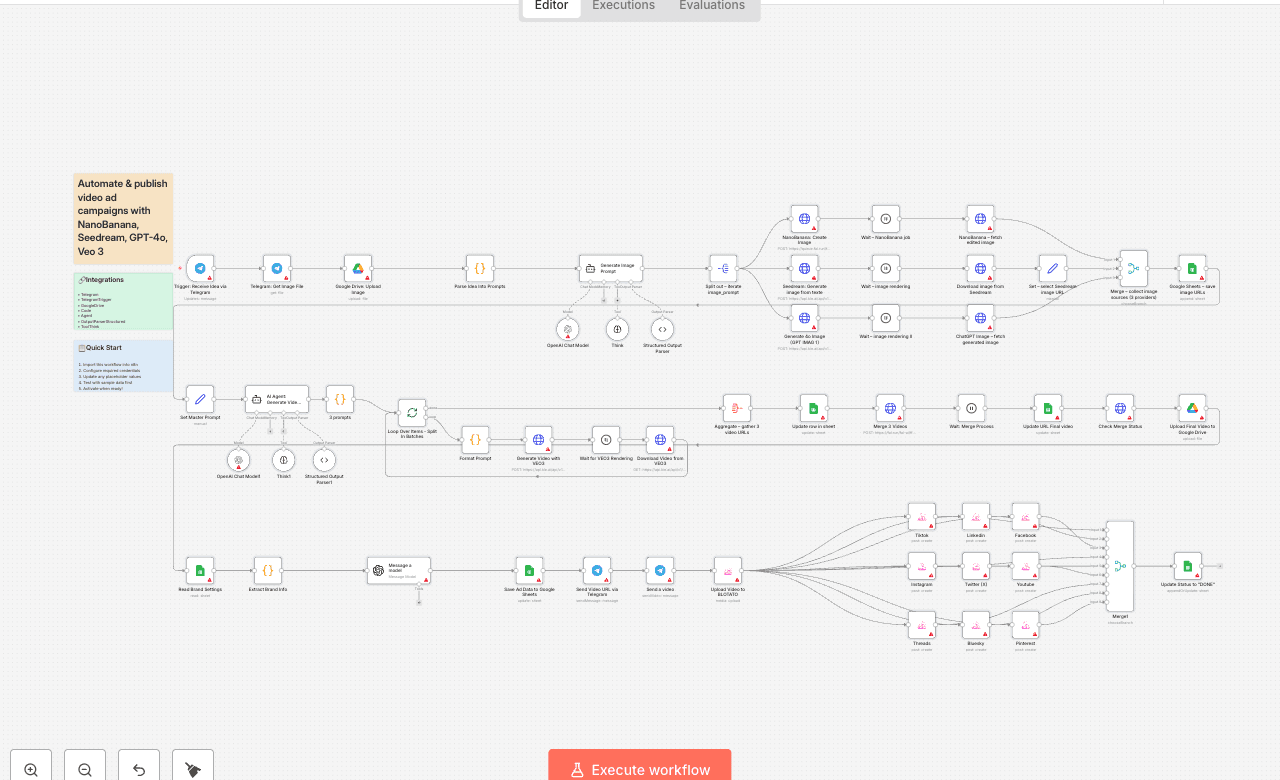
💥 Automate video ads with NanoBanana, Seedream 4, ChatGPT Image and Veo 3 Who is this for? This template is designed for marketers, content creators, and e-commerce brands who want to automate the creation of professional ad videos at scale. It’s ideal for teams looking to generate consistent, high-quality video ads for social media without spending hours on manual design, editing, or publishing. What problem is this workflow solving? / Use case Creating video ads usually requires multiple tools and a lot of time: writing scripts, designing product visuals, editing videos, and publishing them across platforms. This workflow automates the entire pipeline — from idea to ready-to-publish ad video — ensuring brands can quickly test campaigns and boost engagement without production delays. What this workflow does 1. Generates ad ideas from Telegram input (text + product image). 2. Creates product visuals using multiple AI image engines: - 🌊 Seedream 4.0 (realistic visuals) - 🍌 NanoBanana (image editing & enhancement) - 🤖 ChatGPT Image / GPT-4o (creative variations) 3. Produces cinematic video ads with Veo 3 based on AI-generated scripts. 4. Merges multiple short clips into a polished final ad. 5. Publishes automatically to multiple platforms (TikTok, Instagram, LinkedIn, X, Threads, Facebook, Pinterest, Bluesky, YouTube) via Blotato. 6. Stores metadata and results in Google Sheets & Google Drive for easy tracking. 7. Notifies you via Telegram with the video link and copy. Setup 1. Connect your accounts in n8n: - Telegram API (for input and notifications) - Google Drive + Google Sheets (storage & tracking) - Kie AI API (Seedream + Veo 3) - Fal.ai API (NanoBanana + video merging) - OpenAI (for script and prompt generation) - Blotato API (for social publishing) 2. Prepare a Google Sheet with brand info and settings (product name, category, features, offer, website URL). 3. Deploy the workflow and connect your Telegram bot to start sending ad ideas (photo + caption). 4. Run the workflow — it will automatically generate images, create videos, and publish to your chosen channels. How to customize this workflow to your needs - Brand customization: Adjust the Google Sheet values to reflect your brand’s offers and product features. - Platforms: Enable/disable specific Blotato nodes depending on which platforms you want to publish to. - Video style: Edit the AI agent’s system prompt to control tone, format, and transitions (cinematic, playful, modern, etc.). - Notifications: Adapt Telegram nodes to send updates to different team members or channels. - Storage: Change the Google Drive folder IDs to store generated videos and images in your preferred location. This workflow lets you go from idea → images → cinematic ad video → auto-published content in minutes, fully automated. 📄 🎥 Watch This Tutorial: [Step by Step] 📄 Documentation: [Notion Guide] Need help customizing? Contact me for consulting and support : [Linkedin] / Youtube
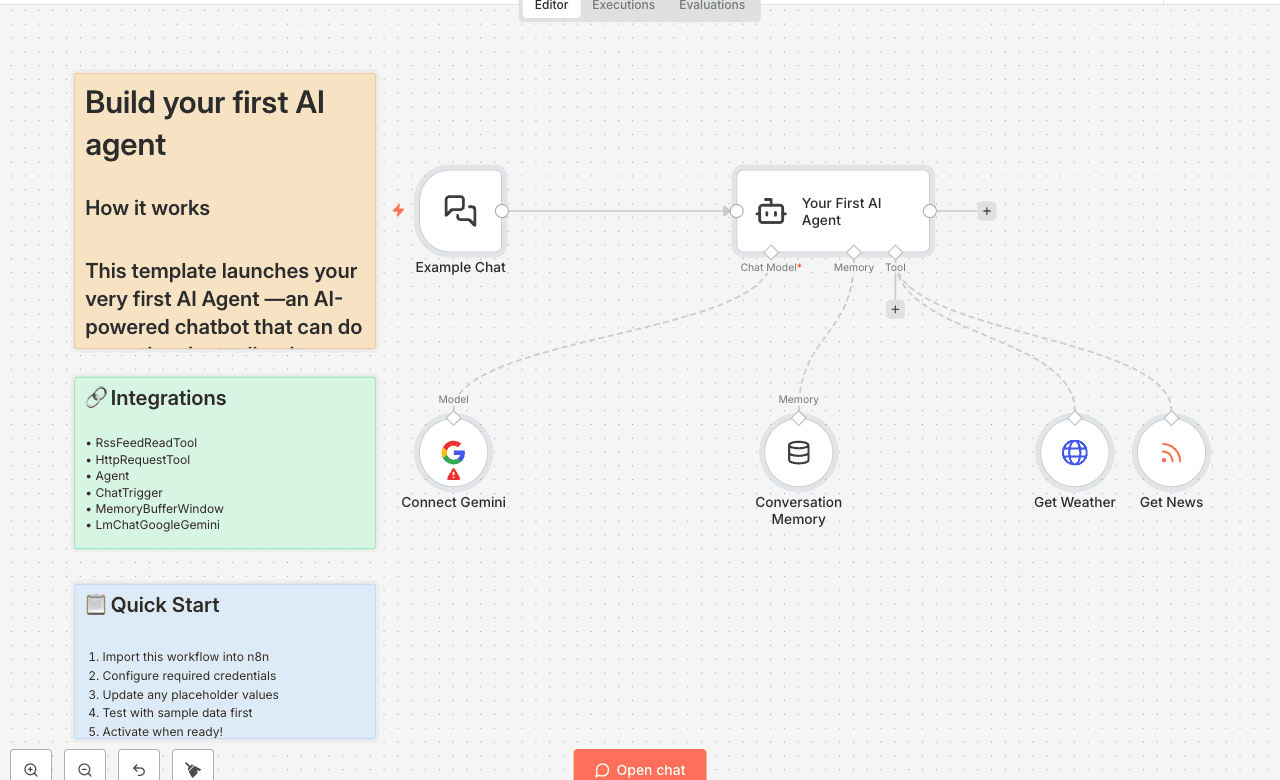
How it works This template launches your very first AI Agent —an AI-powered chatbot that can do more than just talk— it can take action using tools. Think of an AI Agent as a smart assistant, and the tools are the apps on its phone. By connecting it to other nodes, you give your agent the ability to interact with real-world data and services, like checking the weather, fetching news, or even sending emails on your behalf. This workflow is designed to be the perfect starting point: The Chat Interface: A Chat Trigger node provides a simple, clean interface for you to talk to your agent. The Brains: The AI Agent node receives your messages, intelligently decides which tool to use (if any), and formulates a helpful response. Its personality and instructions are fully customizable in the "System Message". The Language Model: It uses Google Gemini to power its reasoning and conversation skills. The Tools: It comes pre-equipped with two tools to demonstrate its capabilities: 1. Get Weather: Fetches real-time weather forecasts. 2. Get News: Reads any RSS feed to get the latest headlines. The Memory: A Conversation Memory node allows the agent to remember the last few messages, enabling natural, follow-up conversations. Set up steps Setup time: ~2 minutes You only need one thing to get started: a free Google AI API key. 1. Get Your Google AI API Key: Visit Google AI Studio at [aistudio.google.com/app/apikey]. Click "Create API key in new project" and copy the key that appears. 2. Add Your Credential in n8n: On the workflow canvas, go to the Connect your model (Google Gemini) node. Click the Credential dropdown and select + Create New Credential. Paste your API key into the API Key field and click Save. 3. Start Chatting! Go to the Example Chat node. Click the "Open Chat" button in its parameter panel. Try asking it one of the example questions, like: "What's the weather in Paris?" or "Get me the latest tech news."* That's it! You now have a fully functional AI Agent. Try adding more tools (like Gmail or Google Calendar) to make it even more powerful.
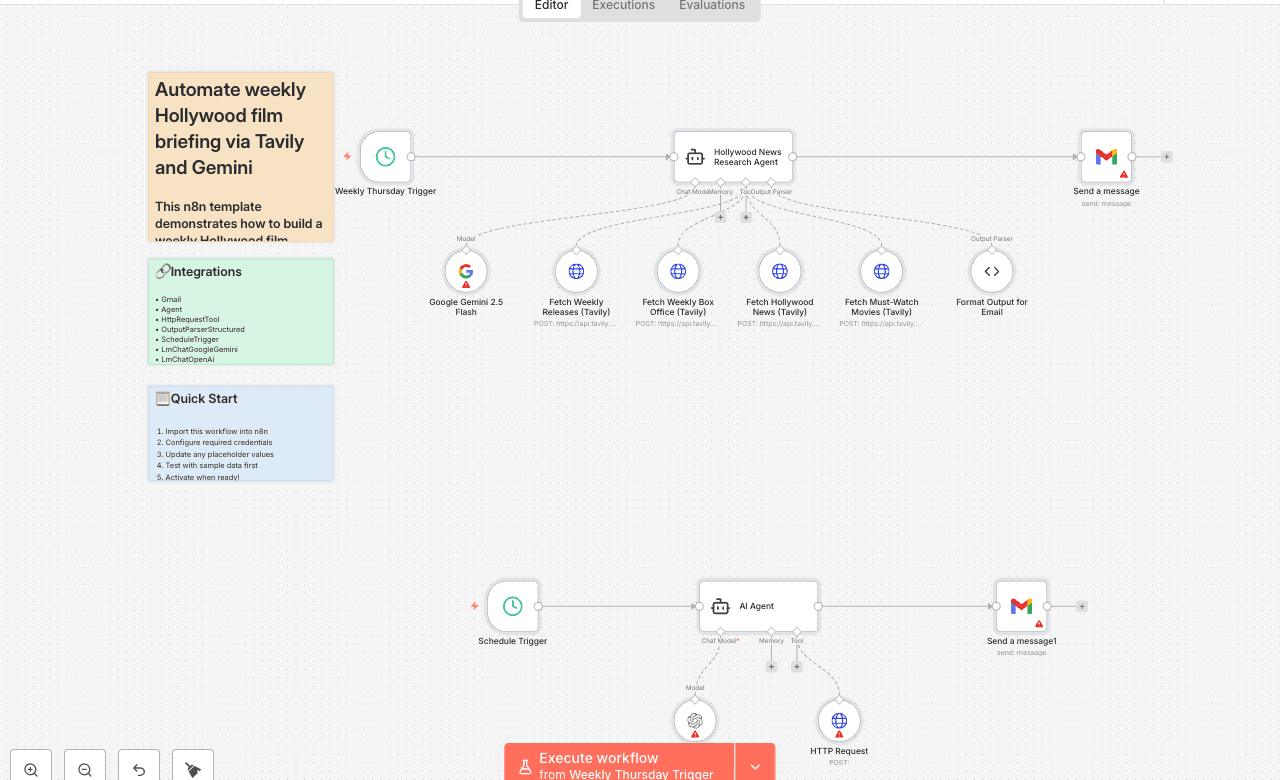
This n8n template demonstrates how to build a weekly Hollywood film industry briefing using Tavily for real-time search and Google Gemini for summarization. It sends a concise, emoji‑styled email with movie releases, box office results, industry news, and must‑watch recommendations every week automatically. Use cases: Great for film journalists, entertainment bloggers, or movie enthusiasts who want automated weekly updates without manually checking multiple sources. Good to know Free to use: Tavily provides 1,000 API credits per month on their free plan (no credit card required), so this workflow can run at zero cost. Real-time data: Tavily’s search API is optimized for up-to-date information — perfect for weekly movie releases and box office stats. Google Gemini is used for summarization, and you only need basic API access (no paid tier required). How it works Trigger: Scheduled every Thursday morning (configurable). Search: Four Tavily API calls gather: Movies releasing this week Last week’s box office results Hollywood industry news Must‑watch movies currently in theatres Summarization: Google Gemini turns this into Gmail‑friendly HTML with emojis and bullet points. Email: The formatted newsletter is sent via Gmail node. How to use Configure Tavily API and Gmail OAuth2 credentials in n8n’s credential manager. (Optional) Edit Tavily queries to focus on specific genres or add filters. Adjust the schedule trigger to any day/time you prefer. Requirements Tavily API account (free plan – 1,000 monthly requests) Google Gemini API key for summarization Gmail account (OAuth2 credentials for sending emails) Want insane output quality? You can swap Gemini for OpenAI’s ChatGPT models: GPT‑3.5 Turbo – \~\$0.002/run (crazy cheap) GPT‑4o – \~\$0.009/run (latte price) GPT‑4.5 – \~\$0.15/run (god‑mode quality) This upgrade gives you cleaner, richer, “did‑a‑human‑write‑this?” vibes — perfect for journalist‑grade Hollywood briefings. Just note: OpenAI API requires a \$5 minimum credit to activate usage. Example Output (ChatGPT version) Subject: Daily Hollywood Film Industry Briefing – August 3, 2025 Good morning, Here's your daily Hollywood film briefing for August 3, 2025: 🎬 Releases The Bad Guys 2 – Released Friday, August 1, 2025 The Naked Gun – Released Friday, August 1, 2025 These are the confirmed new wide theatrical Hollywood releases this week (Monday through Sunday of current week). No additional new Hollywood theatrical releases found for this week. 📊 Box Office Highest‑grossing Hollywood films of 2025 (worldwide): Ne Zha 2 – approx. \$1.90 billion (non‑Hollywood Chinese animated film leads) Lilo & Stitch – approx. \$1.02 billion A Minecraft Movie – approx. \$955 million Jurassic World Rebirth – approx. \$731 million How to Train Your Dragon – approx. \$610 million Last week’s box office performance (Monday–Sunday): The Fantastic Four: First Steps – domestic debut \~\$118 M; global \~\$218 M, Marvel’s biggest opening of 2025 Superman – added \~\$94 M worldwide last week, passing \$500 M global total Jurassic World Rebirth – up \~\$70 M worldwide last week, despite \~40 % drop week‑on‑week F1: The Movie – up \~\$48 M last week internationally/domestically growth visible Lilo & Stitch – added \~\$10 M worldwide last week, slower tail but still billion‑plus gross Highlights & trends: Fantastic Four’s strong debut reboots Marvel success, signaling resumed audience interest; Superman continues to hold strong; Jurassic World Rebirth remains durable after holiday surge; surge in box office recovery noted across key titles. Overall box office up \~12–15 % year‑on‑year. 📰 Industry Buzz 1. Christopher Nolan has signed to direct a massive \$250 million adaptation of Homer’s The Odyssey, starring Matt Damon and Tom Holland, with Imax pre‑sales at 95 % capacity across major locations. 2. Marvel has relaunched the Fantastic Four franchise successfully with First Steps; positive CinemaScore and strong visuals marking a fresh start. 3. DC’s Superman continues strong with over \$500 M global, solidifying DC’s summer comeback. 4. Universal’s Jurassic World Rebirth continues strong overseas, especially in China, contributing to \$318 M global in opening holiday weekend. 5. Warner Bros.–Discovery stock surges (\~30 %) amid box office rebound, with Disney, IMAX and Cinemark also seeing robust growth in 2025. 6. Ne Zha 2 becomes highest‑grossing animated and non‑Hollywood film ever, crossing \$2 billion globally—though not Hollywood, its impact on global trends is notable. 7. Mission: Impossible – The Final Reckoning quietly solidifies strong global numbers (\~\$562 M) and continues reliable franchise performance. 🎥 Must‑Watch in Theatres (Surat, India) The Fantastic Four: First Steps – Currently showing in English/Hindi/Tamil/Telugu in Surat cinemas; hyped globally, strong visuals, action‑heavy, best experienced in IMAX or premium formats if available in Surat multiplexes. Runs this week. F1: The Movie – Available in Surat in multiple languages, strong reviews praising adrenaline‑fuelled direction and visuals and growing fan hype; ideal in standard or Dolby formats for immersive sound and speed feel. * Jurassic World Rebirth – Still playing in Surat, popular with family audiences; grand visuals and dinosaur action well‑suited to IMAX or large format screens. That’s all for today’s briefing. Have a great theatrical weekend ahead!
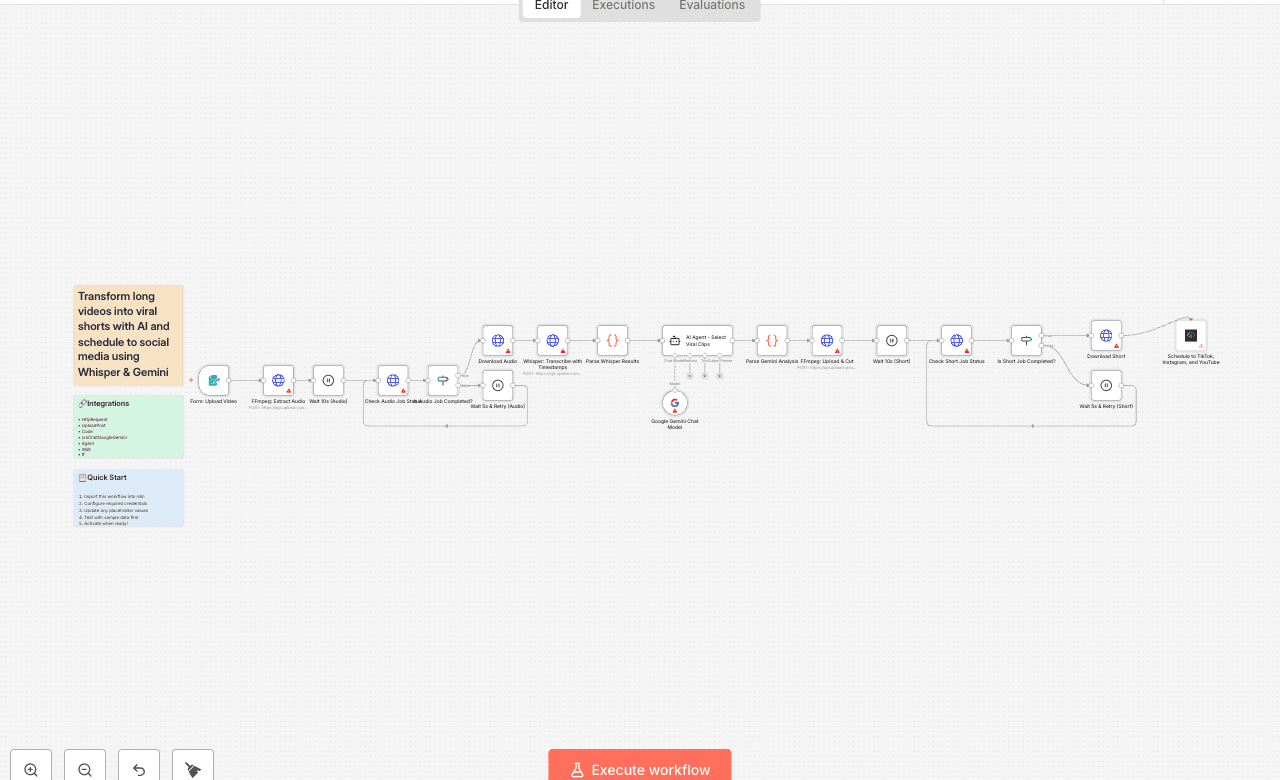
This automation template turns any long video into multiple viral-ready short clips and auto-schedules them to TikTok, Instagram Reels, and YouTube Shorts. It works with both vertical and horizontal inputs and respects the original input resolution (no unnecessary upscaling), cropping or letterboxing intelligently when needed. The workflow automatically extracts between 3 and 6 clips (based on video length and the most engaging segments) and schedules one short per consecutive day—e.g., 3 clips → the next 3 days, 6 clips → the next 6 days. Note: This workflow uses OpenAI Whisper for word-level transcription, Google’s Gemini for clip selection and metadata, and Upload-Post’s FFmpeg API for GPU-accelerated cutting/cropping and social scheduling. You can use the same Upload-Post API token for both FFmpeg jobs and publishing uploads. Upload-Post also offers a generous free trial with no credit card required. Who Is This For? - Creators & Editors: Batch-convert long talks/podcasts into daily Shorts/Reels/TikToks. - Agencies & Social Teams: Turn webinars/interviews into a reliable short-form stream. - Brands & Founders: Maintain a steady posting cadence with minimal hands-on editing. What Problem Does This Workflow Solve? Manual clipping is slow and inconsistent. This workflow: - Finds Hooks Automatically: AI picks 3–6 high-retention segments from transcript + timestamps (count scales with video length/quality). - Cuts Cleanly: Absolute-second FFmpeg timing to avoid mid-word cuts. - Vertical & Horizontal Friendly: Handles both orientations and respects source resolution. - Schedules for You: Posts one clip per day on consecutive days. How It Works 1. Form Upload: Submit your long video. 2. Audio Extraction: FFmpeg job extracts audio for accurate ASR. 3. Whisper Transcription: Word-level timestamps enable precise clipping. 4. AI Clip Mining (Gemini): Detects 3–6 “viral” moments (15–60s) and generates titles/descriptions. 5. Cut & Crop (FFmpeg): GPU pipeline produces clean clips; preserves input resolution/orientation when possible and crops/pads appropriately for target platforms. 6. Status & Download: Polls job status and retrieves the final clips. 7. Auto-Scheduling (Consecutive Days): Schedules one short per day starting tomorrow, for as many days as clips were produced (e.g., 3 clips → 3 days, 6 clips → 6 days) at a configurable time (default 20:00 Europe/Madrid). Setup 1. OpenAI (Whisper): Add your OpenAI API credentials. 2. Google Gemini: Add Gemini credentials used by the AI Agent node. 3. Upload-Post (free trial no credit card required): Generate your api token https://app.upload-post.com/ connect your social media accounts and add your API token credentials in n8n (same token works for FFmpeg jobs and publishing). 4. Scheduling: Adjust posting time/intervals and timezone (Europe/Madrid by default). 5. Metadata Mapping: Titles/descriptions are auto-generated per platform; tweak as needed. Requirements - Accounts: n8n, OpenAI, Google (Gemini), Upload-Post, and social platform connections. - API Keys: OpenAI token, Gemini credentials, Upload-Post token. - Budget: Whisper + Gemini inference + FFmpeg compute + optional posting costs. Features - Word-Accurate Cuts: Absolute-second timecodes with subtle pre/post-roll. - Orientation-Aware: Supports vertical and horizontal inputs; preserves source resolution where possible. - Platform-Optimized Output: 9:16-ready delivery with smart crop/pad behavior. - Consecutive-Day Scheduler: 3–6 clips → 3–6 consecutive posting days, automatically. - Retry & Polling: Built-in waits and status checks for robust processing. - Modular: Swap models, adjust clip count/length, or add/remove platforms quickly. Turn long-form video into a consistent sequence of Shorts/Reels/TikToks—automatically, day after day, while respecting your source resolution.
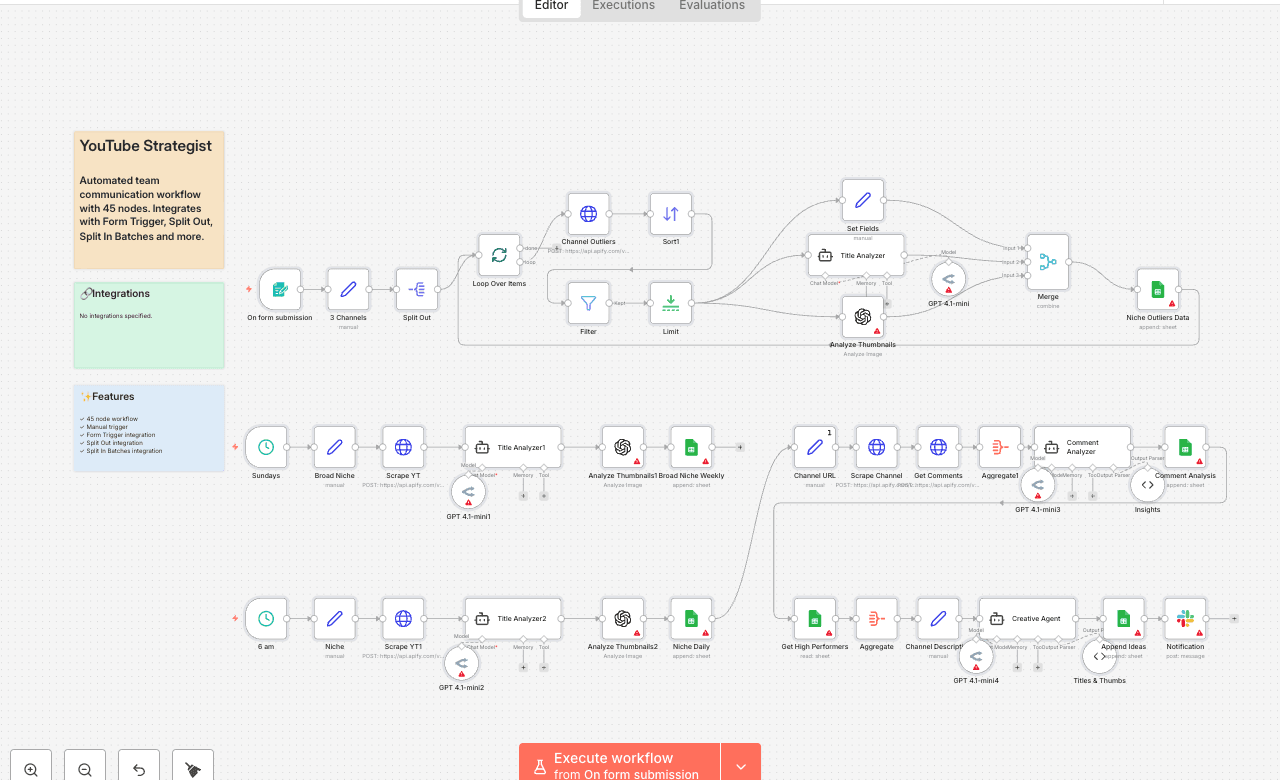
Automated team communication workflow with 45 nodes. Integrates with Form Trigger, Split Out, Split In Batches and more. Node Count: 14 Difficulty: Beginner Integrations:
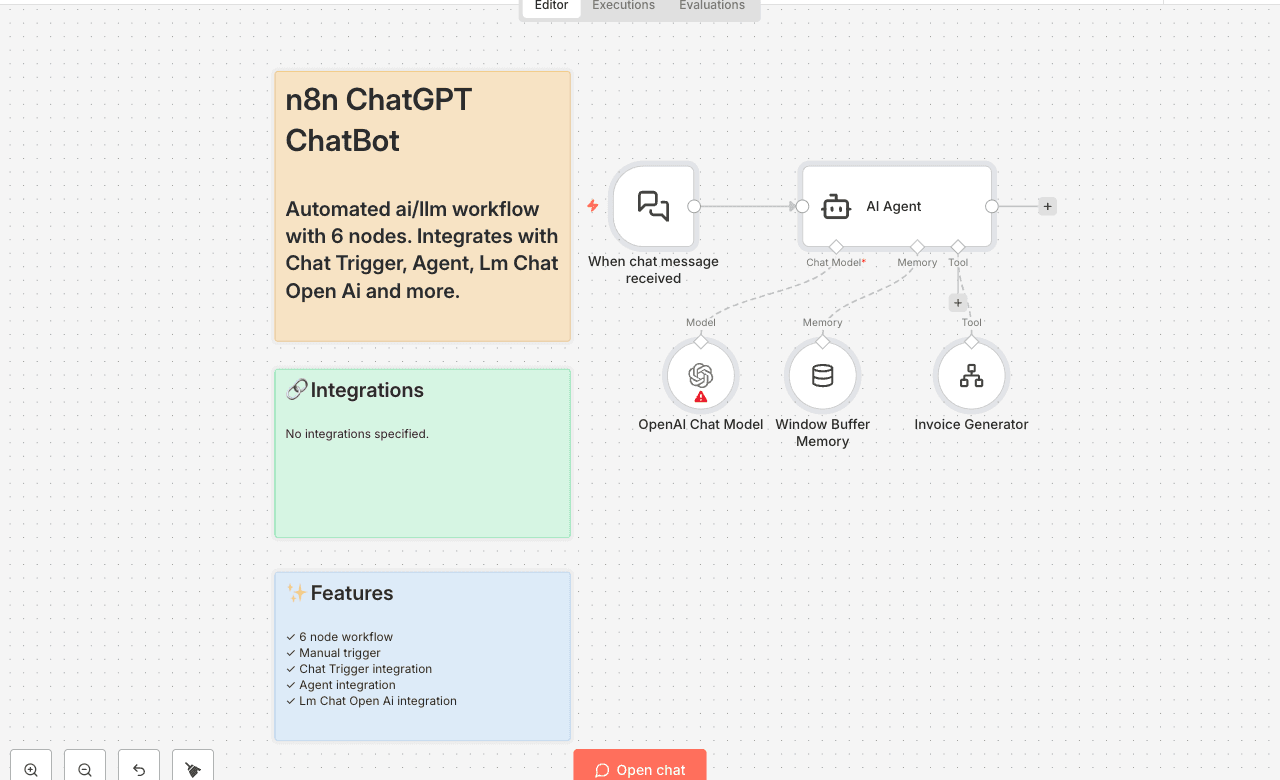
Automated ai/llm workflow with 6 nodes. Integrates with Chat Trigger, Agent, Lm Chat Open Ai and more. Node Count: 14 Difficulty: Beginner Integrations:
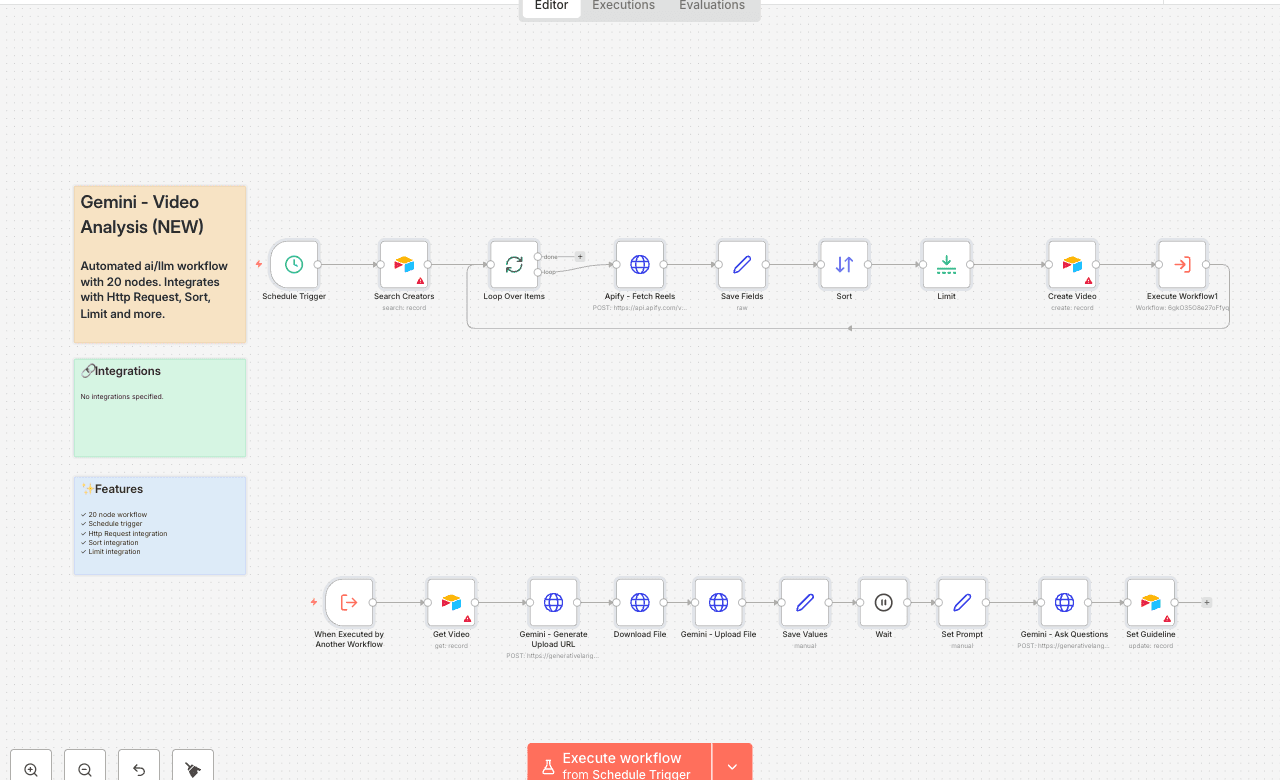
Automated ai/llm workflow with 20 nodes. Integrates with Http Request, Sort, Limit and more. Node Count: 14 Difficulty: Beginner Integrations:
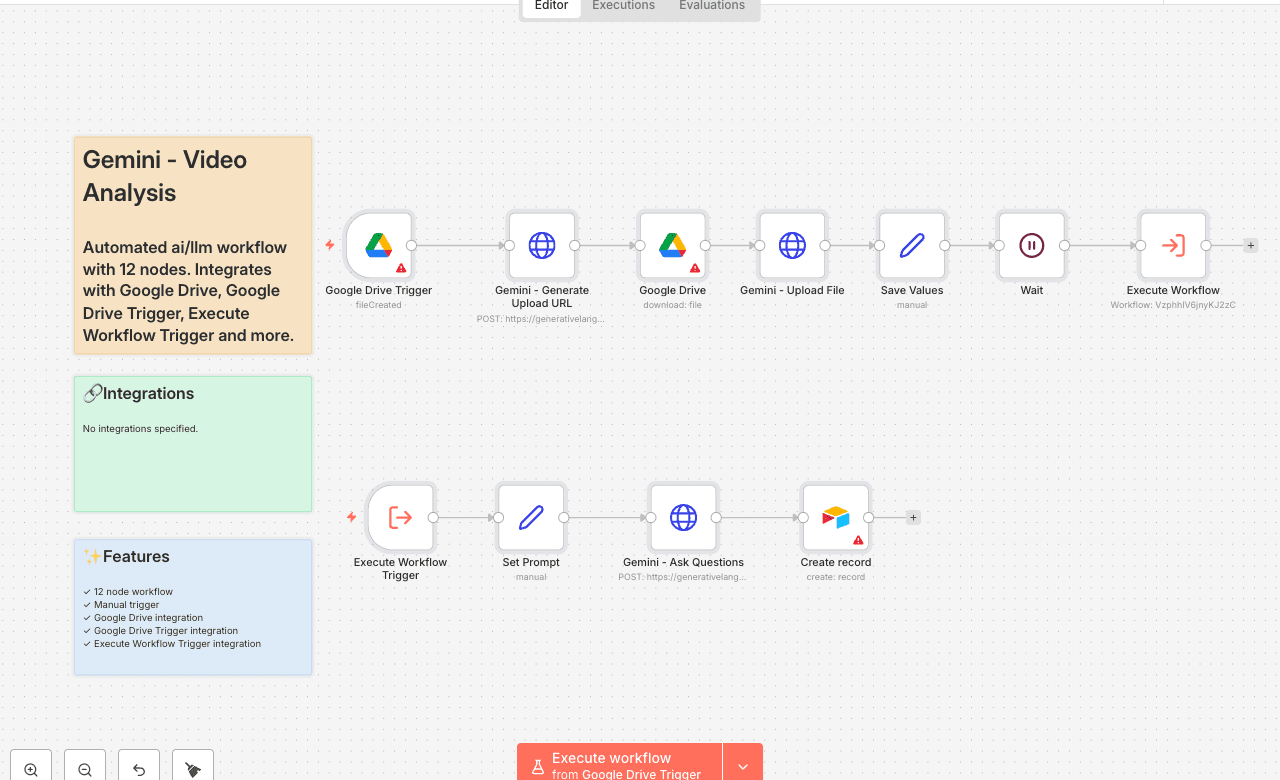
Automated ai/llm workflow with 12 nodes. Integrates with Google Drive, Google Drive Trigger, Execute Workflow Trigger and more. Node Count: 14 Difficulty: Beginner Integrations:
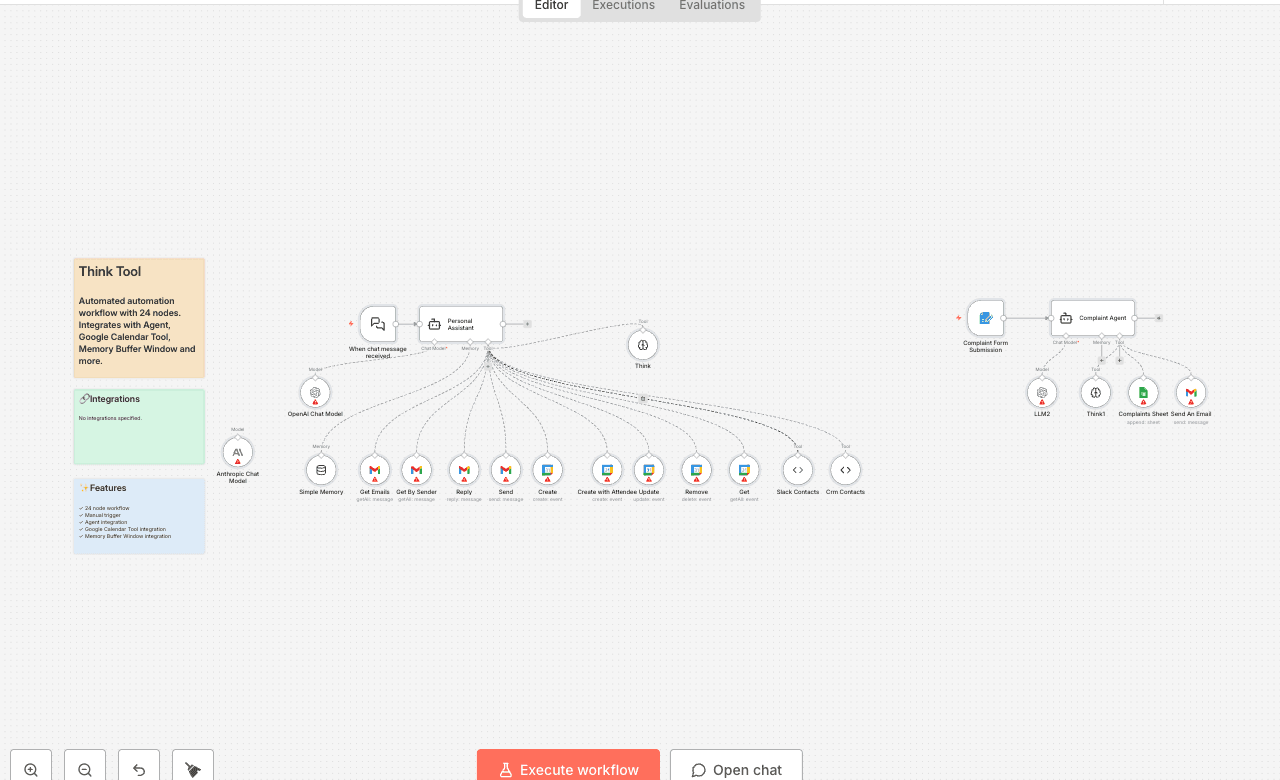
Automated automation workflow with 24 nodes. Integrates with Agent, Google Calendar Tool, Memory Buffer Window and more. Node Count: 14 Difficulty: Beginner Integrations:
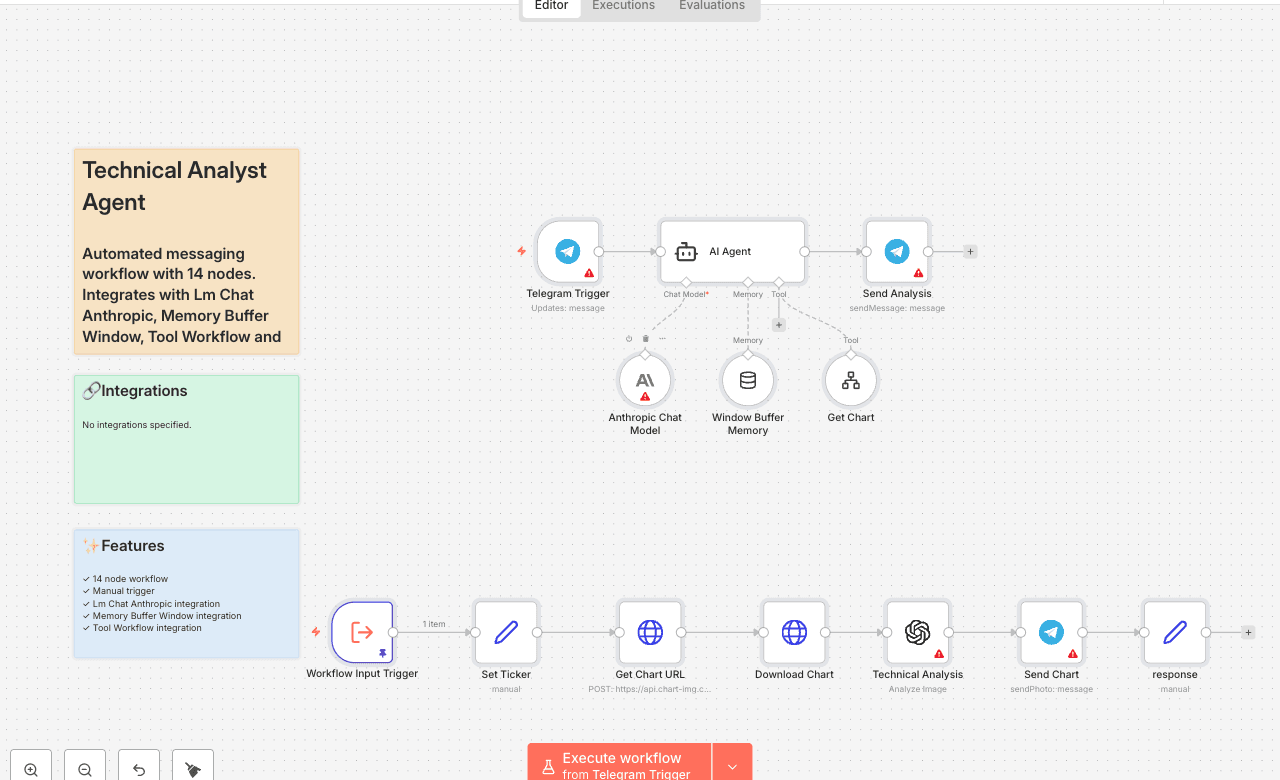
Automated messaging workflow with 14 nodes. Integrates with Lm Chat Anthropic, Memory Buffer Window, Tool Workflow and more. Node Count: 14 Difficulty: Beginner Integrations:
Automated data processing workflow with 5 nodes. Integrates with Form Trigger, Google Sheets, Sticky Note. Node Count: 14 Difficulty: Beginner Integrations:
Automated messaging workflow with 6 nodes. Integrates with Webhook, Http Request, Google Sheets and more. Node Count: 14 Difficulty: Beginner Integrations:
Automated cloud storage workflow with 20 nodes. Integrates with Google Drive, Document Default Data Loader, Extract From File and more. Node Count: 14 Difficulty: Beginner Integrations:

Automated cloud storage workflow with 15 nodes. Integrates with Form Trigger, Google Drive, Lm Chat Open Router and more. Node Count: 14 Difficulty: Beginner Integrations:
Automated automation workflow with 8 nodes. Integrates with Google Sheets, Lm Chat Open Router, Output Parser Structured and more. Node Count: 14 Difficulty: Beginner Integrations:
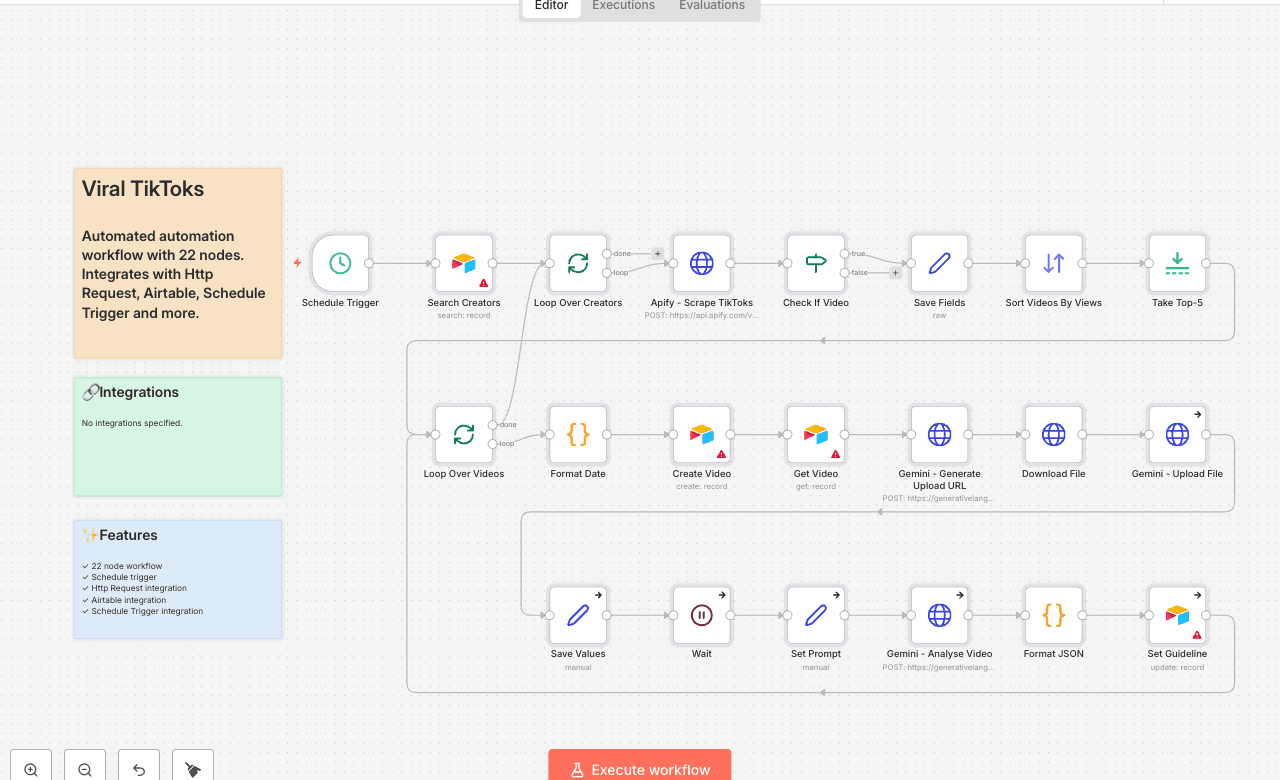
Automated automation workflow with 22 nodes. Integrates with Http Request, Airtable, Schedule Trigger and more. Node Count: 14 Difficulty: Beginner Integrations:
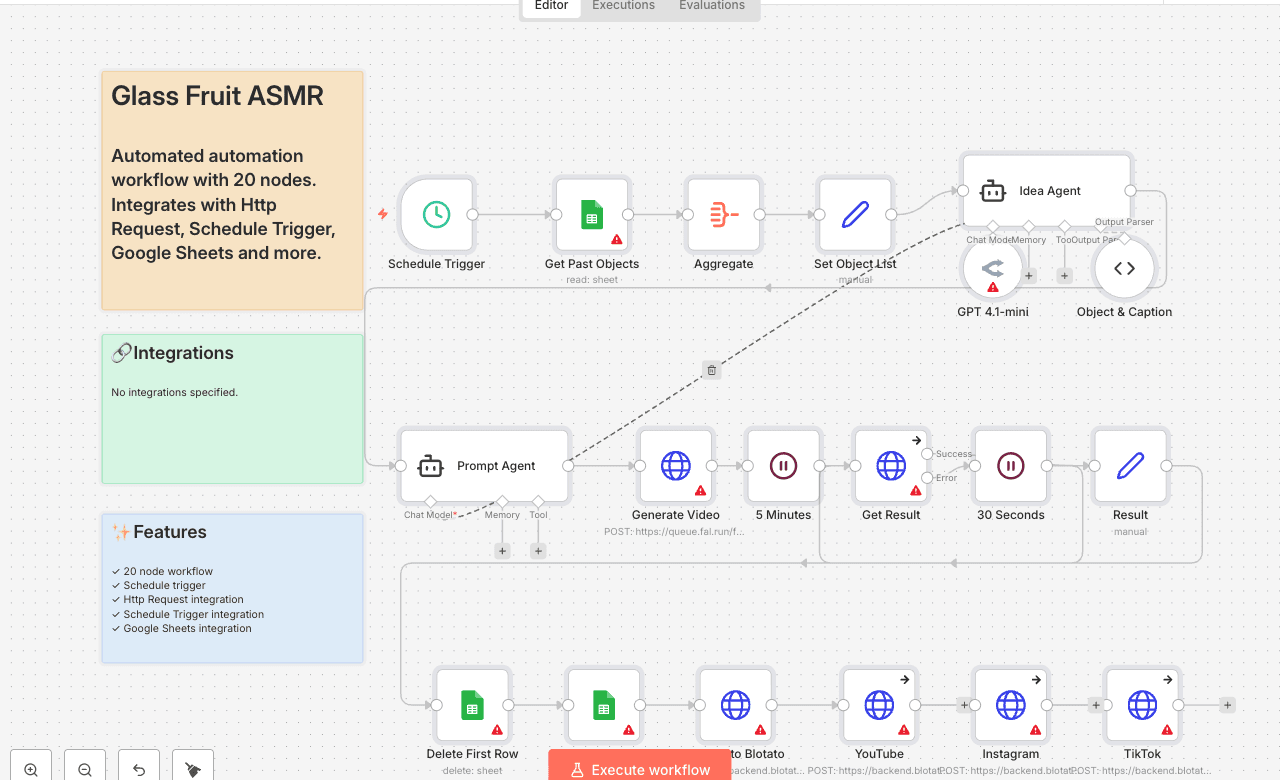
Automated automation workflow with 20 nodes. Integrates with Http Request, Schedule Trigger, Google Sheets and more. Node Count: 14 Difficulty: Beginner Integrations:
Automated cloud storage workflow with 19 nodes. Integrates with Schedule Trigger, Sort, Airtable and more. Node Count: 14 Difficulty: Beginner Integrations:
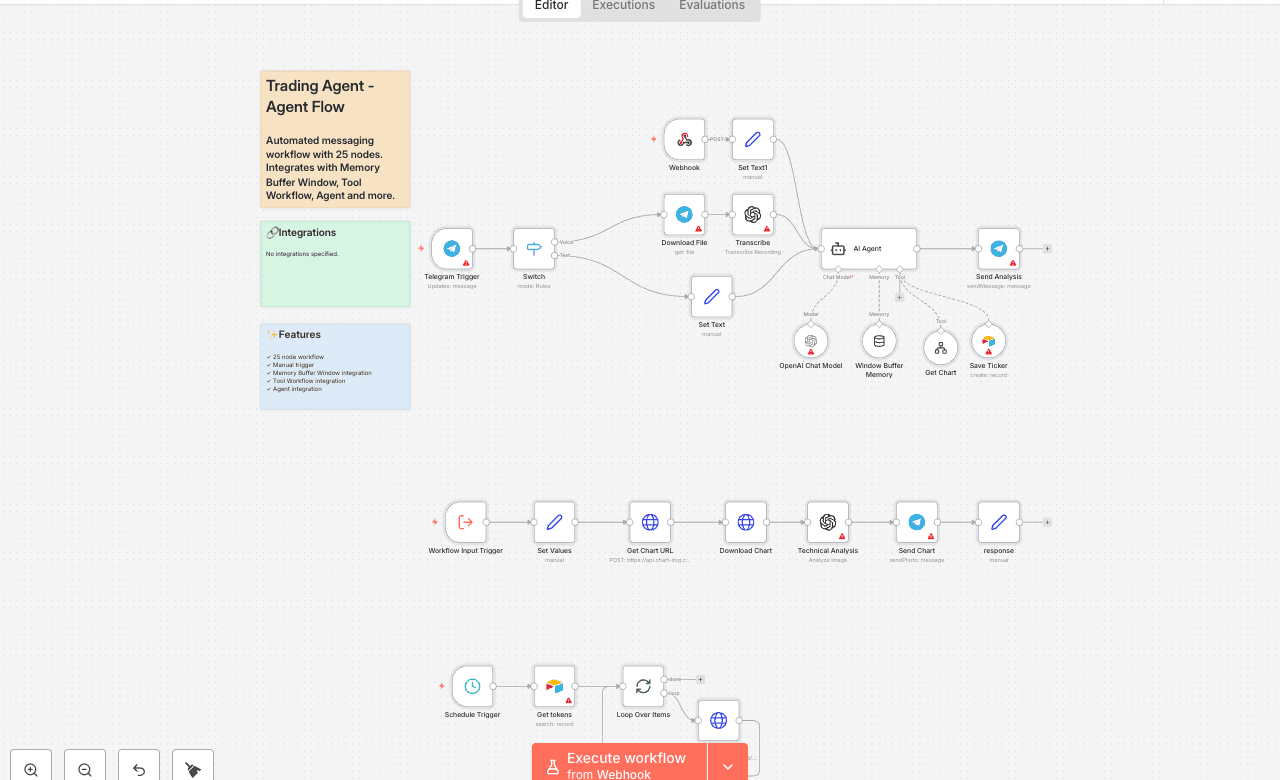
Automated messaging workflow with 25 nodes. Integrates with Memory Buffer Window, Tool Workflow, Agent and more. Node Count: 14 Difficulty: Beginner Integrations:
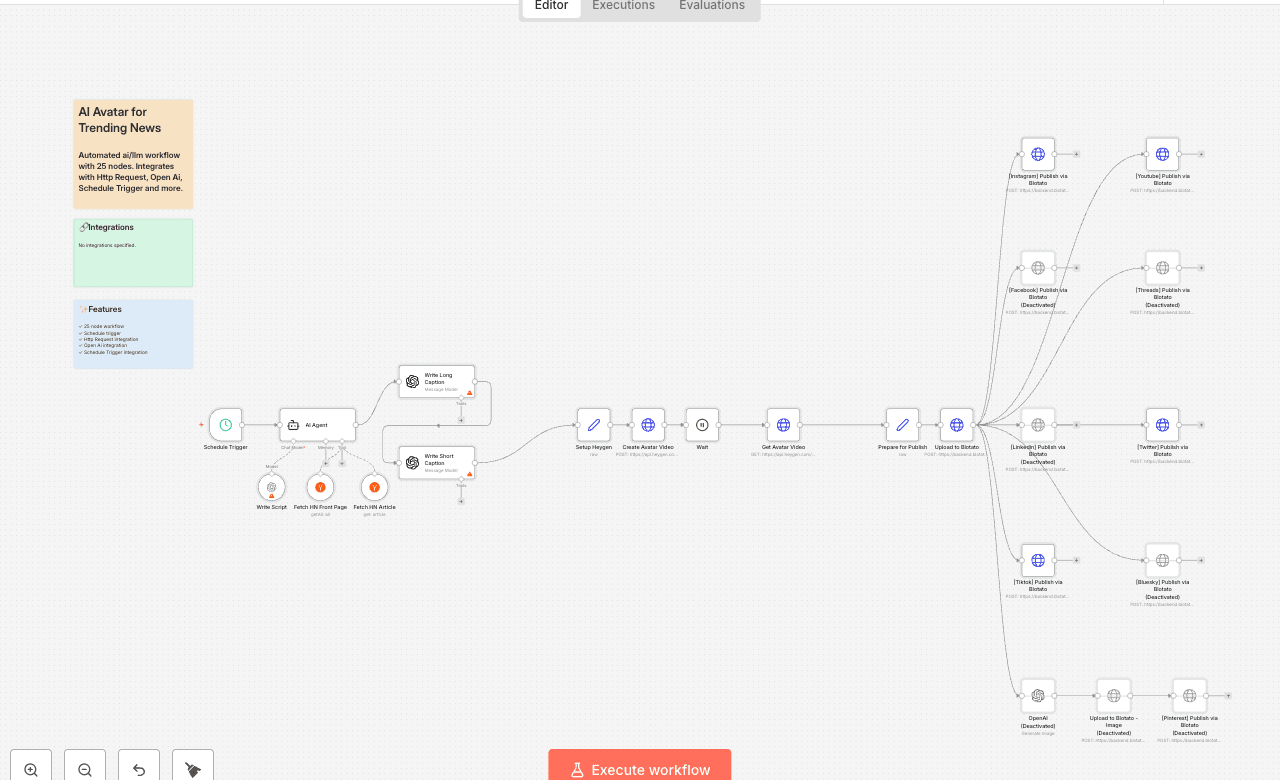
Automated ai/llm workflow with 25 nodes. Integrates with Http Request, Open Ai, Schedule Trigger and more. Node Count: 14 Difficulty: Beginner Integrations:
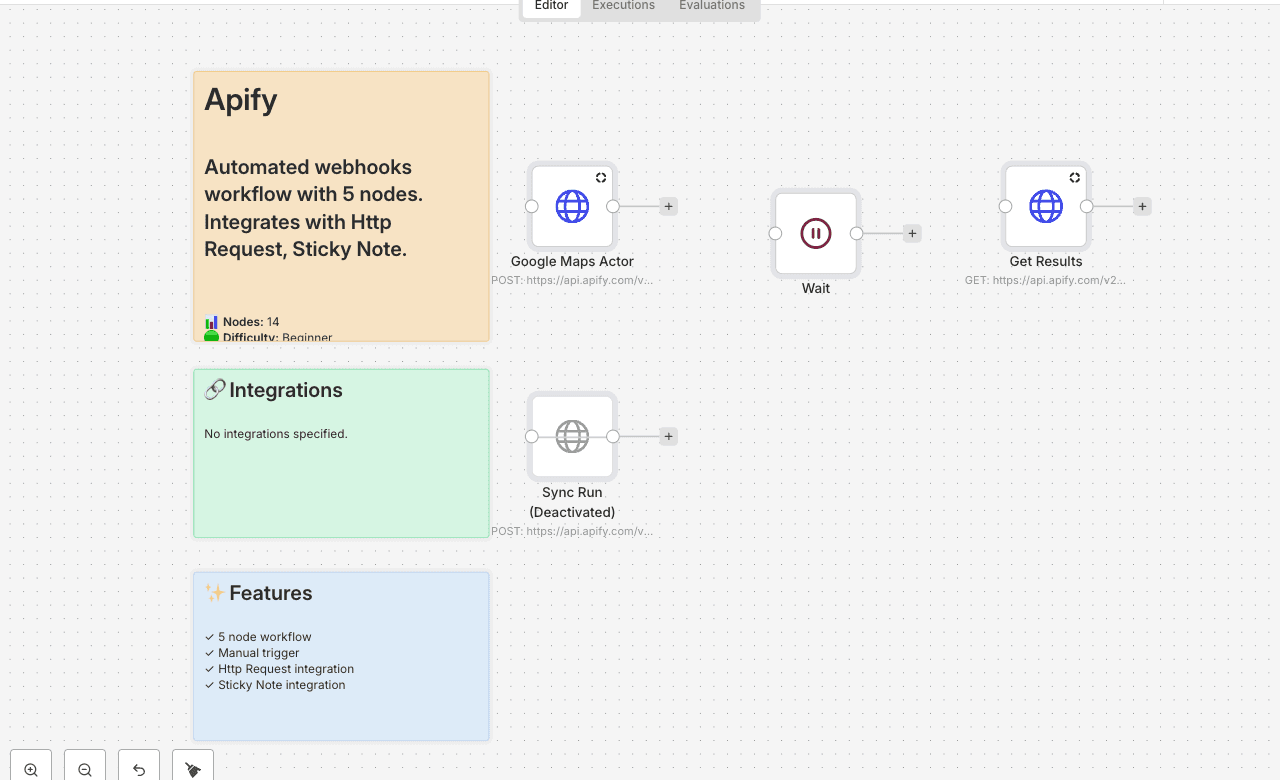
Automated webhooks workflow with 5 nodes. Integrates with Http Request, Sticky Note. Node Count: 14 Difficulty: Beginner Integrations:
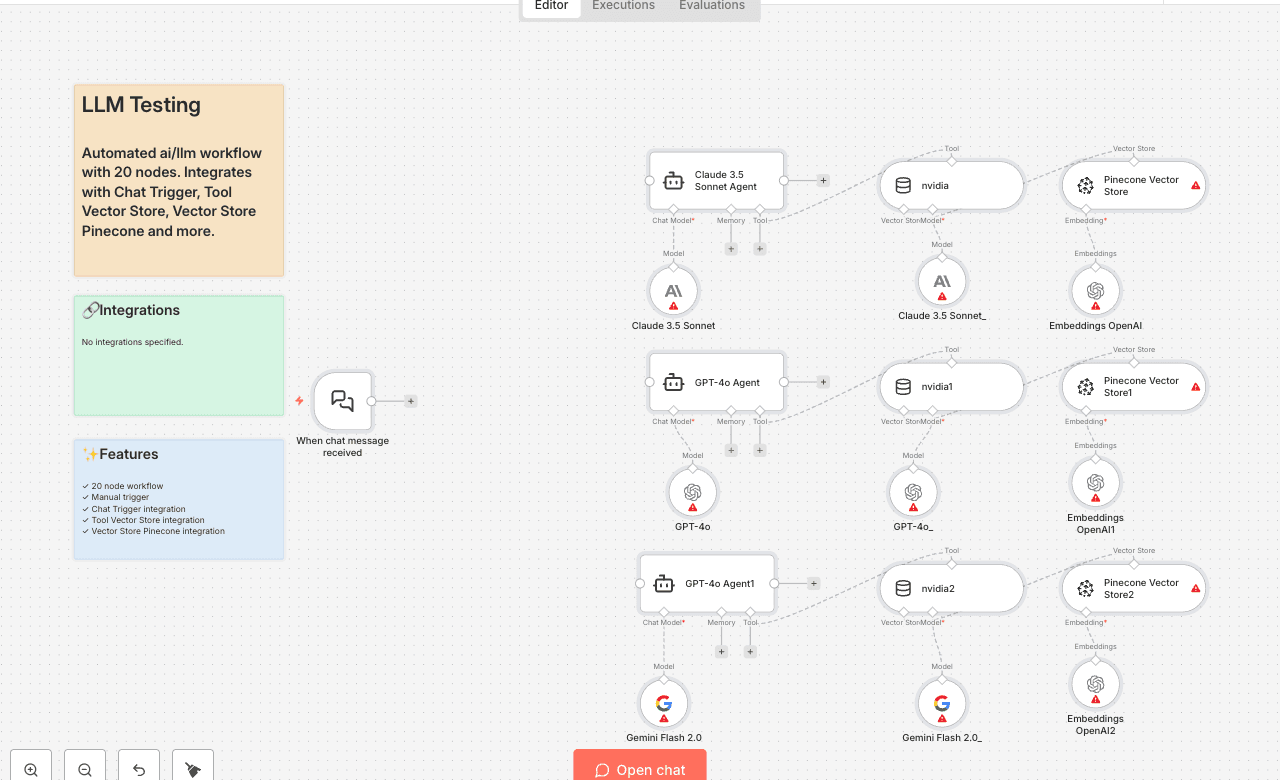
Build a powerful RAG (Retrieval-Augmented Generation) chatbot using Pinecone vector store. This workflow allows users to ask questions about stored documents and receive AI-powered responses based on the indexed content. Use Cases: - Document Q&A systems - Knowledge base chatbots - Financial report analysis Node Count: 14 Difficulty: Intermediate Integrations: Pinecone, OpenAI, Chat Trigger
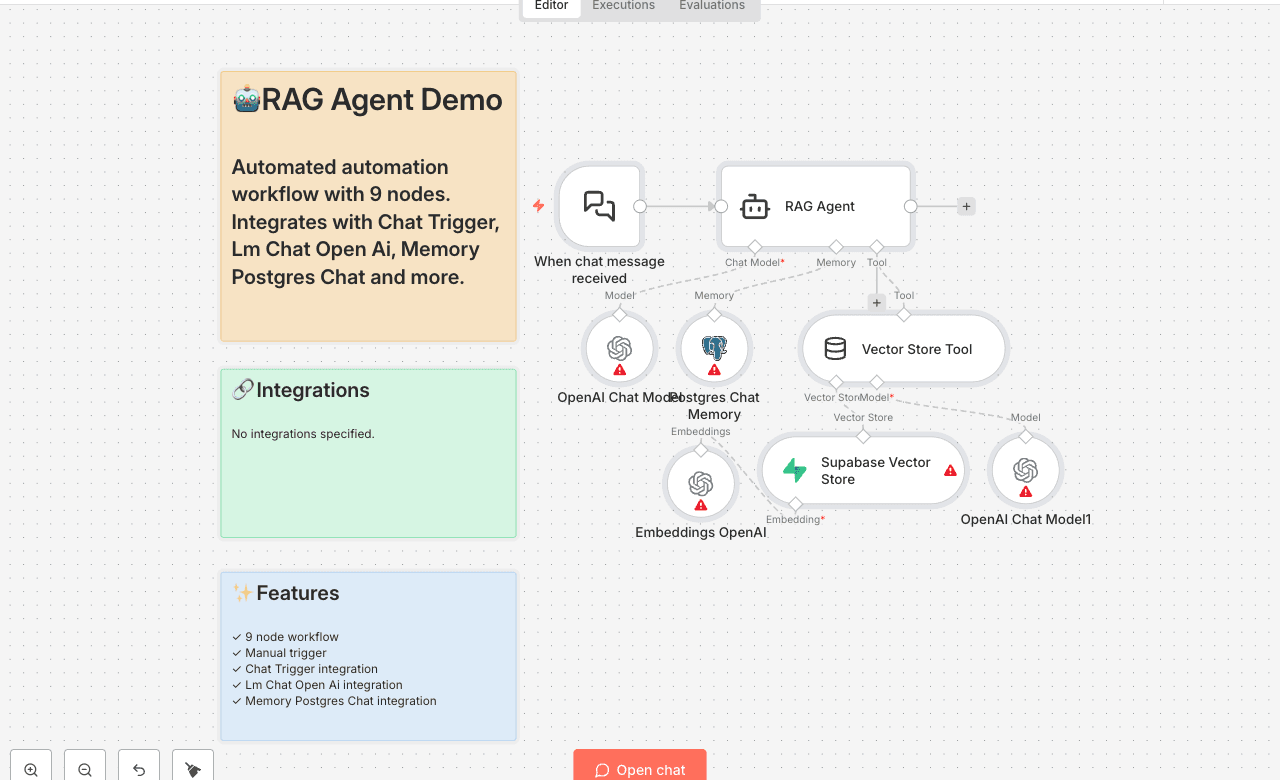
Automated automation workflow with 9 nodes. Integrates with Chat Trigger, Lm Chat Open Ai, Memory Postgres Chat and more. Node Count: 14 Difficulty: Beginner Integrations:
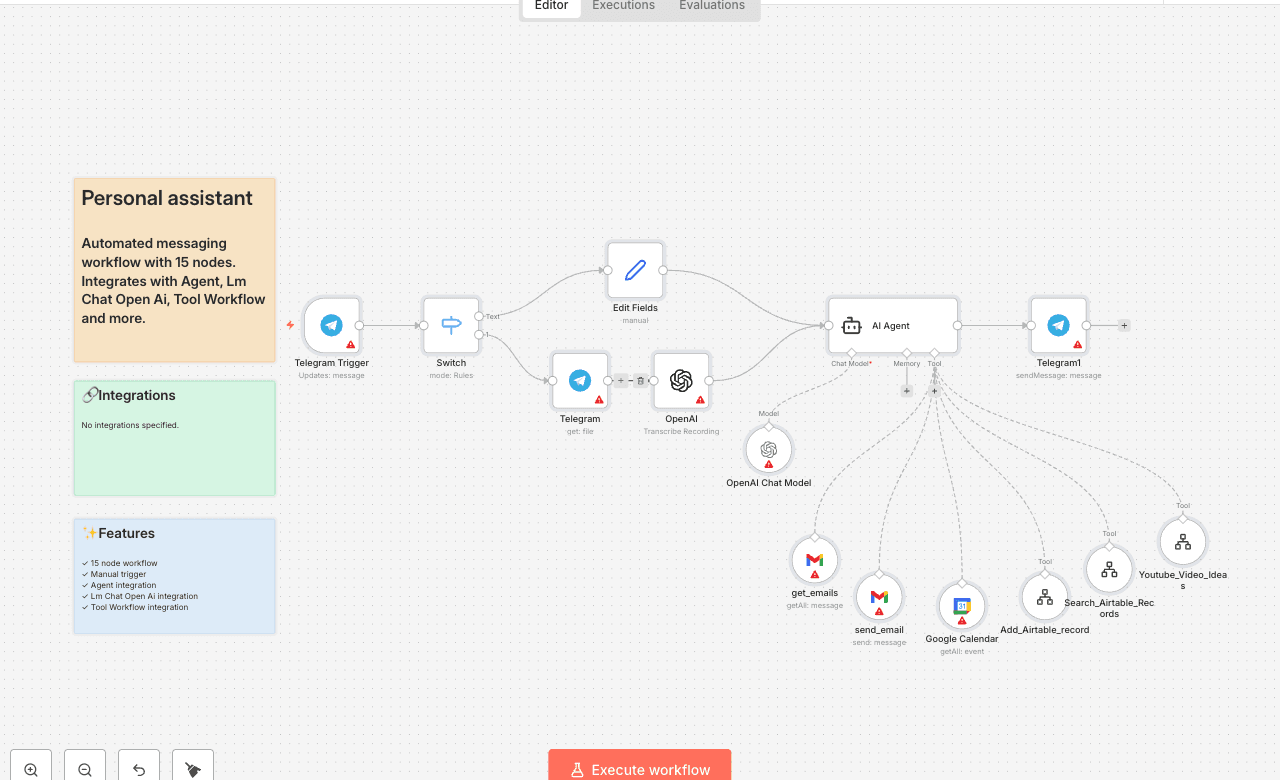
Automated messaging workflow with 15 nodes. Integrates with Agent, Lm Chat Open Ai, Tool Workflow and more. Node Count: 14 Difficulty: Beginner Integrations:
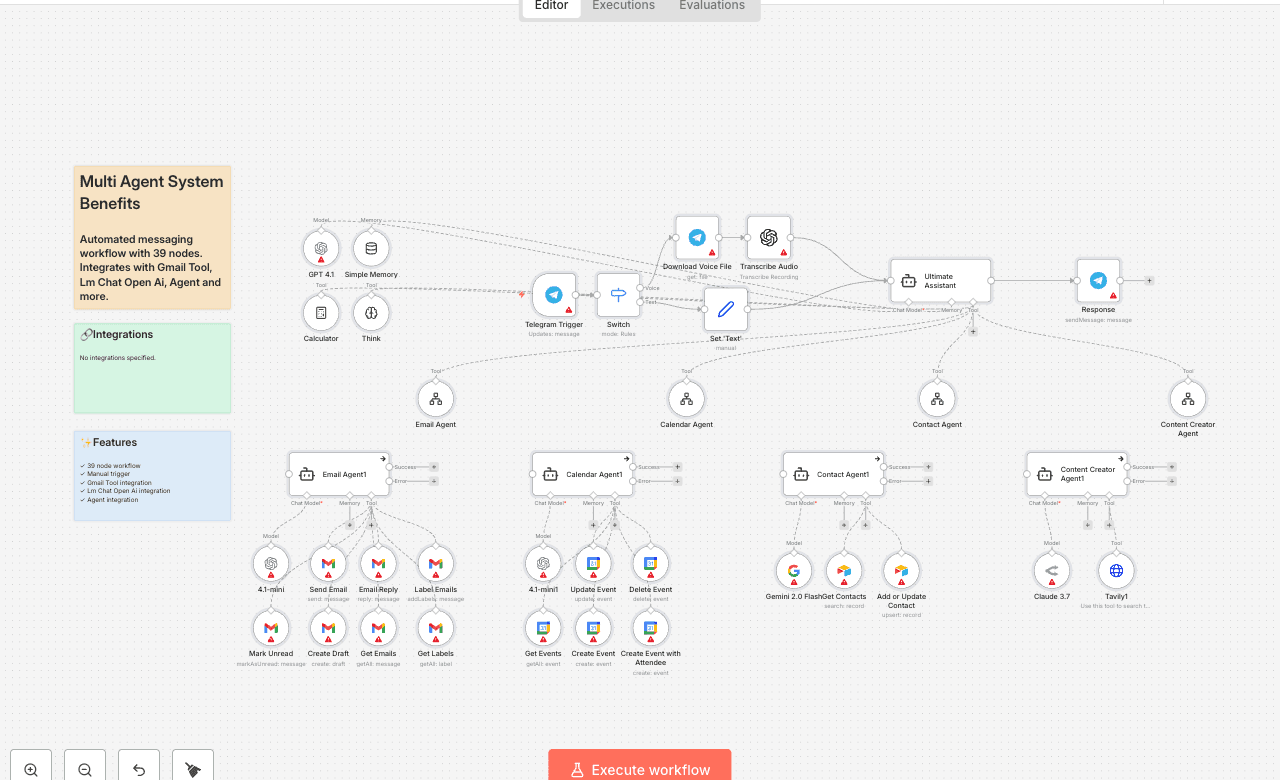
Automated messaging workflow with 39 nodes. Integrates with Gmail Tool, Lm Chat Open Ai, Agent and more. Node Count: 14 Difficulty: Beginner Integrations:
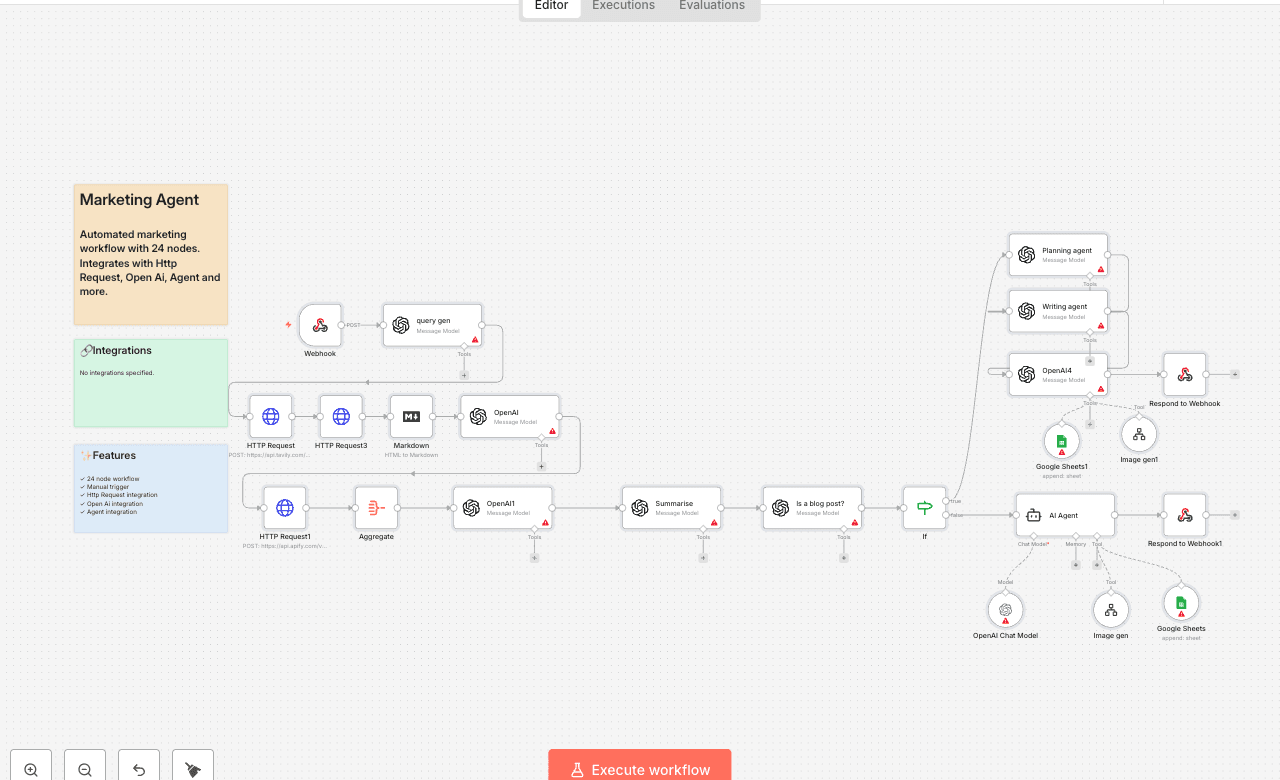
Automated marketing workflow with 24 nodes. Integrates with Http Request, Open Ai, Agent and more. Node Count: 14 Difficulty: Beginner Integrations:
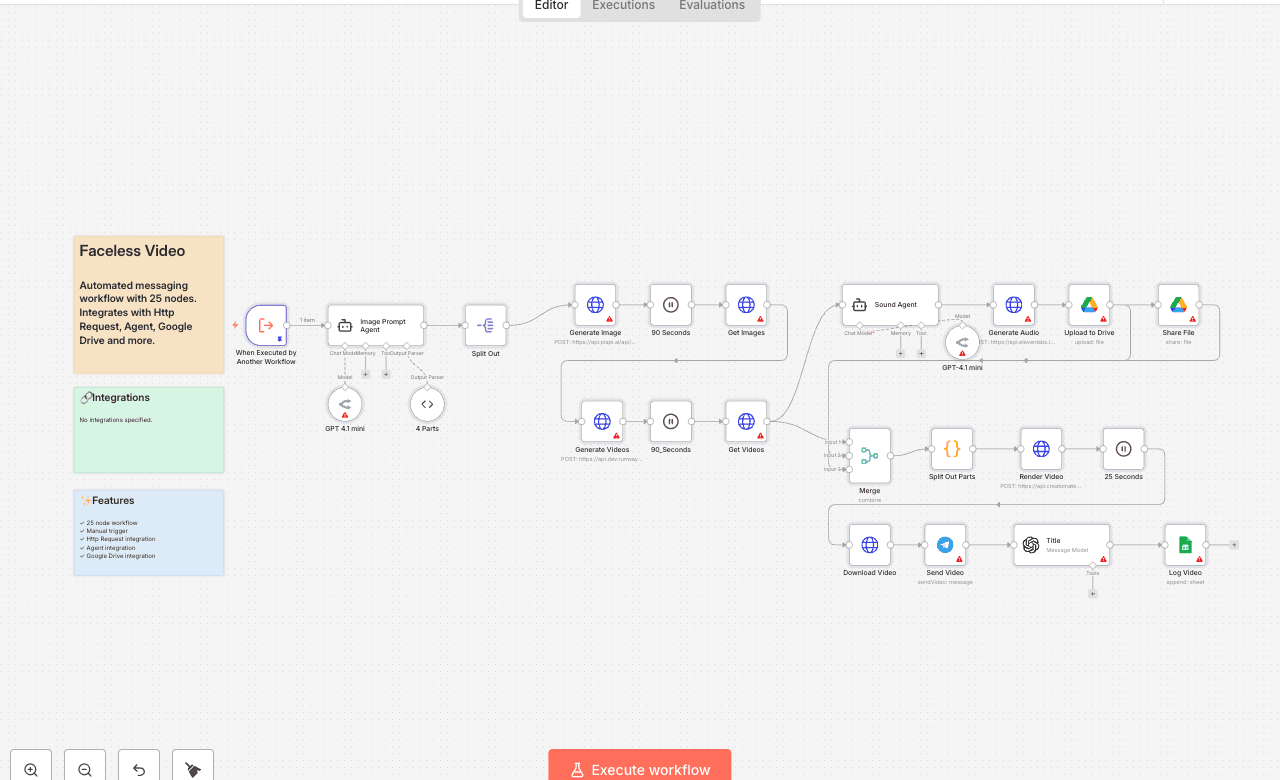
Automated messaging workflow with 25 nodes. Integrates with Http Request, Agent, Google Drive and more. Node Count: 14 Difficulty: Beginner Integrations:
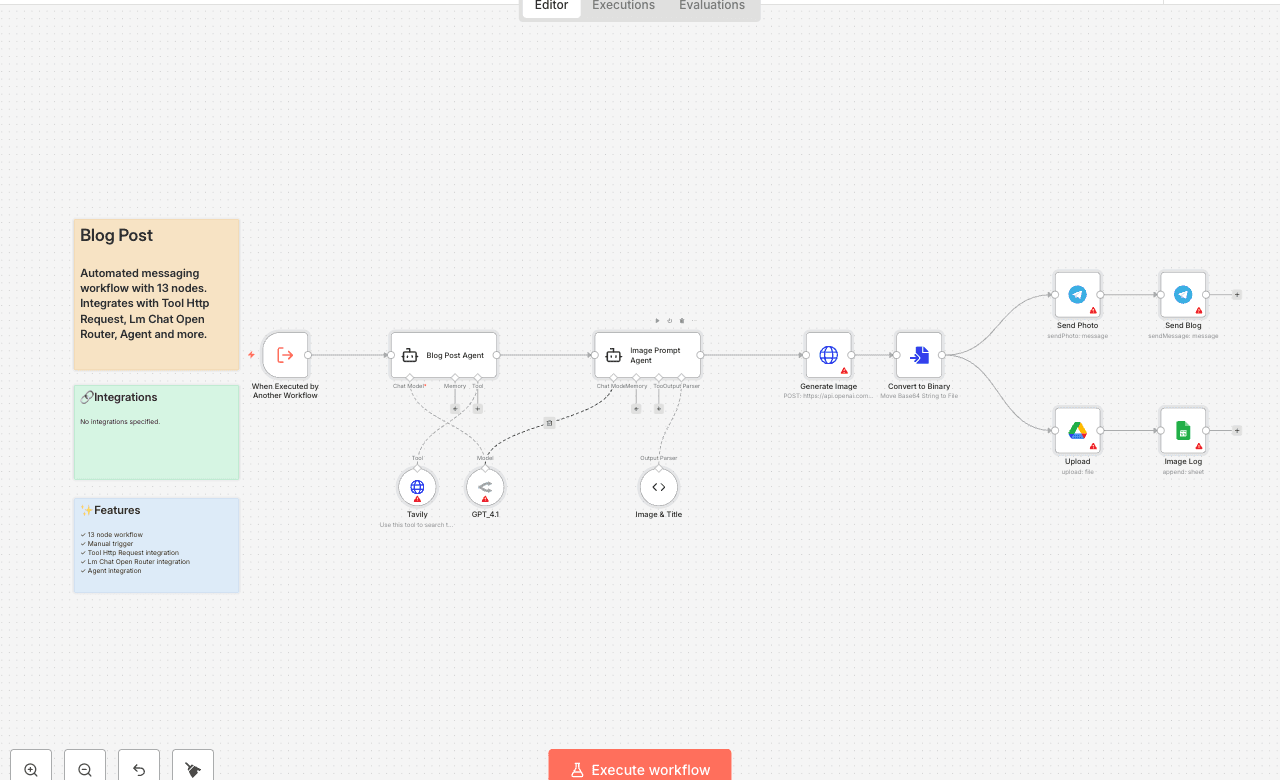
Automated messaging workflow with 13 nodes. Integrates with Tool Http Request, Lm Chat Open Router, Agent and more. Node Count: 14 Difficulty: Beginner Integrations:
Automated ai/llm workflow with 36 nodes. Integrates with Start, Webhook, Postgres and more. Node Count: 14 Difficulty: Beginner Integrations:
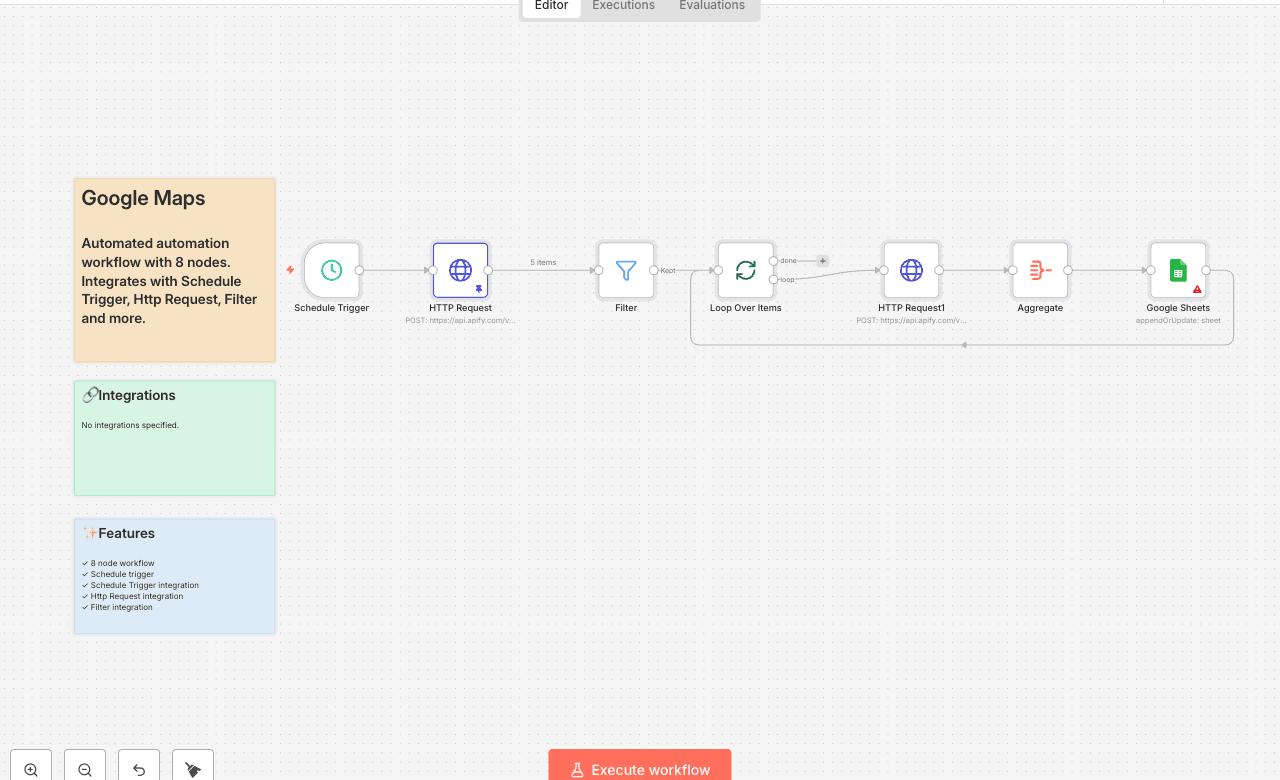
Automated automation workflow with 8 nodes. Integrates with Schedule Trigger, Http Request, Filter and more. Node Count: 14 Difficulty: Beginner Integrations:
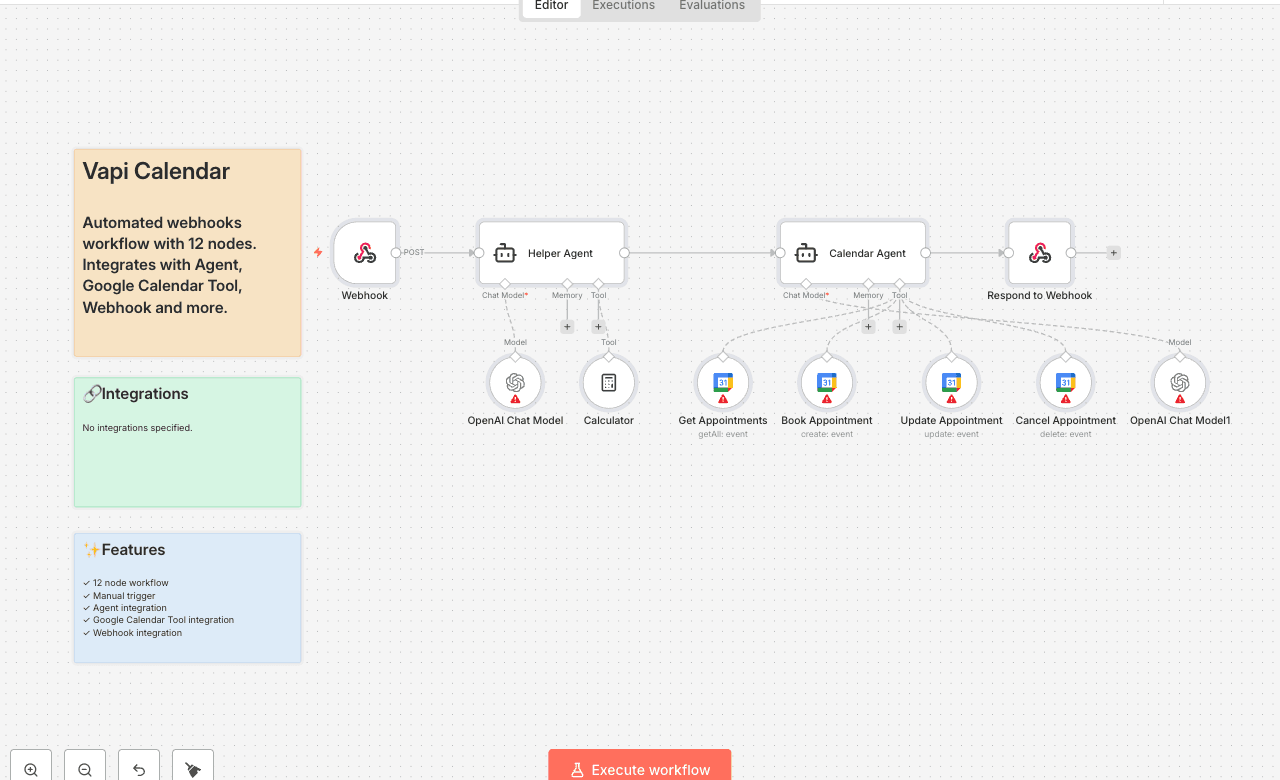
Automated webhooks workflow with 12 nodes. Integrates with Agent, Google Calendar Tool, Webhook and more. Node Count: 14 Difficulty: Beginner Integrations:
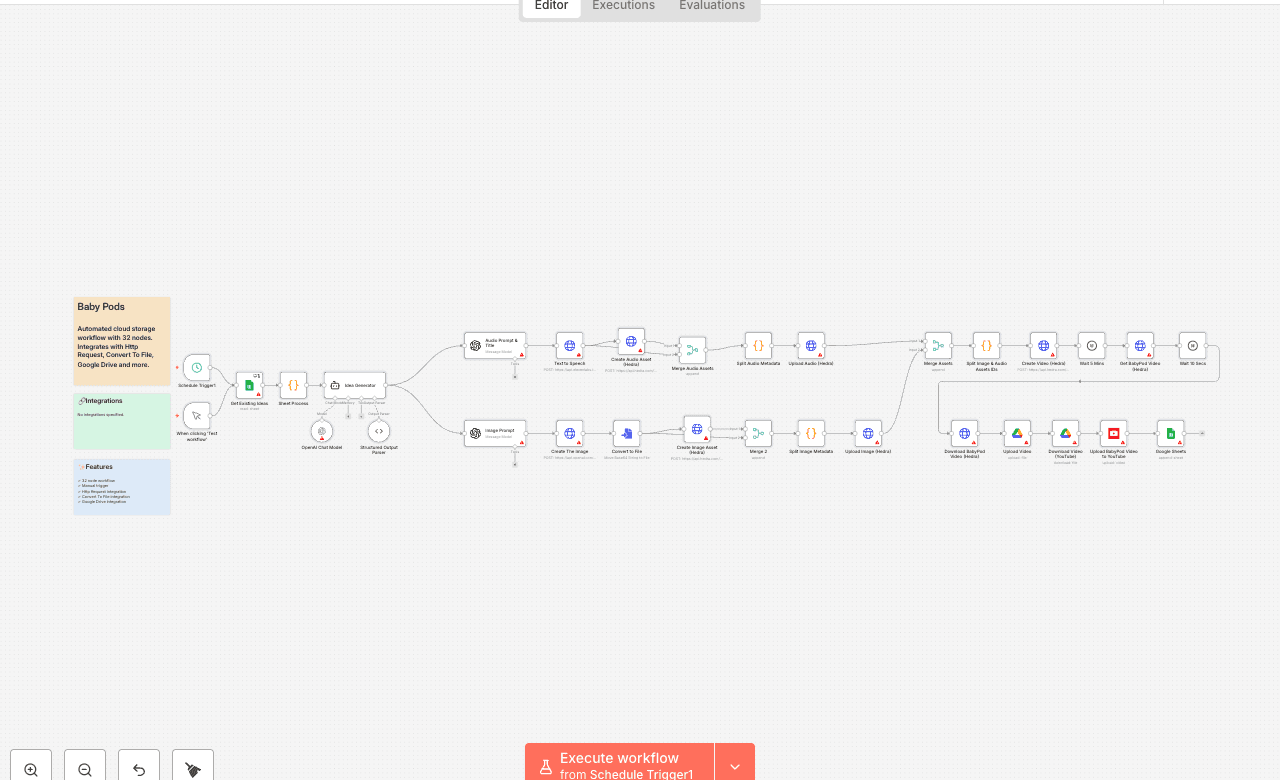
Automated cloud storage workflow with 32 nodes. Integrates with Http Request, Convert To File, Google Drive and more. Node Count: 14 Difficulty: Beginner Integrations:
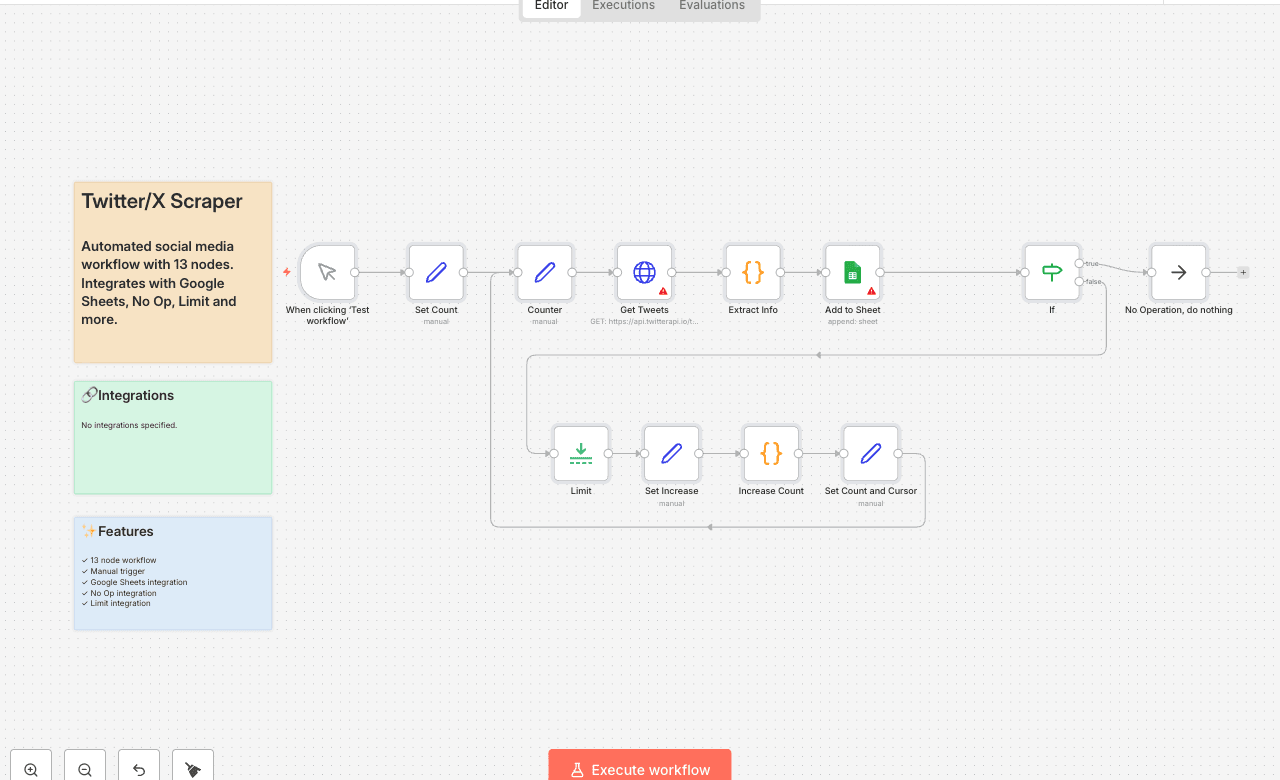
Automated social media workflow with 13 nodes. Integrates with Google Sheets, No Op, Limit and more. Node Count: 14 Difficulty: Beginner Integrations:
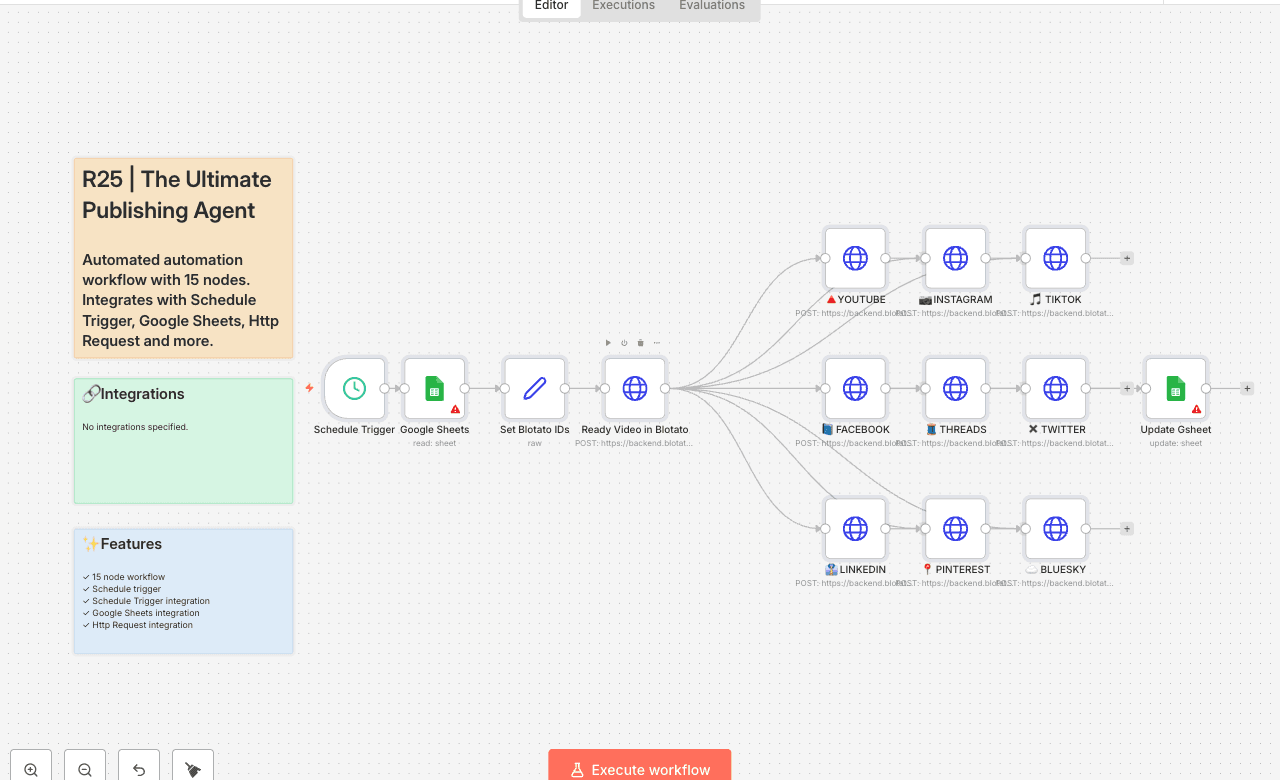
Automated automation workflow with 15 nodes. Integrates with Schedule Trigger, Google Sheets, Http Request and more. Node Count: 14 Difficulty: Beginner Integrations:
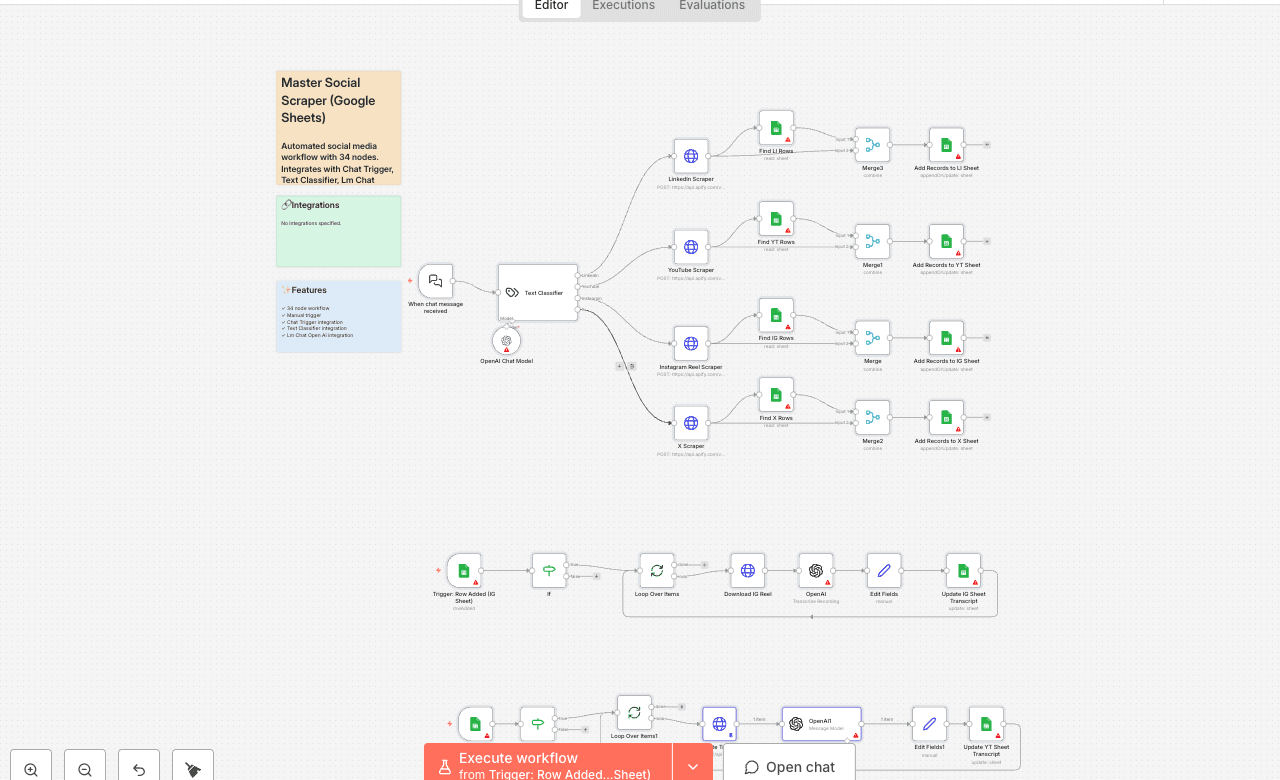
Automated social media workflow with 34 nodes. Integrates with Chat Trigger, Text Classifier, Lm Chat Open Ai and more. Node Count: 14 Difficulty: Beginner Integrations:
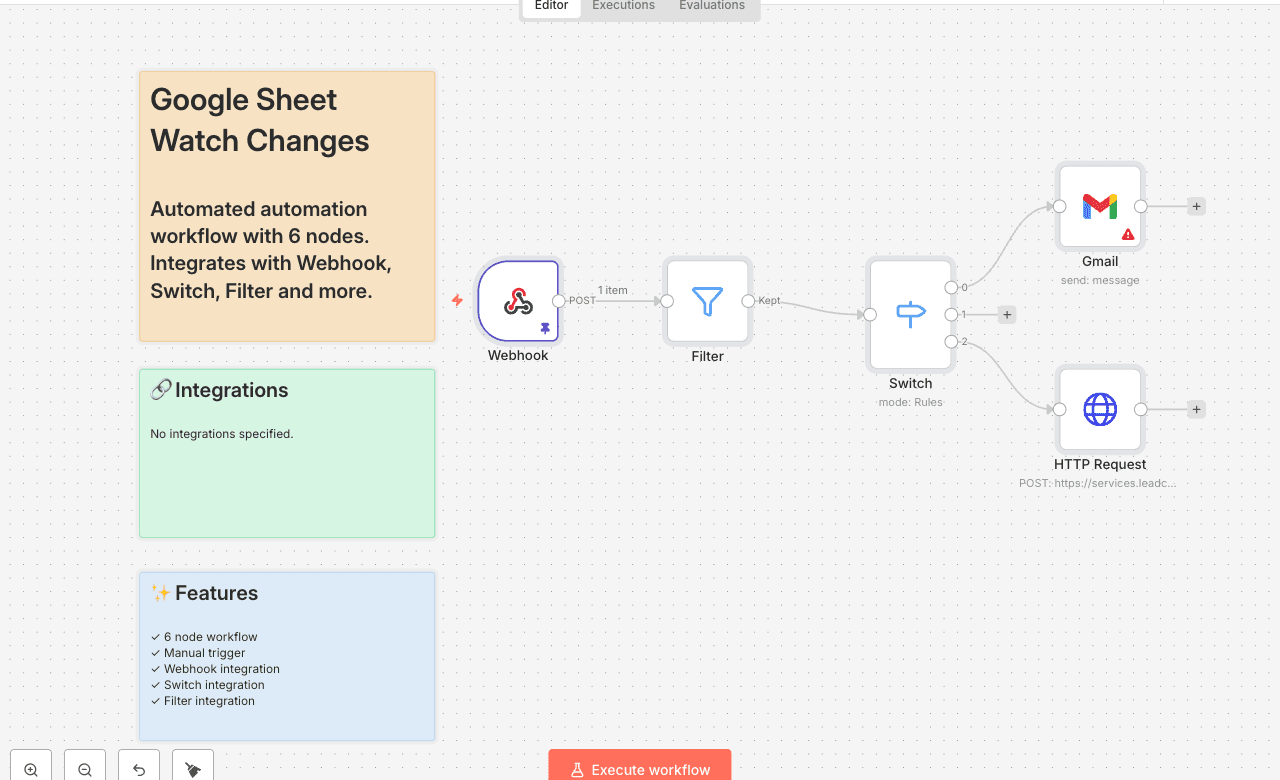
Automated automation workflow with 6 nodes. Integrates with Webhook, Switch, Filter and more. Node Count: 14 Difficulty: Beginner Integrations:
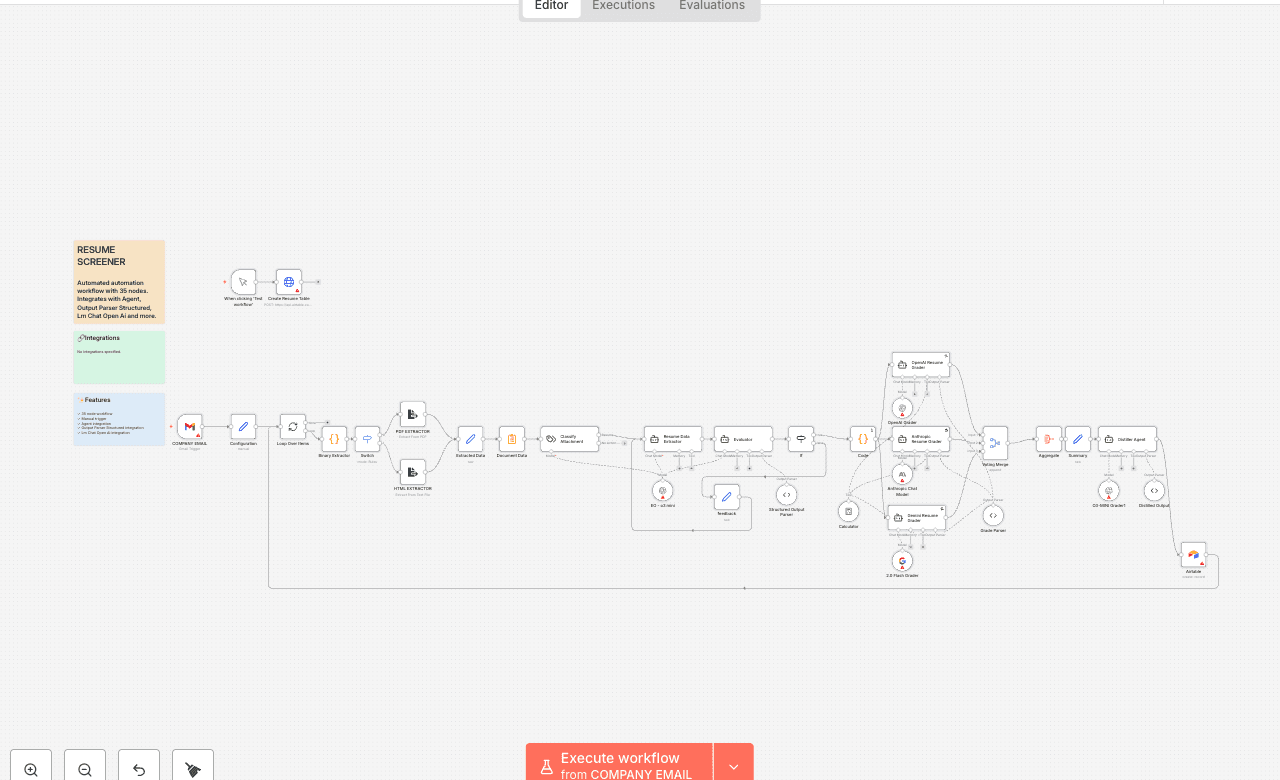
Automated automation workflow with 35 nodes. Integrates with Agent, Output Parser Structured, Lm Chat Open Ai and more. Node Count: 14 Difficulty: Beginner Integrations:
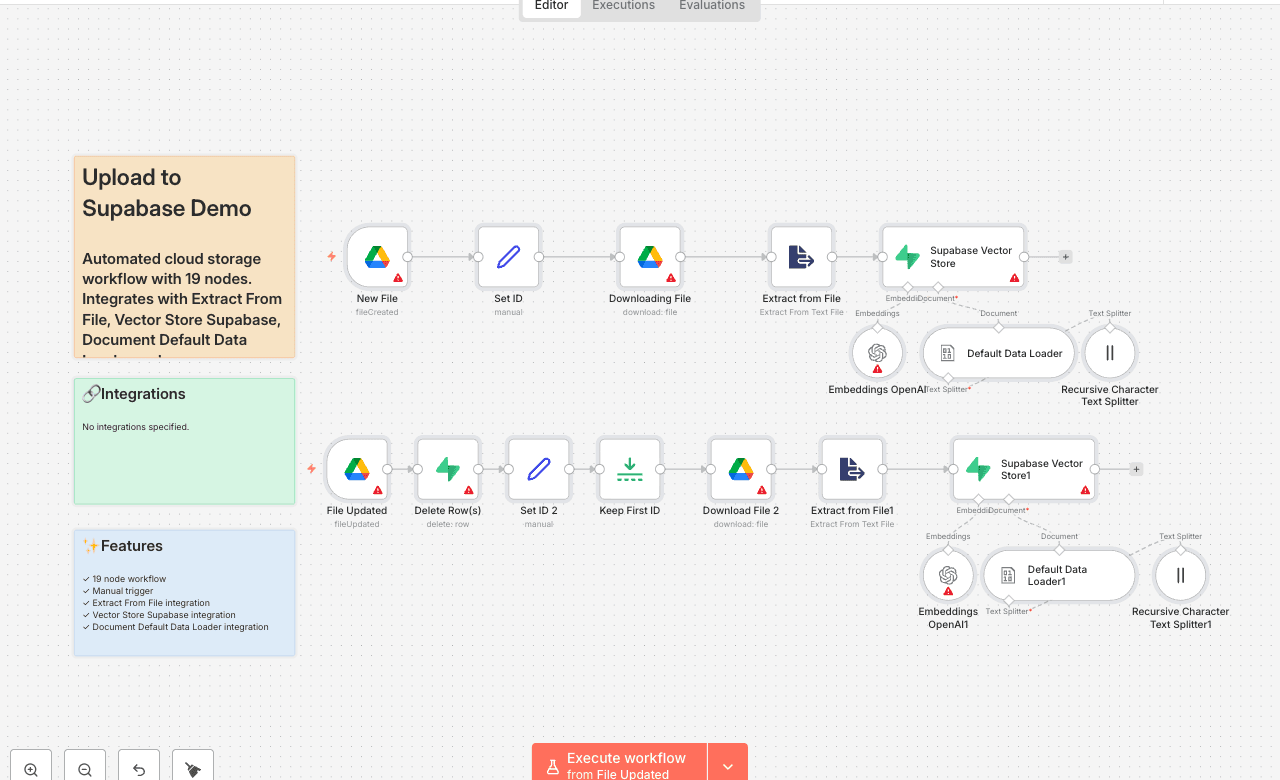
Automated cloud storage workflow with 19 nodes. Integrates with Extract From File, Vector Store Supabase, Document Default Data Loader and more. Node Count: 14 Difficulty: Beginner Integrations:
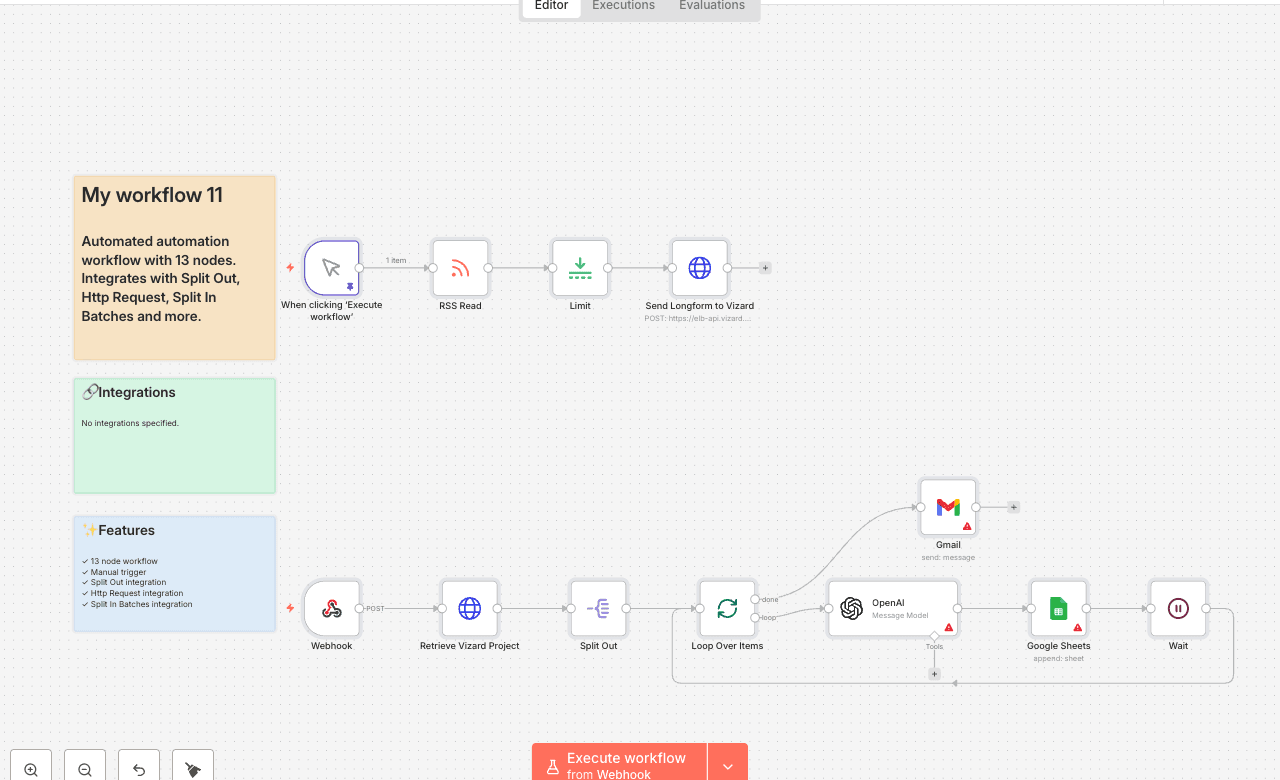
Automate video clip creation using Vizard AI. This workflow processes videos through Vizard's API to generate short-form clips perfect for social media content. Use Cases: - Social media content creation - Video repurposing automation - Batch video processing Node Count: 14 Difficulty: Intermediate Integrations: Vizard AI, HTTP Request
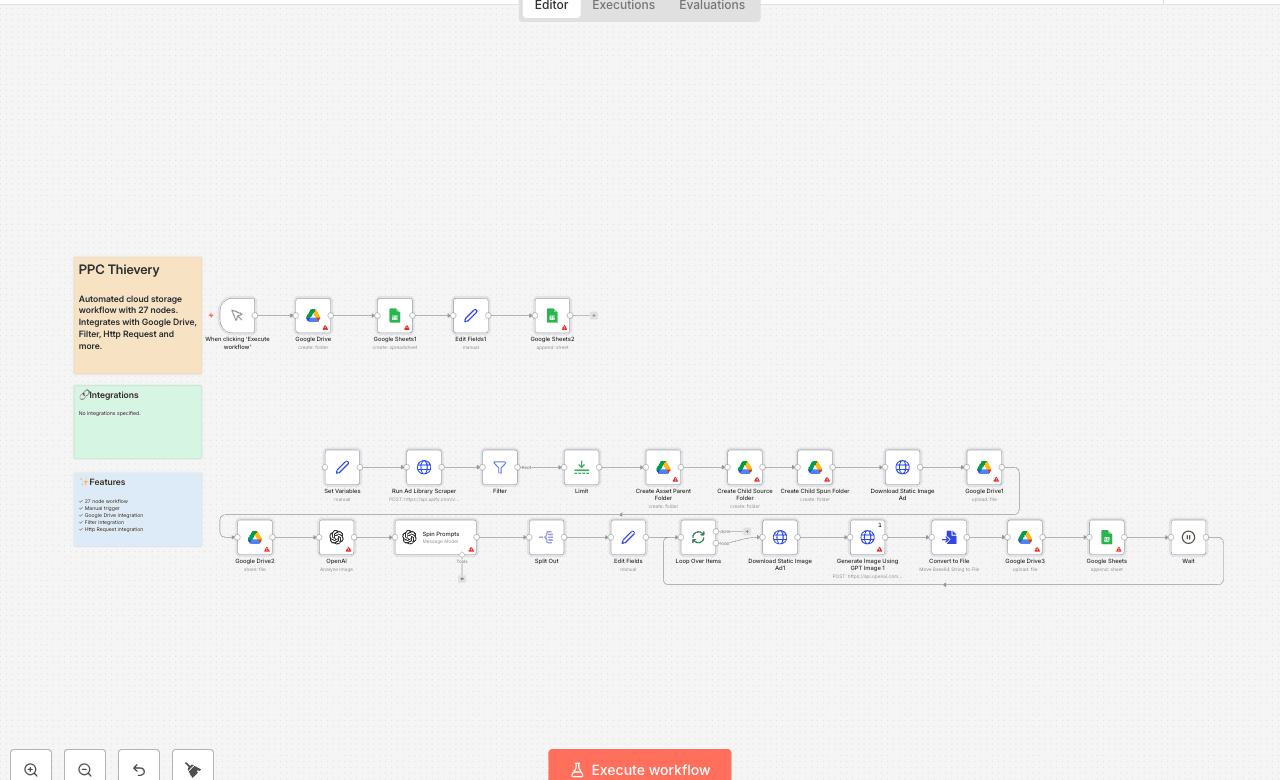
Automated cloud storage workflow with 27 nodes. Integrates with Google Drive, Filter, Http Request and more. Node Count: 14 Difficulty: Beginner Integrations:
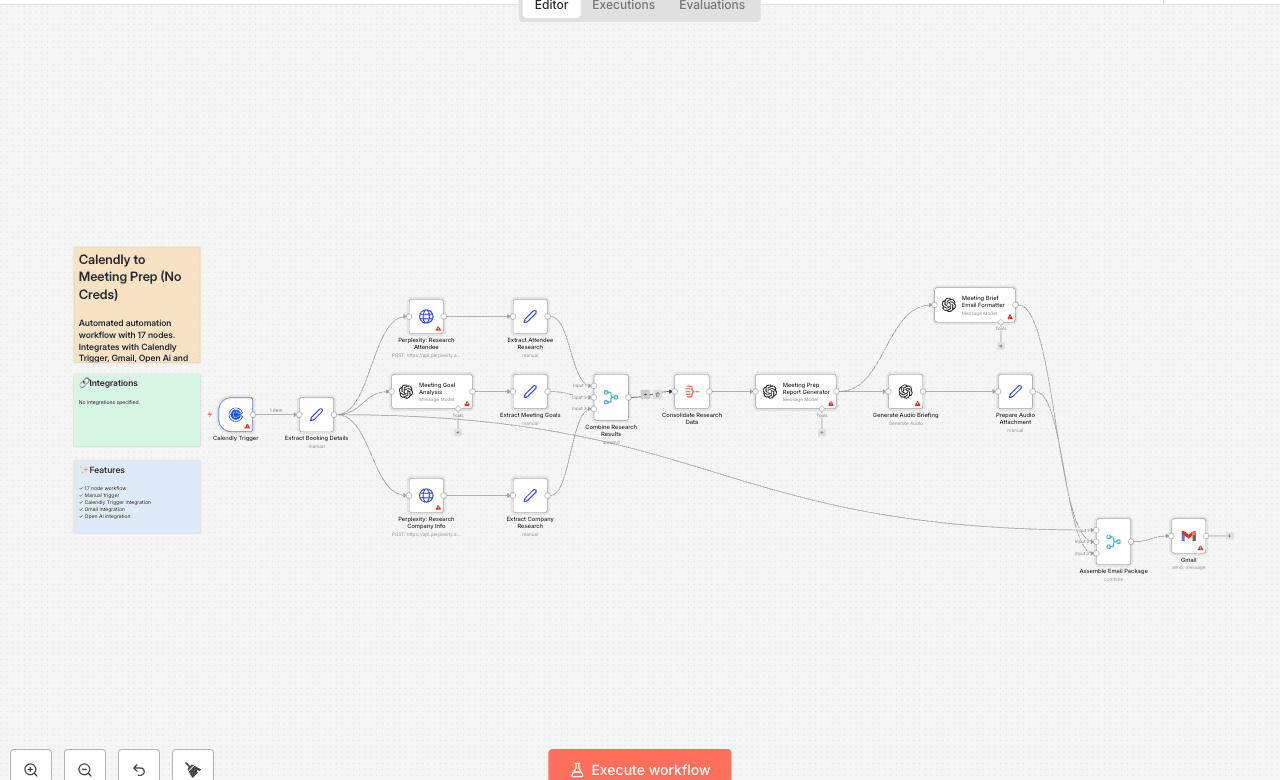
Automated automation workflow with 17 nodes. Integrates with Calendly Trigger, Gmail, Open Ai and more. Node Count: 14 Difficulty: Beginner Integrations:
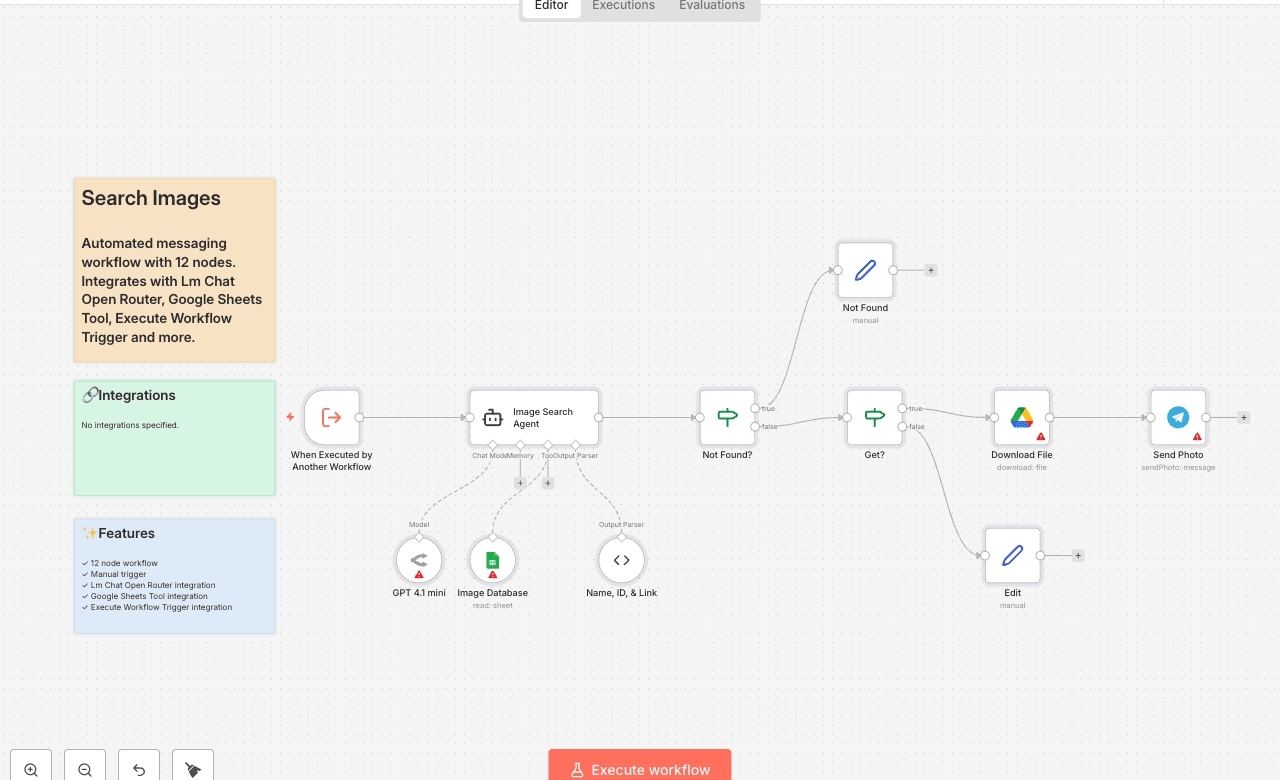
Automated messaging workflow with 12 nodes. Integrates with Lm Chat Open Router, Google Sheets Tool, Execute Workflow Trigger and more. Node Count: 14 Difficulty: Beginner Integrations:
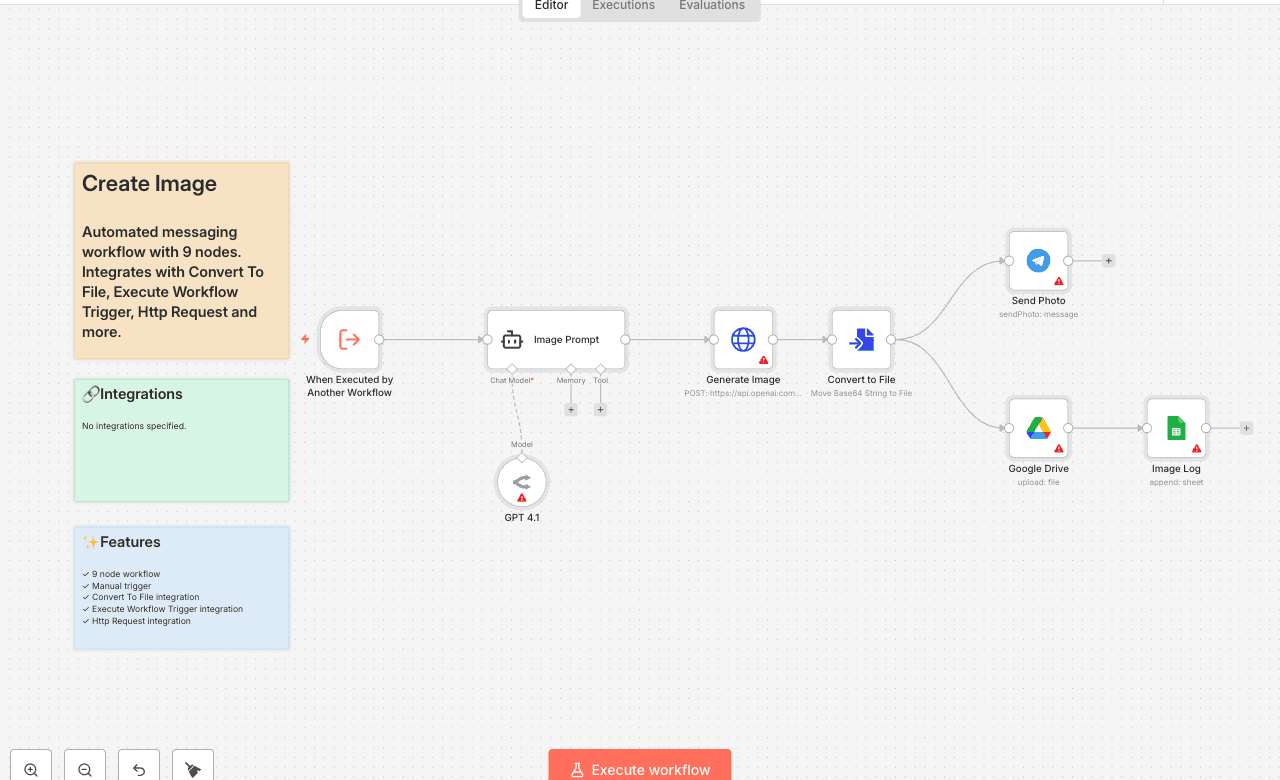
Automated messaging workflow with 9 nodes. Integrates with Convert To File, Execute Workflow Trigger, Http Request and more. Node Count: 14 Difficulty: Beginner Integrations:
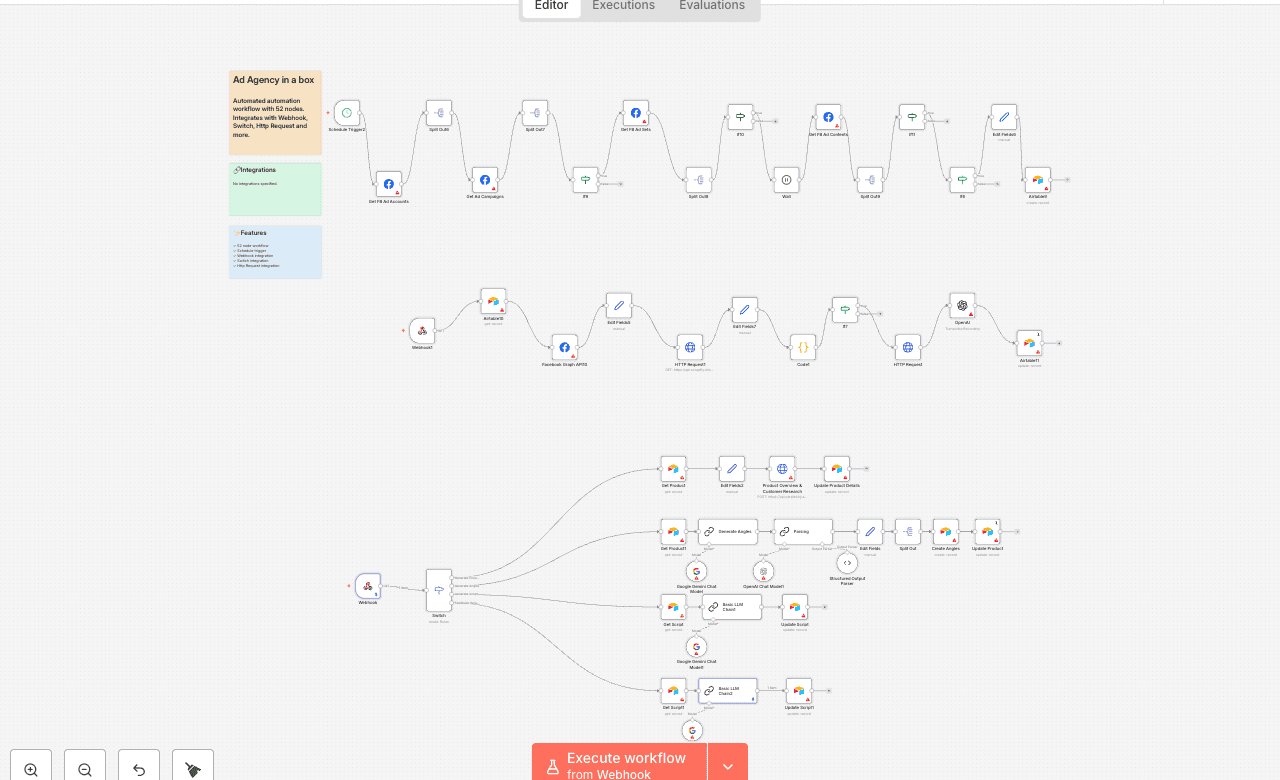
Automated automation workflow with 52 nodes. Integrates with Webhook, Switch, Http Request and more. Node Count: 14 Difficulty: Beginner Integrations:
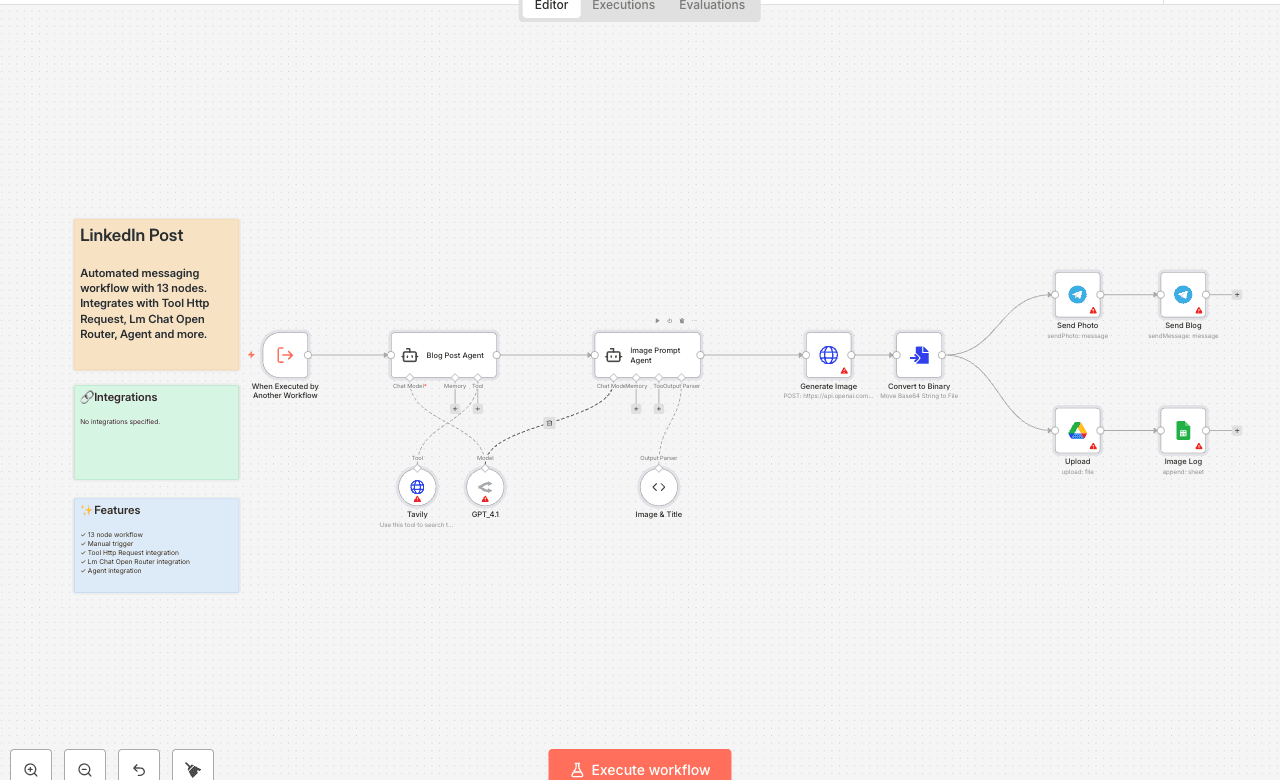
Automated messaging workflow with 13 nodes. Integrates with Tool Http Request, Lm Chat Open Router, Agent and more. Node Count: 14 Difficulty: Beginner Integrations:
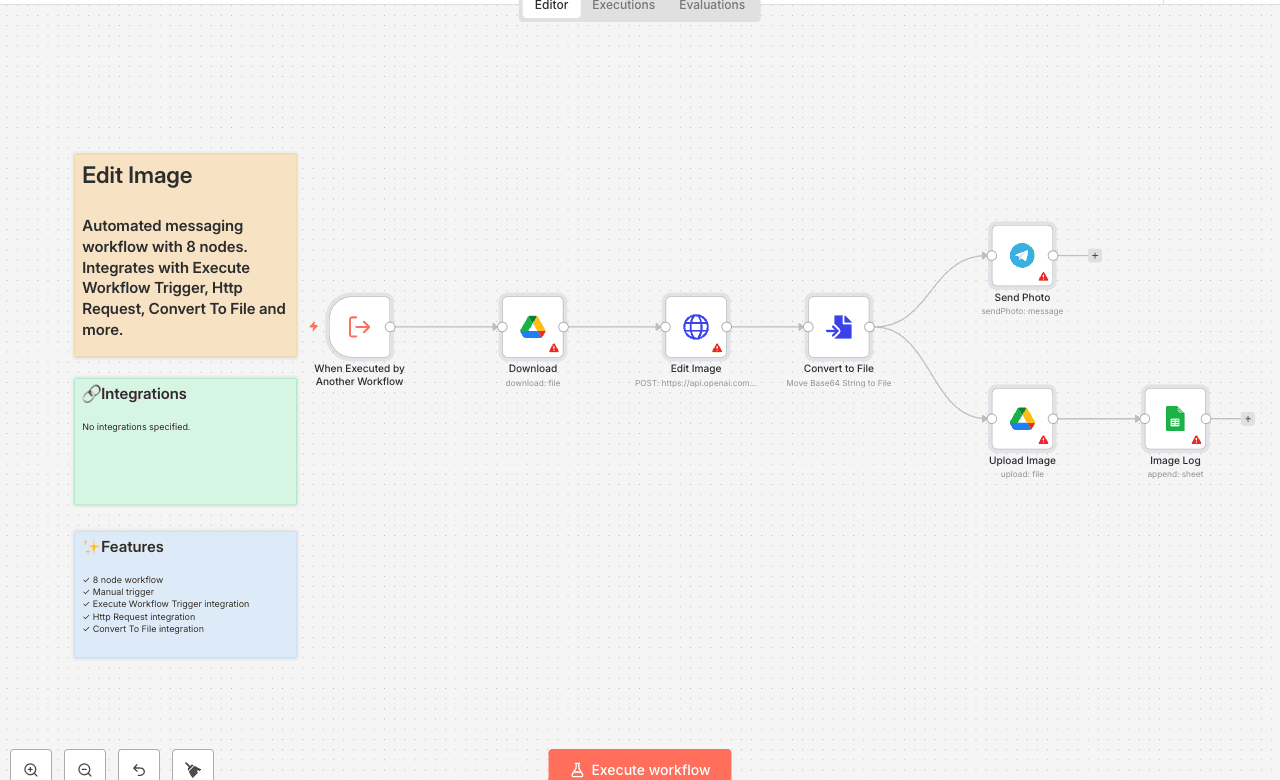
Automated messaging workflow with 8 nodes. Integrates with Execute Workflow Trigger, Http Request, Convert To File and more. Node Count: 14 Difficulty: Beginner Integrations:
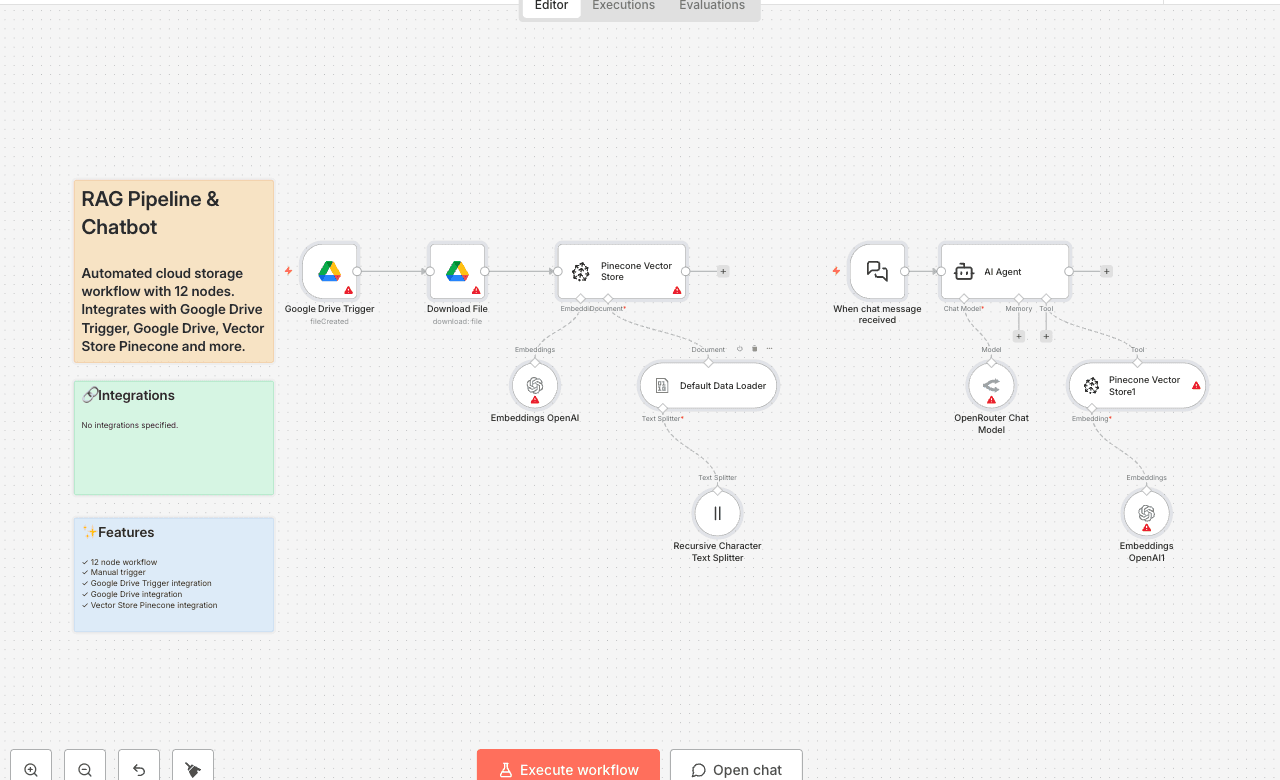
Automated cloud storage workflow with 12 nodes. Integrates with Google Drive Trigger, Google Drive, Vector Store Pinecone and more. Node Count: 14 Difficulty: Beginner Integrations:
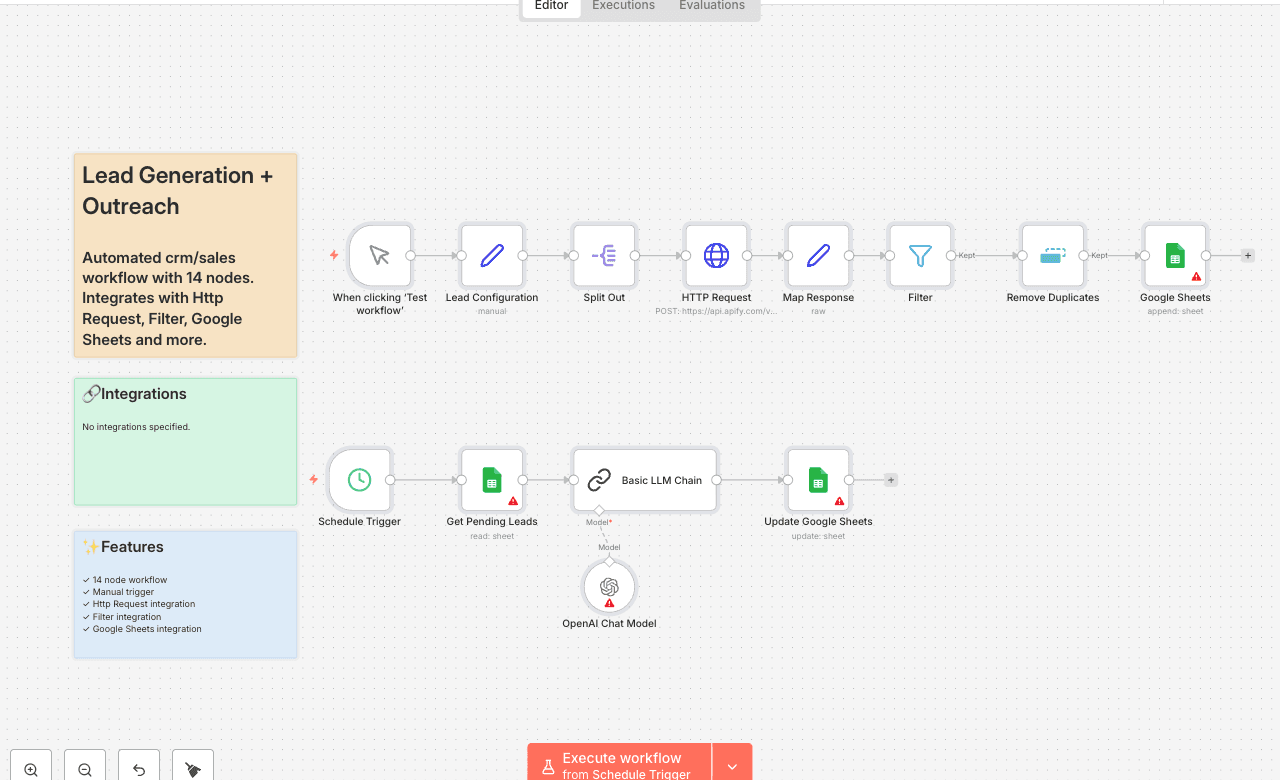
Automated crm/sales workflow with 14 nodes. Integrates with Http Request, Filter, Google Sheets and more. Node Count: 14 Difficulty: Beginner Integrations:
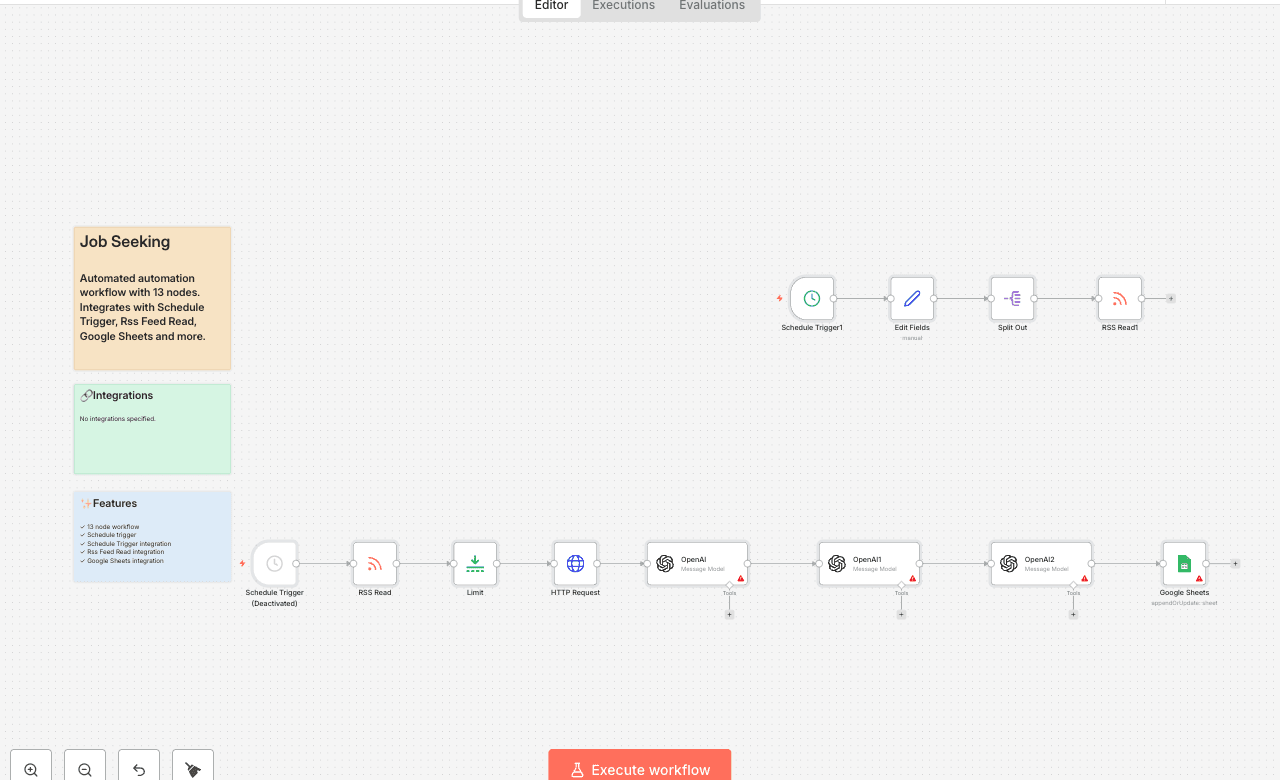
Automated automation workflow with 13 nodes. Integrates with Schedule Trigger, Rss Feed Read, Google Sheets and more. Node Count: 14 Difficulty: Beginner Integrations:
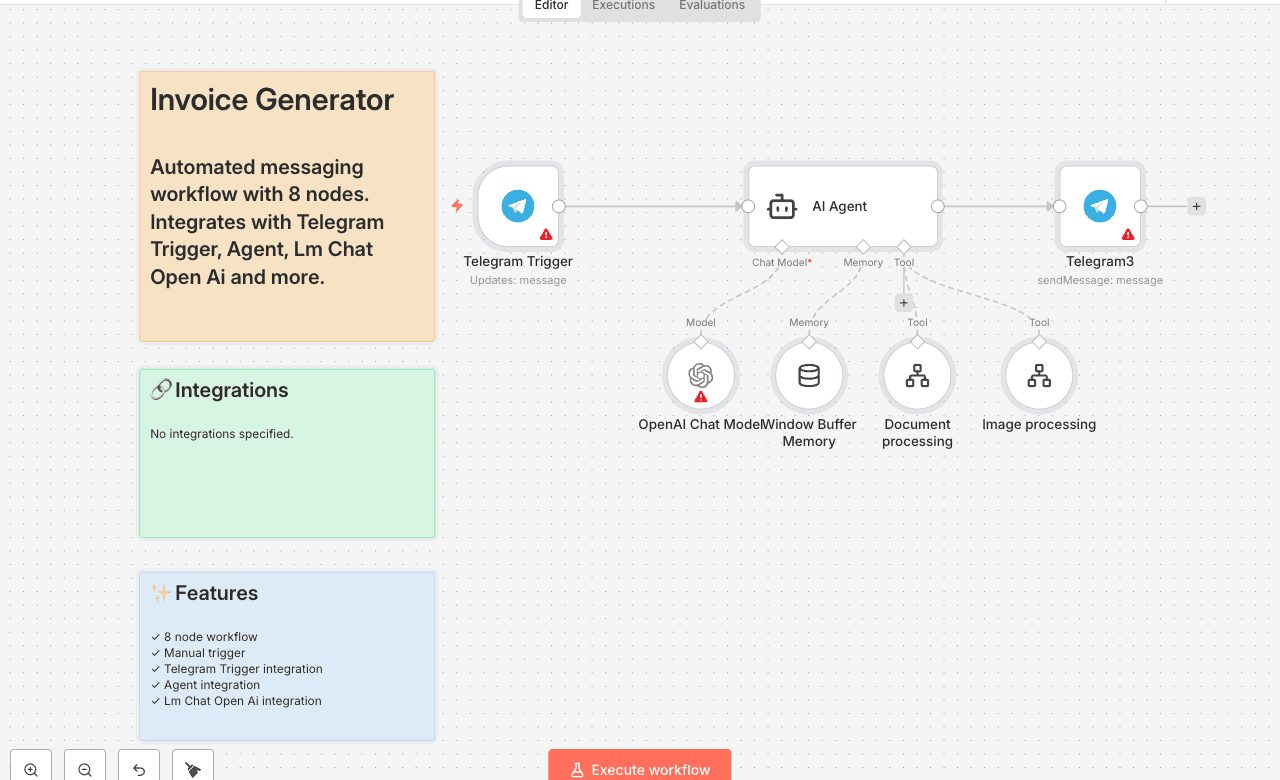
Automated messaging workflow with 8 nodes. Integrates with Telegram Trigger, Agent, Lm Chat Open Ai and more. Node Count: 14 Difficulty: Beginner Integrations:
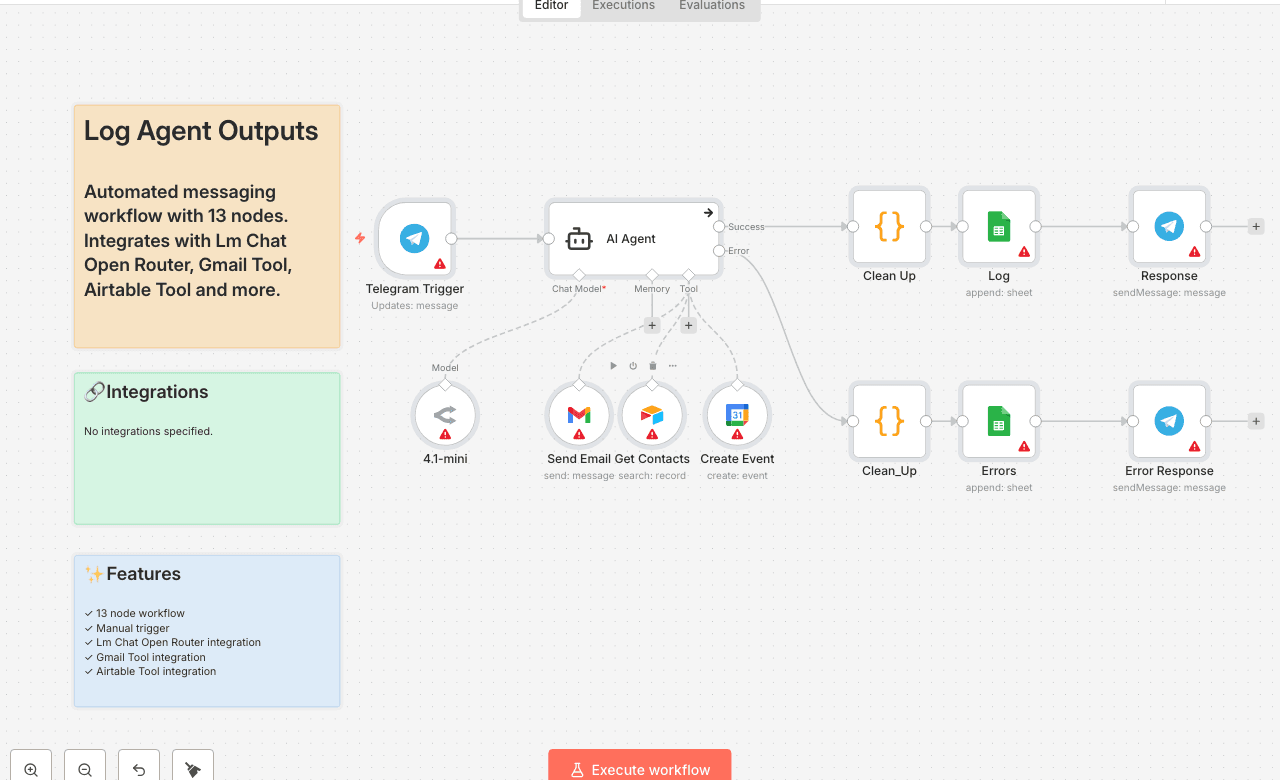
Automated webhooks workflow with 16 nodes. Integrates with Remove Duplicates, Split In Batches, Limit and more. Node Count: 14 Difficulty: Beginner Integrations:
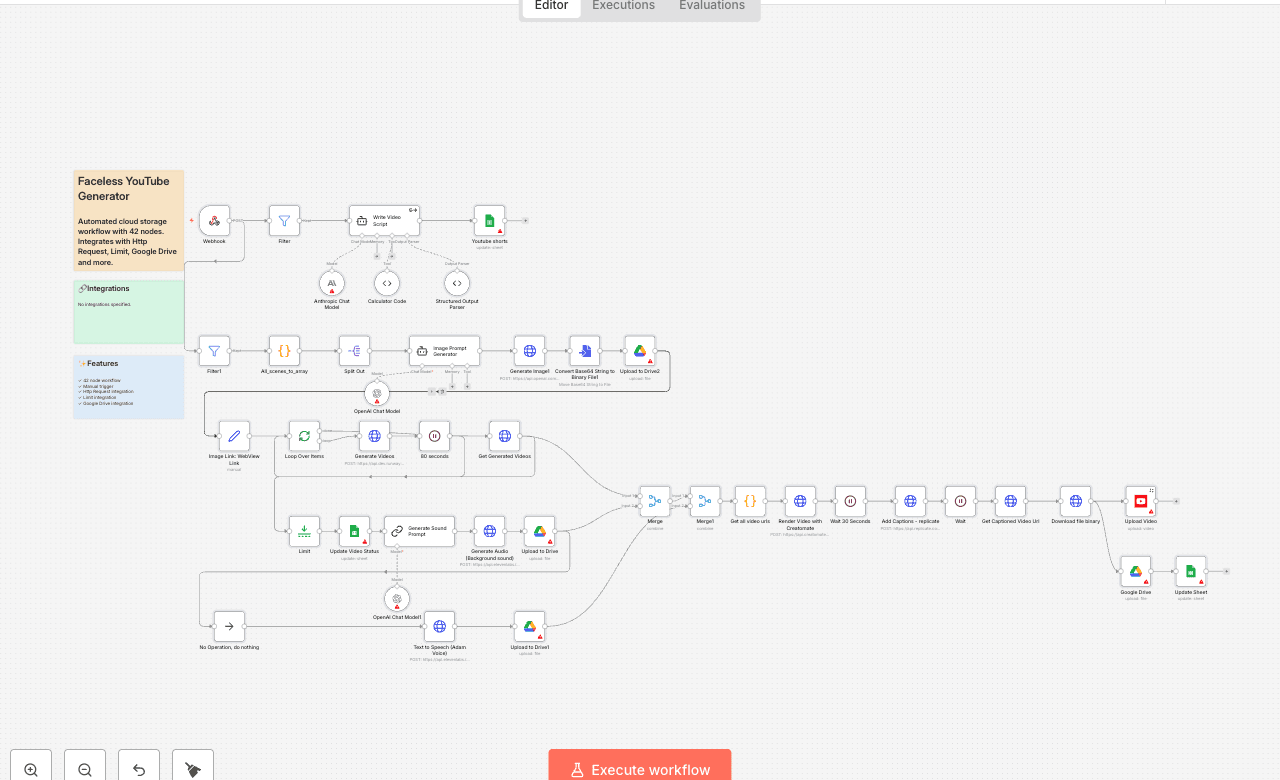
Automated cloud storage workflow with 42 nodes. Integrates with Http Request, Limit, Google Drive and more. Node Count: 14 Difficulty: Beginner Integrations:
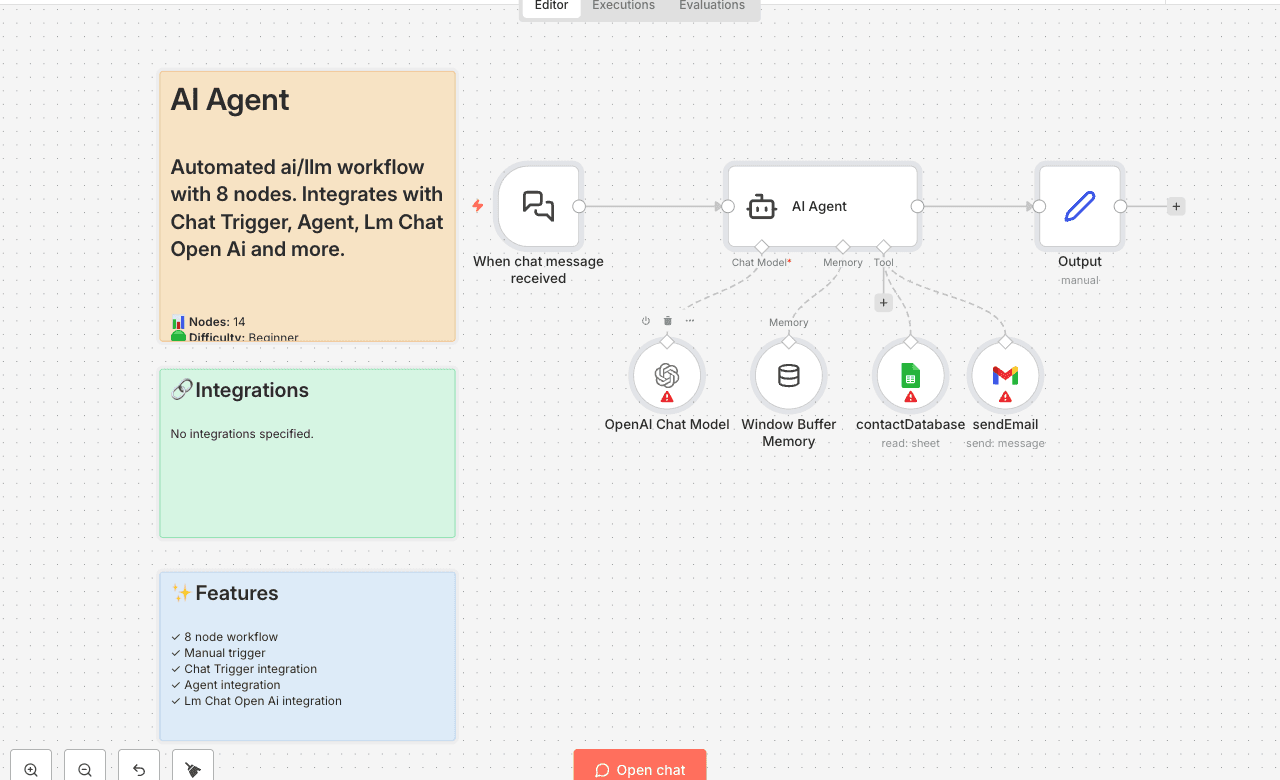
Automated ai/llm workflow with 8 nodes. Integrates with Chat Trigger, Agent, Lm Chat Open Ai and more. Node Count: 14 Difficulty: Beginner Integrations:
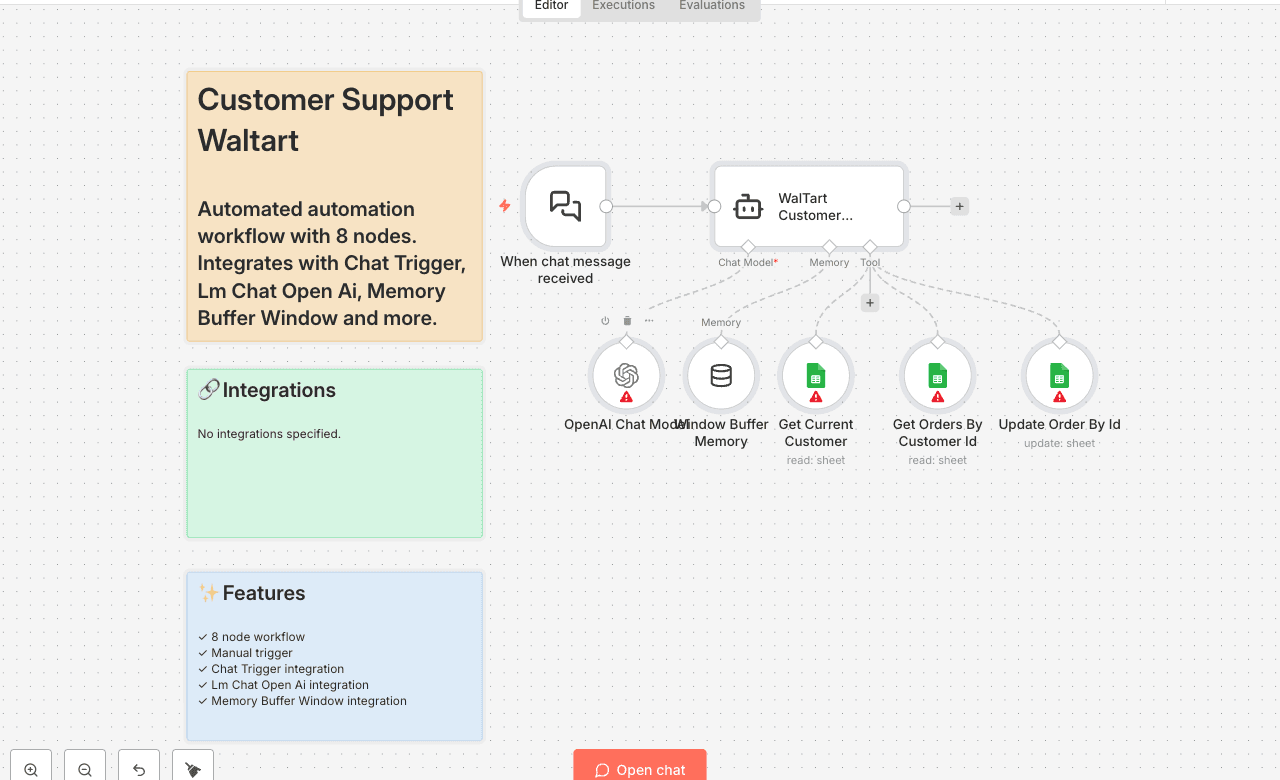
Automated automation workflow with 8 nodes. Integrates with Chat Trigger, Lm Chat Open Ai, Memory Buffer Window and more. Node Count: 14 Difficulty: Beginner Integrations:
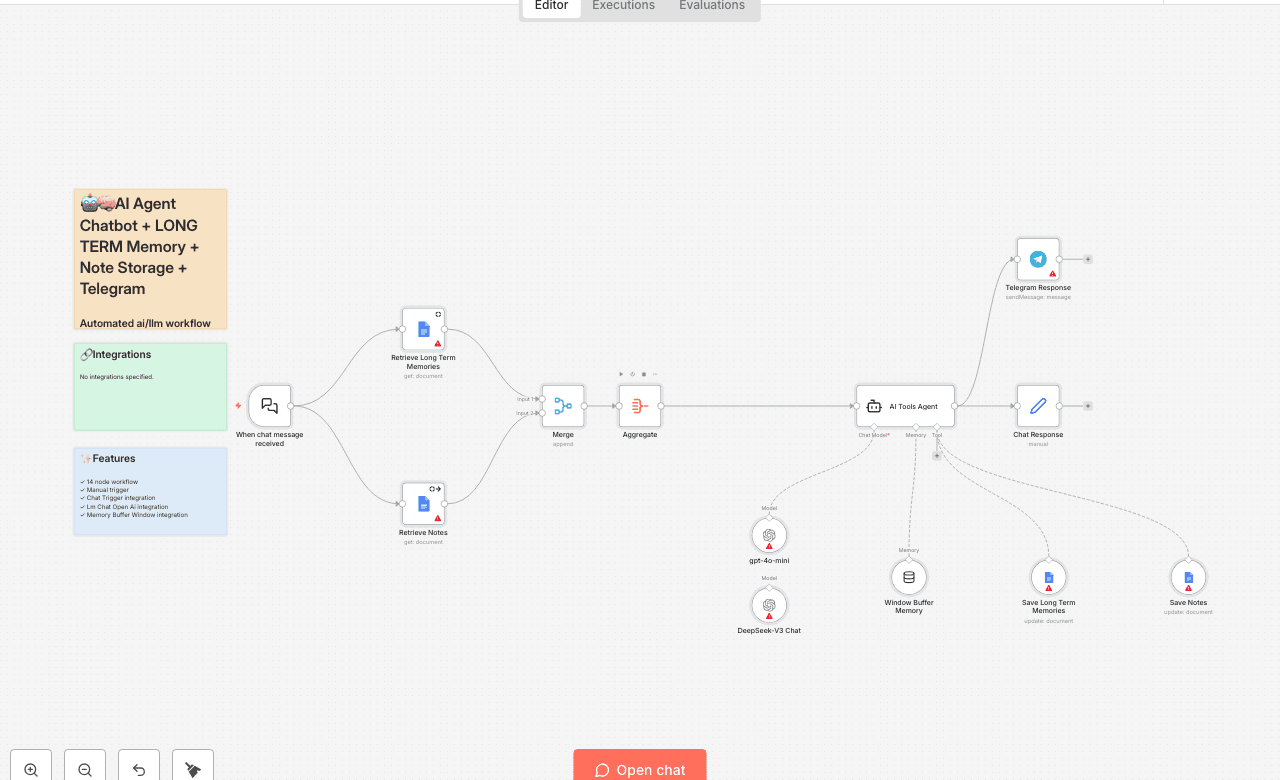
Automated ai/llm workflow with 14 nodes. Integrates with Chat Trigger, Lm Chat Open Ai, Memory Buffer Window and more. Node Count: 14 Difficulty: Beginner Integrations:
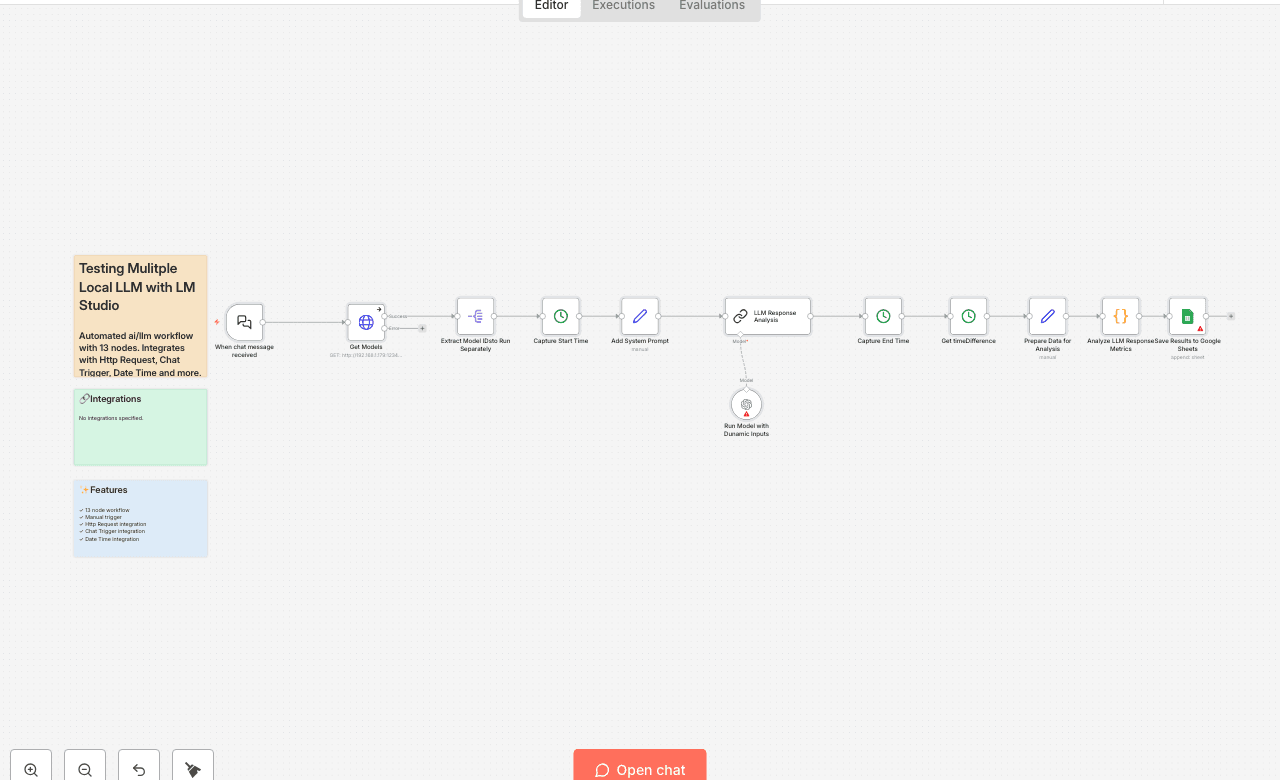
Test and compare multiple local LLM models using LM Studio. This workflow helps you evaluate different AI models side-by-side for performance and response quality. Use Cases: - LLM model comparison - Local AI testing - Model performance benchmarking Node Count: 13 Difficulty: Intermediate Integrations: LM Studio, HTTP Request, Chat Trigger
Automated automation workflow with 1 nodes. Integrates with Sticky Note. Node Count: 14 Difficulty: Beginner Integrations:
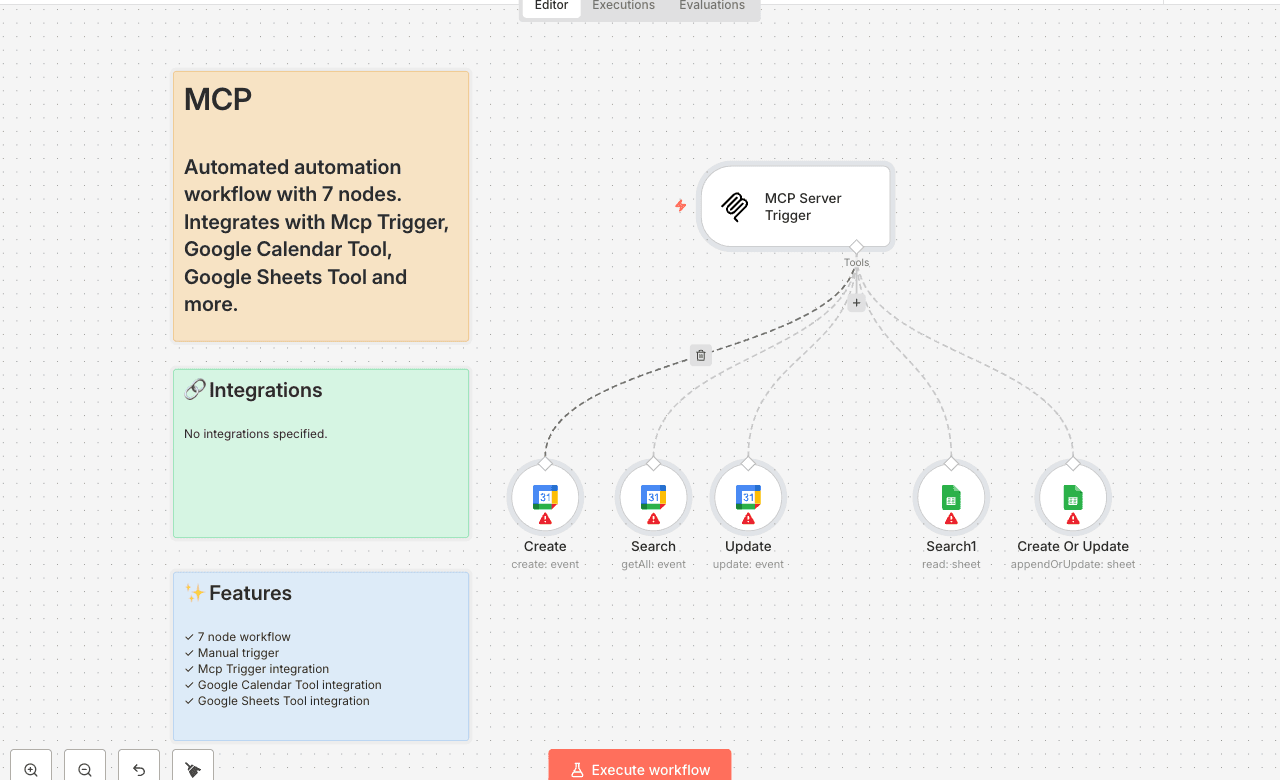
Create an MCP (Model Context Protocol) server that integrates with Google Calendar and Google Sheets. Enable AI assistants to manage calendar events and spreadsheet data. Use Cases: - AI assistant calendar management - Automated scheduling - Data entry automation Node Count: 7 Difficulty: Beginner Integrations: MCP, Google Calendar, Google Sheets
Automated social media workflow with 22 nodes. Integrates with Http Request, Lm Chat Google Gemini, Output Parser Autofixing and more. Node Count: 14 Difficulty: Beginner Integrations:
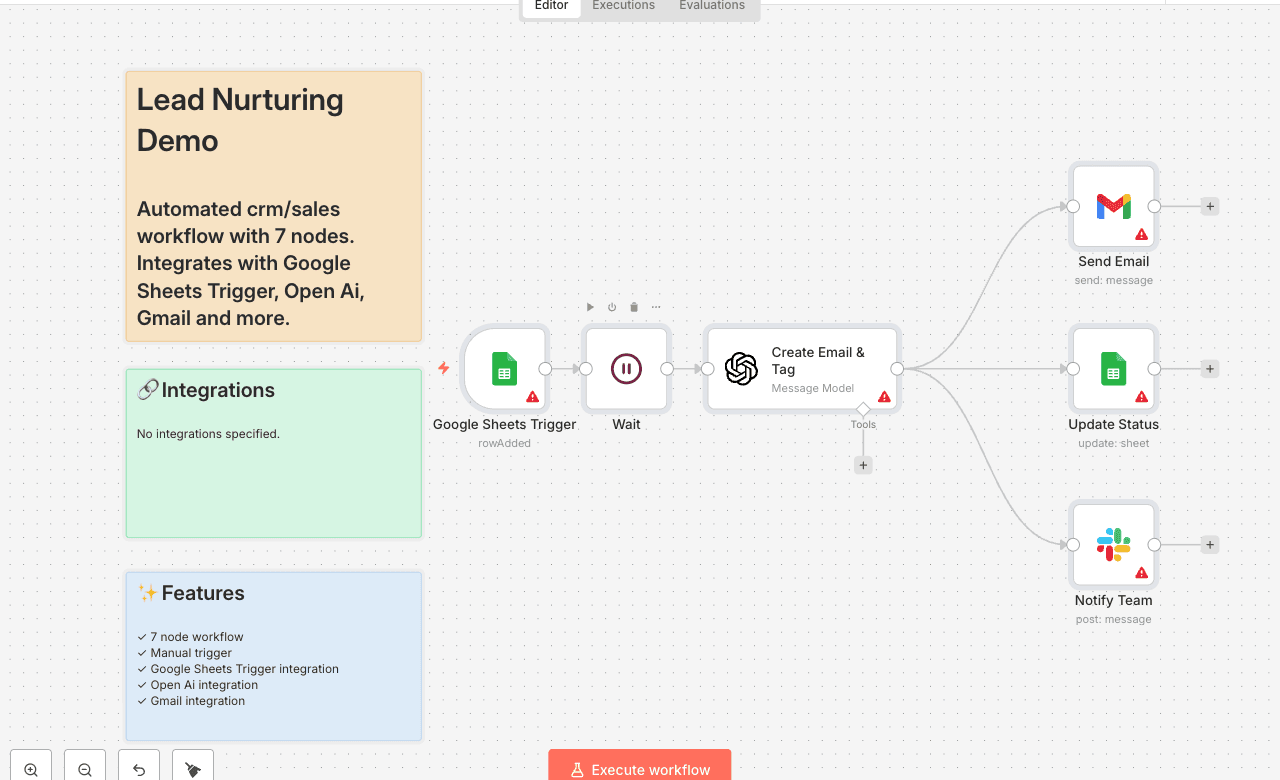
Automated crm/sales workflow with 7 nodes. Integrates with Google Sheets Trigger, Open Ai, Gmail and more. Node Count: 14 Difficulty: Beginner Integrations:
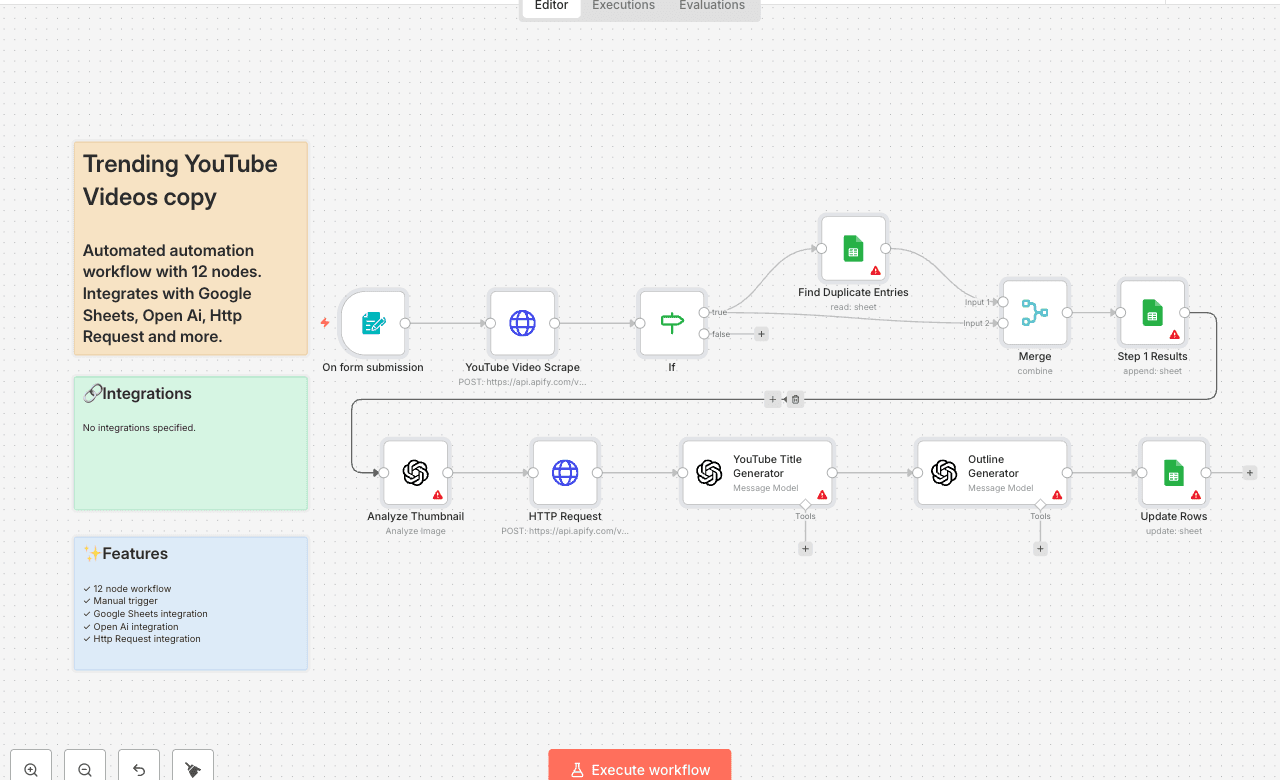
Analyze YouTube videos to identify trending content based on view counts and subscriber ratios. Perfect for content creators looking to identify viral potential. Use Cases: - Content trend analysis - Viral video identification - Competitor research Node Count: 12 Difficulty: Beginner Integrations: YouTube API, Google Sheets
Automated team communication workflow with 20 nodes. Integrates with Http Request, Split In Batches, Switch and more. Node Count: 14 Difficulty: Beginner Integrations:
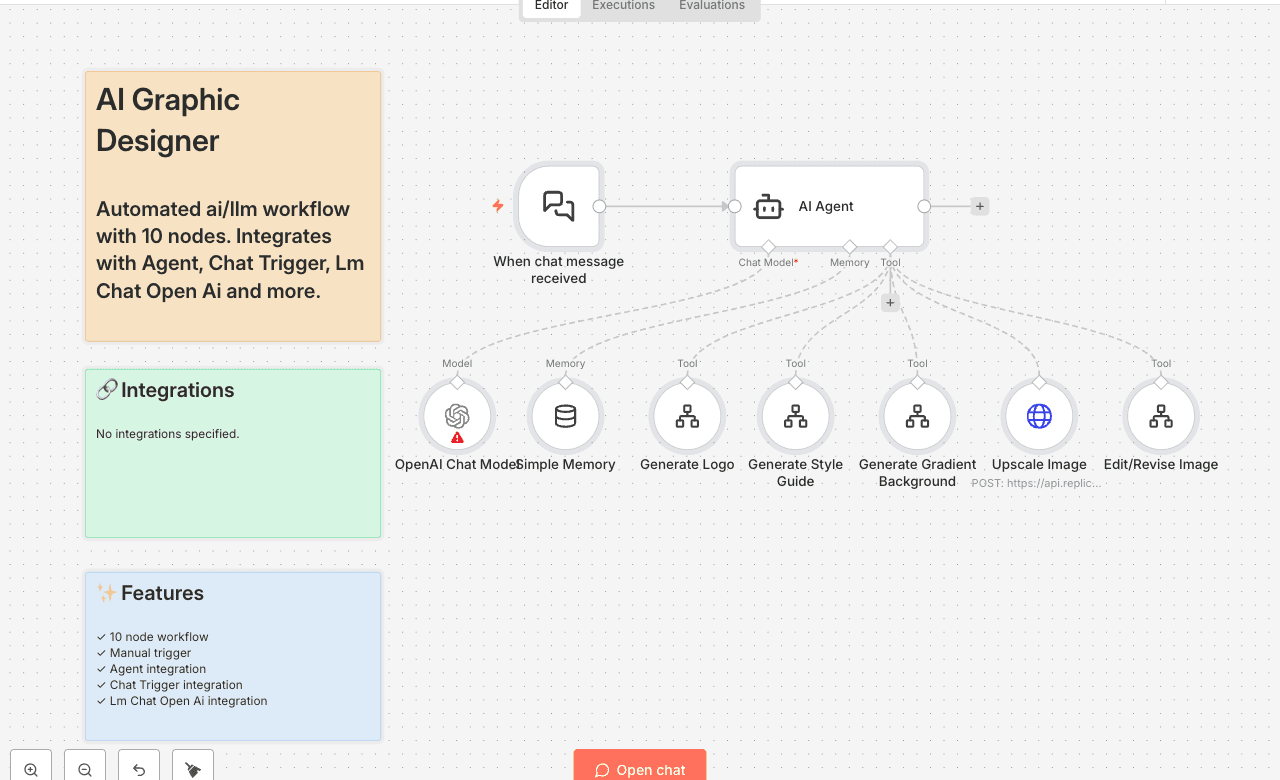
Automated ai/llm workflow with 10 nodes. Integrates with Agent, Chat Trigger, Lm Chat Open Ai and more. Node Count: 14 Difficulty: Beginner Integrations:
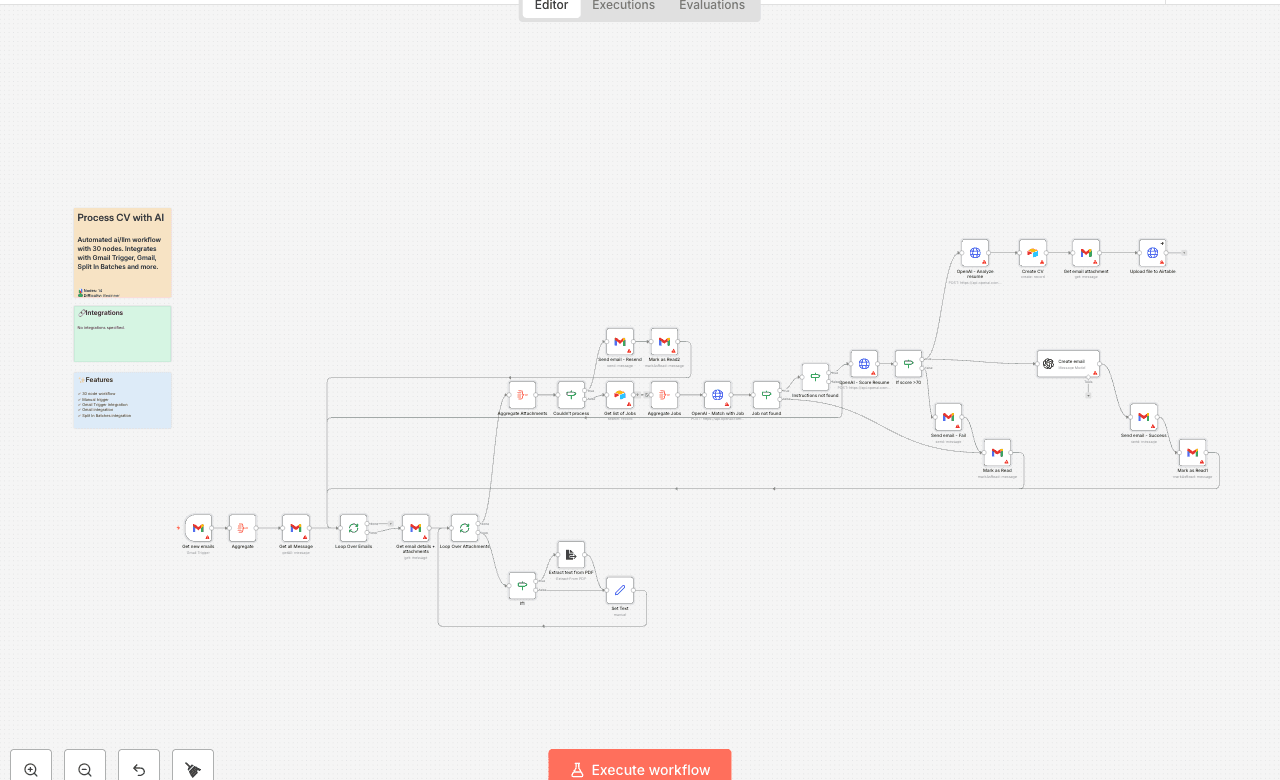
Automated ai/llm workflow with 30 nodes. Integrates with Gmail Trigger, Gmail, Split In Batches and more. Node Count: 14 Difficulty: Beginner Integrations:
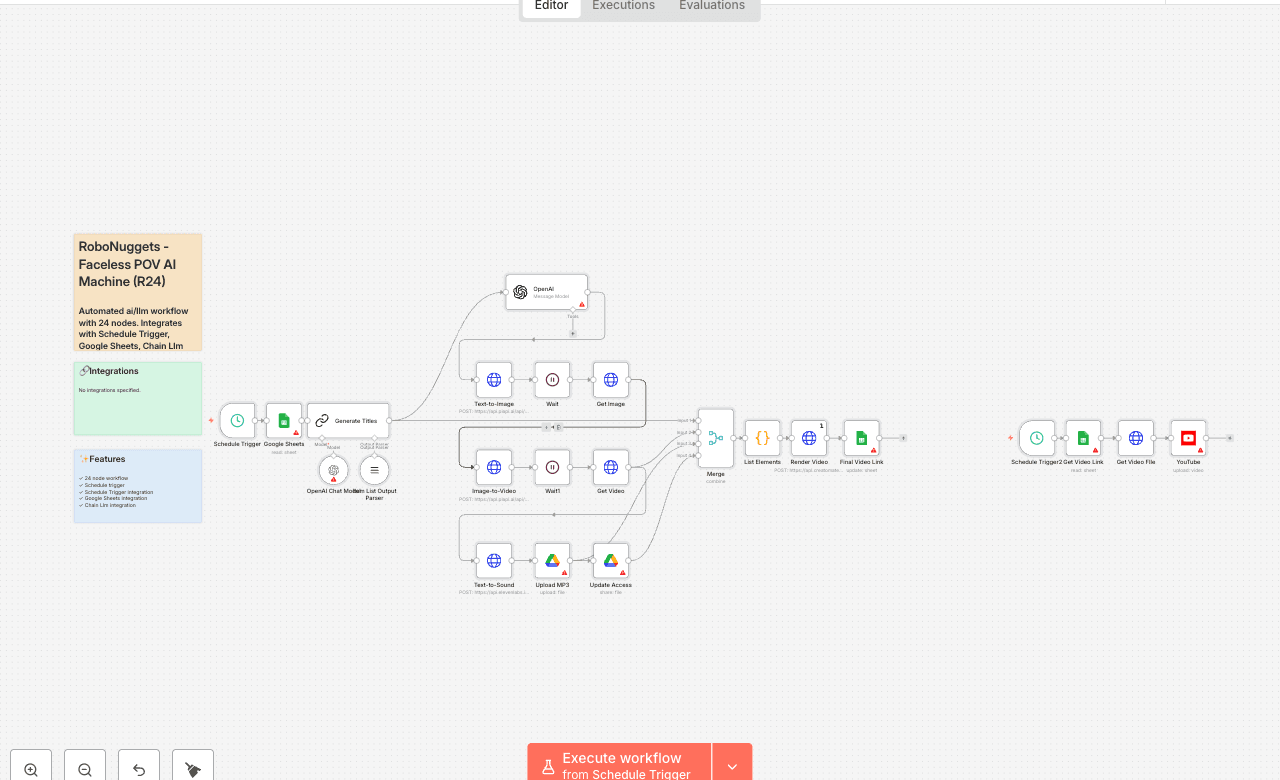
Automated ai/llm workflow with 24 nodes. Integrates with Schedule Trigger, Google Sheets, Chain Llm and more. Node Count: 14 Difficulty: Beginner Integrations:
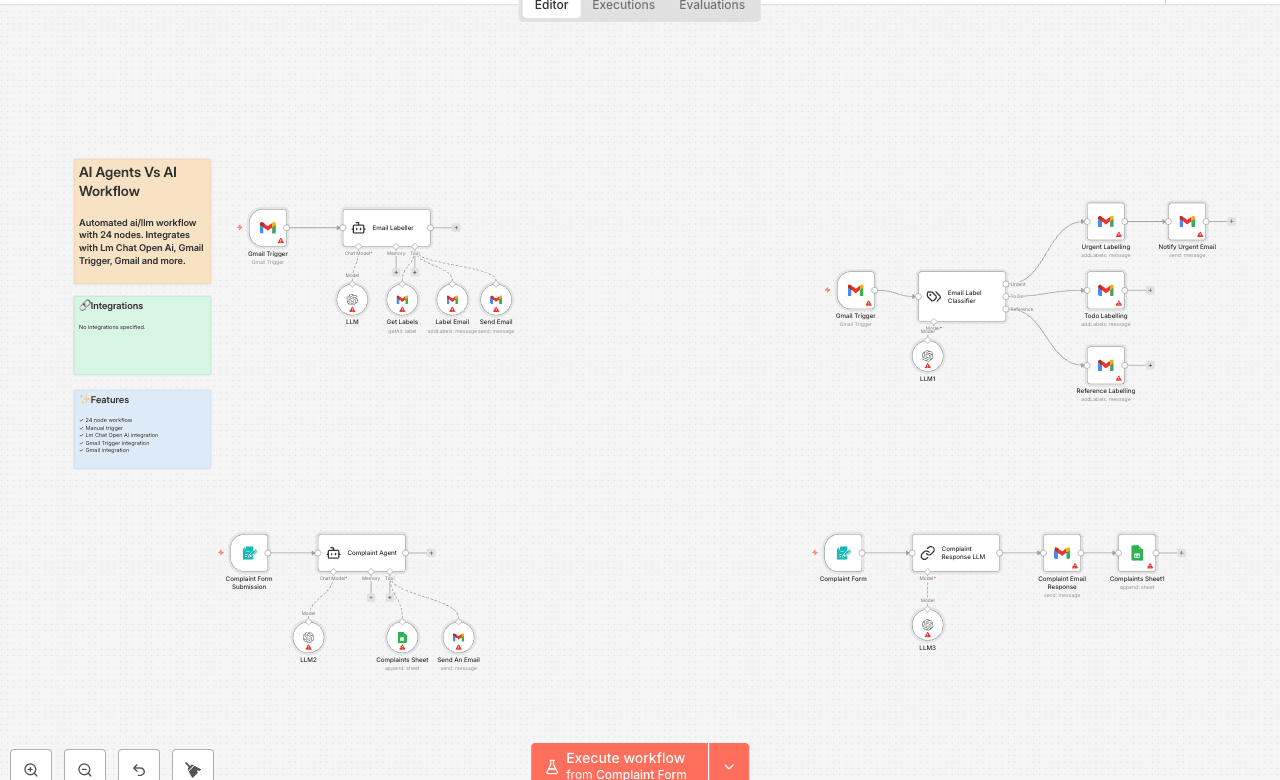
Automated ai/llm workflow with 24 nodes. Integrates with Lm Chat Open Ai, Gmail Trigger, Gmail and more. Node Count: 14 Difficulty: Beginner Integrations:
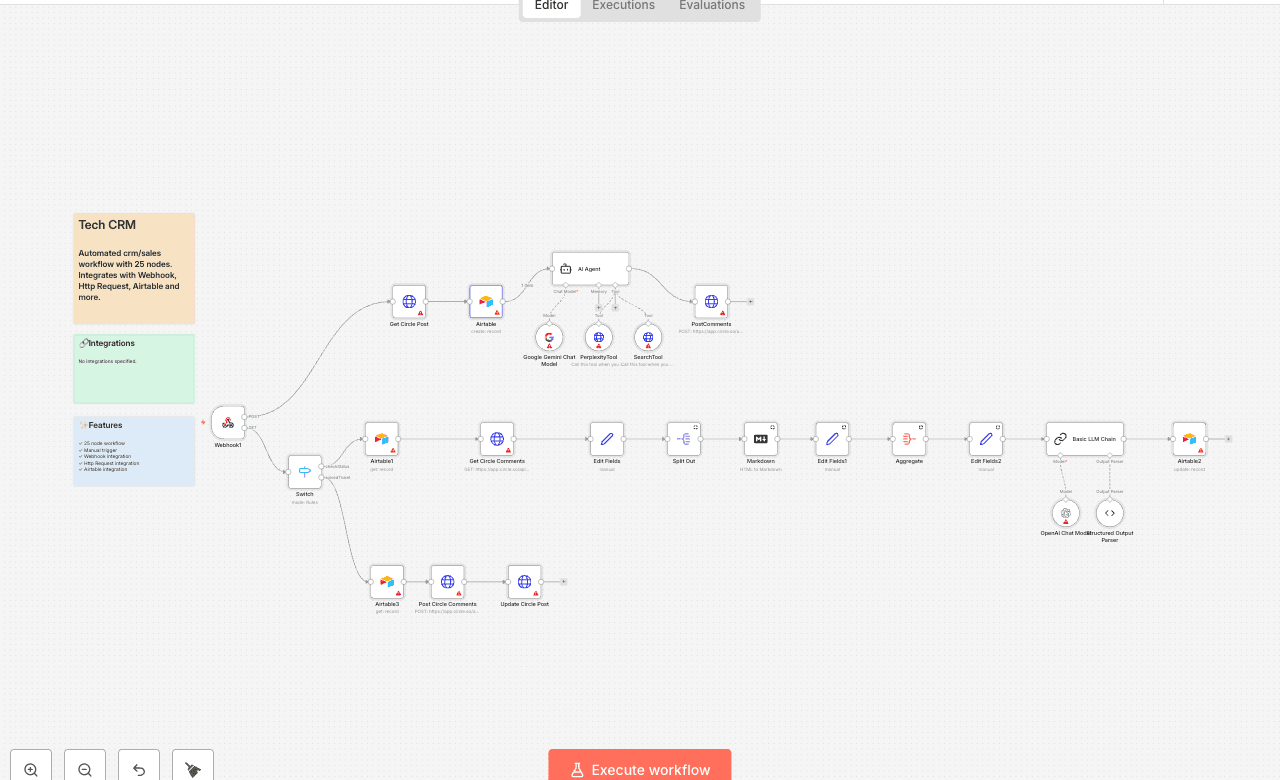
Automated crm/sales workflow with 25 nodes. Integrates with Webhook, Http Request, Airtable and more. Node Count: 14 Difficulty: Beginner Integrations:
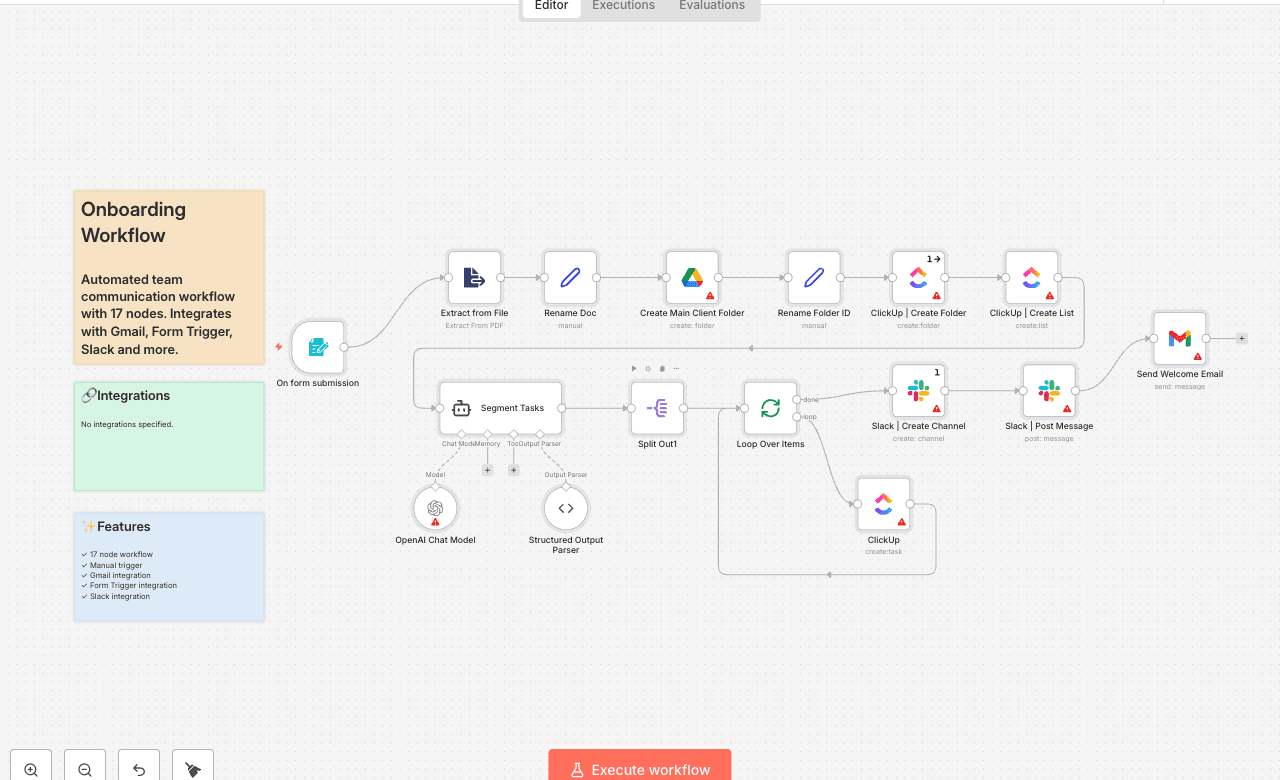
Automated team communication workflow with 17 nodes. Integrates with Gmail, Form Trigger, Slack and more. Node Count: 14 Difficulty: Beginner Integrations:
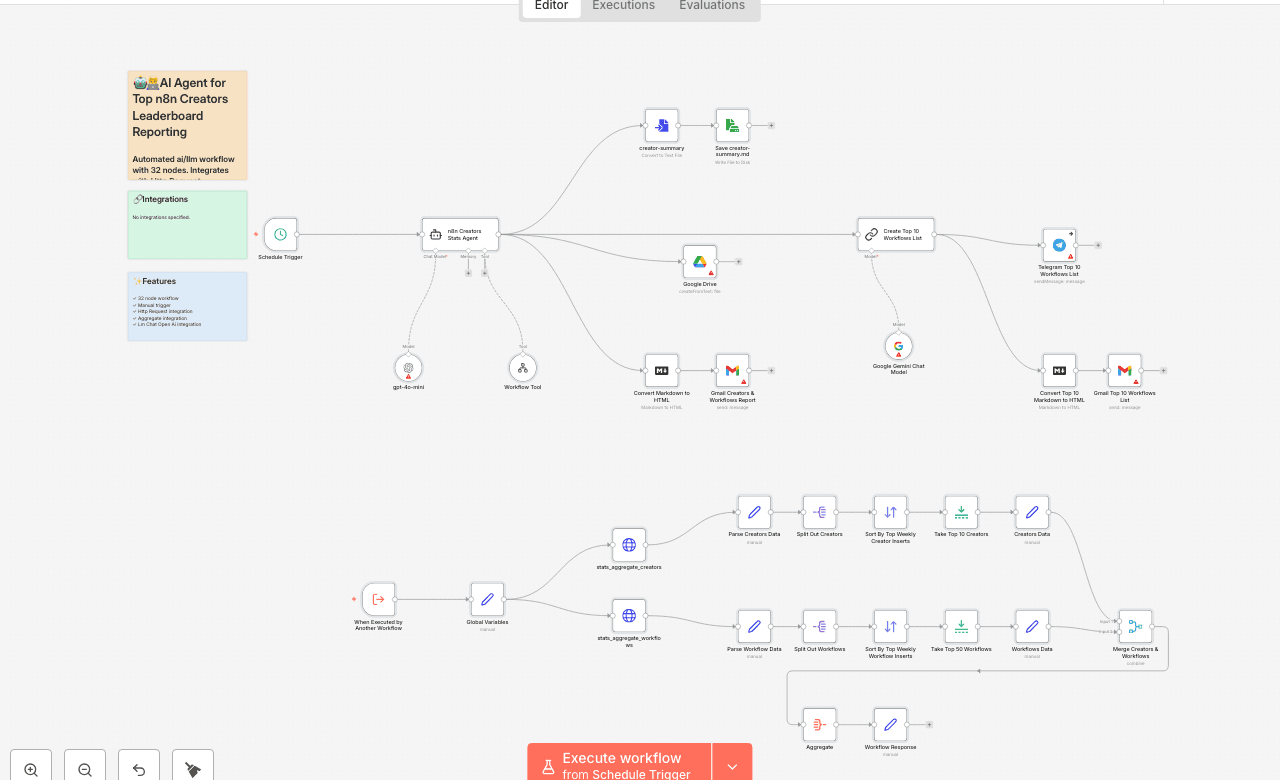
Automated ai/llm workflow with 32 nodes. Integrates with Http Request, Aggregate, Lm Chat Open Ai and more. Node Count: 14 Difficulty: Beginner Integrations:
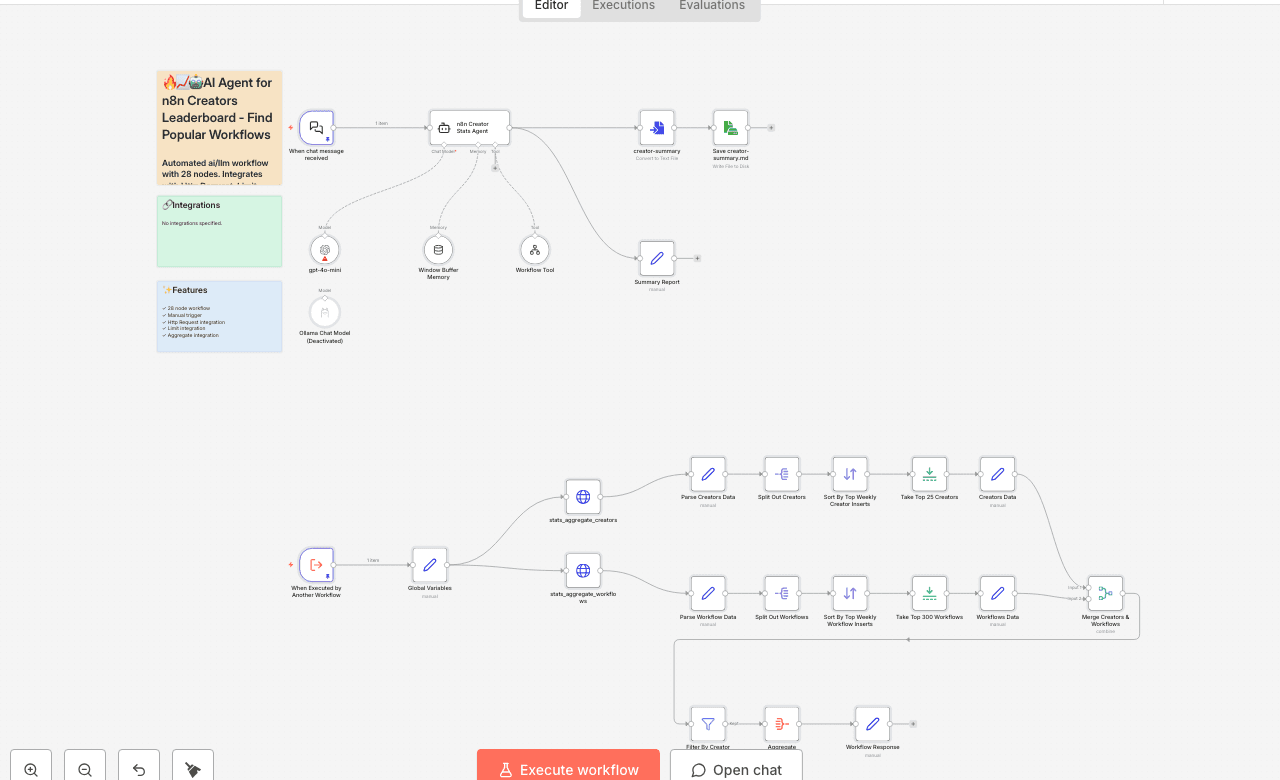
Automated ai/llm workflow with 28 nodes. Integrates with Http Request, Limit, Aggregate and more. Node Count: 14 Difficulty: Beginner Integrations:
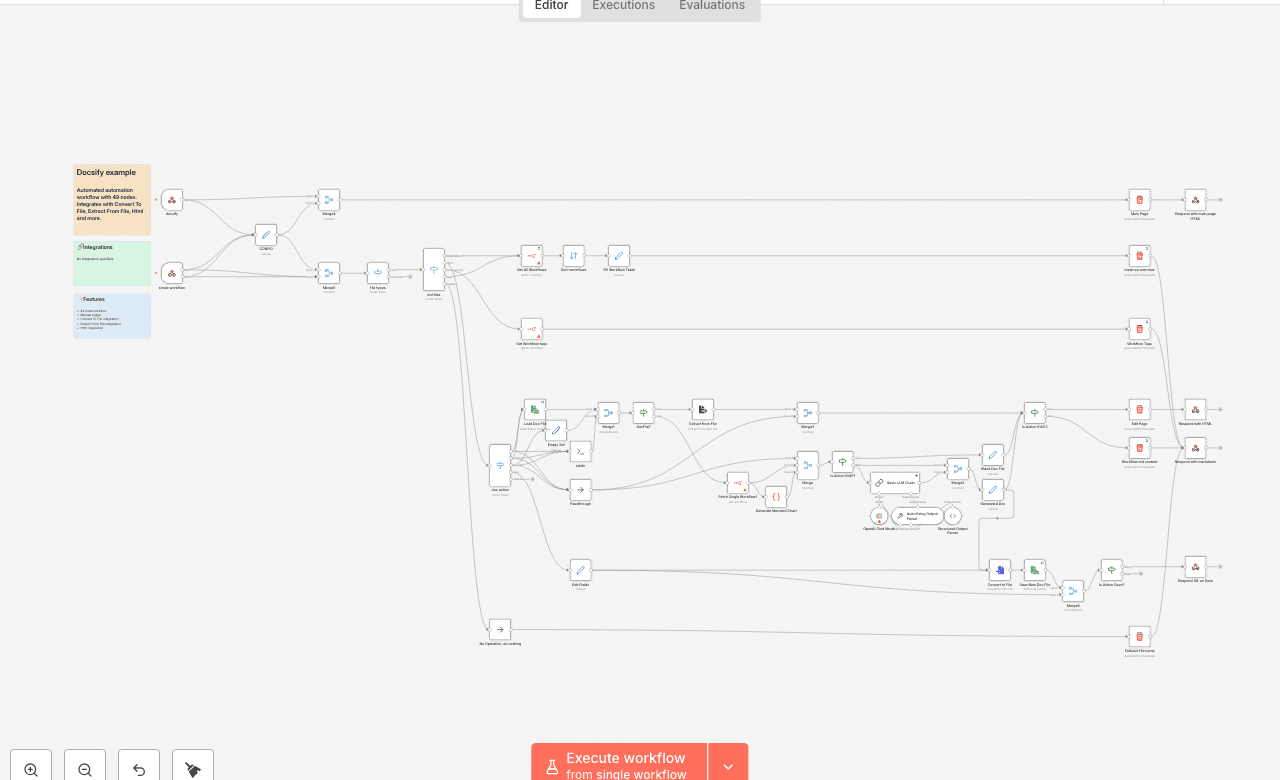
Automated automation workflow with 49 nodes. Integrates with Convert To File, Extract From File, Html and more. Node Count: 14 Difficulty: Beginner Integrations:
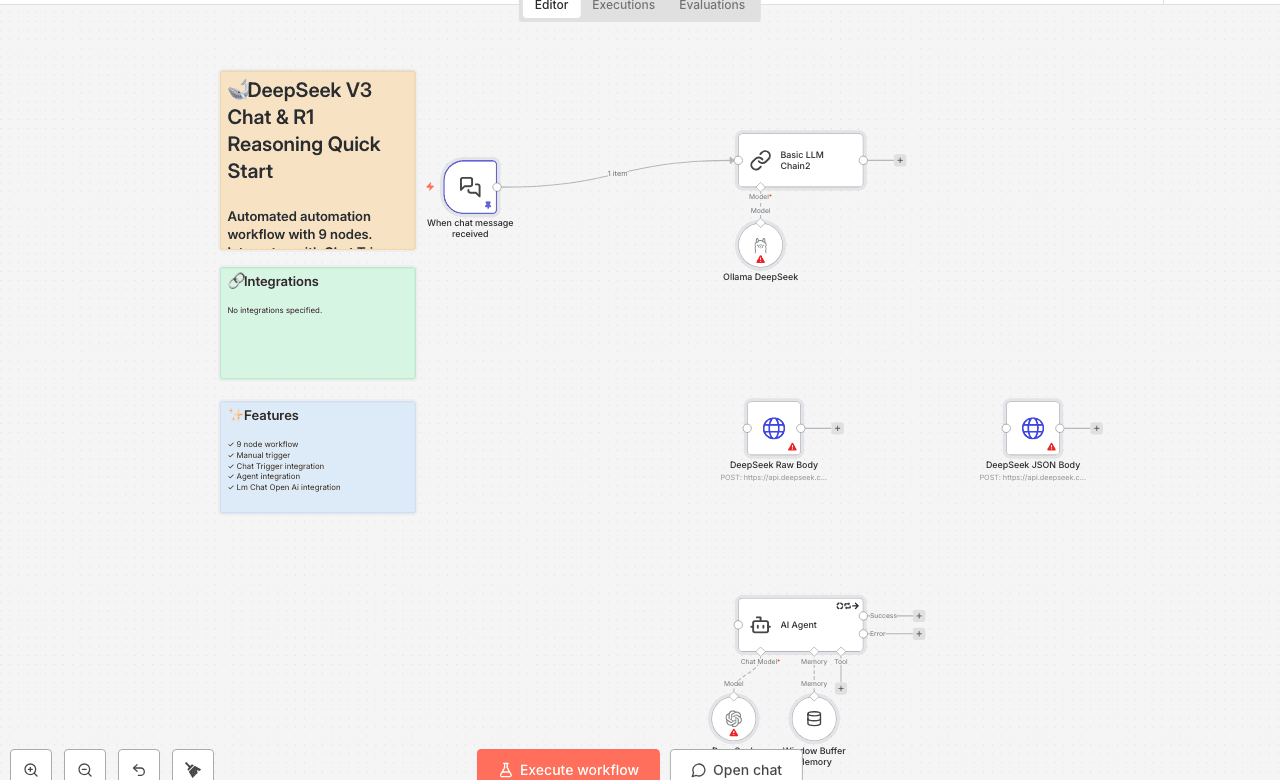
Automated automation workflow with 9 nodes. Integrates with Chat Trigger, Agent, Lm Chat Open Ai and more. Node Count: 14 Difficulty: Beginner Integrations:
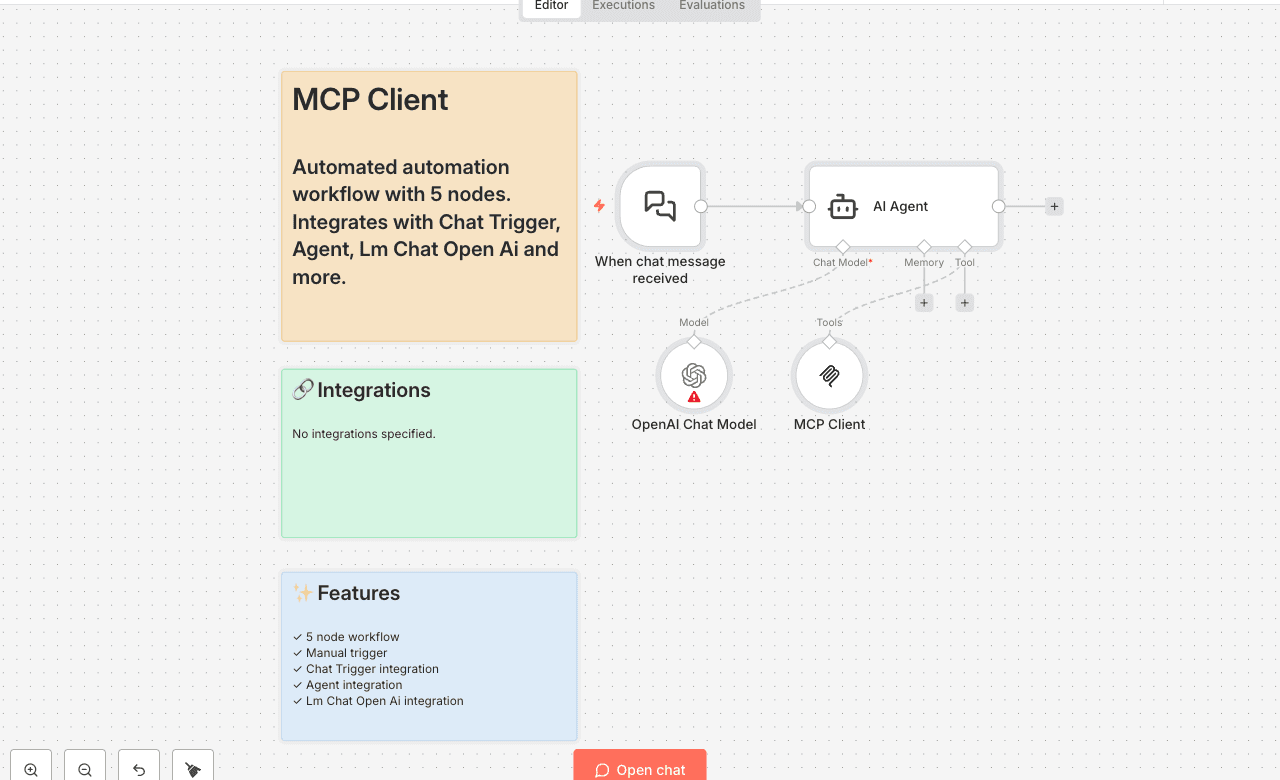
Automated automation workflow with 5 nodes. Integrates with Chat Trigger, Agent, Lm Chat Open Ai and more. Node Count: 14 Difficulty: Beginner Integrations:
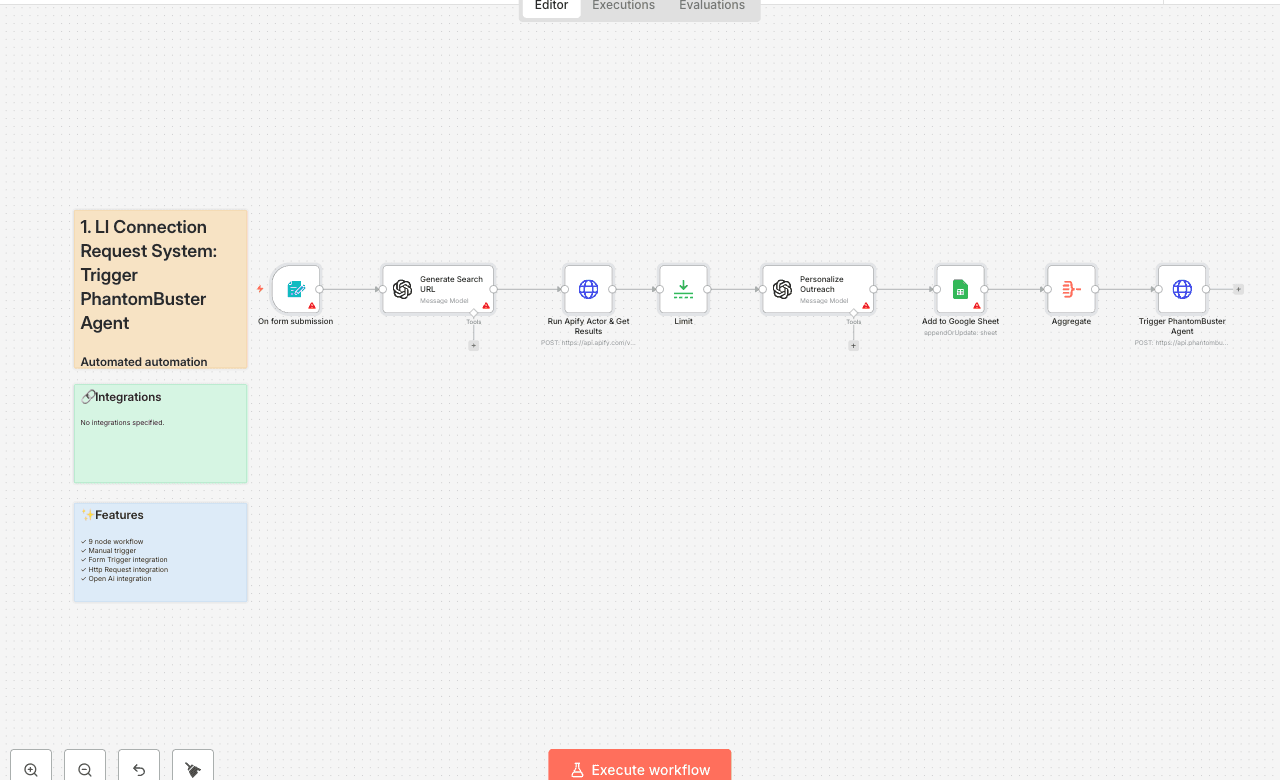
Automated automation workflow with 9 nodes. Integrates with Form Trigger, Http Request, Open Ai and more. Node Count: 14 Difficulty: Beginner Integrations:
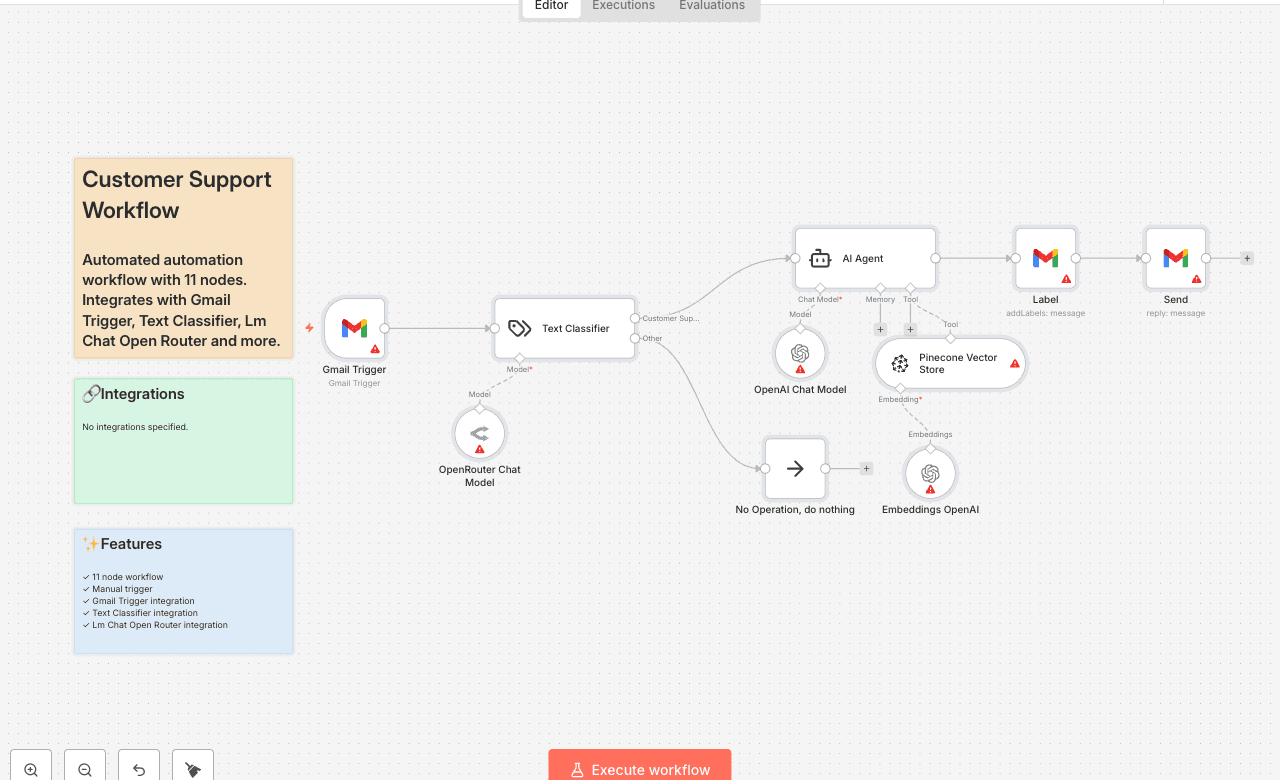
Automated automation workflow with 11 nodes. Integrates with Gmail Trigger, Text Classifier, Lm Chat Open Router and more. Node Count: 14 Difficulty: Beginner Integrations:
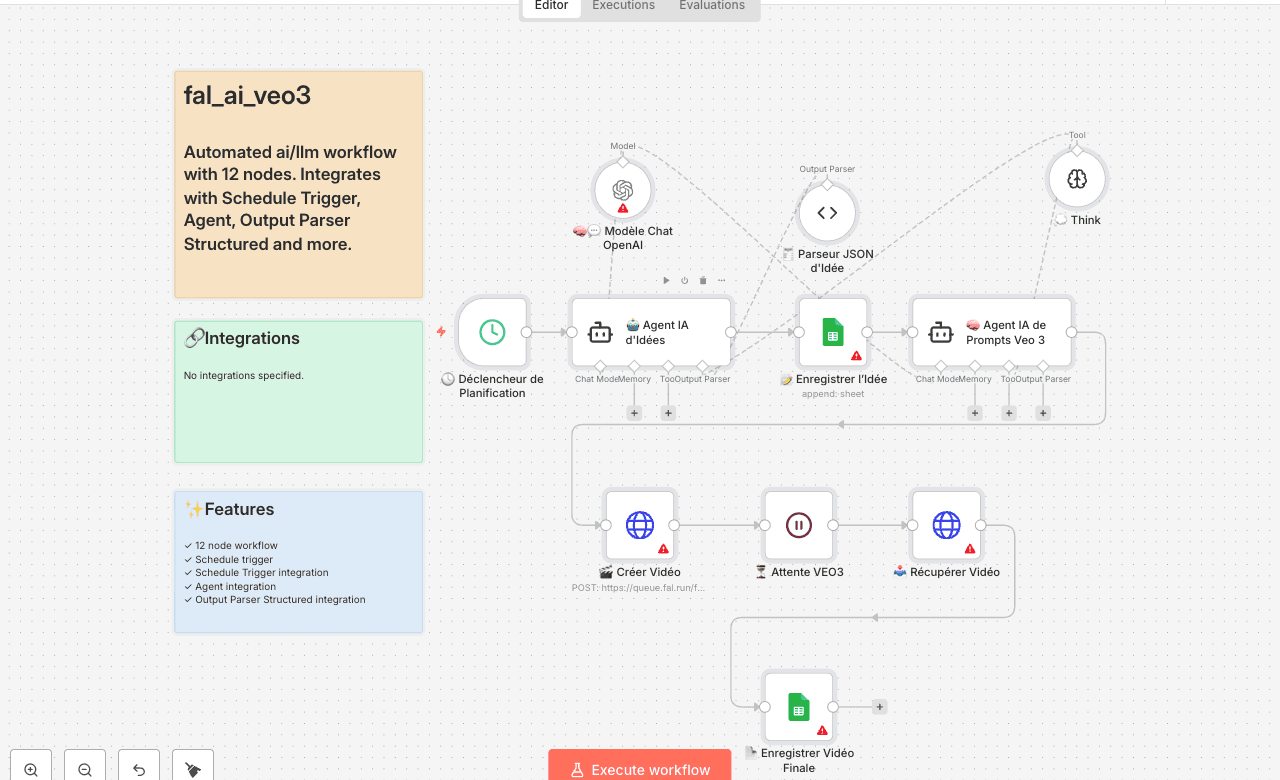
Automated ai/llm workflow with 12 nodes. Integrates with Schedule Trigger, Agent, Output Parser Structured and more. Node Count: 14 Difficulty: Beginner Integrations:
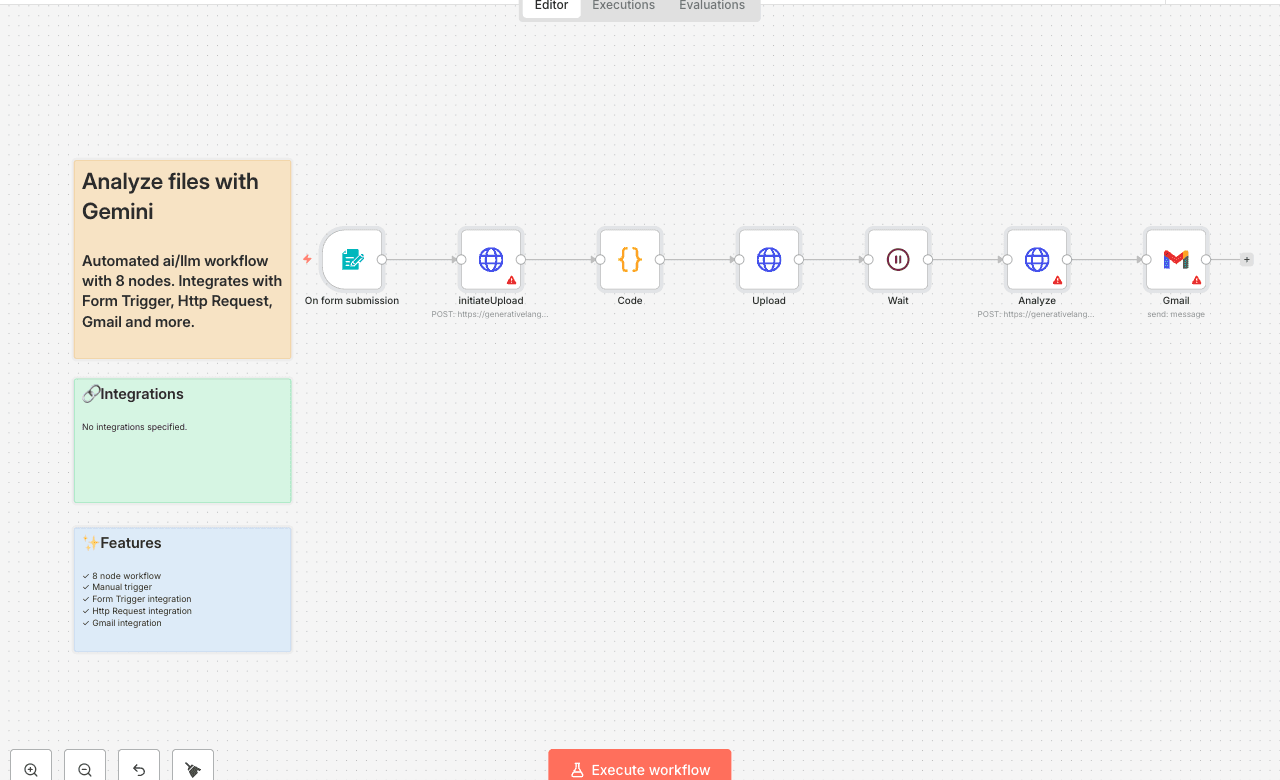
Automated ai/llm workflow with 8 nodes. Integrates with Form Trigger, Http Request, Gmail and more. Node Count: 14 Difficulty: Beginner Integrations:
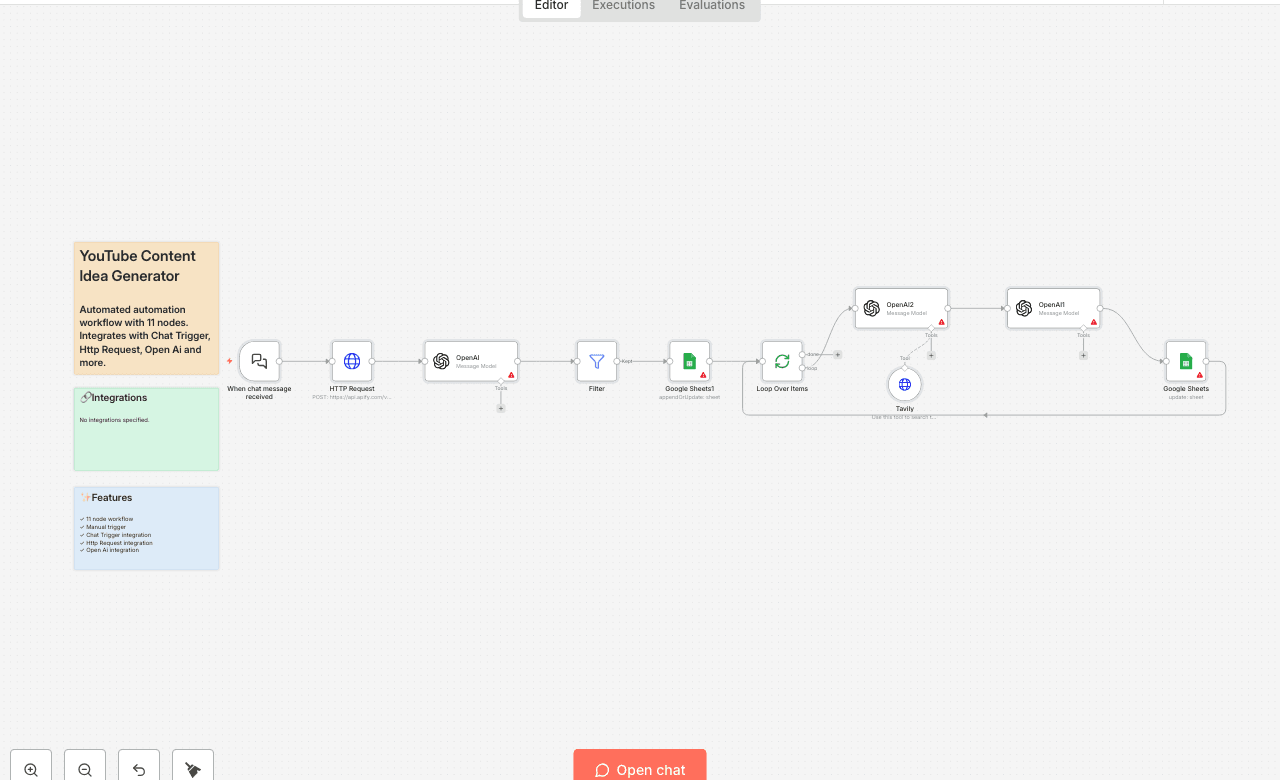
Automated team communication workflow with 4 nodes. Integrates with Error Trigger, Google Sheets, Slack and more. Node Count: 14 Difficulty: Beginner Integrations:
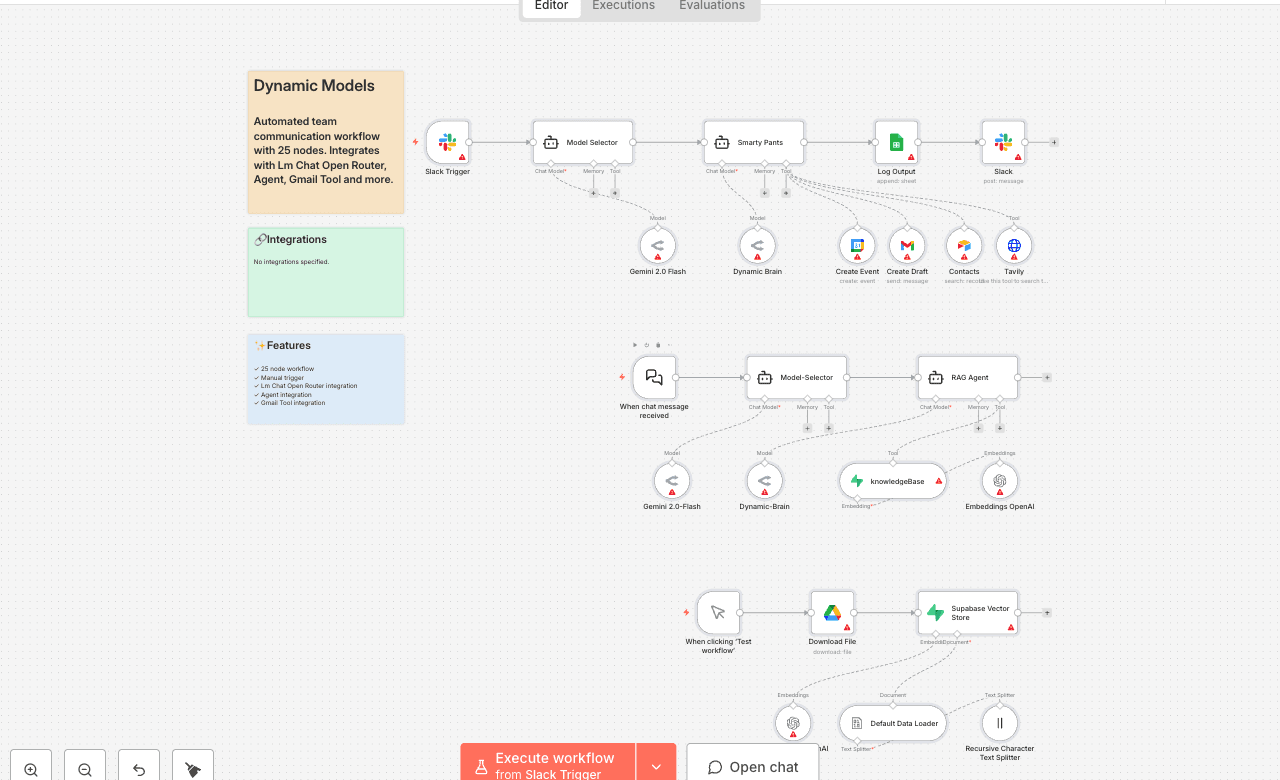
Automated team communication workflow with 25 nodes. Integrates with Lm Chat Open Router, Agent, Gmail Tool and more. Node Count: 14 Difficulty: Beginner Integrations:
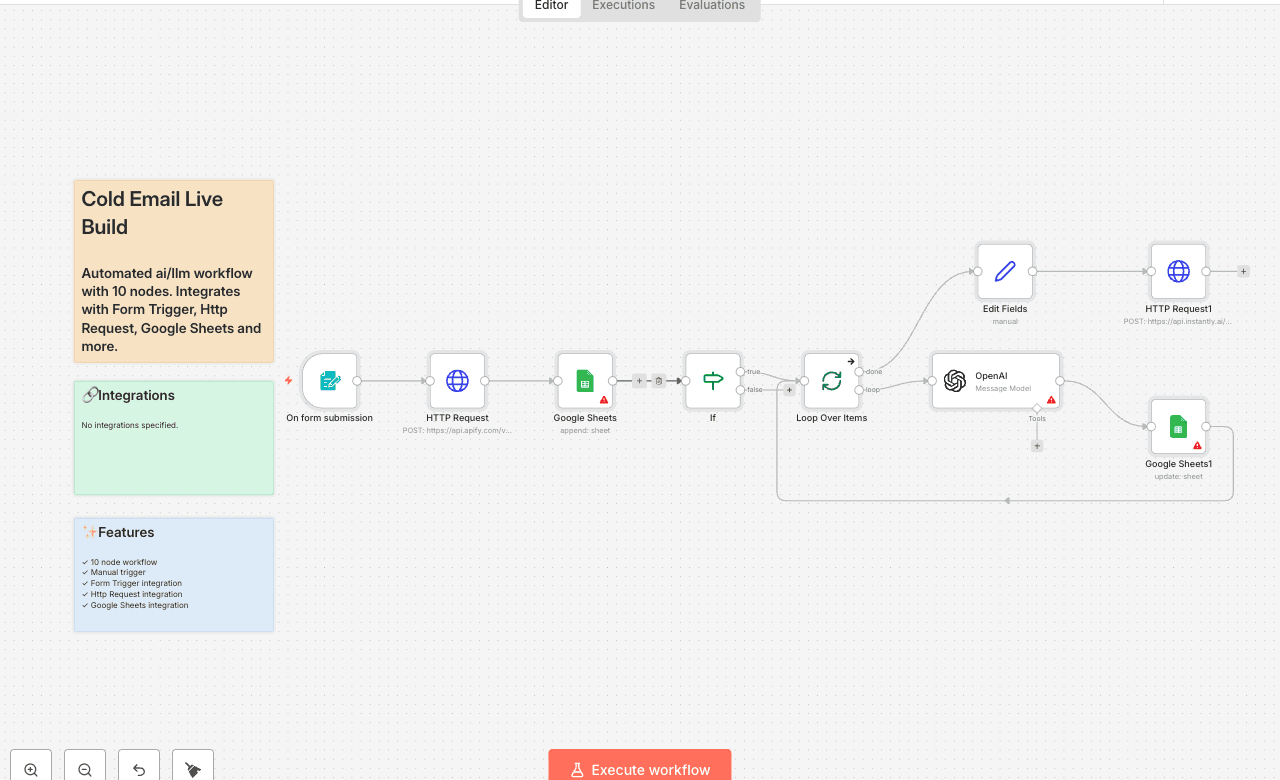
Automated ai/llm workflow with 10 nodes. Integrates with Form Trigger, Http Request, Google Sheets and more. Node Count: 14 Difficulty: Beginner Integrations:
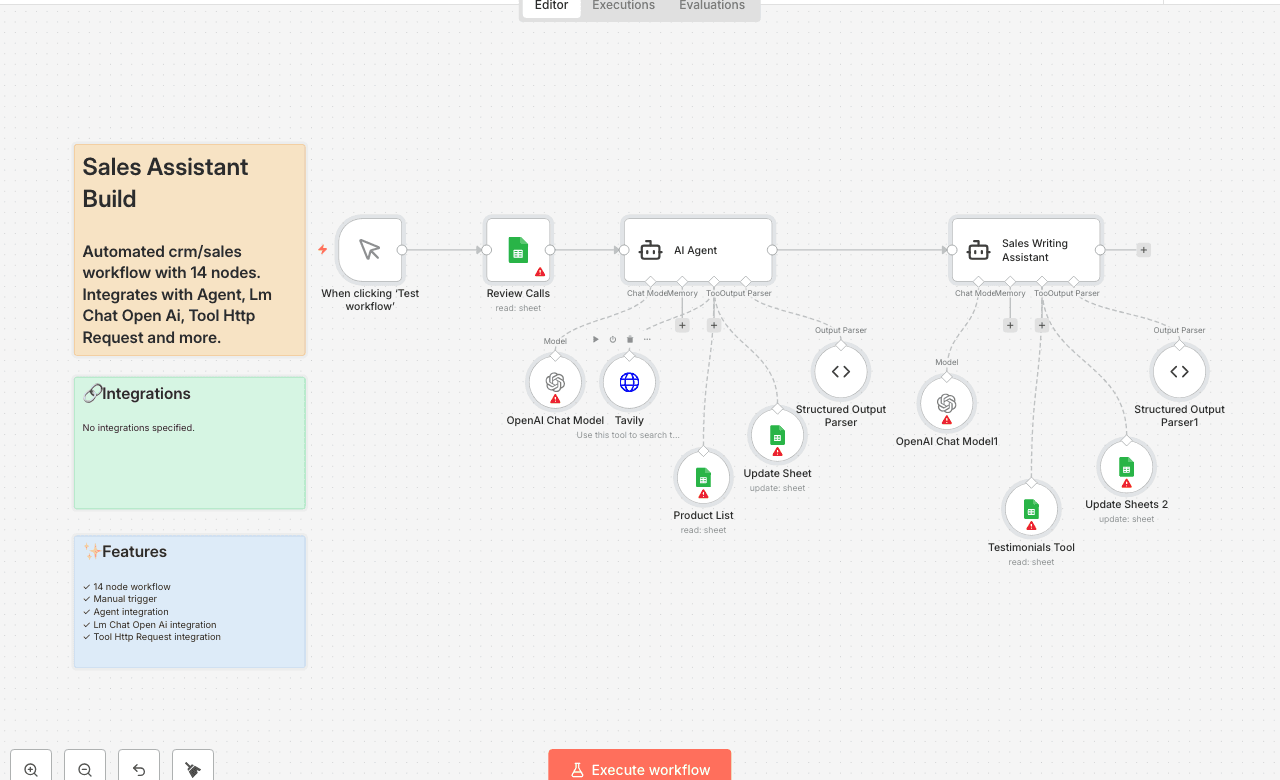
Automated crm/sales workflow with 14 nodes. Integrates with Agent, Lm Chat Open Ai, Tool Http Request and more. Node Count: 14 Difficulty: Beginner Integrations:
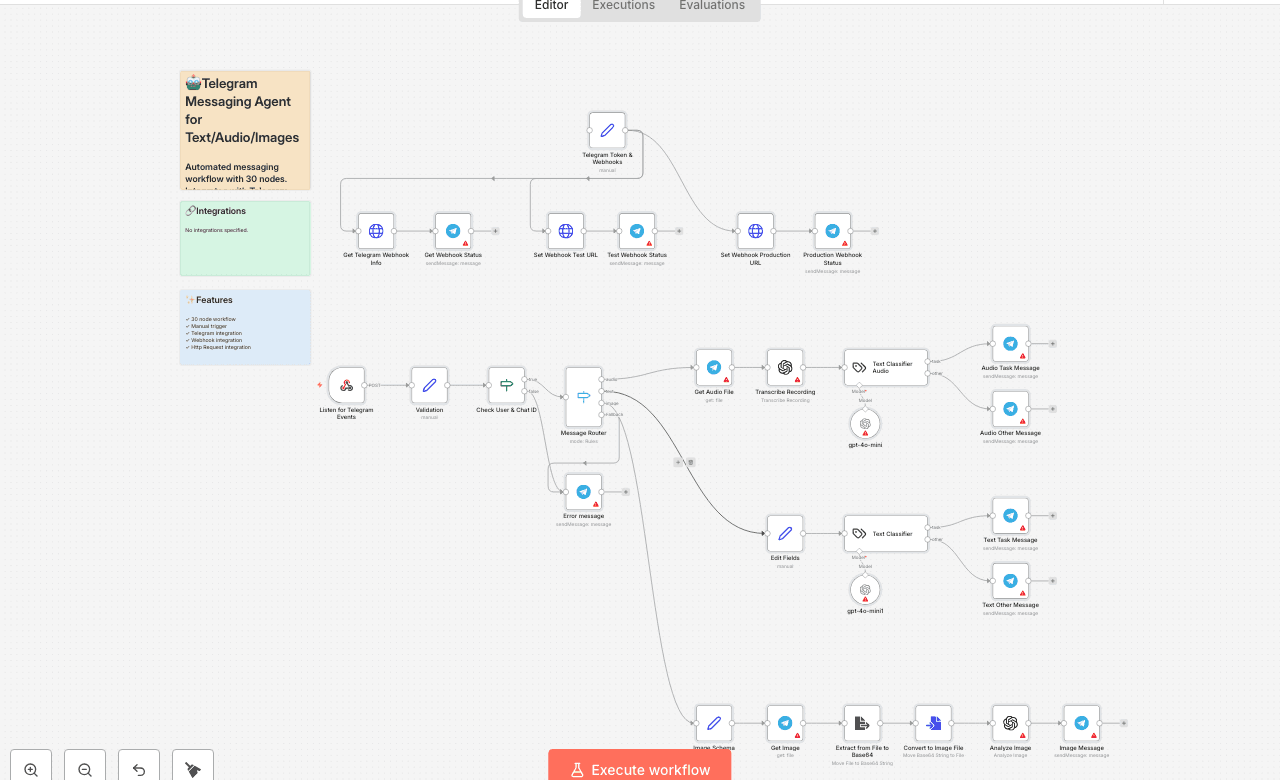
Automated messaging workflow with 30 nodes. Integrates with Telegram, Webhook, Http Request and more. Node Count: 14 Difficulty: Beginner Integrations:
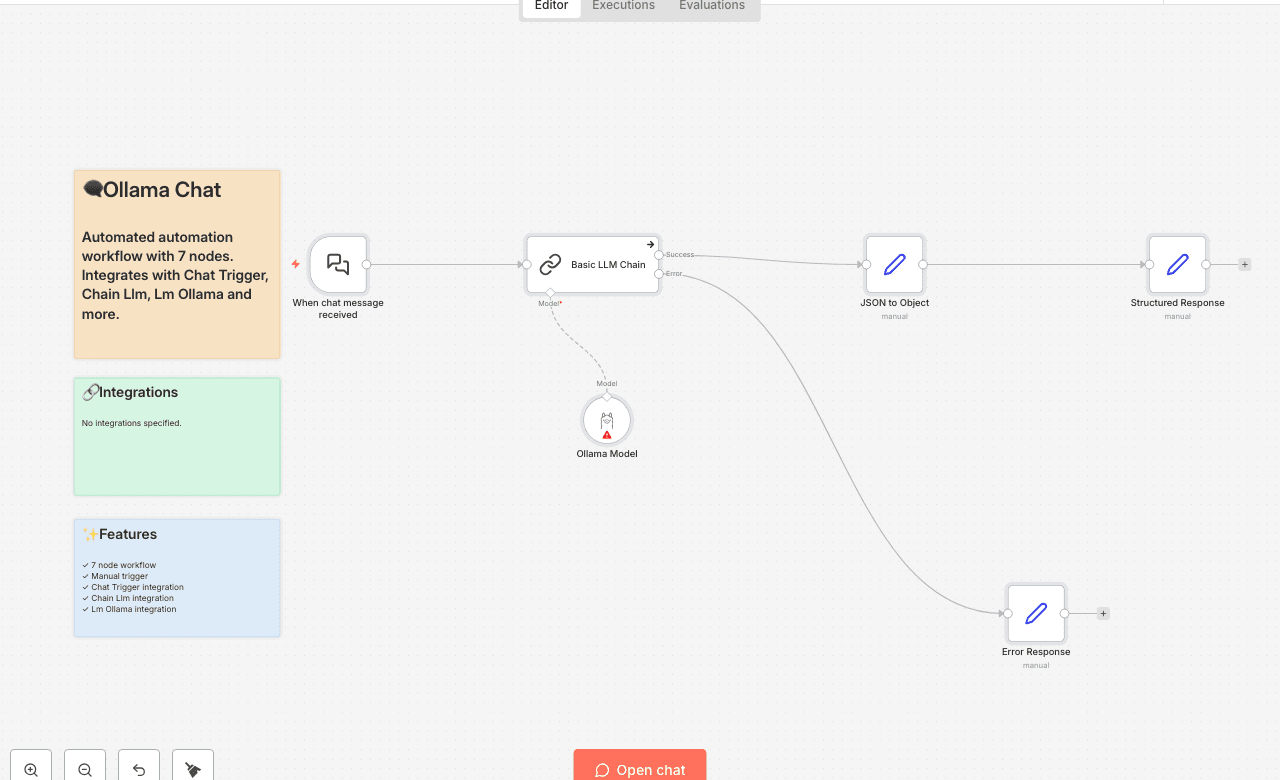
Automated automation workflow with 7 nodes. Integrates with Chat Trigger, Chain Llm, Lm Ollama and more. Node Count: 14 Difficulty: Beginner Integrations:
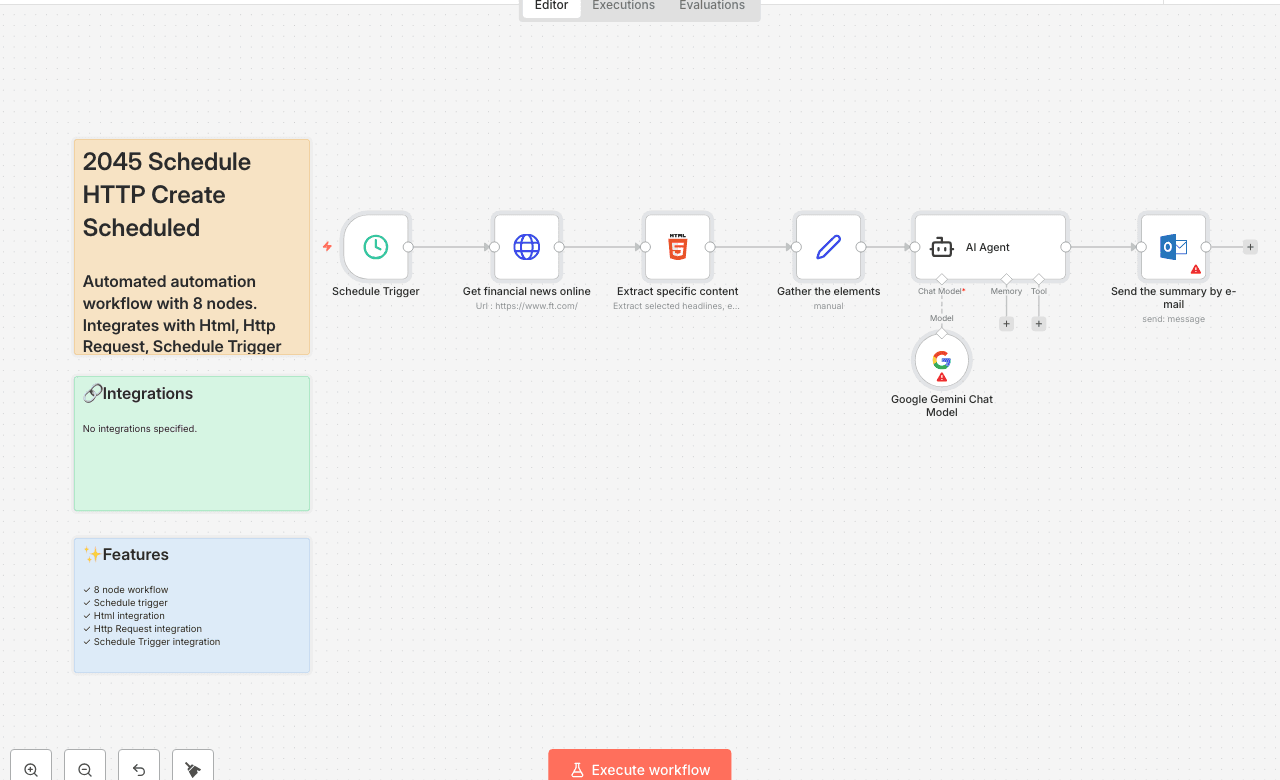
Automated automation workflow with 8 nodes. Integrates with Html, Http Request, Schedule Trigger and more. Node Count: 14 Difficulty: Beginner Integrations:
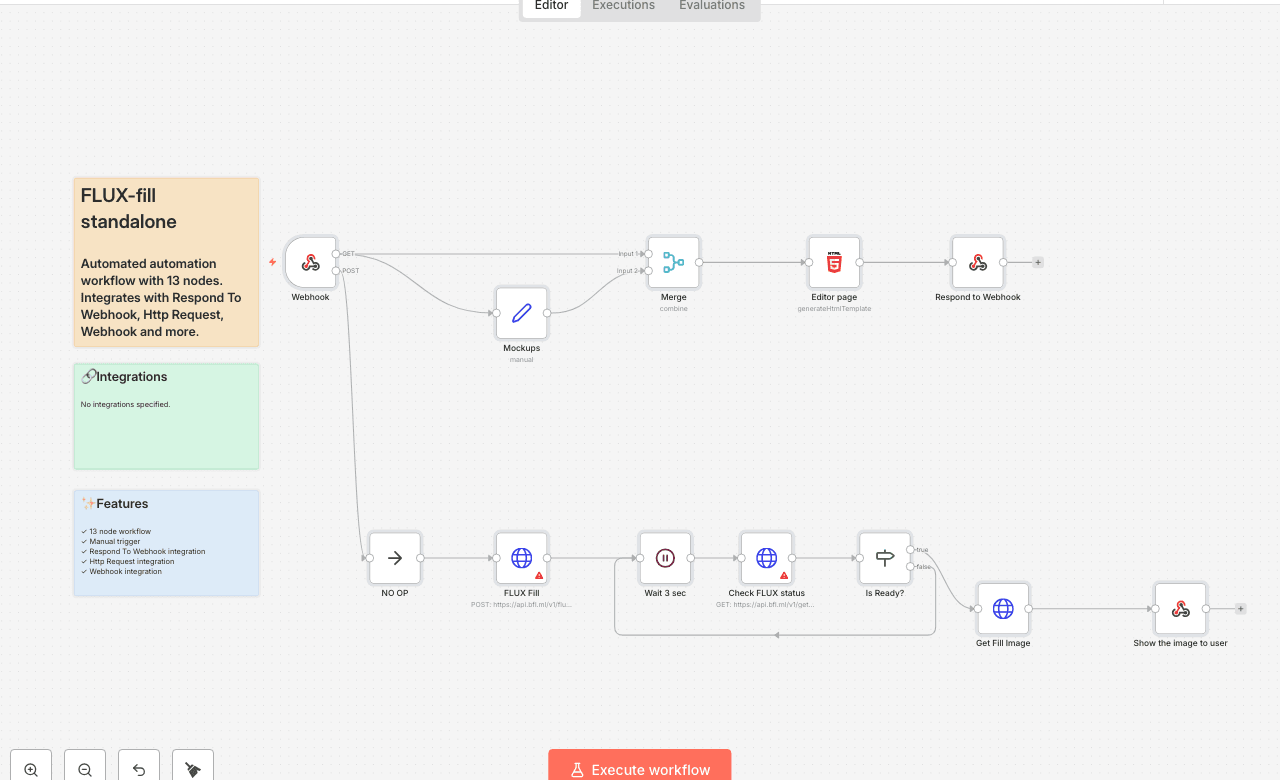
Automated automation workflow with 13 nodes. Integrates with Respond To Webhook, Http Request, Webhook and more. Node Count: 14 Difficulty: Beginner Integrations:
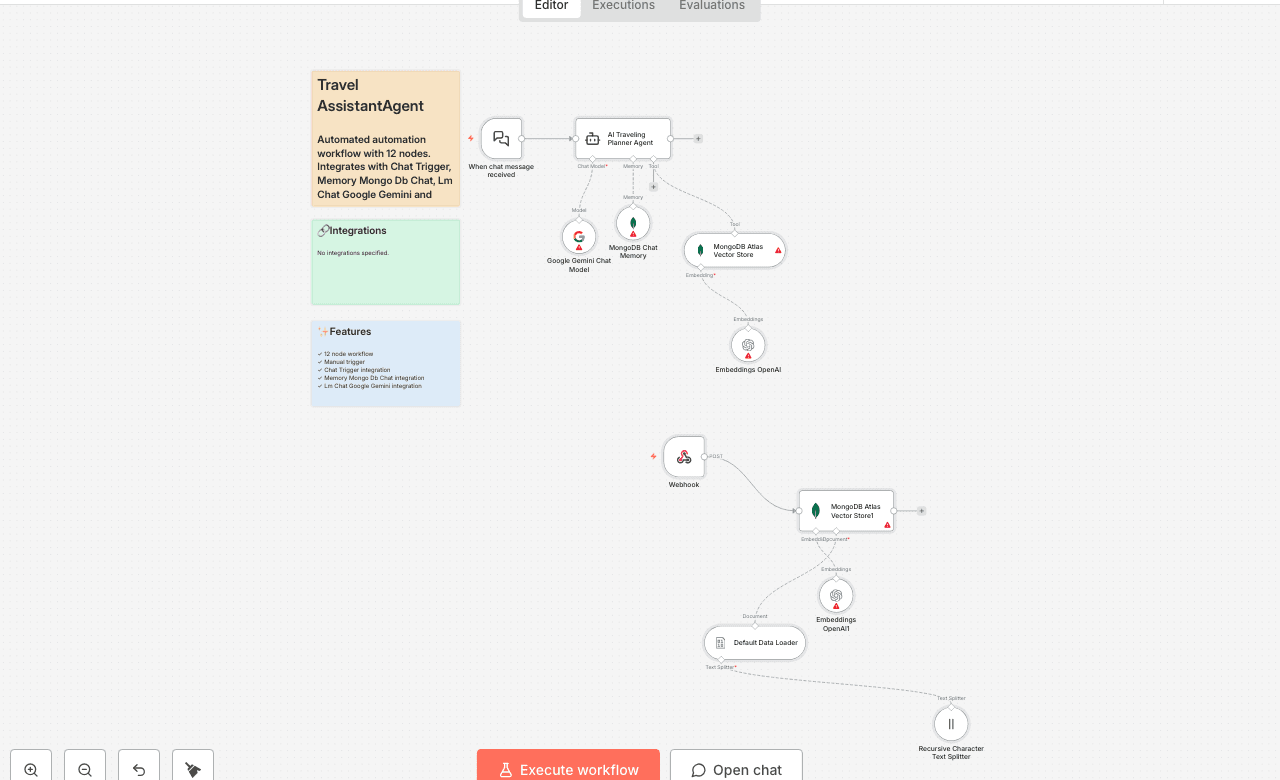
Automated automation workflow with 12 nodes. Integrates with Chat Trigger, Memory Mongo Db Chat, Lm Chat Google Gemini and more. Node Count: 14 Difficulty: Beginner Integrations:
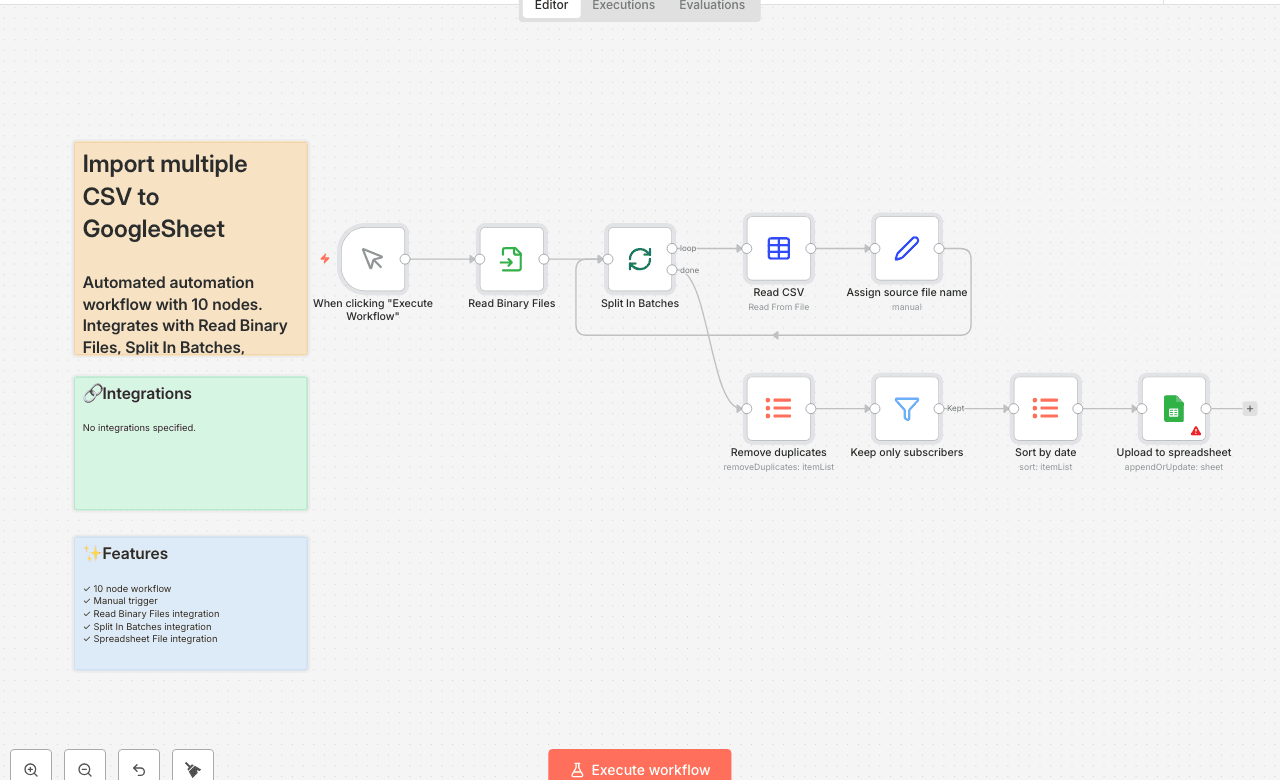
Automated automation workflow with 10 nodes. Integrates with Read Binary Files, Split In Batches, Spreadsheet File and more. Node Count: 14 Difficulty: Beginner Integrations:
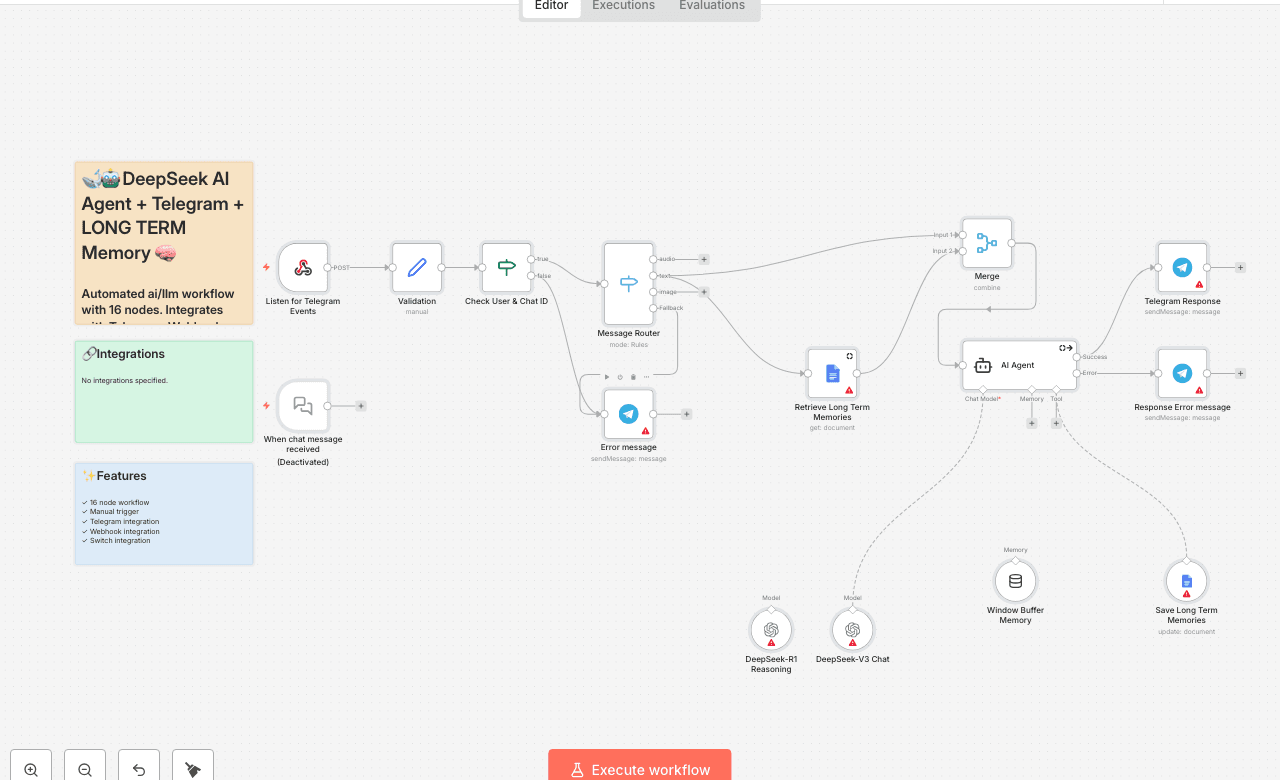
Automated ai/llm workflow with 16 nodes. Integrates with Telegram, Webhook, Switch and more. Node Count: 14 Difficulty: Beginner Integrations:
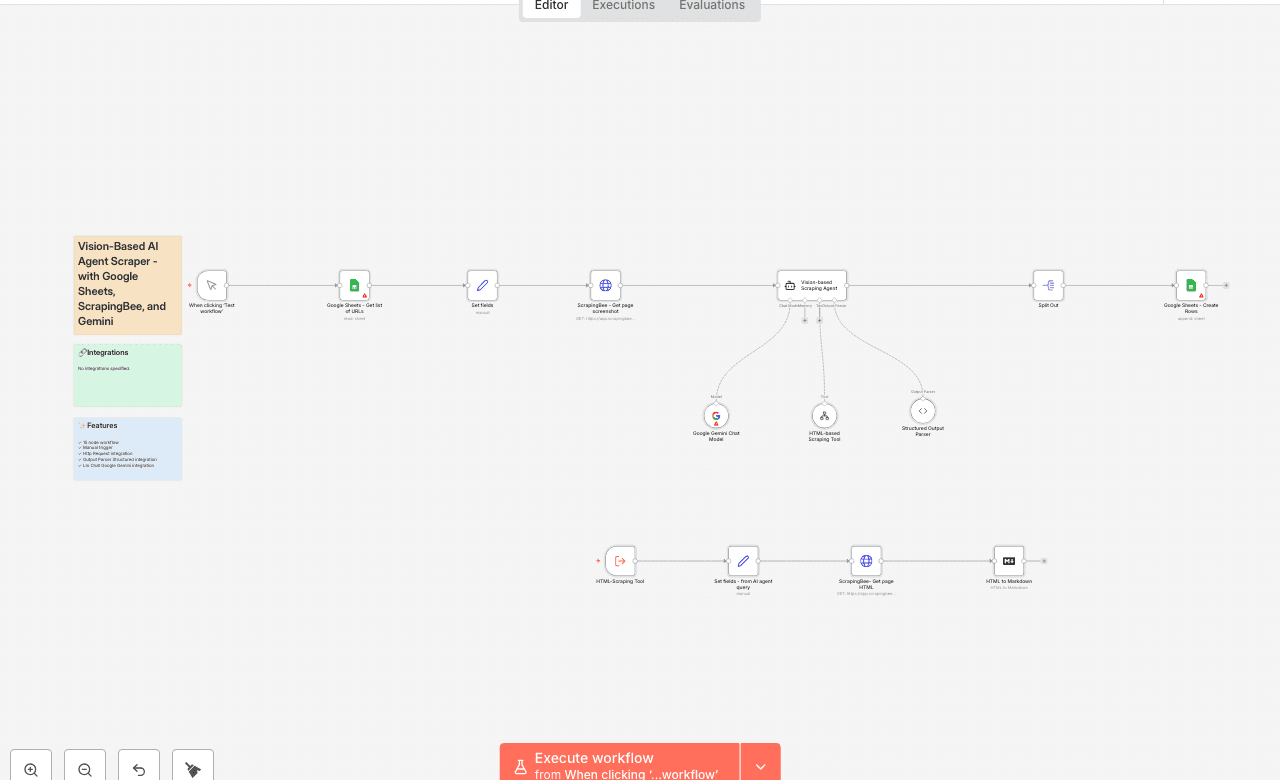
Automated ai/llm workflow with 15 nodes. Integrates with Http Request, Output Parser Structured, Lm Chat Google Gemini and more. Node Count: 14 Difficulty: Beginner Integrations:
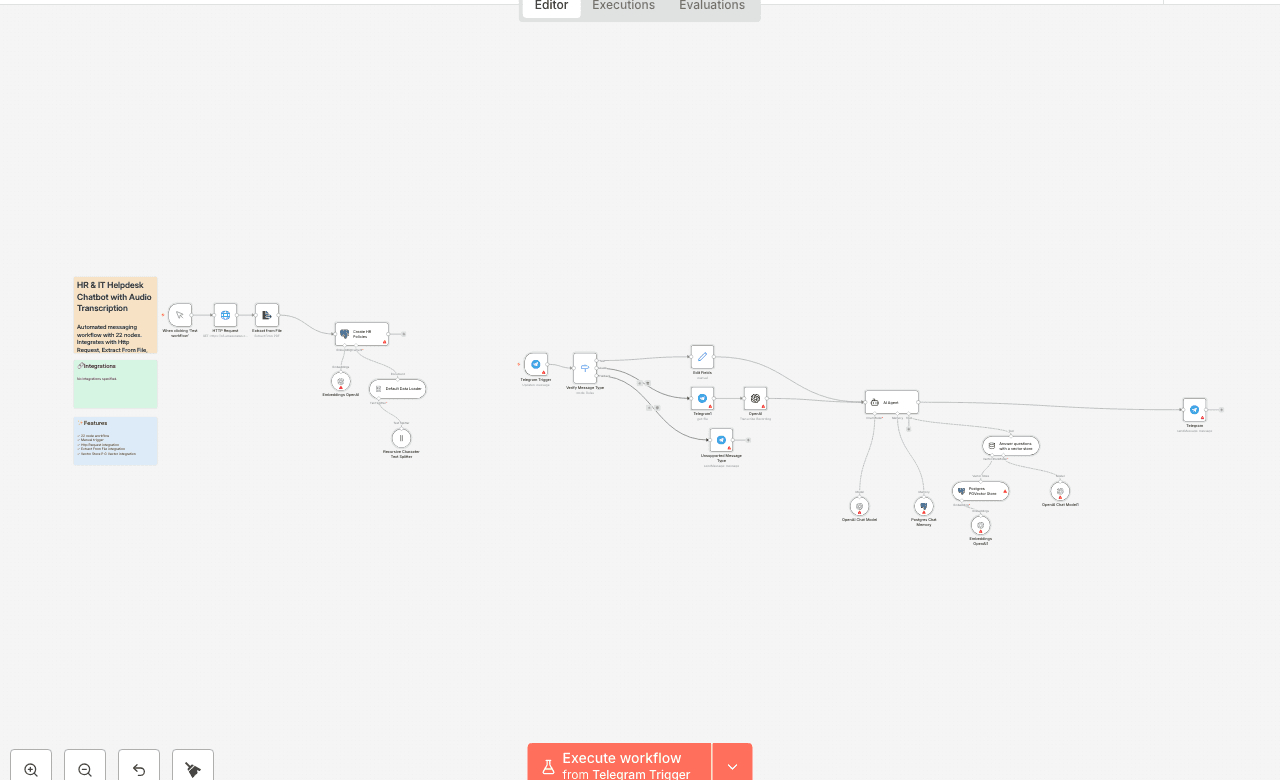
Automated messaging workflow with 22 nodes. Integrates with Http Request, Extract From File, Vector Store P G Vector and more. Node Count: 14 Difficulty: Beginner Integrations:
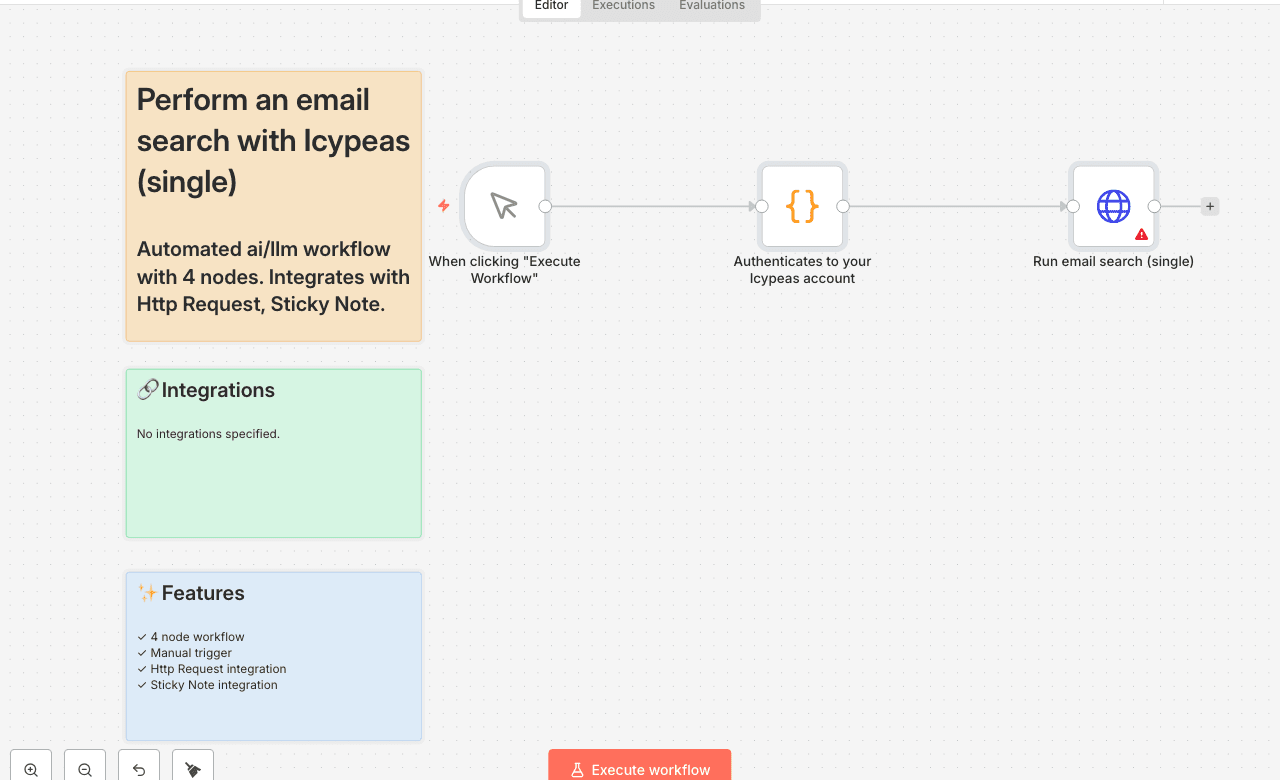
Automated ai/llm workflow with 4 nodes. Integrates with Http Request, Sticky Note. Node Count: 14 Difficulty: Beginner Integrations:
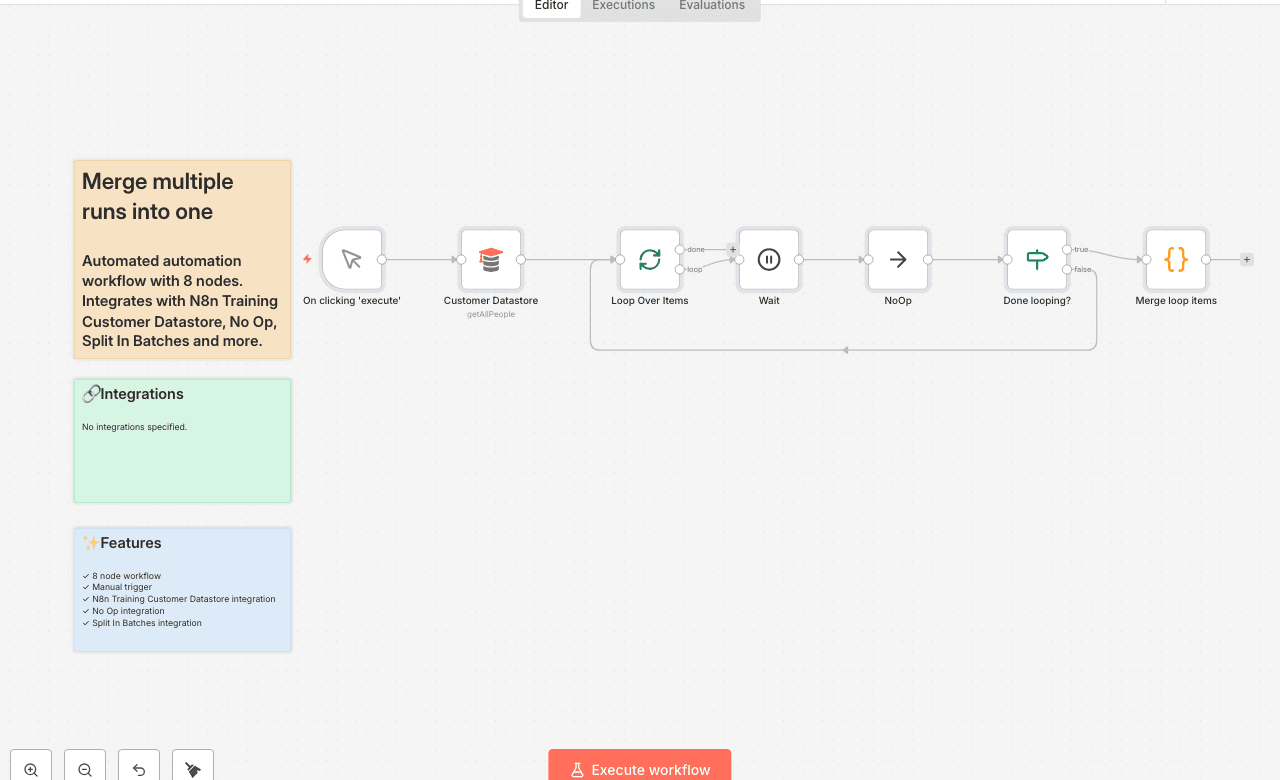
Automated automation workflow with 8 nodes. Integrates with N8n Training Customer Datastore, No Op, Split In Batches and more. Node Count: 14 Difficulty: Beginner Integrations:
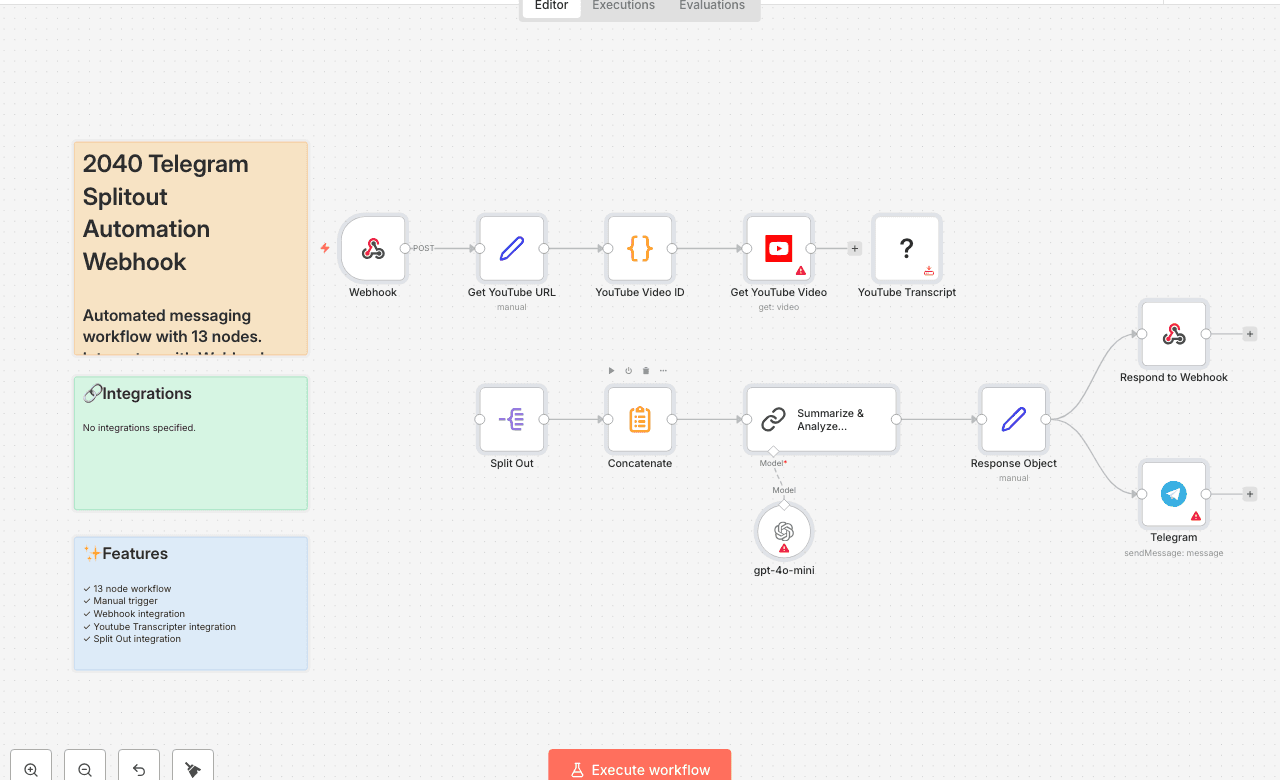
Automated messaging workflow with 13 nodes. Integrates with Webhook, Youtube Transcripter, Split Out and more. Node Count: 14 Difficulty: Beginner Integrations:
Automated automation workflow with 4 nodes. Integrates with N8n, Sticky Note. Node Count: 14 Difficulty: Beginner Integrations:
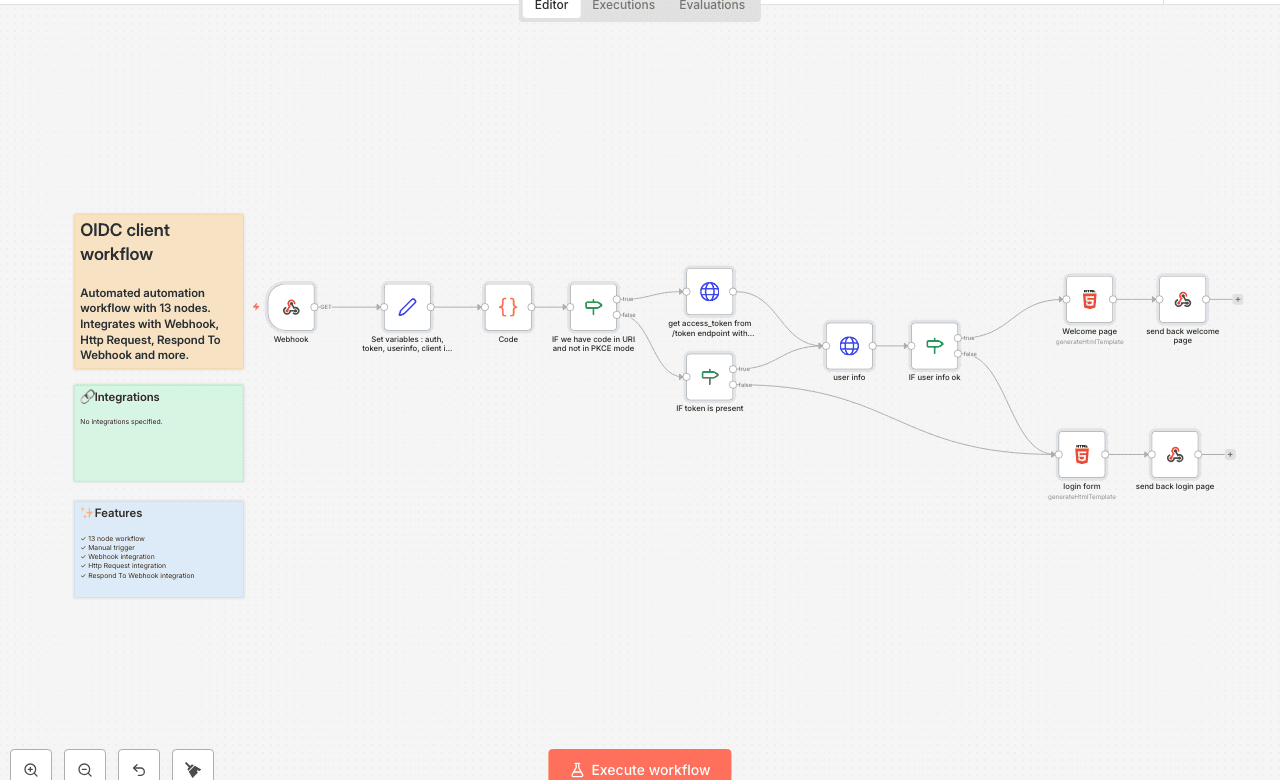
Automated automation workflow with 13 nodes. Integrates with Webhook, Http Request, Respond To Webhook and more. Node Count: 14 Difficulty: Beginner Integrations:
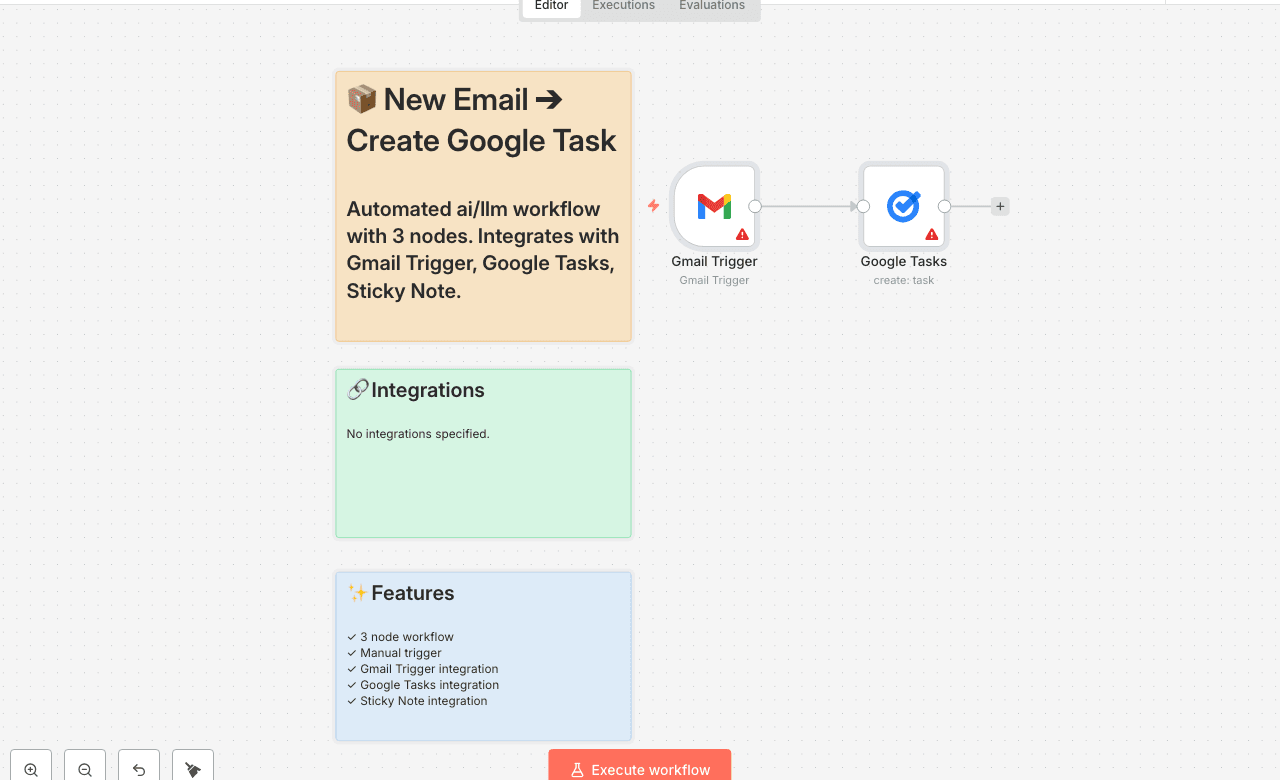
Automated ai/llm workflow with 3 nodes. Integrates with Gmail Trigger, Google Tasks, Sticky Note. Node Count: 14 Difficulty: Beginner Integrations:
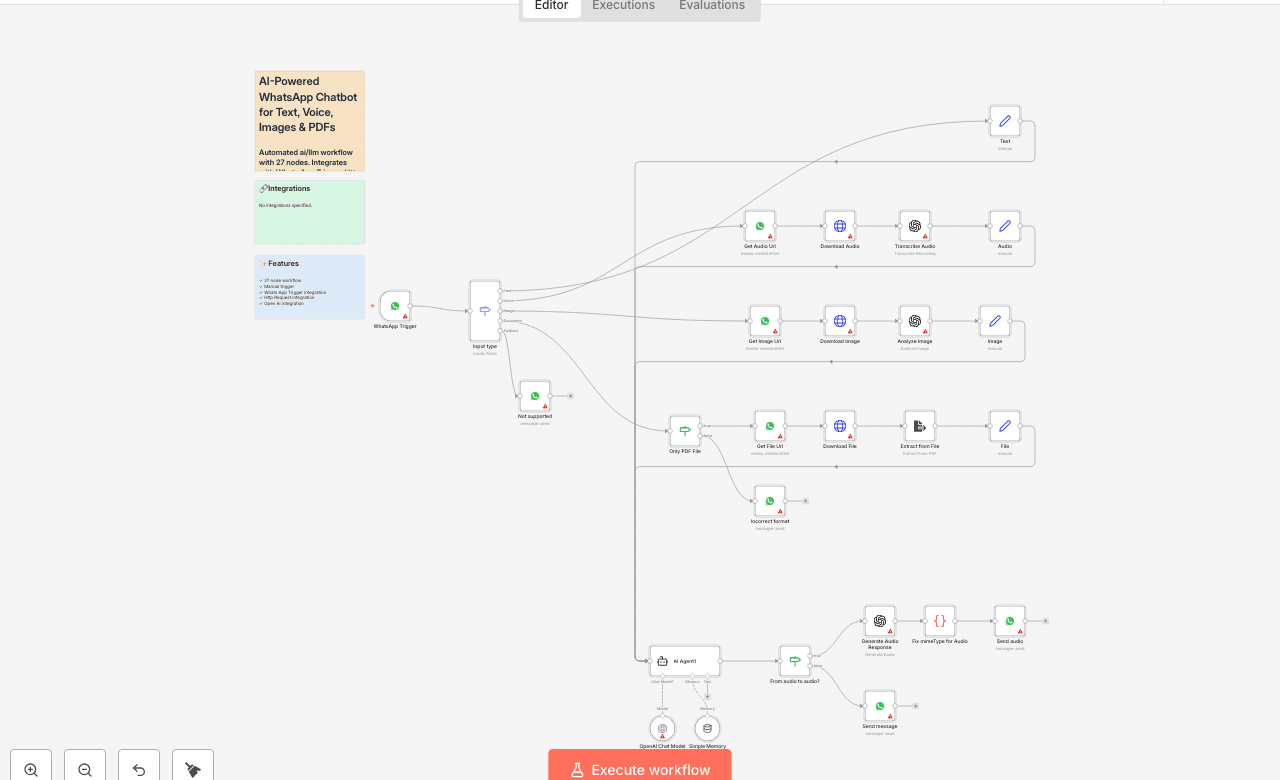
Automated ai/llm workflow with 27 nodes. Integrates with Whats App Trigger, Http Request, Open Ai and more. Node Count: 14 Difficulty: Beginner Integrations:
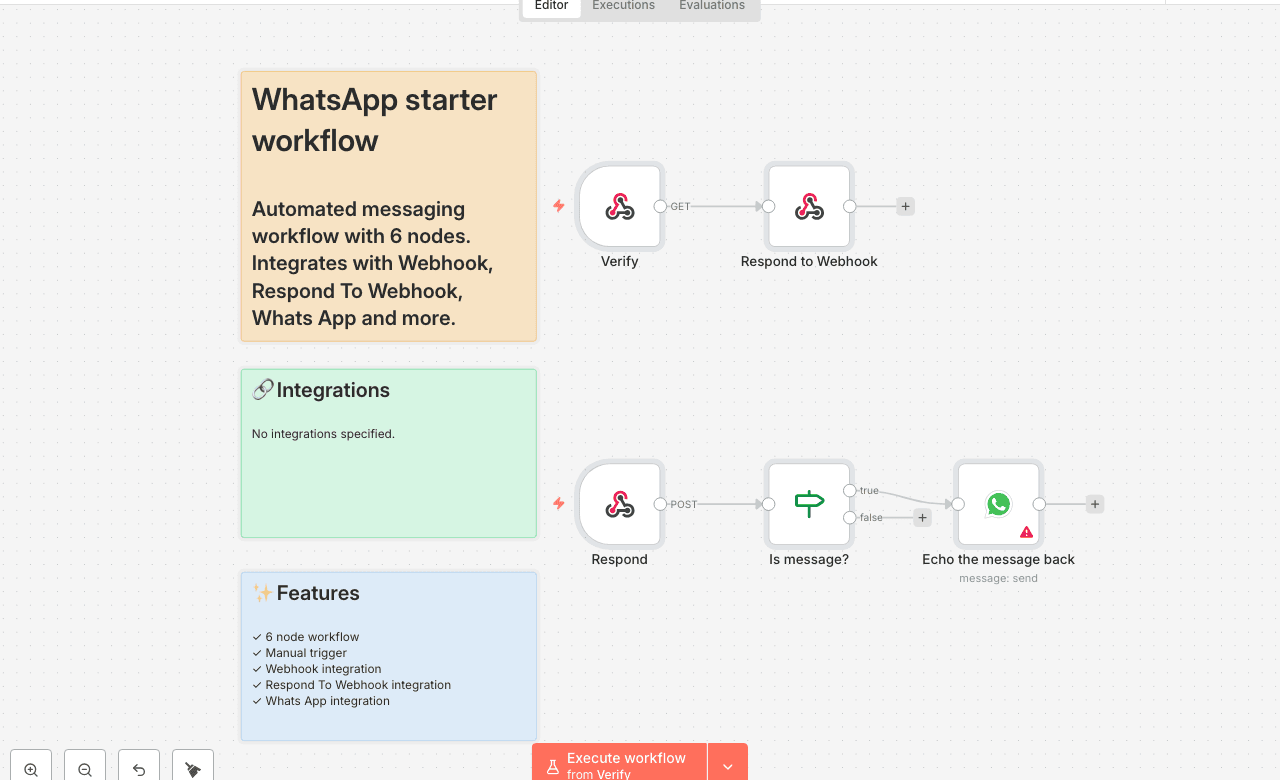
Automated messaging workflow with 6 nodes. Integrates with Webhook, Respond To Webhook, Whats App and more. Node Count: 14 Difficulty: Beginner Integrations:
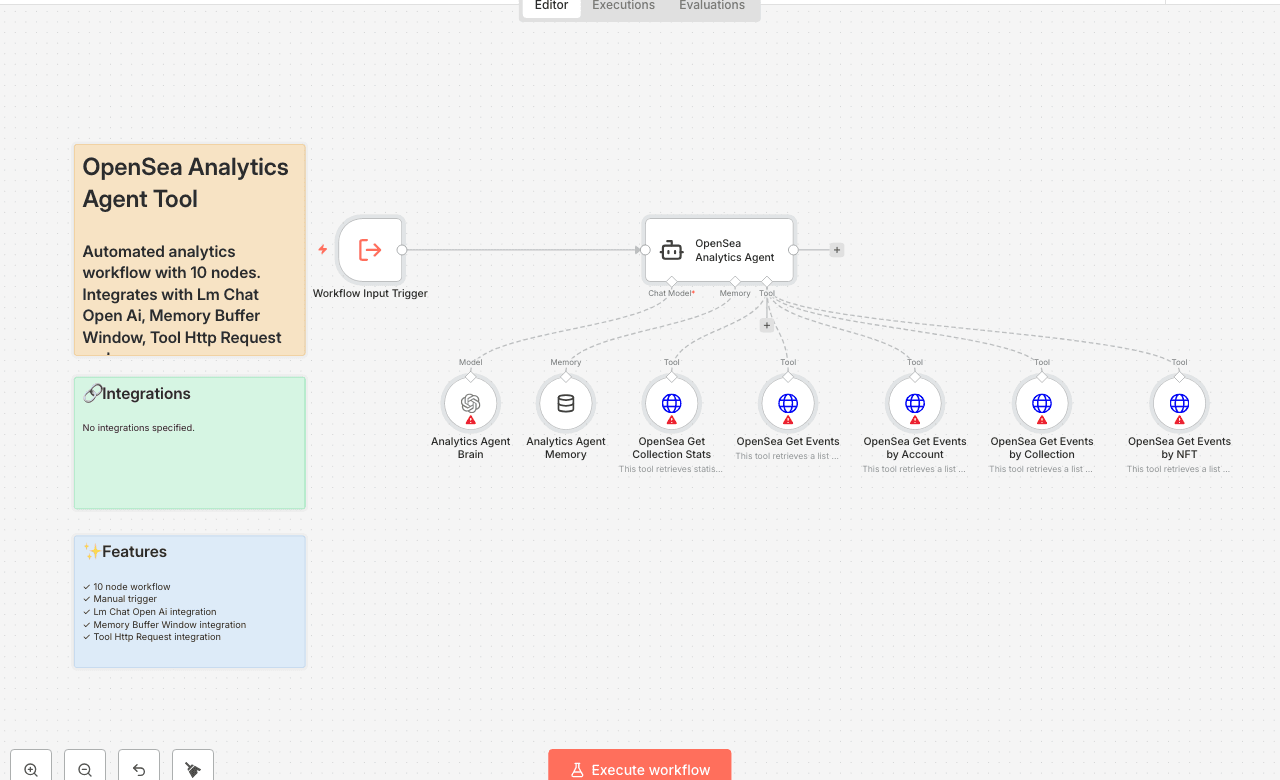
Automated analytics workflow with 10 nodes. Integrates with Lm Chat Open Ai, Memory Buffer Window, Tool Http Request and more. Node Count: 14 Difficulty: Beginner Integrations:
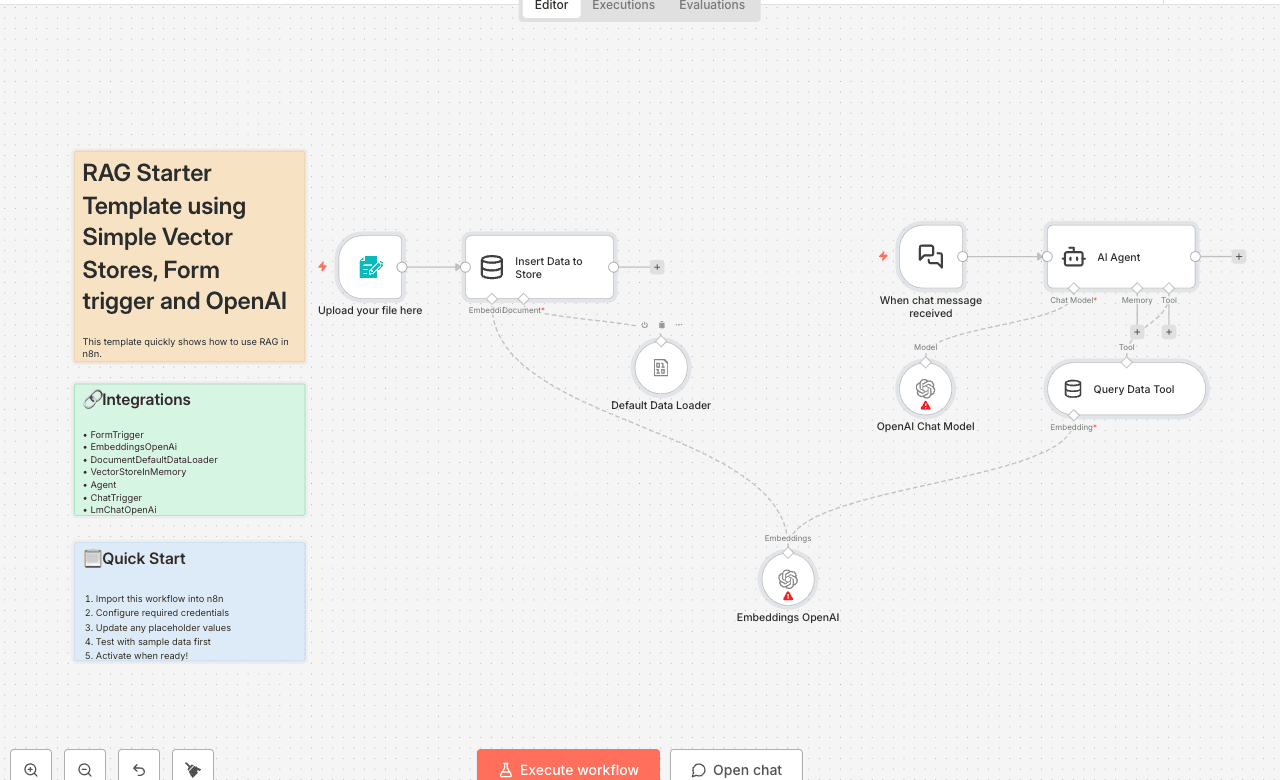
This template quickly shows how to use RAG in n8n. Who is this for? This template is for everyone who wants to start giving knowledge to their Agents through RAG. Requirements Have a PDF with custom knowledge that you want to provide to your agent. Setup No setup required. Just hit Execute Workflow, upload your knowledge document and then start chatting. How to customize this to your needs 1. Add custom instructions to your Agent by changing the prompts in it. 2. Add a different way to load in knowledge to your vector store, e.g. by looking at some Google Drive files or loading knowledge from a table. 2. Exchange the Simple Vector Store nodes with your own vector store tools ready for production. 3. Add a more sophisticated way to rank files found in the vector store. For more information read our [docs on RAG in n8n].
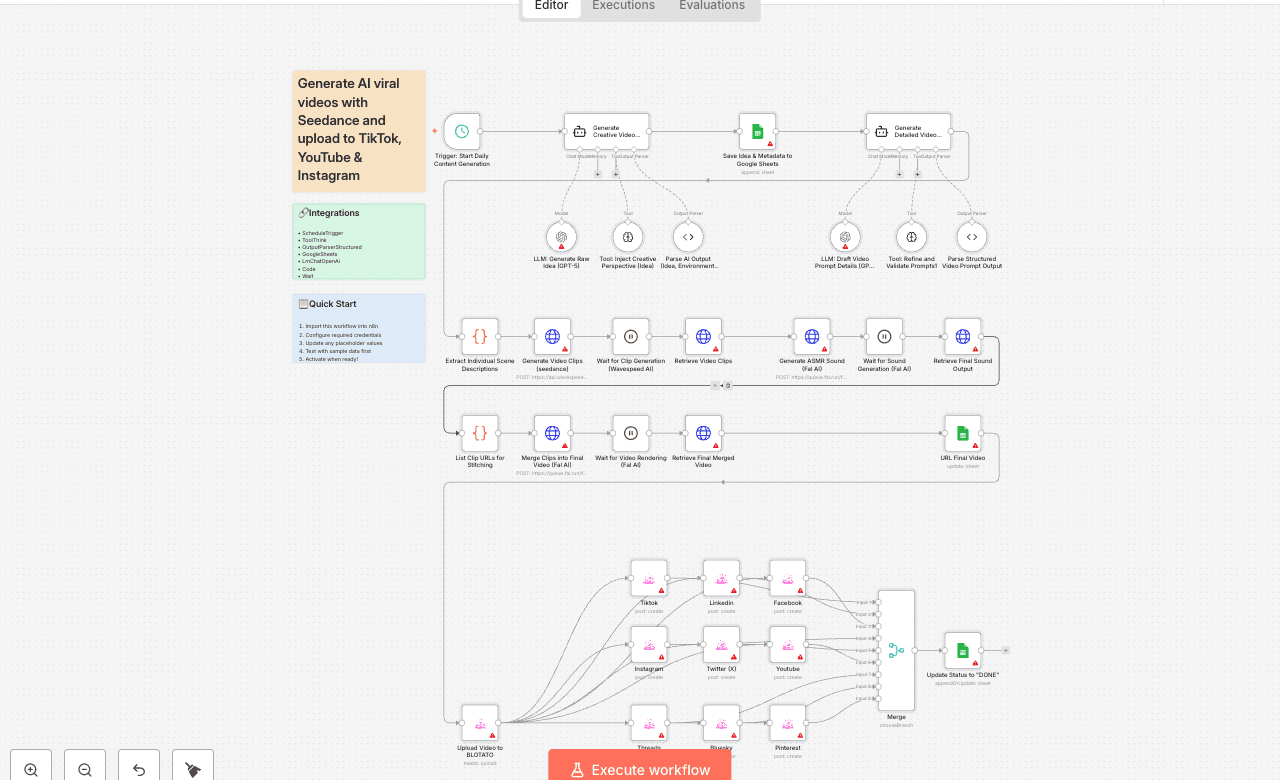
Generate AI videos with Seedance & Blotato, upload to TikTok, YouTube & Instagram Who is this for? This template is ideal for creators, content marketers, social media managers, and AI enthusiasts who want to automate the production of short-form, visually captivating videos for platforms like TikTok, YouTube Shorts, and Instagram Reels — all without manual editing or publishing. What problem is this workflow solving? Creating engaging videos requires: - Generating creative ideas - Writing detailed scene prompts - Producing realistic video clips and sound effects - Editing and stitching the final video - Publishing across multiple platforms This workflow automates the entire process, saving hours of manual work and ensuring consistent, AI-driven content output ready for social distribution. What this workflow does This end-to-end AI video automation workflow: 1. Generates a creative idea using OpenAI and LangChain 2. Creates detailed video prompts with Seedance AI 3. Generates video clips via Wavespeed AI 4. Generates sound effects with Fal AI 5. Stitches the final video using Fal AI’s ffmpeg API 6. Logs metadata and video links to Google Sheets 7. Uploads the video to Blotato 8. Auto-publishes to TikTok, YouTube, Instagram, and other platforms Setup 1. Add your OpenAI API key in the LLM nodes 2. Set up Seedance and Wavespeed AI credentials for video prompt and clip generation 3. Add your Fal AI API key for sound and stitching steps 4. Connect your Google Sheets account for tracking ideas and outputs 5. Set your Blotato API key and fill in the platform account IDs in the Assign Social Media IDs node 6. Adjust the Schedule Trigger to control when the automation runs How to customize this workflow to your needs - Change the AI prompts to target your niche (e.g., ASMR, product videos, humor) - Add a Telegram or Slack step for video preview before publishing - Tweak scene structure or video duration to match your style - Disable platforms you don’t want by turning off specific HTTP Request nodes - Edit the sound generation prompts for different moods or effects 📄 Documentation: [Notion Guide] Need help customizing? Contact me for consulting and support : [Linkedin] / Youtube
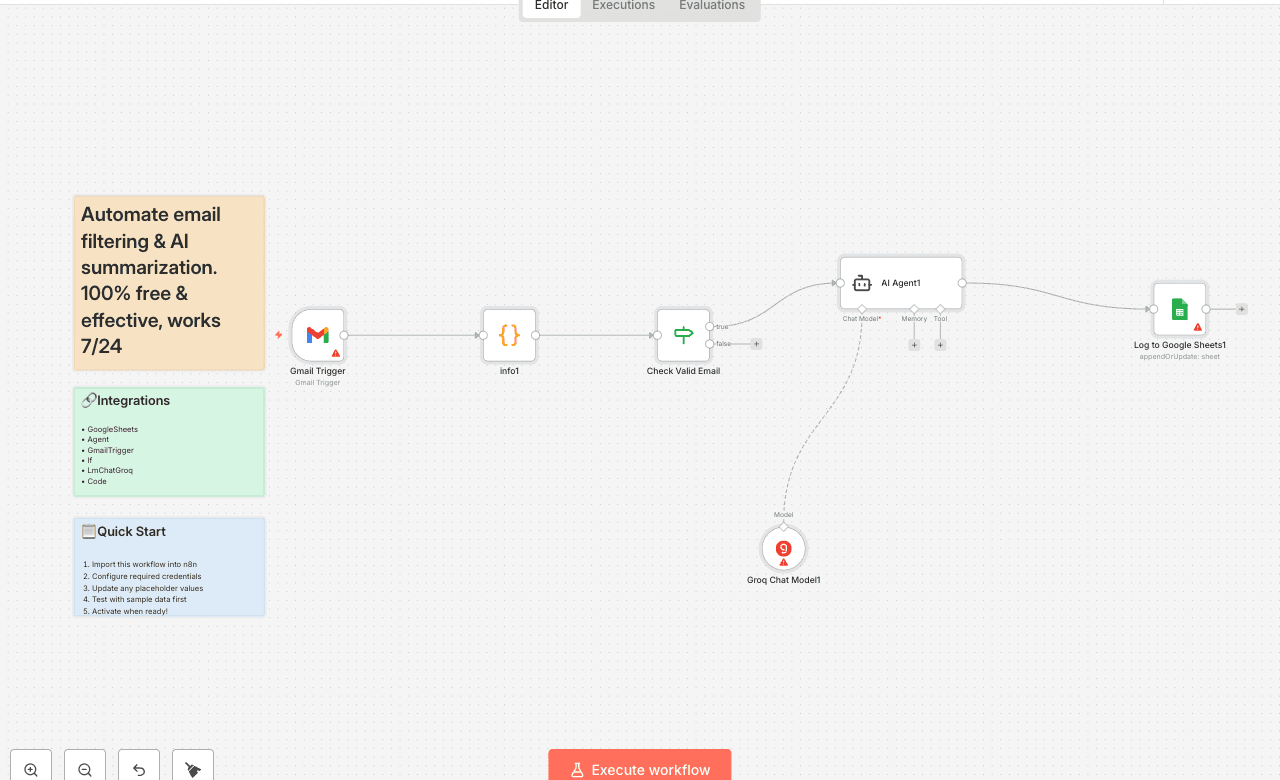
Good to know: This workflow automatically processes incoming emails (you can filter them base on your needs) and creates concise AI-powered summaries, then logs them to a Google Sheets spreadsheet for easy tracking and analysis. Who is this for? ➖Business professionals who receive many emails and need quick summaries ➖Customer service teams tracking email communications ➖Project managers monitoring email correspondence ➖Anyone who wants to automatically organize and summarize their email communications What problem is this workflow solving? This workflow solves the problem of email overload by automatically reading incoming emails, generating concise summaries using AI, and organizing them in a structured format. It eliminates the need to manually read through every email to understand the key points and maintains a searchable record of communications. What this workflow does: ✅Monitors your Gmail inbox for new emails ✅Filters emails based on specific criteria (sender validation) ✅Extracts key information (sender, date, subject, content) ✅Uses AI to generate concise summaries of email content ✅Automatically logs all data including the AI summary to a Google Sheets spreadsheet How it works: 1️⃣Gmail trigger monitors for new emails at specified intervals 2️⃣Email data is processed and formatted using JavaScript 3️⃣A conditional check validates the sender 4️⃣AI agent (powered by Groq's language model) reads the email content and generates a summary 5️⃣All information is automatically appended to a Google Sheets document How to use: Set up Gmail OAuth2 credentials in n8n Configure Google Sheets OAuth2 credentials Set up Groq API credentials for AI processing Create a Google Sheets document and update the document ID Customize the sender validation criteria as needed Activate the workflow Requirements: ✅n8n instance (cloud or self-hosted) ✅Gmail account with OAuth2 access ✅Google Sheets account ✅AI API ✅Basic understanding of n8n workflow Customizing this workflow: 🟢Modify the Gmail trigger filters to target specific labels or criteria 🟢Adjust the sender validation logic in the conditional node 🟢Customize the AI prompt to change summary style or focus 🟢Add additional data fields to the Google Sheets output 🟢Change the polling frequency for checking new emails 🟢Switch to different AI models by replacing the Groq node
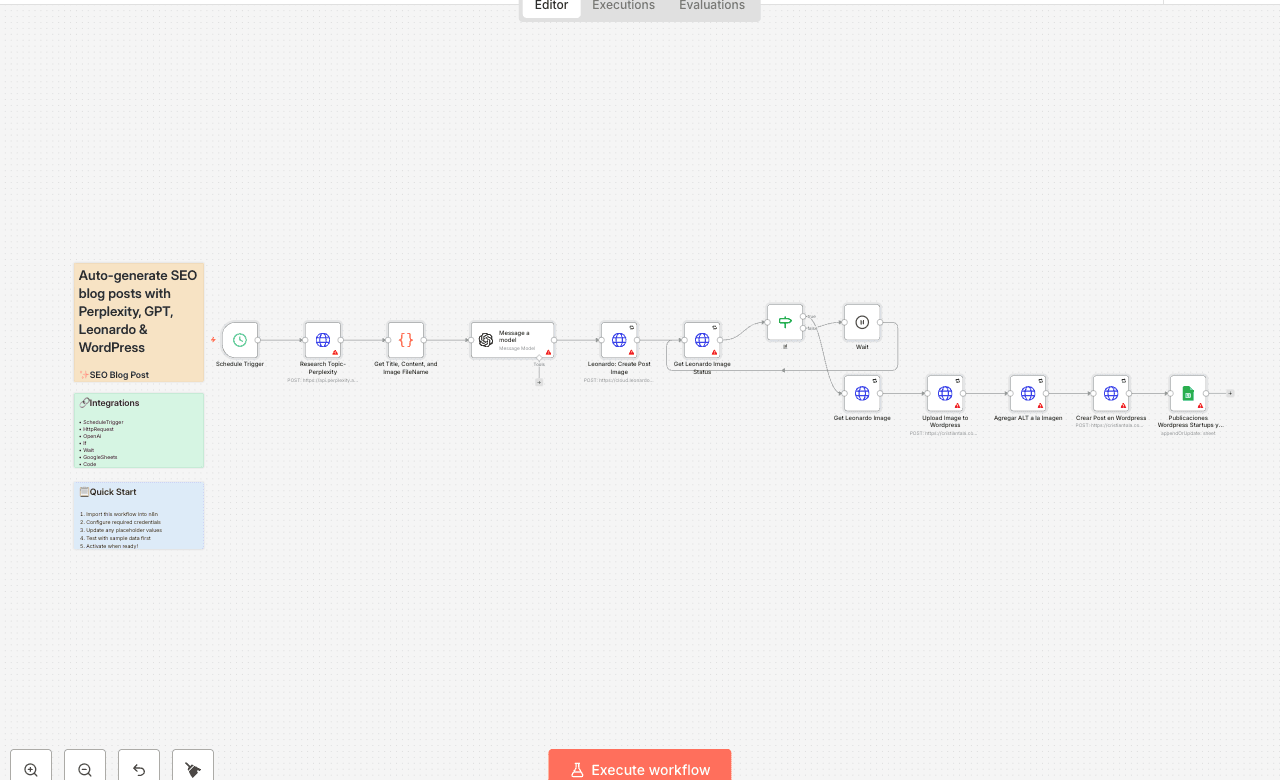
✨ SEO Blog Post Automation with Perplexity, GPT, Leonardo AI & WordPress This workflow automates the creation and publishing of weekly SEO-optimized blog posts using AI and publishes them directly to WordPress — with featured images and tracking in Google Sheets. 🧠 Who is this for This automation is ideal for: - Startup platforms and tech blogs - Content creators and marketers - Solopreneurs who want consistent blog output - Spanish-speaking audiences focused on startup trends ⚙️ What it does - ⏰ Runs every Monday at 6:00 AM via CRON - 📡 Uses Perplexity AI to research trending startup topics - 📝 Generates a 1000–1500 word article with GPT in structured HTML - 🎨 Creates a cinematic blog image using Leonardo AI - 🖼️ Uploads the image to WordPress with alt text and SEO-friendly filename - 📰 Publishes the post in a pre-defined category - 📊 Logs the post in Google Sheets for tracking 🚀 How to set it up 1. Connect your credentials: - Perplexity API - OpenAI (GPT-4.1 Mini or similar) - Leonardo AI (Bearer token) - WordPress (Basic Auth) - Google Sheets (OAuth2) 2. Customize your content: - Adjust the prompt inside the HTTP node to fit your tone or focus - Change the WordPress category ID - Update scheduling if you want a different publishing day 3. Test the workflow manually to ensure all steps function correctly 💡 Pro tips - Add Slack or email nodes to get notified when a post goes live - Use multiple categories or RSS feeds for content diversification - Adjust GPT prompt to support different languages or tones - Add post-validation rules if needed before publishing 🎯 Why this matters This workflow gives you a full editorial process on autopilot: research, writing, design, publishing, and tracking — all powered by AI. No more blank pages or manual posting. Use it to scale your content strategy, boost your SEO, and stay relevant — 100% hands-free.
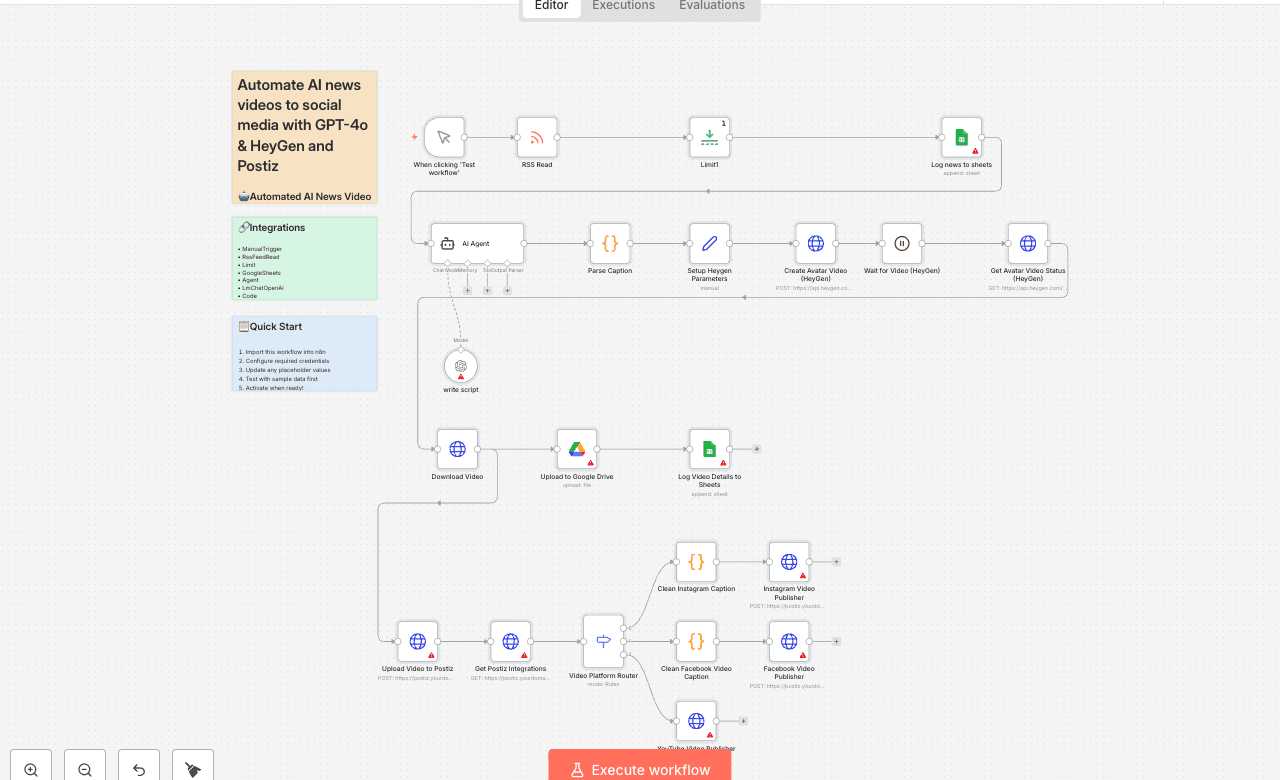
🤖 Automated AI News Video Creation and Social Media Publishing Workflow ━━━━━━━━━━━━━━━━━━━━━━━━━━━━━━━━━━━━━━━━━━━━ 🎯 Overview: This workflow fully automates the creation and social media distribution of AI-generated news videos. It fetches news, crafts captions, generates avatar videos via HeyGen, stores them, and publishes them across Instagram, Facebook, and YouTube via Postiz. 🔄 WORKFLOW PROCESS: 1. News Fetching: Reads the latest news from an RSS feed. 2. AI Captioning: Generates concise, engaging captions using an AI agent (GPT-4o-mini). 3. Video Generation: Creates an AI avatar video using HeyGen with the generated caption. 4. Video Storage: Downloads the video and uploads it to Google Drive for archival. 5. Data Logging: Records all news and video metadata into Google Sheets. 6. Postiz Upload: Uploads the video to Postiz's internal storage for publishing. 7. Social Publishing: Fetches Postiz integrations and routes the video to Instagram, Facebook, and YouTube after platform-specific content cleaning. ⚙️ KEY TECHNOLOGIES: - RSS Feeds: News source. - LangChain (n8n nodes): AI Agent and Chat OpenAI for caption generation. - HeyGen API: AI avatar video creation. - Google Drive: Video file storage. - Google Sheets: Data logging and tracking. - Postiz API: Unified social media publishing platform. ## ⚠️CRITICAL CONFIGURATIONS: - API Keys: Ensure HeyGen and Postiz API keys are correctly set in credentials and the 'Setup Heygen Parameters' node. - HeyGen IDs: Verify avatar_id and voice_id in 'Setup Heygen Parameters'. - Postiz URL: Confirm https://postiz.yourdomain.com is your correct Postiz instance URL across all HTTP Request nodes. - Credentials: All Google, OpenAI, and Postiz credentials must be properly linked. 📈BENEFITS: - Automated content creation and distribution, saving significant time. - Consistent branding and messaging across multiple platforms. - Centralized logging for tracking and performance analysis. - Scalable solution for high-volume content demands.
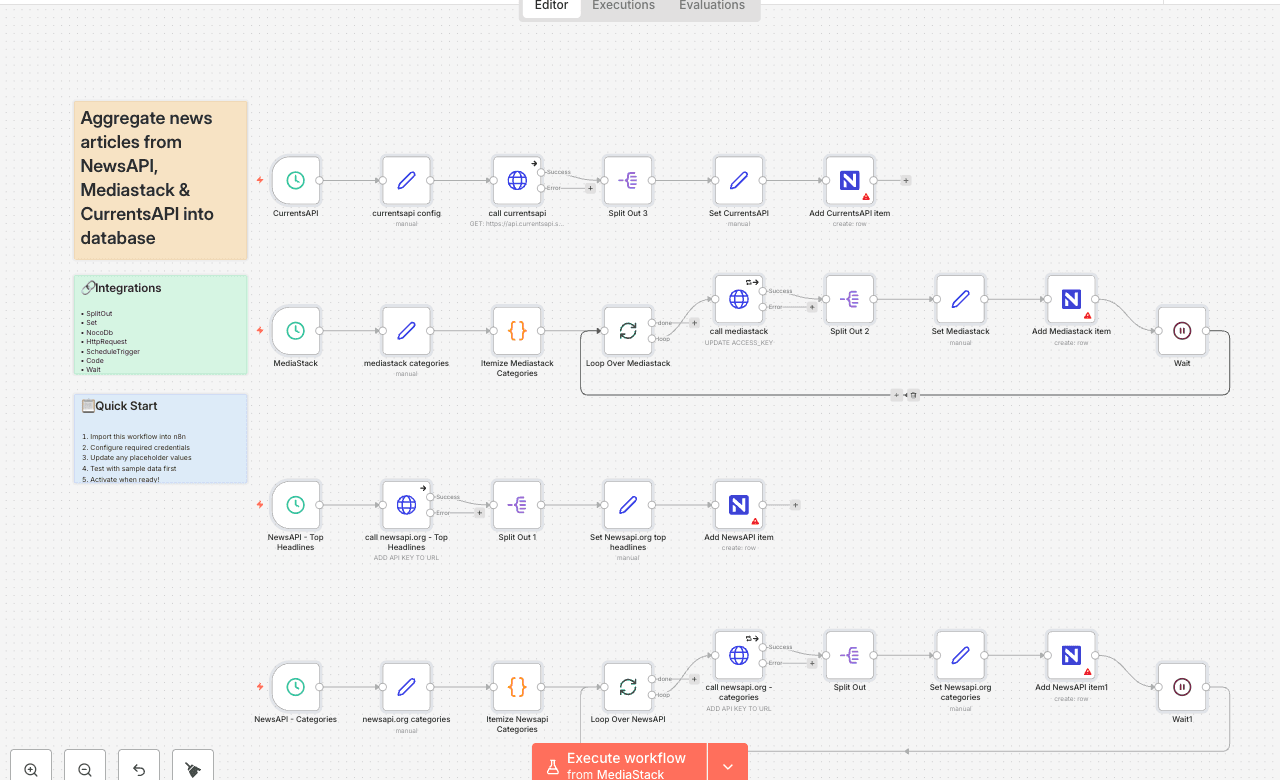
This workflow pulls news articles from NewsAPI, Mediastack, and CurrentsAPI on a scheduled basis. Each provider’s results are normalized into a consistent schema, then written into your database (NocoDB by default). Use case: automated aggregation of categorized news for content pipelines, research agents, or editorial queues. What You Must Update Before Running 1. API Keys Replace all placeholder keys: - call newsapi.org - Top Headlines → update API_KEY in URL - call newsapi.org - categories → update API_KEY - call mediastack → update "ACCESS_KEY" in JSON - call currentsapi → update "API_KEY" param 2. Database Connection Workflow uses NocoDB to store results. You must: - Update the NocoDB API Token credential to your own - Ensure your table includes the fields used in the create operations (source_category, title, summary, author, sources, content, images, publisher_date, etc.) If you prefer Google Sheets, Airtable, or another DB: - Replace each NocoDB node with your equivalent “create row” operation - The Set nodes already provide all normalized fields you need 3. Scheduling All schedulers are disabled by default. Enable the following so the workflow runs automatically: - NewsAPI – Top Headlines - NewsAPI – Categories - Mediastack - CurrentsAPI You may change the run times, but all four must be scheduled for the workflow to function as designed. What You Can Configure 1. Categories Defined in: - newsapi.org categories - mediastack categories Edit these arrays to pull only the categories you care about or to match your API plan limits. 2. Article Limits Adjust article_limit in: - newsapi.org categories - mediastack categories - currentsapi config
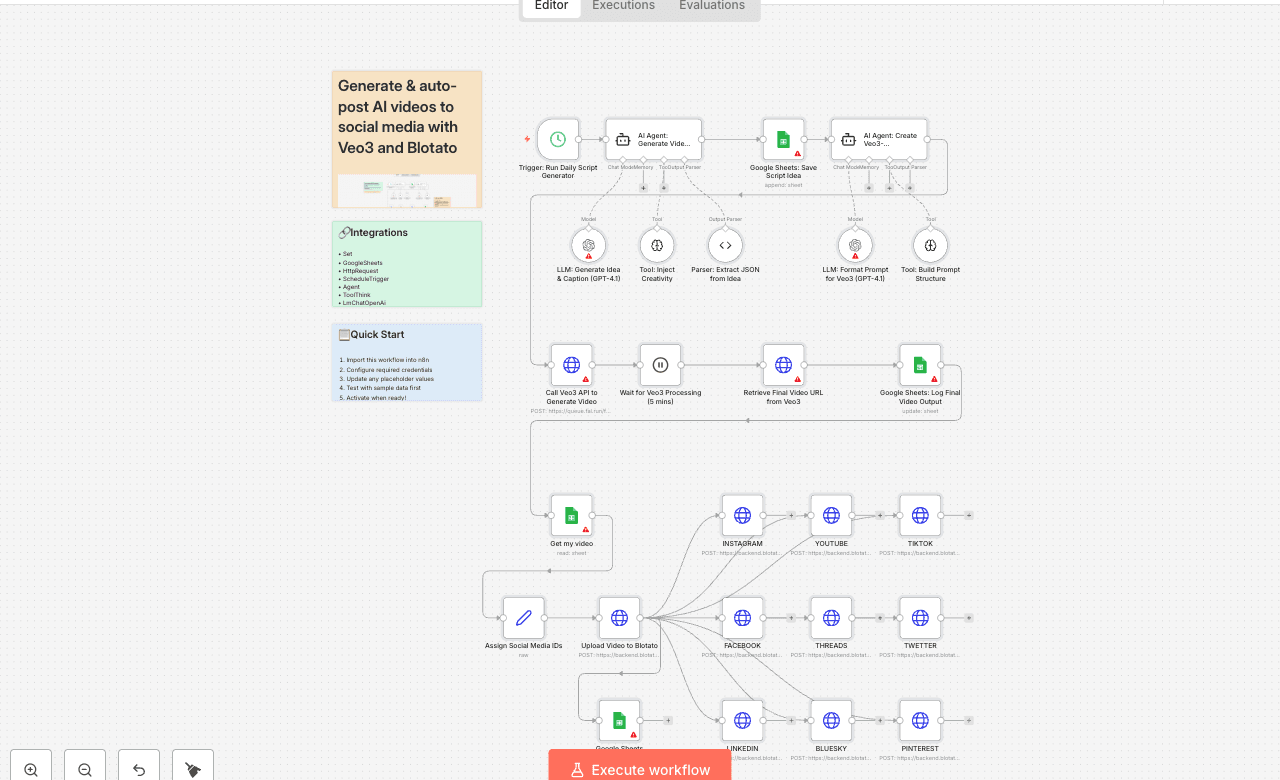
Automate video creation with Veo3 and auto-post to Instagram, TikTok via Blotato Who is this for? This template is ideal for content creators, social media managers, YouTubers, and digital marketers who want to generate high-quality videos daily using AI and distribute them effortlessly across multiple platforms. It’s perfect for anyone who wants to scale short-form content creation without video editing tools. What problem is this workflow solving? Creating and distributing consistent video content requires: - Generating ideas - Writing scripts and prompts - Rendering videos - Manually posting to platforms This workflow automates all of that. It transforms one prompt into a professional AI-generated video and publishes it automatically — saving time and increasing reach. What this workflow does 1. Triggers daily to generate a new idea with OpenAI (or your custom prompt). 2. Creates a video prompt formatted specifically for Google Veo3. 3. Generates a cinematic video using the Veo3 API. 4. Logs the video data into a Google Sheet. 5. Retrieves the final video URL once Veo3 finishes rendering. 6. Uploads the video to Blotato for publishing. 7. Auto-posts the video to Instagram, TikTok, YouTube, Facebook, LinkedIn, Threads, Twitter (X), Pinterest, and Bluesky. Setup 1. Add your OpenAI API key to the GPT-4.1 nodes. 2. Connect your Veo3 API credentials in the video generation node. 3. Link your Google Sheets account and use a sheet with columns: Prompt, Video URL, Status. 4. Connect your Blotato API key and set your platform IDs in the Assign Social Media IDs node. 5. Adjust the Schedule Trigger to your desired posting frequency. How to customize this workflow to your needs - Edit the AI prompt to align with your niche (fitness, finance, education, etc.). - Add your own branding overlays using JSON2Video or similar tools. - Change platform selection by enabling/disabling specific HTTP Request nodes. - Add a Telegram step to preview the video before auto-posting. - Track performance by adding metrics columns in Google Sheets. 📄 Documentation: [Notion Guide] Need help customizing? Contact me for consulting and support : [Linkedin] / Youtube
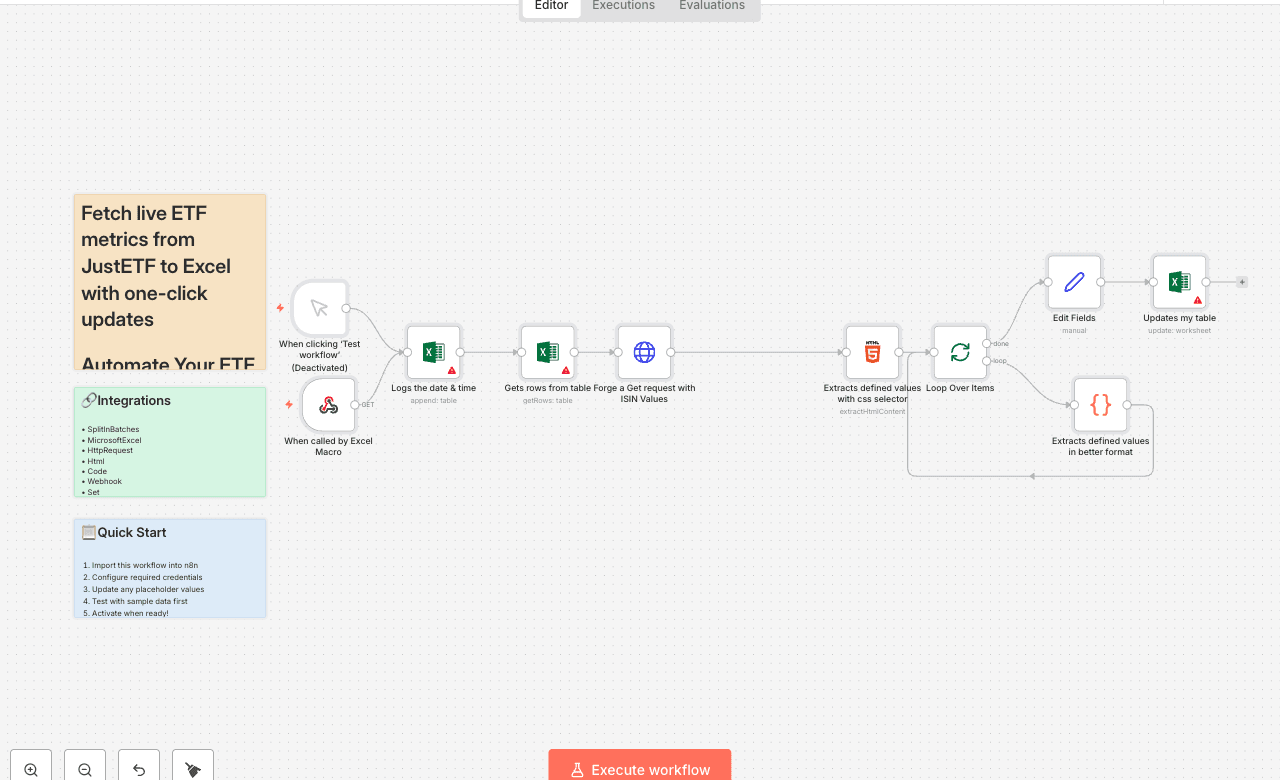
Automate Your ETF Comparison: Real-Time Data & Analysis Automate ETF research in Excel with one click. This n8n workflow pulls live data from justetf.com using ISIN codes from your Excel table, extracts key metrics (dividends, fees, 5-year performance), and updates your “Div study” sheet instantly — all triggered by a button in Excel. Perfect for dividend investors, ETF screeners, or portfolio trackers who want fresh, accurate data without manual copy-paste. How it works 1. Trigger: Click “Update Table” in Excel → calls n8n via webhook 2. Excel: Logs current time (GMT-2) and reads all rows from “DivComp” table 3. HTTP Request: Fetches ETF profile page from justetf.com using ISIN 4. HTML Extraction: Parses page with CSS selectors to grab dividends, fees, 5Y performance 5. Code Node: Cleans & structures data (e.g., last 5 years of dividends, yield, growth) 6. Update Excel: Writes clean values back to your table (fees, yield, performance, name) Setup steps 1. In Excel: - Add a button → assign macro that calls your n8n webhook URL (path: /ETF) - Ensure table “DivComp” has: ISIN, Dernière mise à jour, Frais, Performance depuis 5 ans, etc. 2. In n8n: - Connect Microsoft Excel (OneDrive) credential - Update workbook/worksheet/table references if needed - Test with 1–2 ISINs first 3. Click “Update Table” → watch data refresh in real time! Tags: ETF, Excel, Web Scraping, Investing, Finance, Automation, justetf, Dividend Tracking
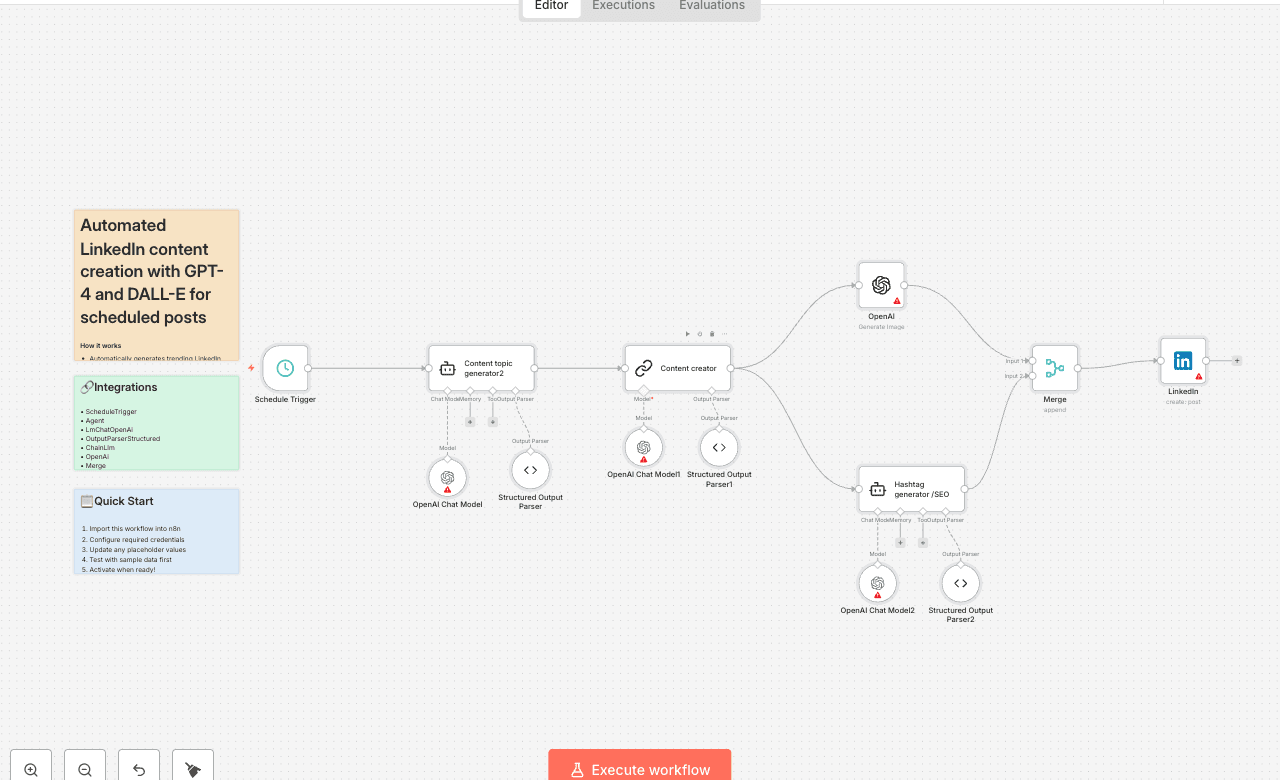
How it works - Automatically generates trending LinkedIn content topics using AI - Researches current industry angles and hooks - Writes posts in your authentic voice using OpenAI - Creates professional images with DALL-E - Posts everything on schedule without manual intervention Set up steps - Connect OpenAI API for content generation and image creation - Link LinkedIn API for automated posting - Configure scheduling triggers (daily/weekly posting) - Customize prompts to match your writing style and industry - Set up content approval workflows (optional) Results you can expect - 400% increase in profile views within 3 weeks - Generate 120+ posts per month vs manual 12 posts - Free up 15+ hours weekly for revenue-generating activities - Consistent posting schedule that builds audience engagement - Professional content that converts followers to clients Time to set up: 30-45 minutes Technical level: Beginner to intermediate APIs required: OpenAI, LinkedIn API Cost: OpenAI usage fees only (approximately $5-15/month) This workflow transforms LinkedIn content creation from a time-consuming daily task into a fully automated system that works while you sleep. Perfect for entrepreneurs, marketers, and content creators who want consistent LinkedIn presence without the manual effort.
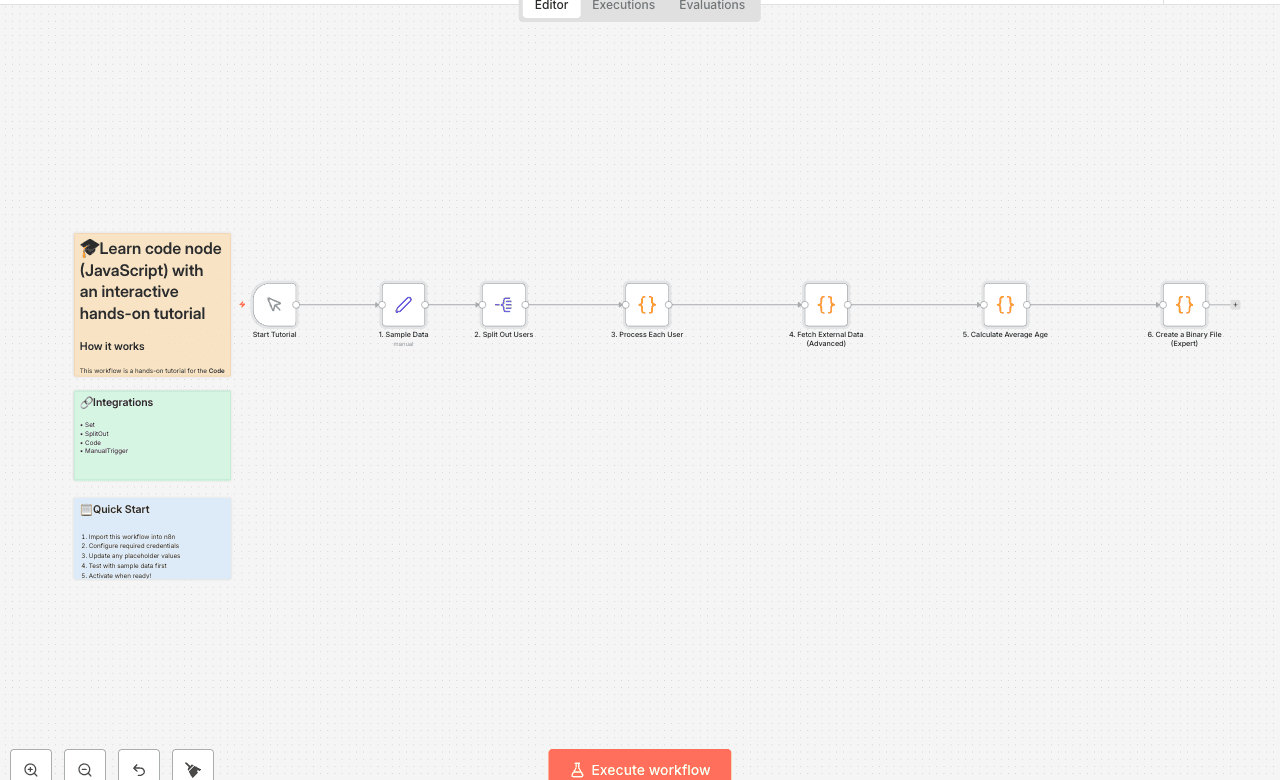
How it works This workflow is a hands-on tutorial for the Code node in n8n, covering both basic and advanced concepts through a simple data processing task. 1. Provides Sample Data: The workflow begins with a sample list of users. 2. Processes Each Item (Run Once for Each Item): The first Code node iterates through each user to calculate their fullName and age. This demonstrates basic item-by-item data manipulation using $input.item.json. 3. Fetches External Data (Advanced): The second Code node showcases a more advanced feature. For each user, it uses the built-in this.helpers.httpRequest function to call an external API (genderize.io) to enrich the data with a predicted gender. 4. Processes All Items at Once (Run Once for All Items): The third Code node receives the fully enriched list of users and runs only once. It uses $items() to access the entire list and calculate the averageAge, returning a single summary item. 5. Create a Binary File: The final Code node gets the fully enriched list of users once again and creates a binary CSV file to show how to use binary data Buffer in JavaScript. Set up steps Setup time: < 1 minute This workflow is a self-contained tutorial and requires no setup. 1. Explore the Nodes: Click on each of the Code nodes to read the code and the comments explaining each step, from basic to advanced. 2. Run the Workflow: Click "Execute Workflow" to see it in action. 3. Check the Output: Click on each node after the execution to see how the data is transformed at each stage. Notice how the data is progressively enriched. 4. Experiment! Try changing the data in the 1. Sample Data node, or modify the code in the Code nodes to see what happens.
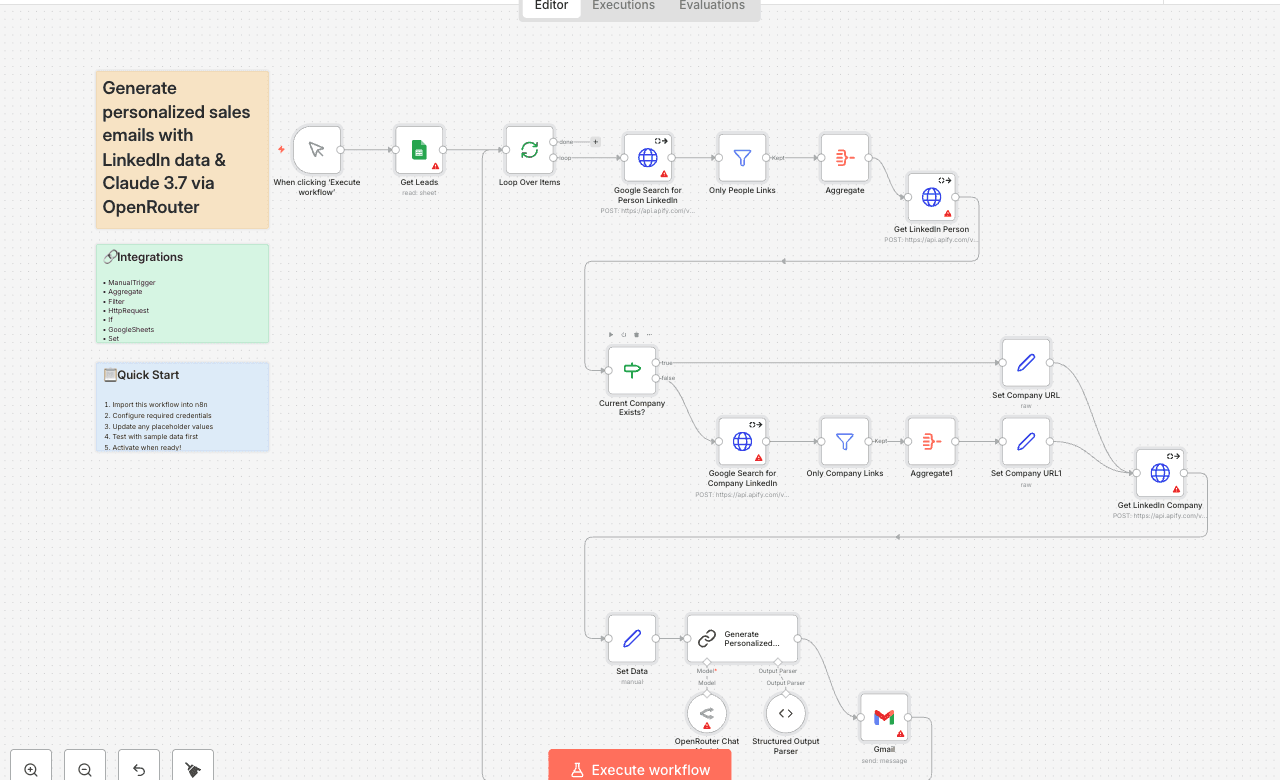
How it works - The automation loads rows from a Google Sheet of leads that you want to contact. - It makes a Google search via Apify for LinkedIn links based on the First name / Last name / Company. - Another Apify actor fetches the right LinkedIn profile based on the first profile which is retuned - The same process is done for the company that the lead works for, giving extra context. If the lead has a current company listed on their LinkedIn, we use that URL to do the lookup, rather than doing a separate Google search. - A call is made to OpenRouter to get an LLM to generate an email based on a prompt designed to do personalized outreach. - An email is sent via a Gmail node. Set up steps - Connect your Google Sheets + Gmail accounts to use these APIs. - Make an account with Apify and enter your credentials. - Set your details in the "Set My Data" node to customize the workflow to revolve around your company + value proposition. I would recommend changing the prompt in the "Generate Personalized Email" node to match the tone of voice that you want your agent to have. You can change the guidelines to e.g. change whether the agent introduces itself, and give more examples in the style you want to make the output better.
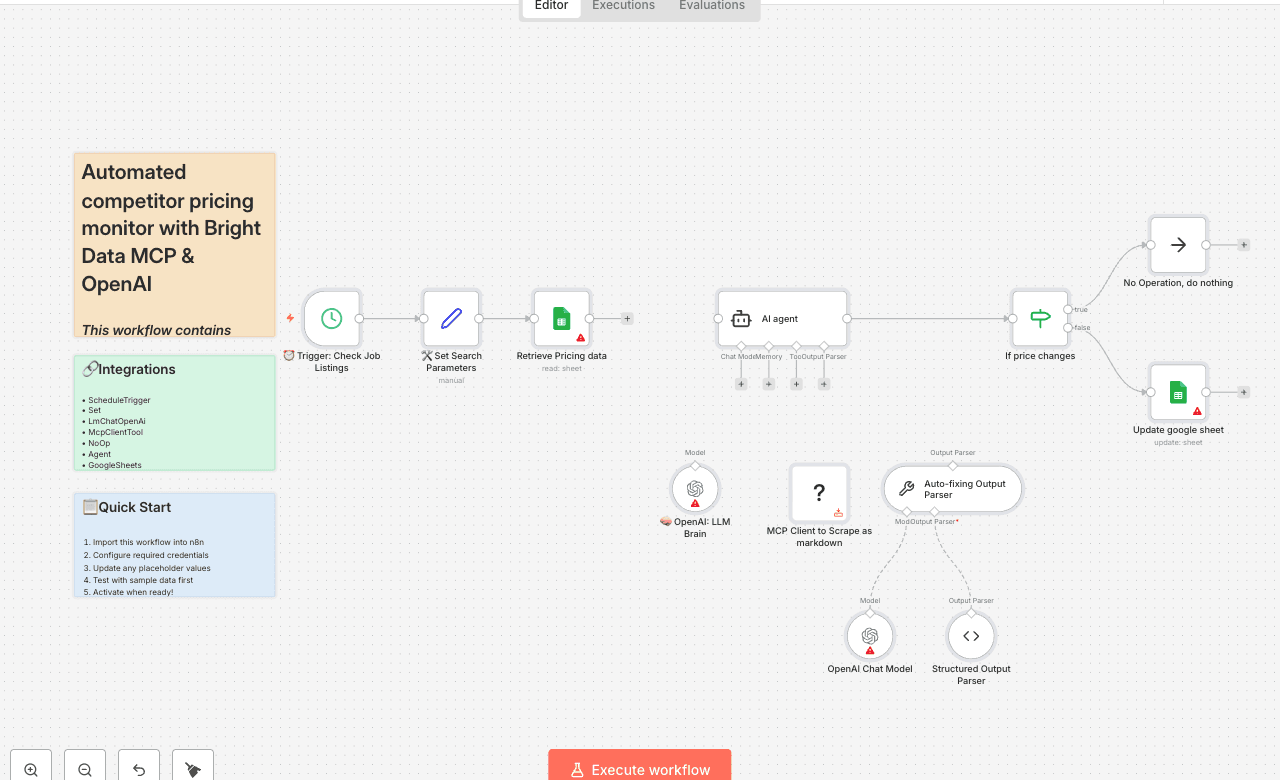
This workflow contains community nodes that are only compatible with the self-hosted version of n8n. This workflow automatically monitors competitor pricing changes and website updates to keep you informed of market movements. It saves you time by eliminating the need to manually check competitor websites and provides alerts only when actual changes occur, preventing information overload. Overview This workflow automatically scrapes competitor pricing pages (like ClickUp) and compares current pricing with previously stored data. It uses Bright Data to access competitor websites without being blocked and AI to intelligently extract pricing information, updating your tracking spreadsheet only when changes are detected. Tools Used - n8n: The automation platform that orchestrates the workflow - Bright Data: For scraping competitor websites without being blocked - OpenAI: AI agent for intelligent pricing data extraction and parsing - Google Sheets: For storing and comparing historical pricing data How to Install 1. Import the Workflow: Download the .json file and import it into your n8n instance 2. Configure Bright Data: Add your Bright Data credentials to the MCP Client node 3. Set Up OpenAI: Configure your OpenAI API credentials 4. Configure Google Sheets: Connect your Google Sheets account and set up your pricing tracking spreadsheet 5. Customize: Set your competitor URLs and pricing monitoring schedule Use Cases - Product Teams: Monitor competitor feature and pricing changes for strategic planning - Sales Teams: Stay informed of competitor pricing to adjust sales strategies - Marketing Teams: Track competitor messaging and positioning changes - Business Intelligence: Build comprehensive competitor analysis databases Connect with Me - Website: https://www.nofluff.online - YouTube: https://www. - LinkedIn: https://www.linkedin.com/in/yaronbeen/ - Get Bright Data: https://get.brightdata.com/1tndi4600b25 (Using this link supports my free workflows with a small commission) #n8n #automation #competitoranalysis #pricingmonitoring #brightdata #webscraping #competitortracking #marketintelligence #n8nworkflow #workflow #nocode #pricetracking #businessintelligence #competitiveanalysis #marketresearch #competitormonitoring #pricingdata #websitemonitoring #competitorpricing #marketanalysis #competitorwatch #pricingalerts #businessautomation #competitorinsights #markettrends #pricingchanges #competitorupdates #strategicanalysis #marketposition #competitiveintelligence
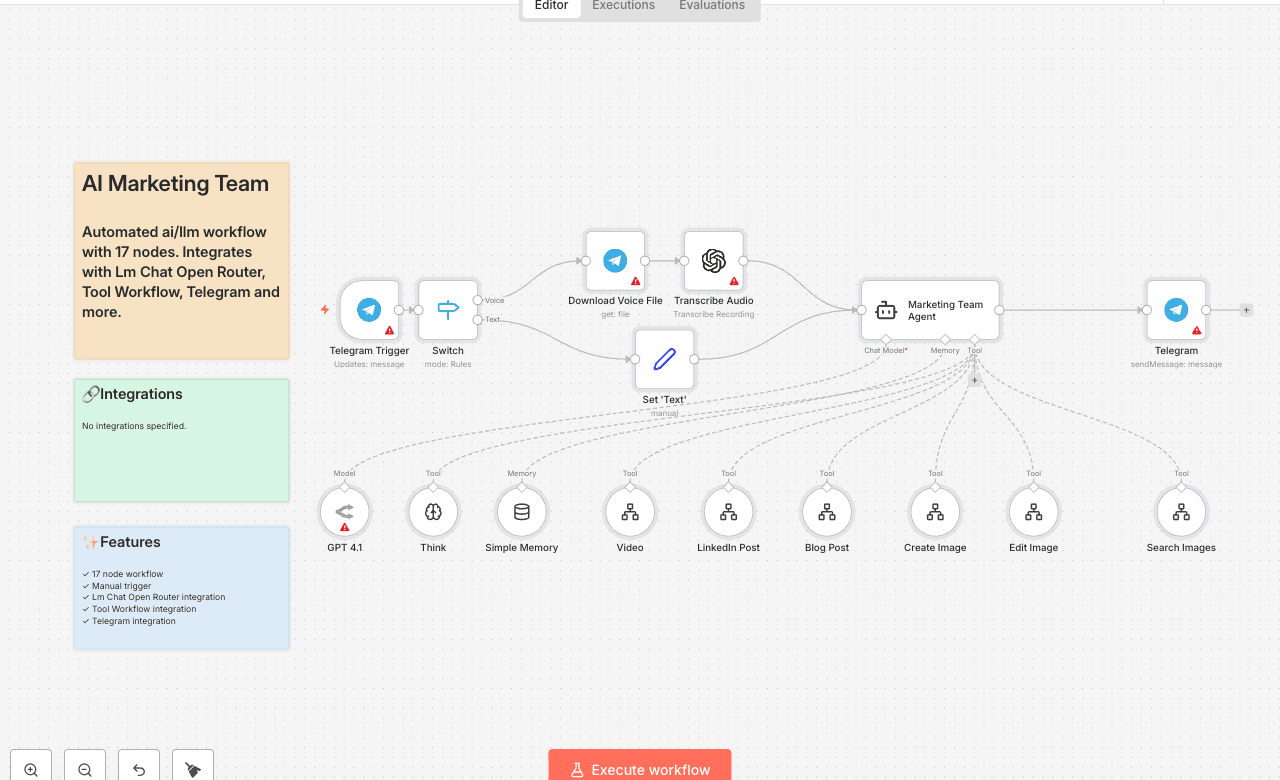
Automated ai/llm workflow with 17 nodes. Integrates with Lm Chat Open Router, Tool Workflow, Telegram and more. Node Count: 14 Difficulty: Beginner Integrations:
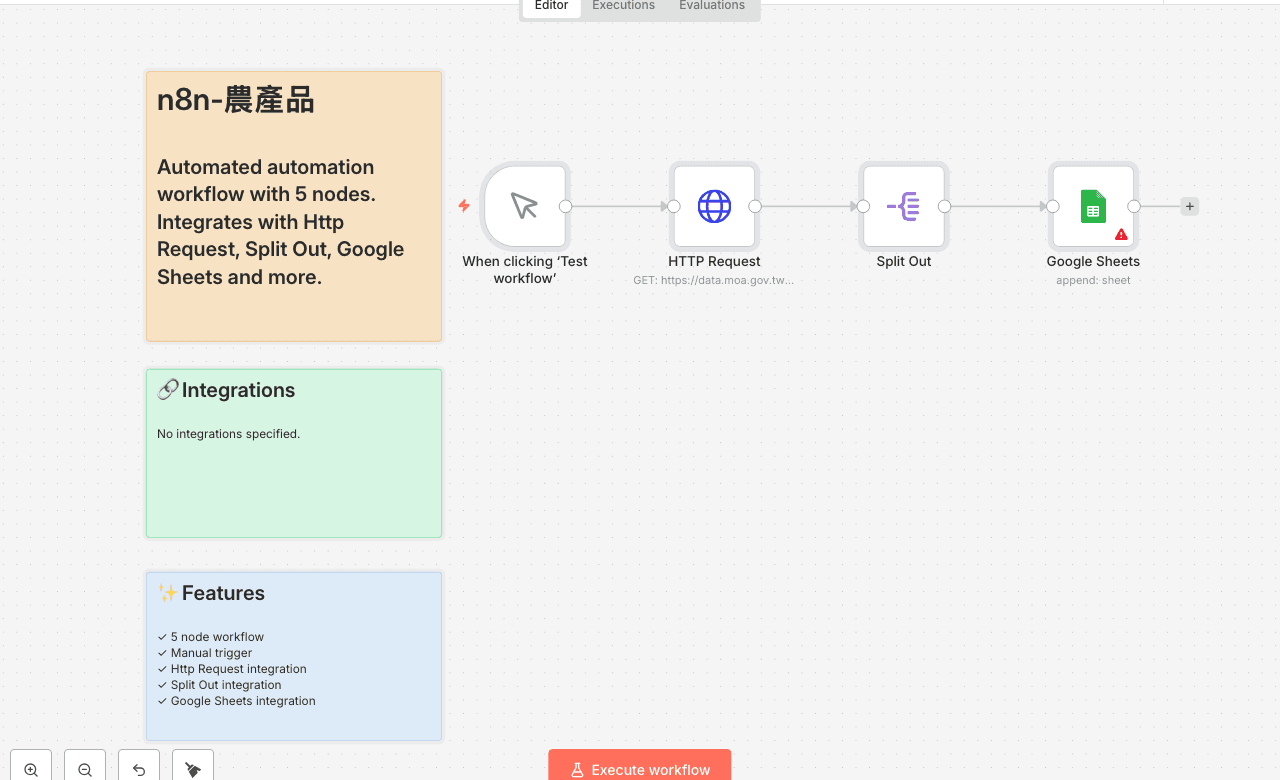
Automated automation workflow with 5 nodes. Integrates with Http Request, Split Out, Google Sheets and more. Node Count: 14 Difficulty: Beginner Integrations:
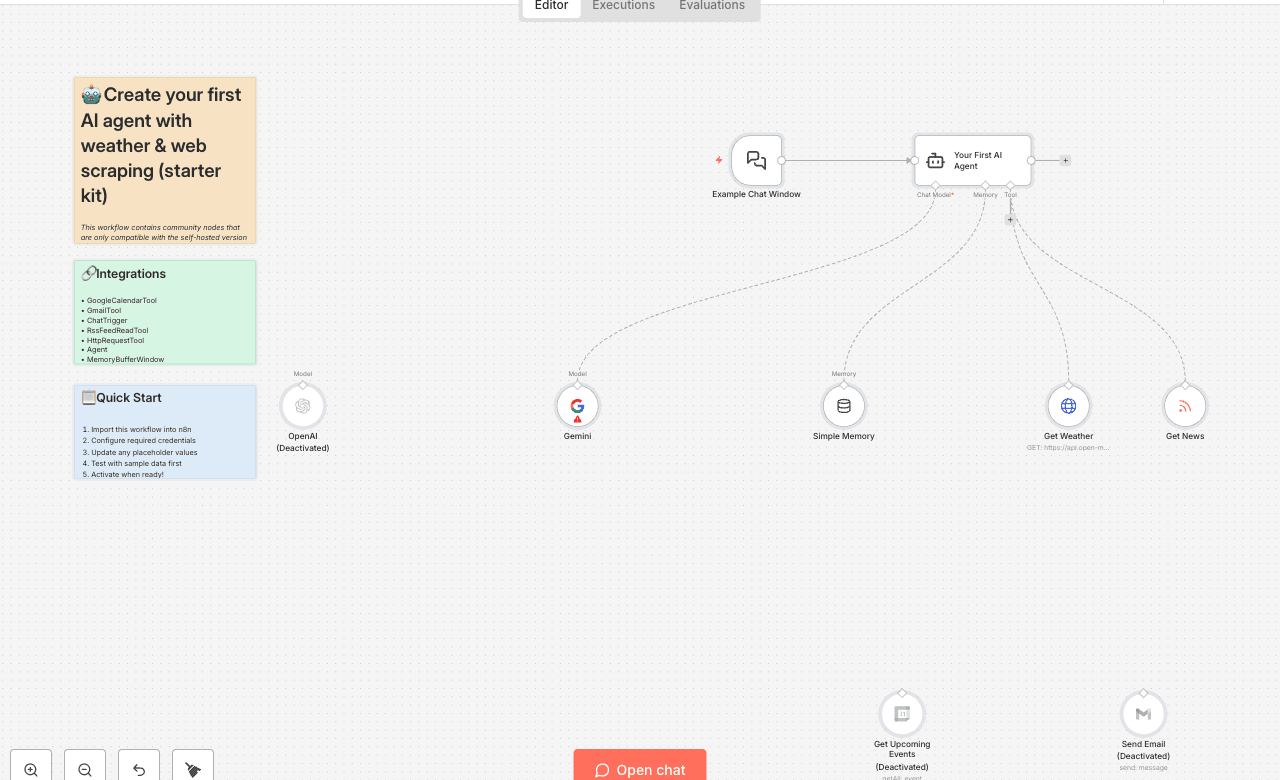
This workflow contains community nodes that are only compatible with the self-hosted version of n8n. How it works This template is your personal launchpad into the world of AI-powered automation. It provides a fully functional, interactive AI chatbot that you can set up in minutes, designed specifically for those new to AI Agents. What is an AI Agent? Think of it as a smart assistant that doesn't just talk—it acts. You give it a set of "tools" (like other n8n tool nodes), and it intelligently decides which tool to use to answer your questions or complete your tasks. This starter kit comes with a pre-built "toolbox" of superpowers, allowing your agent to: Get the Weather: Ask for the forecast anywhere in the world. Get the News: Fetch the latest headlines from n8n, CNN, and others. The workflow is designed to be a hands-on learning experience, with detailed sticky notes explaining every component, from the chat interface to the agent's "brain" and "memory." Set up steps Setup time: ~2-3 minutes This workflow is designed to be incredibly easy to start. You only need one free API key to get it working. 1. Add Your AI Key: The workflow uses Google's Gemini model by default. You will need a free Gemini API key. Find the Gemini node on the canvas. The sticky note right below it (How to Get Google Gemini Credentials) provides a link and simple instructions to get your key. In the Gemini node, click the Credential dropdown and select + Create New Credential to add your key. 2. Activate the Workflow: At the top-right of the screen, click the "Inactive" toggle switch. It will turn green and say "Active". Your agent is now live! 3. Start Chatting: Open the Example Chat Window node (it has a 💬 icon). In its parameter panel, you will see a Chat URL. Click the link to copy it. * Paste the URL into a new browser tab and start asking your agent questions! Optional: The template also includes disabled OpenAI chat model node and tools for Google Calendar, and Gmail. You can enable and configure these later to change the underlying AI model or give your agent even more superpowers!
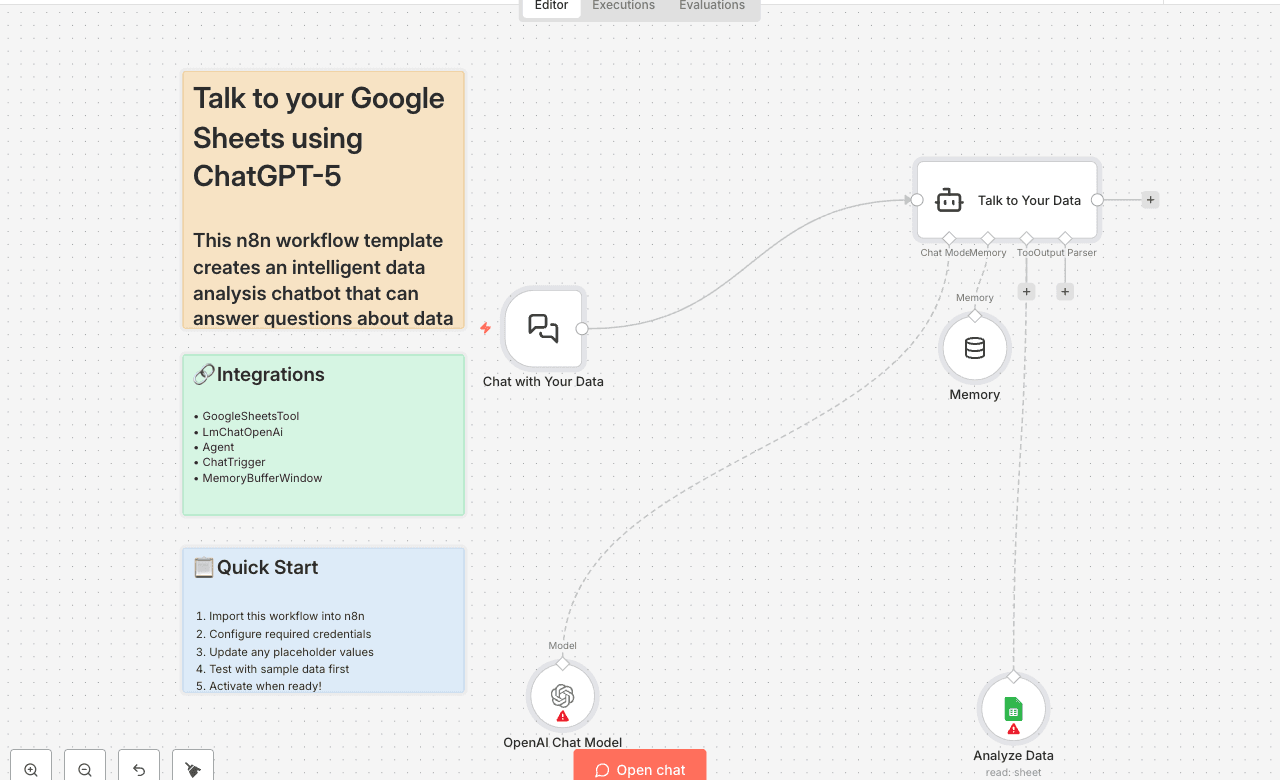
This n8n workflow template creates an intelligent data analysis chatbot that can answer questions about data stored in Google Sheets using OpenAI's GPT-5 Mini model. The system automatically analyzes your spreadsheet data and provides insights through natural language conversations. What This Workflow Does - Chat Interface: Provides a conversational interface for asking questions about your data - Smart Data Analysis: Uses AI to understand column structures and data relationships - Google Sheets Integration: Connects directly to your Google Sheets data - Memory Buffer: Maintains conversation context for follow-up questions - Automated Column Detection: Automatically identifies and describes your data columns 🚀 Try It Out! 1. Set Up OpenAI Connection Get Your API Key 1. Visit the [OpenAI API Keys] page. 2. Go to [OpenAI Billing]. 3. Add funds to your billing account. 4. Copy your API key into your OpenAI credentials in n8n (or your chosen platform). 2. Prepare Your Google Sheet Connect Your Data in Google Sheets - Data must follow this format: [Sample Marketing Data] - First row contains column names. - Data should be in rows 2–100. - Log in using OAuth, then select your workbook and sheet. 3. Ask Questions of Your Data You can ask natural language questions to analyze your marketing data, such as: - Total spend across all campaigns. - Spend for Paid Search only. - Month-over-month changes in ad spend. - Top-performing campaigns by conversion rate. - Cost per lead for each channel. 📬 Need Help or Want to Customize This? 📧 rbreen@ynteractive.com 🔗 [LinkedIn] 🔗 [n8n Automation Experts]
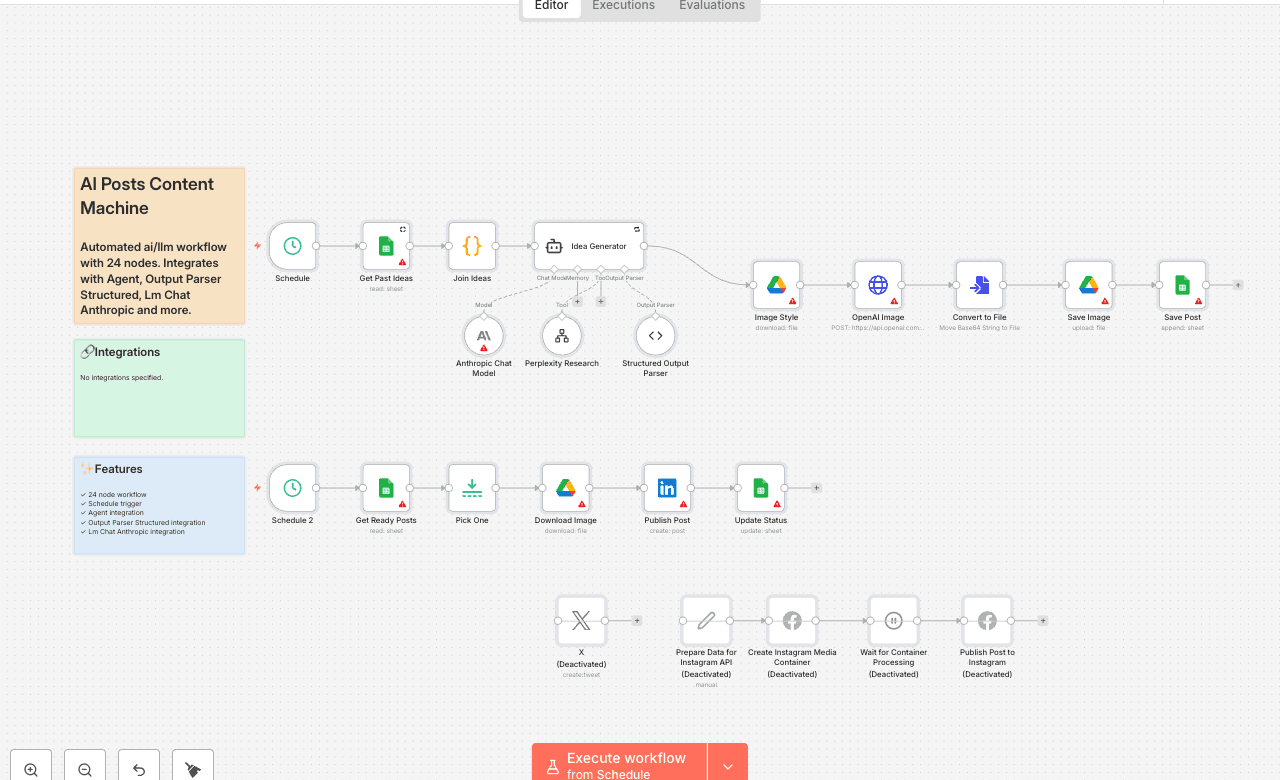
Automated ai/llm workflow with 24 nodes. Integrates with Agent, Output Parser Structured, Lm Chat Anthropic and more. Node Count: 14 Difficulty: Beginner Integrations:
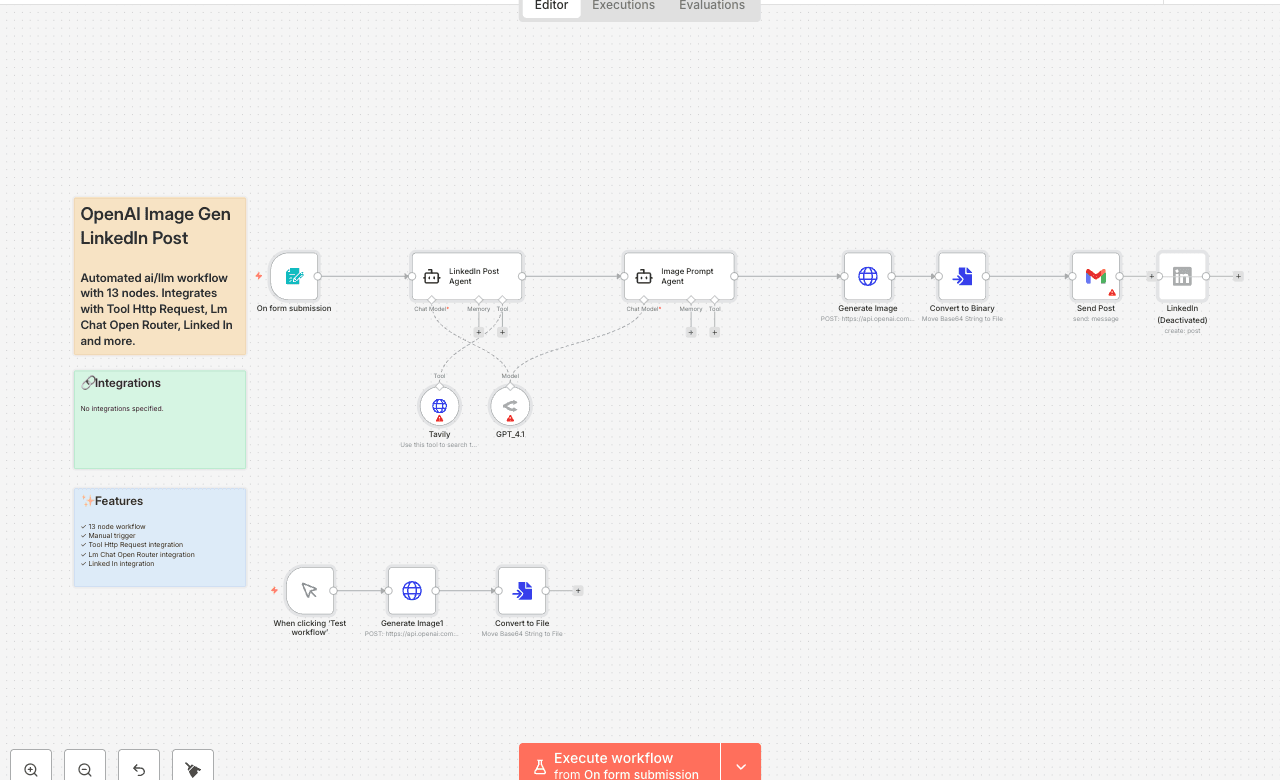
Automated ai/llm workflow with 13 nodes. Integrates with Tool Http Request, Lm Chat Open Router, Linked In and more. Node Count: 14 Difficulty: Beginner Integrations:
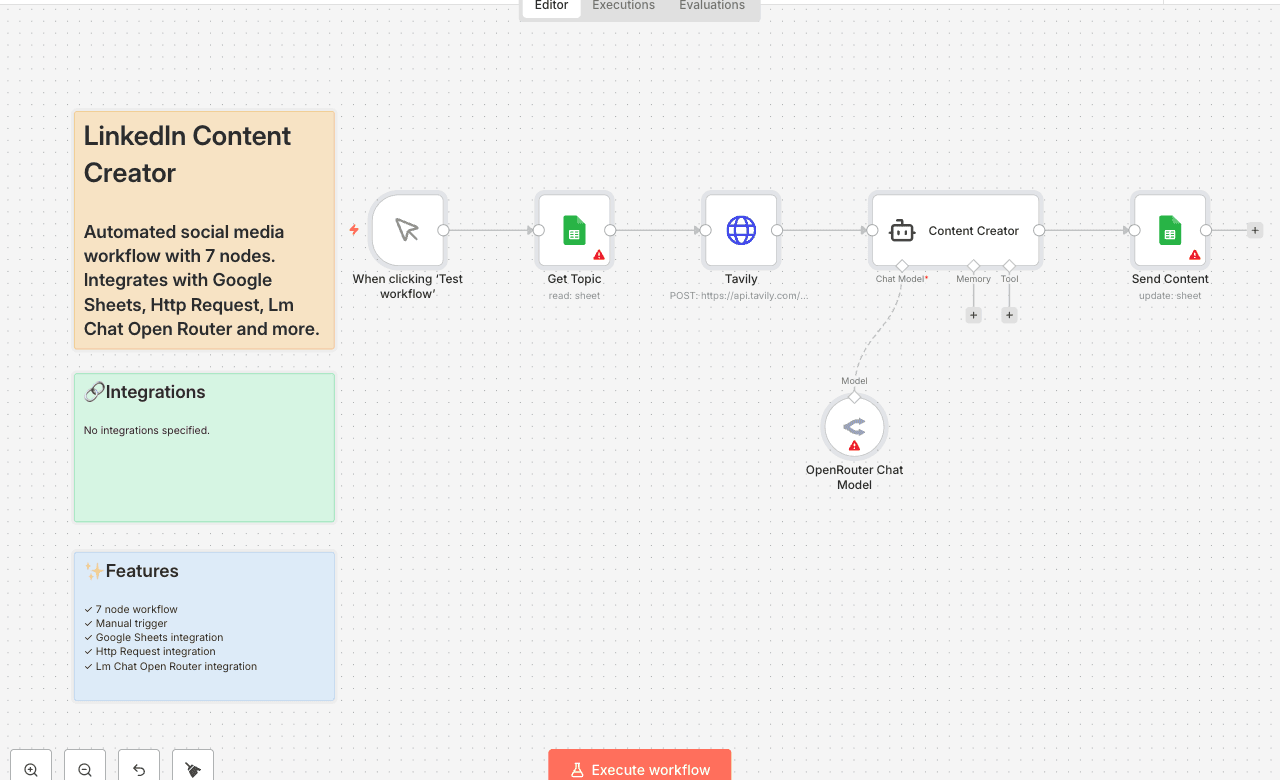
Automated social media workflow with 7 nodes. Integrates with Google Sheets, Http Request, Lm Chat Open Router and more. Node Count: 14 Difficulty: Beginner Integrations:
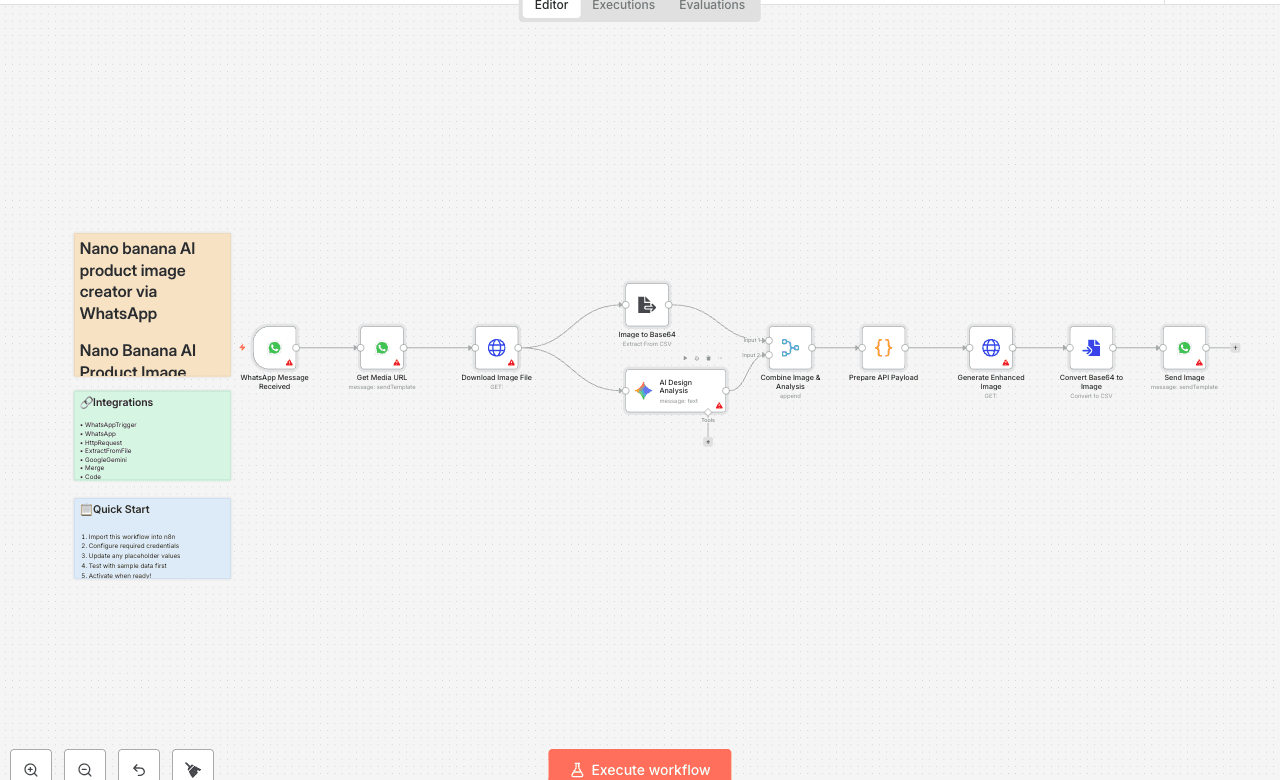
Nano Banana AI Product Image Creator via WhatsApp Transform ordinary product photos into premium marketing visuals instantly using Gemini AI for prompt enhancement and Nano Banana AI for image generation through WhatsApp. Who's it for - Small business owners - E-commerce sellers - Social media managers - Anyone selling products online What it does • Takes your normal product photo • Gets your text/caption as input • Gemini AI improves your basic prompt into professional instructions • Nano Banana AI generates new premium ad image using enhanced prompt • Keeps your original product exactly the same • Returns social media-ready marketing image Key Benefits Smart Prompt Enhancement - Gemini AI makes your simple text into professional prompts Superior Image Generation - Nano Banana AI creates premium visuals Original Product Protected - Your product stays 100% unchanged Fast Results - Get enhanced image in under 60 seconds Easy to Use - Just send photo via WhatsApp Social Media Ready - Perfect for Instagram, Facebook, ads How it works 1. Send Photo + Caption → Upload product image with your text 2. AI Prompt Magic → Gemini AI turns your caption into professional prompt 3. Image Generation → Nano Banana AI creates new premium ad using improved prompt 4. Receive Result → Get marketing-ready image back instantly The Magic Process Your Input: "Make this look premium for Instagram" Gemini AI Enhanced Prompt: "Create luxury product advertisement with professional studio lighting, marble background, elegant typography, commercial photography style, high-end visual appeal..." Nano Banana AI Generated Result: Professional marketing image created with your improved prompt What you get • Better Prompts - Gemini AI turns simple text into detailed instructions • Professional Images - Studio-quality marketing visuals generated AI • Same Product - Your original item stays unchanged • Quick Results - Ready in under 60 seconds Perfect for - Instagram posts - Facebook ads - Online store images - Social media marketing Why This Combo Works Best - Gemini AI - Expert at understanding and enhancing text prompts - Nano Banana AI - Specialized for high-quality product image generation - Best of Both - Combines prompt expertise with image generation power - Faster Results - Optimized dual-AI workflow Perfect solution for creating professional product ads from simple WhatsApp messages using the power of both Gemini AI and Nano Banana AI.
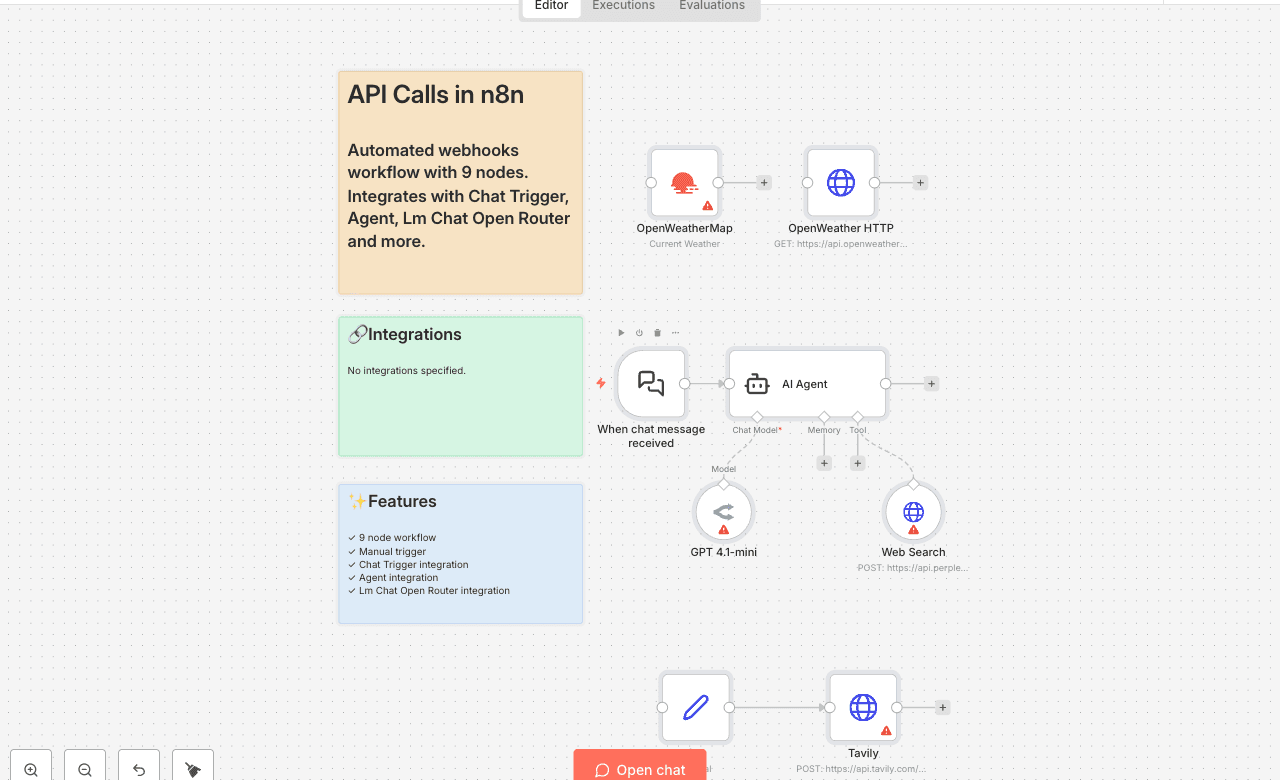
Automated webhooks workflow with 9 nodes. Integrates with Chat Trigger, Agent, Lm Chat Open Router and more. Node Count: 14 Difficulty: Beginner Integrations:
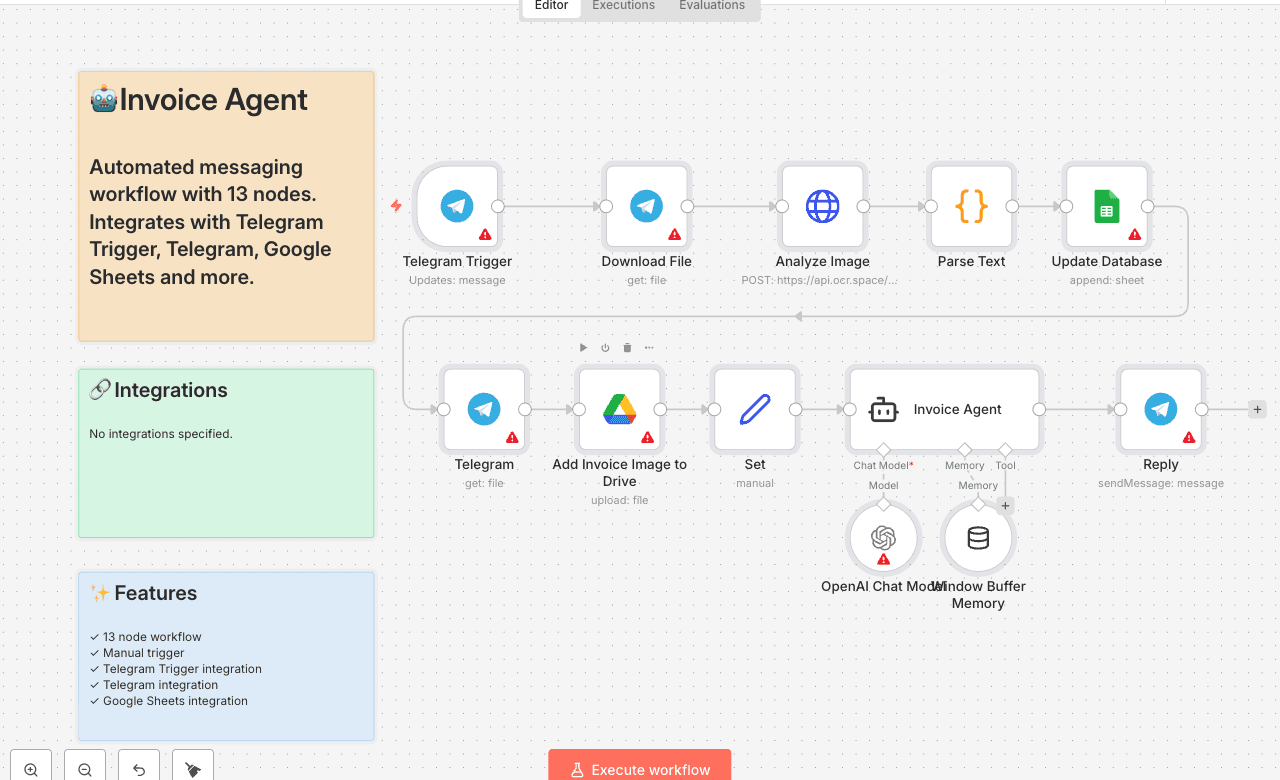
Automated messaging workflow with 13 nodes. Integrates with Telegram Trigger, Telegram, Google Sheets and more. Node Count: 14 Difficulty: Beginner Integrations:
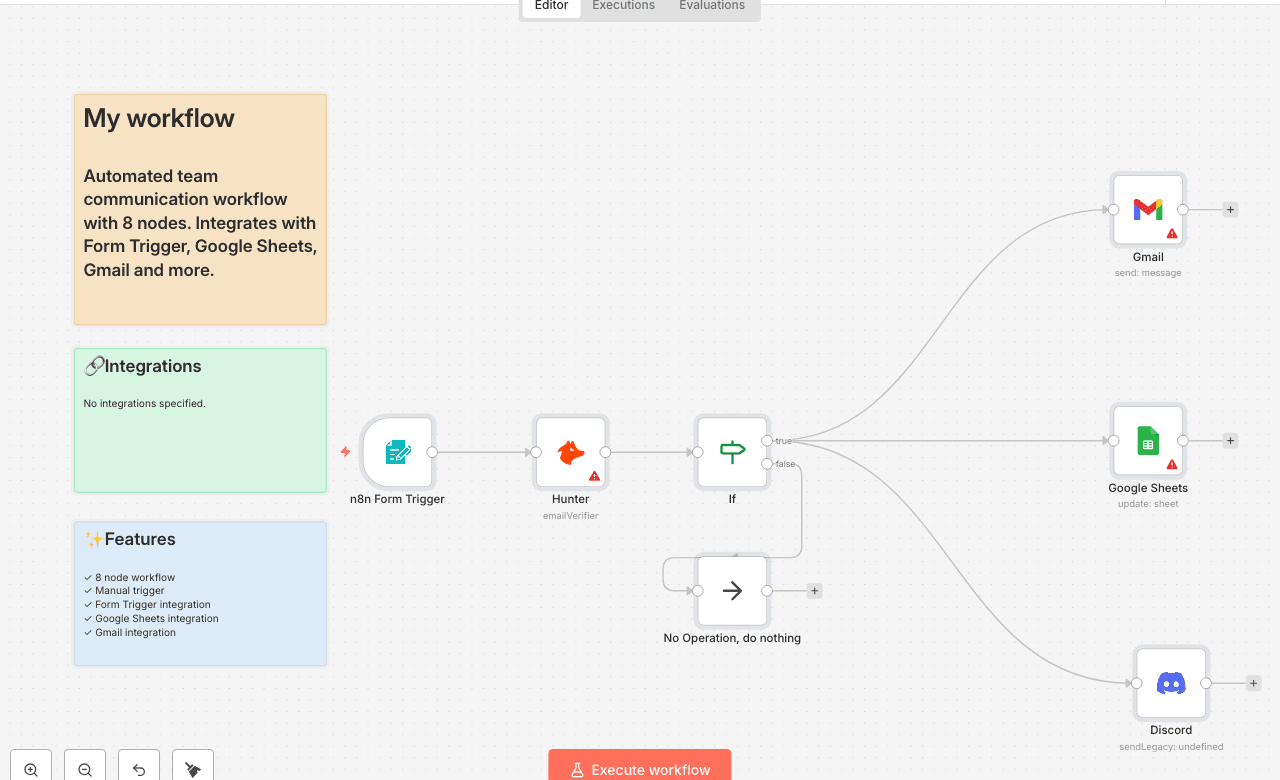
Capture form submissions, store them in Google Sheets, and send email notifications. A complete lead capture and notification workflow. Use Cases: - Contact form handling - Lead capture automation - Customer inquiry management Node Count: 8 Difficulty: Beginner Integrations: Form Trigger, Google Sheets, Gmail
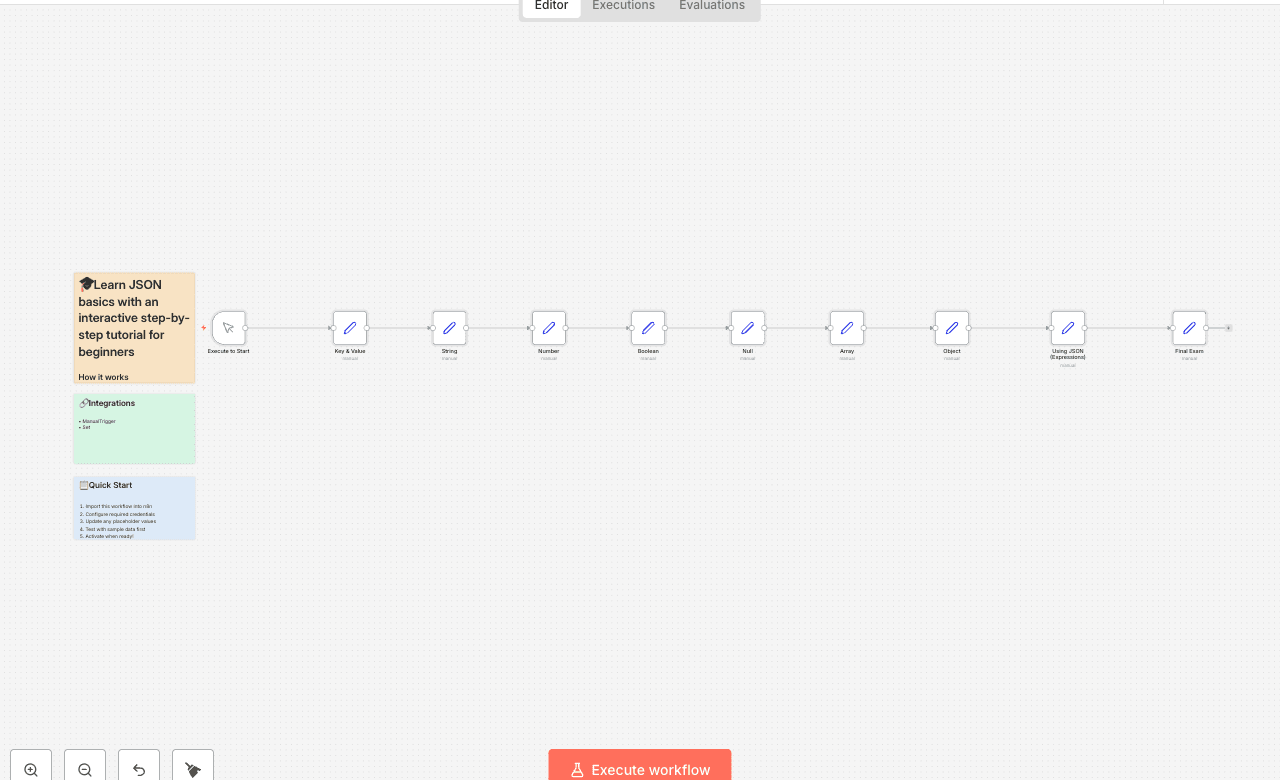
How it works This workflow is an interactive, hands-on tutorial designed to teach you the absolute basics of JSON (JavaScript Object Notation) and, more importantly, how to use it within n8n. It's perfect for beginners who are new to automation and data structures. The tutorial is structured as a series of simple steps. Each node introduces a new, fundamental concept of JSON: 1. Key/Value Pairs: The basic building block of all JSON. 2. Data Types: It then walks you through the most common data types one by one: String (text) Number (integers and decimals) Boolean (true or false) Null (representing "nothing") Array (an ordered list of items) Object (a collection of key/value pairs) 3. Using JSON with Expressions: The most important step! It shows you how to dynamically pull data from a previous node into a new one using n8n's expressions ({{ }}). 4. Final Exam: A final node puts everything together, building a complete JSON object by referencing data from all the previous steps. Each node has a detailed sticky note explaining the concept in simple terms. Set up steps Setup time: 0 minutes! This is a tutorial workflow, so there is no setup required. 1. Simply click the "Execute Workflow" button to run it. 2. Follow the instructions in the main sticky note: click on each node in order, from top to bottom. 3. For each node, observe the output in the right-hand panel and read the sticky note next to it to understand what you're seeing. By the end, you'll have a solid understanding of what JSON is and how to work with it in your own n8n workflows.