N8N Insiders
Back to Templates
AI & Automation

Get started with Google Sheets in n8n

Get started with Google Sheets in n8n
Template Info
CategoryAI & Automation
Documentation

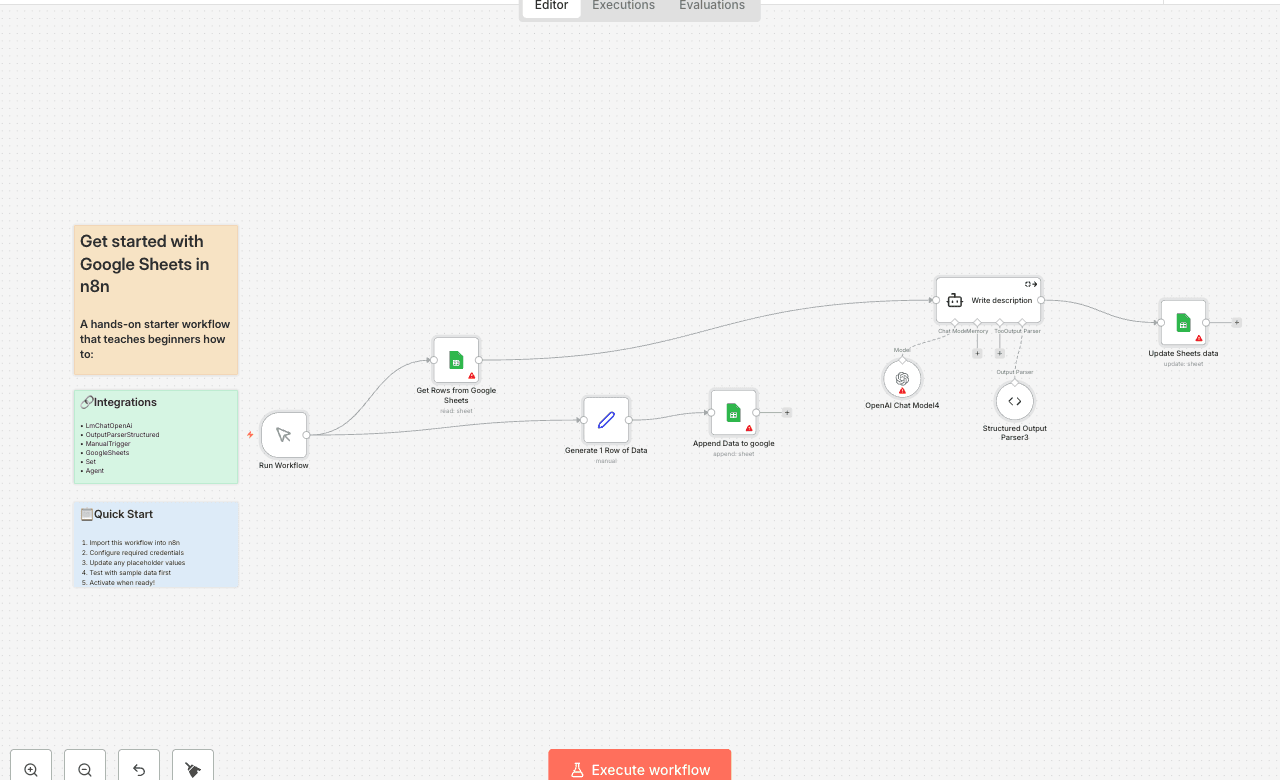
A hands-on starter workflow that teaches beginners how to:

Pull rows from a Google Sheet

Append a new record that mimics a form submission

Generate AI-powered text with GPT-4o based on a “Topic” column

Write the AI output back into the correct row using an update operation

Along the way you’ll learn the three essential Google Sheets operations in n8n (read → append → update), see how to pass sheet data into an OpenAI node, and document each step with sticky-note instructions—perfect for anyone taking their first steps in no-code automation.

0️⃣ Prerequisites

  • Google Sheets
  1. Open Google Cloud Console → create / select a project.
  2. Enable Google Sheets API under APIs & Services.
  3. Create an OAuth Desktop credential and connect it in n8n.
  4. Share the spreadsheet with the Google account linked to the credential.
  • OpenAI
  1. Create a secret key at <https://platform.openai.com/account/api-keys>.
  2. In n8n → Credentials → New → choose OpenAI API and paste the key.

1️⃣ Trigger Manual Trigger – lets you run on demand while learning. (Swap for a Schedule or Webhook once you automate.)

2️⃣ Read existing rows

  • Node: Get Rows from Google Sheets
  • Reads every row from Sheet1 of your copied file.

3️⃣ Generate a demo row

  • Node: Generate 1 Row of Data (Set node)
  • Pretends a form was submitted:
  • Name, Email, Topic, Submitted = "Yes"

4️⃣ Append the new row

  • Node: Append Data to Google
  • Operation append → writes to the first empty line.

5️⃣ Create a description with GPT-4o

  1. OpenAI Chat Model – uses your OpenAI credential.
  2. Write description (AI Agent) – prompt = the Topic.
  3. Structured Output Parser – forces JSON like: { "description": "…" }.

6️⃣ Update that same row

  • Node: Update Sheets data
  • Operation update.
  • Matches on column Email to update the correct line.
  • Writes the new Description cell returned by GPT-4o.

7️⃣ Why this matters

  • Demonstrates the three core Google Sheets operations: read → append → update.
  • Shows how to enrich sheet data with an AI step and push the result right back.
  • Sticky Notes provide inline docs so anyone opening the workflow understands the flow instantly.

👤 Need help? Robert Breen – Automation Consultant ✉️ robert.j.breen@gmail.com 🔗 <https://www.linkedin.com/in/robert-breen-29429625/>